Here is How to Fix DllRegisterServer Was Not Found
The problems with registering a DLL and using files in the command prompt are common issues that users encounter frequently, leading to confusion about how to resolve them. This article will guide you through the process from start to finish, providing workable solutions to fix these errors. Let's get started!
| Workable Solutions | Step-by-step Troubleshooting |
|---|---|
| 1. Copy the DLL File | Open your File Explorer and navigate to the System32 folder. In the System32 folder...Full steps |
| 2. Run System File Checker | Go to the search box, type Command Prompt, and from the options, click on Run as Administrator...Full steps |
| 3. Adjust Permissions | Open the Registry Editor by pressing the Windows+R keys and then...Full steps |
| 4. Disable Third-party Antivirus | Right-click on your third-party antivirus software option, in the system tray...Full steps |
Error - DllRegisterServer Was Not Found
The DllRegisterServer error occurs when the DLL server's registration script is not properly installed or configured, causing the system to be unable to find the DllRegisterServer function. This function is typically used by DLLs to register themselves with the system. To resolve this issue, ensure that the DLL server is properly installed and that its registration script is correctly configured.
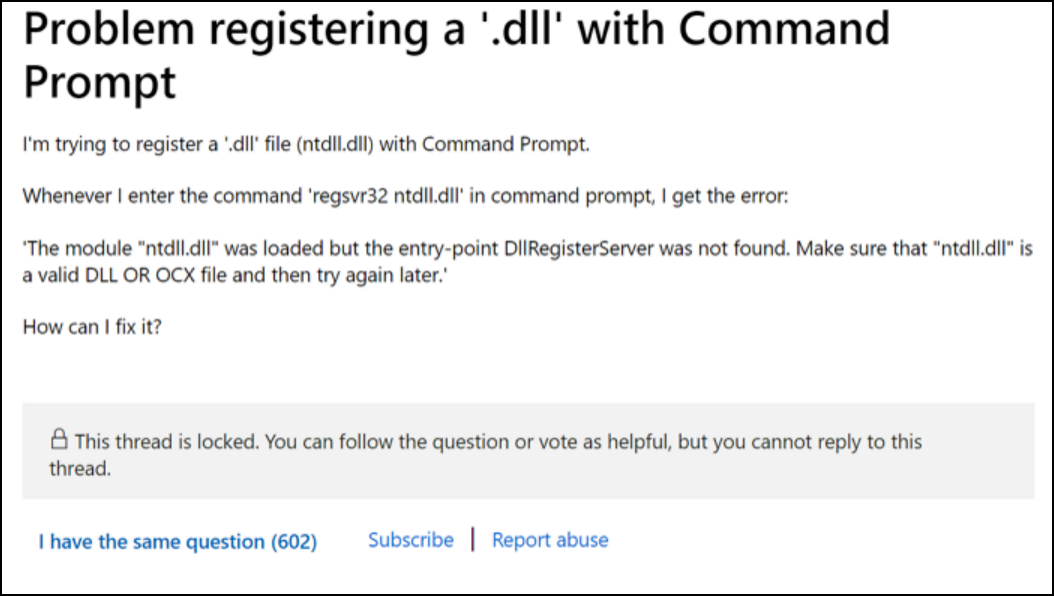
The command "regsvr32 ntdll.dll" is not working for many users when trying to register and use DLL files, which is a common issue.
However, there are multiple ways to fix this error message. Let us walk you through the workable solutions and fixes one after the other by explaining detailed steps to follow each fix.
How to Fix DllRegisterServer Was Not Found
Despite the Microsoft forum being overwhelmed with queries about the DllRegisterServer Was Not Found Error, users have found solutions to resolve the issue by referring to the forum's answers.
Here are multiple fixes for the error, and one of them is bound to work for you. You can try them one by one until you find the solution that works for you. The fixes include checking the system configuration, updating the software, and running a system file checker. You can also try to reset the system to its default settings or reinstall the software.
To fix the DllRegisterServer was not found error, you can try registering the DLL manually using the Regsvr32 tool, which comes with Windows. This tool allows you to register and unregister OCX and DLL files.
Before we get into detail, here's a quick look at all the solutions that we'll talk about further.
- 1. Copy the DLL File into the SysWow64 Folder
- 2. Run System File Checker (SFC)
- 3. Adjust Permissions for the TypeLib Registry Key
- 4. Disable Third-party Antivirus Software
Fix 1. Copy the DLL File into the SysWow64 Folder
When trying to run a file in the System32 folder, you may encounter an error message. Copying the file to the SysWow64 folder and re-registering it may resolve the issue. This method has been effective for those who have encountered this problem with OCX or other files in the System32 folder.
The process is quick and straightforward, and you'll get it done within minutes. Hereinbelow are the steps that you need to follow.
Step 1. To navigate to the System32 folder, open File Explorer using the Windows+E shortcut, and then browse to the System32 folder.
Step 2.To resolve the error message, navigate to the System32 folder, locate the file that triggered the error (e.g., an OCX file), and copy it. This will allow you to work with the file without encountering the error message again.
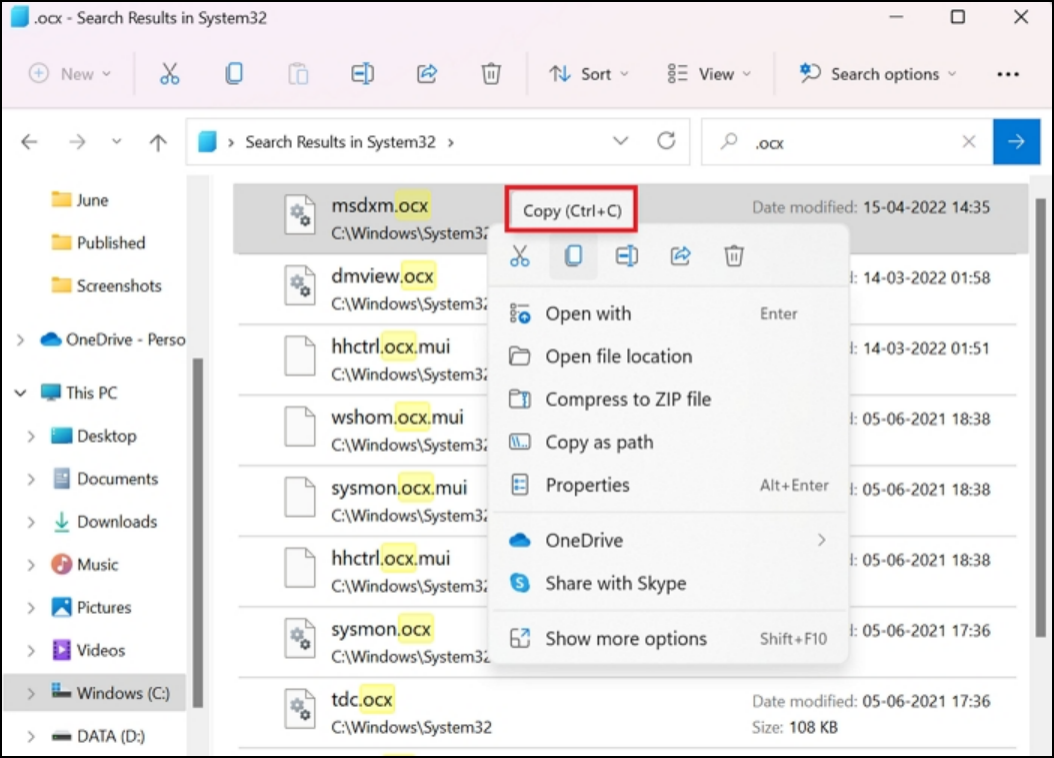
Step 3. To resolve the issue, find the SysWow64 folder on your system, open it, and paste the copied OCX file into this folder. This should resolve the problem.
Step 4. To resolve the issue with your DLL file, you can try re-registering it. This involves opening the command prompt, navigating to the folder containing the DLL file, and running the registration command. If the problem was caused by a simple error in the file, this should resolve the issue.
If this solution doesn't work for you and you still encounter the error, don't worry. You can move on to the next fix explained below.
Fix 2. Run System File Checker (SFC)
Corrupt system files can cause the DllRegisterServer command prompt to fail, and checking and fixing these files may resolve the issue.
All you have to do is run the SFC command using the steps explained hereinbelow.
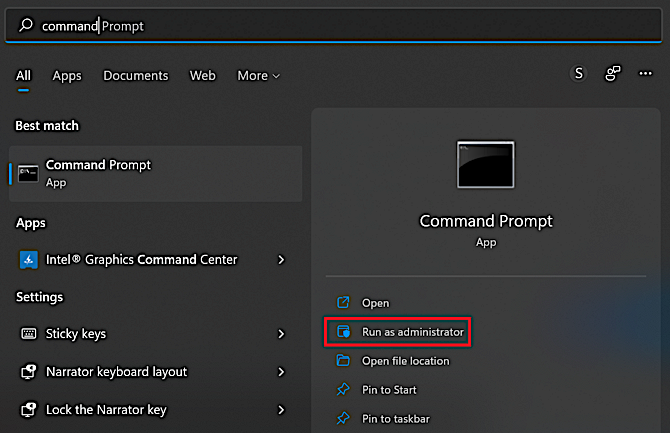
Step 1. To open the Command Prompt as an administrator, go to the search box, type "Command Prompt", and from the options, click on "Run as Administrator".
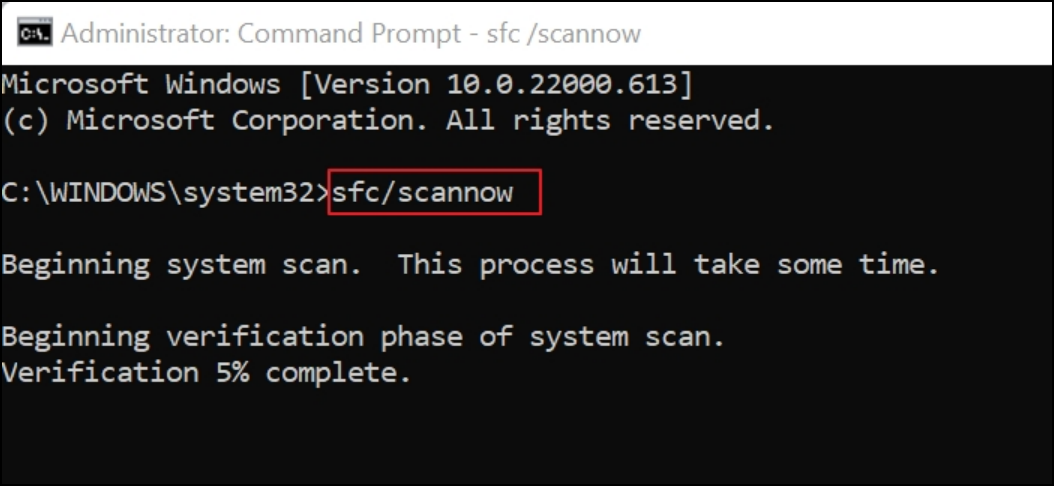
Step 2.To run the System File Checker in the administrator panel, type 'sfc/scannow' and press Enter, then wait for the scan to complete, which may take a few minutes.
Step 3. Once the scan is complete, you can restart your system and see if the DllRegisterServer failure is resolved or not.
If the error was caused by corrupted files, this should resolve the issue. If not, there may be another problem, and you can try the following solution.
Fix 3. Adjust Permissions for the TypeLib Registry Key
If the error is not caused by the files, it might be due to insufficient permissions for the TypeLib registry key, resulting in a DllRegisterServer error. Changing the permissions may resolve the issue.
Follow the below steps to change the permissions:
Step 1. To open the Registry Editor, press the Windows+R keys and type regedit in the Run command box, then press OK.

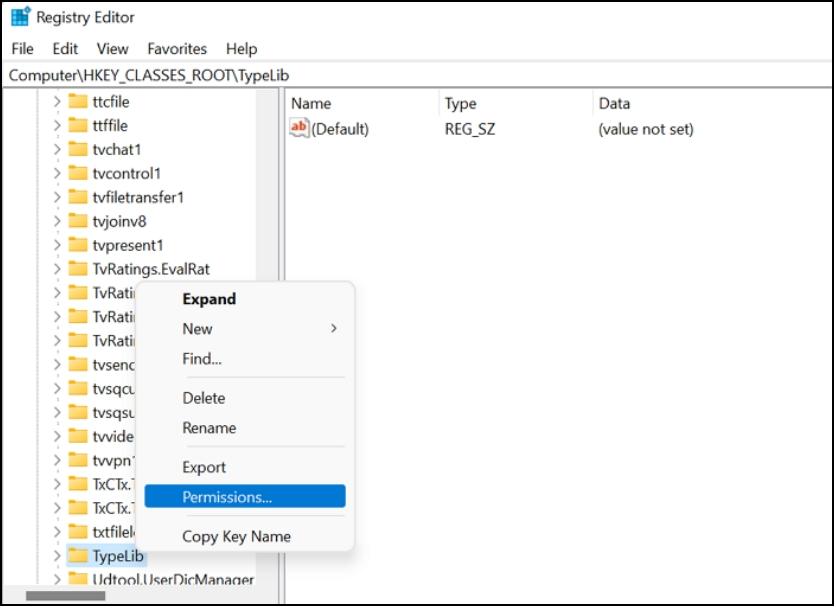
Step 2. In the left window pane, scroll down to the "TypeLib" option within the "HKEY_CLASSES_ROOT" option, right-click on it, and from the drop-down menu, click on the "Permissions" option.
Step 3. In the pop-up that appears, select the user account, check the box for Full Control, click OK, and then Apply to save the permissions.
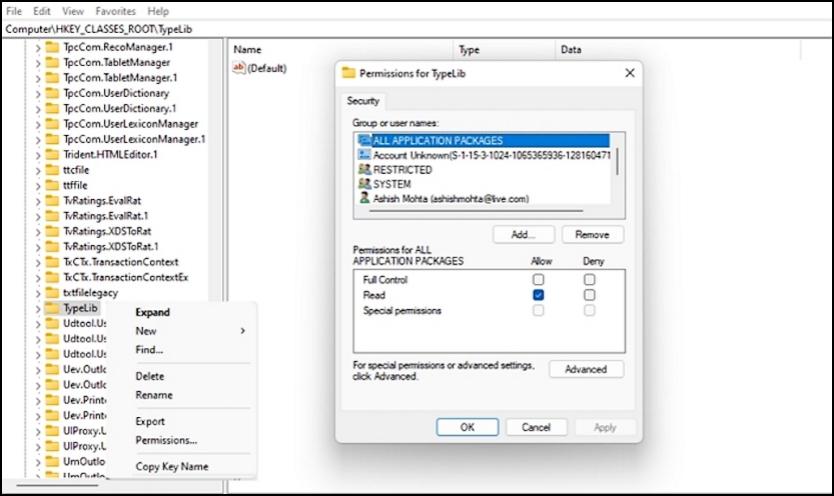
After this, you can re-register the DLL file without encountering any error.
If the error persists, you can try the next solution below.
Fix 4. Disable Third-party Antivirus Software
If the error persists despite trying the solutions in this guide, disabling antivirus software may be a possible solution.
The process to disable an antivirus varies depending on the specific product being used.
Step 1. Right-click on your third-party antivirus software option, in the system tray.
Step 2. To disable antivirus software temporarily, select an option from the drop-down menu that suits your preference.
Step 3. Once done, click on the "OK" button.
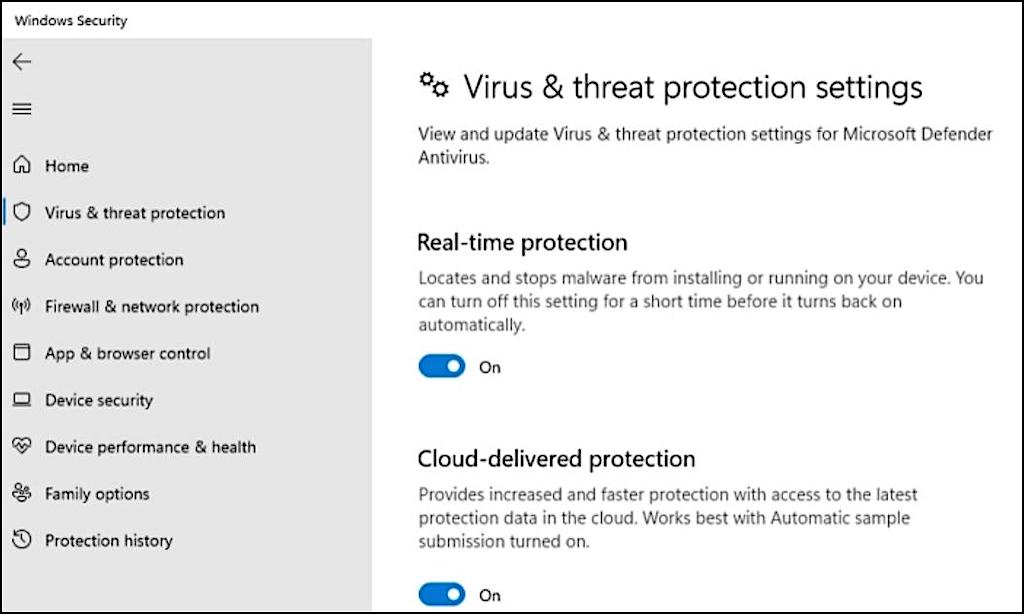
You can try running the command prompt for the DllRegisterServer after this. It should work without showing any error message. Do not forget to re-enable your antivirus software after you're done.
To solve the "DllRegisterServer Was Not Found" error, try one of the fixes mentioned, which should resolve the issue most of the time. However, keep in mind that some of these fixes may result in data loss, requiring data recovery.
Extra Tips. Restore Data After Fixing DllRegisterServer Error
Sometimes, fixing the DllRegisterServer failed error can lead to data loss, but you can recover your data using the Deep Data Recovery Free software, which is available for free and can efficiently restore all your data from Windows 11/10/8/7.
Deep Data Recovery is a free software that can help restore lost data, providing complete restoration without any cost.
The software is user-friendly and can be used by anyone, even a novice, to quickly recover data. To use it, simply download the software and follow the operating steps provided.
With Deep Data Recovery software, you can successfully recover from any data loss situation. It has helped hundreds and thousands of users, and you can also overcome your data loss problem. So, what are you waiting for? Download Deep Data Recovery to get started.
Step 1. Launch Qiling file recovery software on your Windows computer. Select file types and click "Fast Scan" to start the recovery process.

Note: You can choose different search modes based on where and why the data was lost.
Step 2. Choose the exact location where you lost the files and click the "Scan" button.

Step 3. The software will start scanning the drive immediately, displaying deleted files soon. If you find the desired files during the scan, you can stop it. To quickly find the target file, you can use the file format filter.

Step 4. Select files, such as Word, Excel, PDF, photos, videos, or emails and click the "Recover" button. You can browse for a different location to keep the recovered files.
Conclusion
If you're getting the DllRegisterServer Was Not Found error on your system, there are several potential fixes. You can try copying the file into the correct folder, running a System File Checker (SFC) scan to check for corrupt files, or editing and adjusting the permissions in the TypeLib folder. Alternatively, you can try temporarily disabling your antivirus software to see if that resolves the issue. These methods may require some trial and error to find the one that works for you.
To resolve the DllRegisterServer failure, try out the solutions provided, such as running the System File Checker, running the Windows Update, and checking for corrupted system files. If you experience data loss during these fixes, Deep Data Recovery is a reliable solution to recover your lost data. By following these steps, you can successfully fix the DllRegisterServer failure and prevent future data loss situations.
Related Articles
- The Best SSD Data Recovery Software for SSD Data/File Recovery
- TXT File Recovery - Two Methods to Recover Lost Text Files
- How to Repair a Corrupted Hard Disk Without Formatting It in Windows 10/8/7
- Restarted My Computer and Everything Is Gone Windows 11/10/8/7
- How to Recover Files after Shutdown
To recover files after a computer shutdown, simply install data recovery software, use it to scan your computer for lost files, preview the recovered files, and then recover them. - How to Recover Files Deleted by Antivirus using CMD and Software
Recovering files deleted by antivirus can be a frustrating experience, but there are ways to retrieve them. One approach is to use a file recovery software that can scan the computer's hard drive and restore deleted files.
Products
Articles & Tutorials
- Data Recovery
- Data Backup
- File Recovery
- File Backup
- System Backup and Restore
- Disk and Partition Clone
- Technical articles
- Mobile articles
- Disk Master Help
- Windows Data Recovery Tutorials
- Windows Secure Delete Tutorials
- Windows Partition Management Tutorials
- Windows File Backup and Restore Tutorials
- Windows System Backup and Restore Tutorials
- Windows Disk Backup and Restore Tutorials
- Windows Clone Tutorials