TXT File Recovery - Two Methods to Recover Lost Text Files
Recover Unsaved Notepad Documents
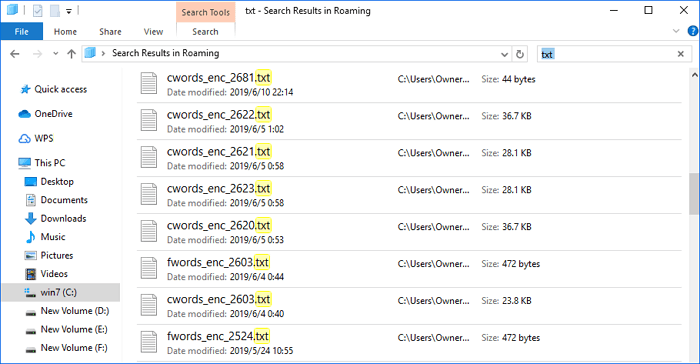
Step 1. Go to "Start"
Step 2. Under the search bar, Type %AppData%
Step 3. Click "Enter" to direct to C:\Users\USERNAME\AppData\Roaming
Step 4. To recover a lost Notepad file, type its filename in the search bar. This should bring up the file if it's still on your system. If you can't find it, you may want to check your recycle bin or other backup locations. If the file is still not found, you can try using a file recovery software to scan your computer for deleted files.
After navigating the process of recovering a TXT file, you can read on to learn more about the process. Alternatively, you can recover a lost TXT file by following these steps.
Overview - What Is a TXT File
A TXT file is a standard text document that contains unformatted text, recognized by any text editing or word processing program, and can also be processed by most other software programs. It is often created and opened using Microsoft Notepad and Apple TextEdit.
TXT files are used for storing plain text information without any special formatting, making them ideal for recording notes, directions, and other documents that don't require a specific appearance.
There are instances where you lose Notepad (txt) files due to various reasons such as accidental deletion, system crashes, or software glitches.
- Accidental deletion
- Mistaken format
- OS crash
- Virus attack and more...
Notepad file recovery is necessary due to various incidents. Fortunately, there are two ways to retrieve lost .txt files.
Method 1. Manually Restore TXT Files
If you don't have an auto recover feature, recovering inaccessible files requires some technical expertise. Temp files can be used to recover unsaved Notepad (.txt) files.
Step 1: Go to "Start"
Step 2: Under the search bar, Type %AppData%
Step 3: Click "Enter" to direct to C:\Users\USERNAME\AppData\Roaming
Step 4: To retrieve a Notepad file, type the filename in the search bar and it will be displayed.
You can recover deleted or lost text files using this method, which also allows for recovering deleted or lost files. However, it is manual-oriented, meaning you'll need to perform the recovery process yourself. If you prefer a more straightforward approach, consider Method 2 instead.
Method 2. Recover TXT Files With File Recovery Freeware (Easier)
You can easily restore lost TXT files with the help of recovery software, such as Qiling file recovery software, which offers a free and quick data recovery solution.
Supported Devices:
A computer or laptop is the central device that stores and processes data, often using a hard drive or solid-state drive (SSD) for storage. To ensure data safety and performance, some systems use RAID (Redundant Array of Independent Disks) to duplicate and protect data across multiple drives.
Supported OS:
Windows 10/8.1/8/7/Vista/XP, Windows Server 2019/2016/2012/2008/2003.
Supported Situations:
Formatted recovery, OS crash recovery, lost partition recovery, RAW partition recovery, deleted recovery, and more can be achieved with formatted recovery tools. These tools are designed to recover data from formatted, crashed, or corrupted operating systems, lost partitions, and RAW partitions.
Supported File Types:
Recover all types of lost files, including photos, documents, videos, audio files, emails, compressed files, and more.
Step 1. Run Deep Data Recovery, select file types, and click "Fast Scan" to start the process.

Note: You can choose different search modes based on where and why the data was lost.
Step 2. This software allows you to recover lost data from all devices, including HDD, SSD, USB drive, SD card, pen drive, camera, etc. Start scanning the drive where you lost files.

Step 3. You can browse the full scan results and choose the file type you need by clicking on the file type filter. Qiling data recovery software supports 1000+ file types, including photos, videos, documents, emails, audio files, and many more.

Step 4. Select the files you want to preview. Click "Recover" and set a storage location to save the recovered data.
Related Articles
- How to Fix The Directory Name Is Invalid in Windows 10/11
- Get Data Back for NTFS | Best NTFS Data Recovery Software to Get Data Back
- How to Repair Windows 11 and Fix Corrupted Files [2022 Guide]
- 9 Best Word Repair Tools for Windows 10
- How to Recover Hidden Files and Folders by Virus
To recover files hidden by a virus, start by cleaning the drive using the Command Prompt (CMD) to remove any malicious programs and create a clean slate. Then, use a reliable data recovery tool to scan the drive and recover any previously hidden files. - How to Recover JPEG from SD Card
You can easily recover JPEG files from an SD card, regardless of the situation - whether they were deleted, the memory card was formatted, or it became corrupt. Follow the SD card JPEG recovery process to retrieve your lost files.
Products
Articles & Tutorials
- Data Recovery
- Data Backup
- File Recovery
- File Backup
- System Backup and Restore
- Disk and Partition Clone
- Technical articles
- Mobile articles
- Disk Master Help
- Windows Data Recovery Tutorials
- Windows Secure Delete Tutorials
- Windows Partition Management Tutorials
- Windows File Backup and Restore Tutorials
- Windows System Backup and Restore Tutorials
- Windows Disk Backup and Restore Tutorials
- Windows Clone Tutorials