Get Data Back for NTFS | Best NTFS Data Recovery Software to Get Data Back
Overview - What Is NTFS and Main Topic of Article
NTFS is the standard file system for Windows NT and its later versions, including Windows 2000, XP, Server 2003, Server 2008, Vista, 7, 8, and 10. It replaced the FAT file system as Microsoft's preferred file system for Windows operating systems.
NTFS has become increasingly popular, but data loss issues like converting raw to NTFS partitions have also risen, even with precautions. This article provides a reliable solution to recover lost data from NTFS drives.
To recover data from an NTFS partition, if it already exists, Deep Data Recovery can be used to retrieve data. If the NTFS partition is lost, Qiling Partition Recovery is the recommended option.
Part 1. How to Get Data Back from NTFS Hard Drive Partition
Getting data back from an NTFS partition is no longer a challenge due to the advancements in data recovery software. Despite the advantages of the NTFS file system, professional recovery tools can easily retrieve data from NTFS hard drives. A simple search on Google for "get data back for NTFS" yields millions of results, making it a straightforward process to recover lost data.
After a long time seeking and experience, I recommend trying professional NTFS disk data recovery software - Deep Data Recovery to recover data from NTFS volumes. You can use Deep Data Recovery Professional to recover data from an NTFS partition if the partition itself wasn't lost, and follow the tutorial to get data back from NTFS/FAT hard drive partitions.
Step 1. Select file types and click "Fast Scan" to start
Launch Deep Data Recovery, select the desired file types, and click "Fast Scan" to initiate the recovery process.

Note: You can choose different search modes based on where and why the data was lost.
Step 2. Select and scan the lost partition
To recover lost data, select "Lost Partition" and click "Scan" to search for all the lost data. If there are multiple lost partitions, you can identify them by their partition size.
Since the Windows system doesn't support the Linux file system, the Ext2 or Ext3 partition will be recognized as a lost partition with no drive letter. To recover data from an Ext2/Ext3 partition, you can follow these steps.

Step 3. Filter the scanned results
You can quickly filter scanned files by category, such as Pictures, Videos, Documents, Audio, and Others, or search for a specific file by name in the search box in the upper right corner.

Step 4. Preview and recover data from the lost partition
Before recovering the files, you can preview them to ensure they are the correct data. Select all the files you need and click "Recover" to restore them.
Part 2. How to Restore NTFS Partition
If you accidentally deleted the whole NTFS partition, you can use Qiling Partition Recovery to easily recover deleted or lost partition, which supports all kinds of partitions including FAT, NTFS, Ext2, and Ext3 volumes in Windows.
Step 1. Run Qiling Partition Recovery on your PC.
Select the disk or device where you lost partition(s), click "Proceed" to continue.
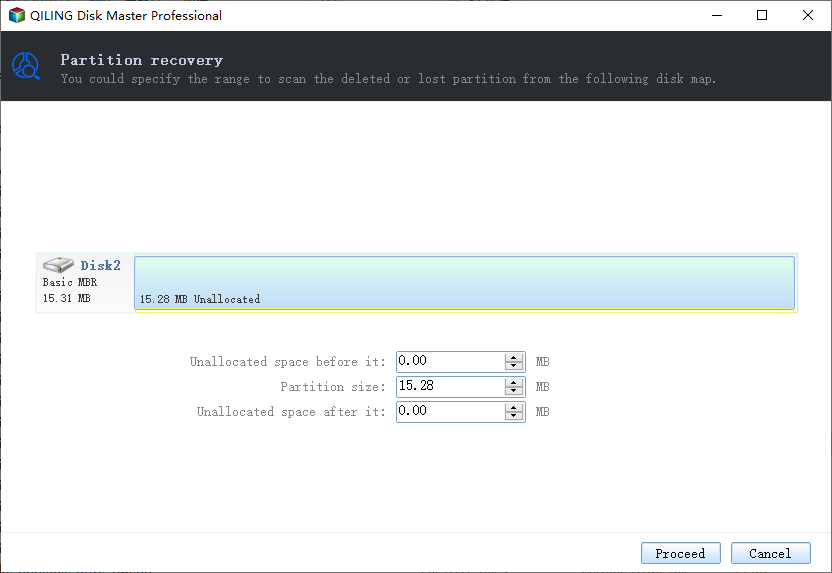
Step 2. Wait for the scanning process to complete.
The program scans the selected disk and identifies the lost partition(s) on it.
Step 3. Preview and restore the lost partition(s).
Double-click on the partition which is marked as "Lost" with "Good" recoverability.
Preview the files within the lost partition and confirm the data you want to recover.
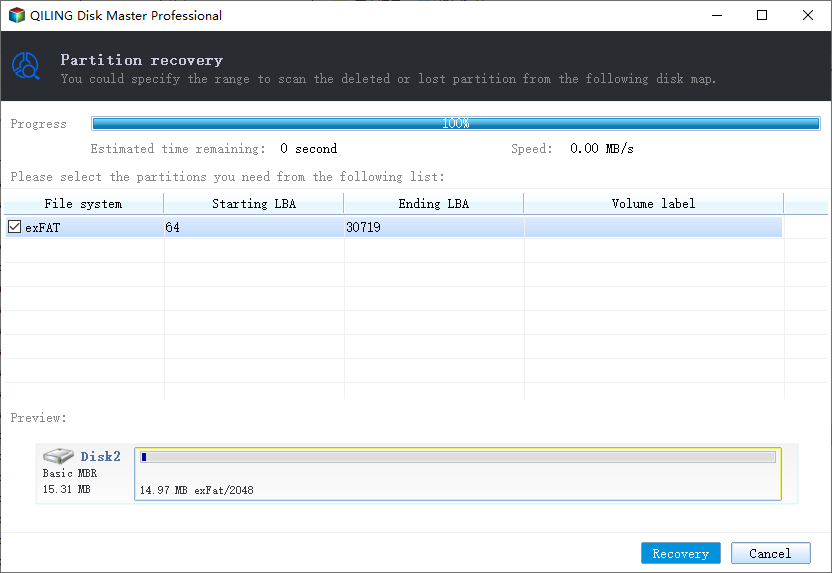
Step 4. Click "Recover" to finish the partition recovery process.
If the program warns you that there is a conflict, back up the listed partition with essential data to an external hard drive first, then execute the final operation to restore your lost partition.
People Also Ask of Getting Data Back
To help you gain a better understanding of NTFS data recovery and Qiling data recovery software, I have listed some related questions.
1. Can you get data back from a formatted drive?
If you accidentally or intentionally format a drive in Windows Explorer, Disk Management, or Command Prompt DiskPart before creating a backup, don't worry, Qiling data recovery software can help you recover your data.
2. Can you recover a deleted partition?
You can recover a deleted partition using Qiling Partition Recovery, a software that restores deleted or lost partitions. It supports all types of partitions, including FAT, NTFS, Ext2, and Ext3 volumes, and can be used in Windows.
3. What if the partition becomes RAW?
If you've already tried to recover data from the partition, you can then ask for manual repair help to solve your problem.
Consult with Qiling Data Recovery Experts for one-on-one manual recovery service. After a FREE diagnosis, we can offer various services, including personalized data recovery.
- Repair a corrupted RAID structure, unbootable Windows OS, or corrupted virtual disk file (.vmdk, .vhd, .vhdx, etc.).
- Recover/repair lost partition and re-partitioned drive
- Unformat hard drive and repair raw drive (BitLocker encrypted drive)
- Fix disks that become GPT protected partitions
4. How to fix a corrupted partition table?
If a table on a disk becomes corrupted, it can render the saved data in the partition inaccessible. To resolve this issue, certain steps can be taken.
- Initialize disk in Disk Management.
- Recover data from unallocated space
- Create partitions on the unallocated disk
- Rebuild MBR
5. What is NTFS and its new features?
NTFS, or New Technology File System, is an improved file system compared to FAT and HPFS. It offers enhanced support for metadata and utilizes advanced data structures to boost performance, reliability, and disk space usage, along with additional features like security access control lists and file system journaling.
6. What is GetDataBack and how to use GetDataBack?
GetDataBack is a useful data recovery software available for Windows, Mac, and Linux, supporting various file systems including Windows NTFS, FAT12, FAT16, FAT32, and exFAT.
If you're interested in learning more about this data recovery software, click on the link provided to visit the website for more details.
Simple steps to use GetDataBack:
- Launch GetDataBack.
- To recover data, choose the drive you want to recover from using GetDataBack.
- The steps to copy a file are: click on the file system, navigate to the folder containing the file, select the file, and then click on the "Copy" option.
- Choose save path and click OK.
Conclusion
If you lost data on an NTFS partition and it still exists, you can refer to Part 1. If you lost the NTFS partition itself, refer to Part 2. Qiling offers reliable solutions for any problem. It's also essential to create a backup to protect your data beforehand.
If you have any questions about our product, please contact us via sending an email to support@idiskhome.com.
Related Articles
- Download Free Online Micro SD Card Data Recovery Software
- Video Recovery: How to Recover Formatted Video Files
- How to Create, Find and Watch Valorant Replays 2022
- Download Qiling Data Recovery Crack 14.4 with Serial Keygen
- Sony Camcorder Recovery | How to Recover Deleted Videos from Sony Camcorder
You can easily recover deleted videos from your Sony camcorder to a Windows or Mac computer using a data recovery software specifically designed for Sony camcorders. - How to Recover Files from RAW Partition/Disk for Free
If your hard drive is inaccessible and shows up as RAW in the file system, you can recover data from it for free.
Products
Articles & Tutorials
- Data Recovery
- Data Backup
- File Recovery
- File Backup
- System Backup and Restore
- Disk and Partition Clone
- Technical articles
- Mobile articles
- Disk Master Help
- Windows Data Recovery Tutorials
- Windows Secure Delete Tutorials
- Windows Partition Management Tutorials
- Windows File Backup and Restore Tutorials
- Windows System Backup and Restore Tutorials
- Windows Disk Backup and Restore Tutorials
- Windows Clone Tutorials