Download Free Online Micro SD Card Data Recovery Software
Is Online SD Card Data Recovery Possible?
Micro SD cards are increasingly popular due to the widespread use of mobile devices and digital cameras, but they're also prone to unexpected data loss due to various reasons, causing frustration for many users.
If you've accidentally deleted a file or lost data on your SD card due to mistaken formatting or other malfunctions, there is a solution - data recovery is possible. Reliable SD card data recovery software can help you recover lost or deleted files, and we'll guide you through the process step-by-step.
For quick access to SD card recovery, watch this video:
What Is the Best SD Card Recovery Software?
To recover data files from an SD memory card, we recommend using Deep Data Recovery. This reliable data recovery tool can easily recover lost, deleted, corrupted, or formatted photos and video files from various memory cards, making it a trusted solution for SD card data loss.
Deep Data Recovery stands out among countless data recovery programs due to its exceptional recovery rate and user-friendly interface, making it a top choice among experts and users alike. A comparison of the top five data recovery tools by LifeWire experts revealed that Deep Data Recovery excelled in recovery rate, ease of use, and features, setting it apart from other popular tools.
| Comparison | Deep Data Recovery | Puran File | Disk Drill | Recuva | Glary Undelete |
|---|---|---|---|---|---|
| Limitations of use | 2GB | Free for home use | 500MB | Free | Free |
| Last update | 14th Nov 2019 | Jun 2016 | 23rd Oct 2019 | 8th June 2016 | 10th Oct 2016 |
| Quick scan | √ | √ | √ | √ | × |
| Optional deep scan | √ | √ | √ | √ | × |
| File preview | √ | √ | √ | √ | × |
| File filter/search | √ | × | × | × | √ |
| Lost partition recovery | √ | × | × | × | √ |
| Supported file systems | FAT12/16/32, exFAT, NTFS, ext2/3, HFS+, ReFS | FAT12/16/32, NTFS | FAT, exFAT, NTFS, HFS+, ext2/3/4 | NTFS, FAT, exFAT | FAT, NTFS, NTFS + EFS |
How Can I Recover My SD Card Data?
Qiling file recovery software is the best option for your needs, capable of recovering deleted, formatted or lost pictures and images. Its user-friendly interface guides you through a three-step recovery process. With support for various brands, including SanDisk, Kingston, and Lexar, this software is easy to download and install, making it a convenient solution for your data recovery needs.
Step 1. To recover data from an SD card, memory card, or CF Card, connect it to your computer and launch Qiling memory card recovery software. Choose the file types you want to recover and click "USB/SD Scan" to start the process.

Note: You can choose different search modes based on where and why the data was lost.
Step 2. To recover lost data from an SD card, locate the SD card under the Devices section, select it, and initiate the scanning process by clicking "Scan".

Step 3. The software will automatically start a scan, which is powerful enough to find all lost files, even those with lost file names. After the scanning process, you can view deleted items in a tree-view panel on the left. To narrow down your search, you can click "Filter" to look for specific file types, such as photos, documents, videos, or emails.

Step 4. You can directly double-click the files to preview the content. After previewing, you can select the files you want to recover and click "Recover" to restore them to a secure location on your PC or other external storage devices.
Can a Damaged SD Card Be Recovered?
If your SD card is damaged, you can still recover data from it as long as it's not physically damaged. First, try inserting the card into your computer or using a card reader to see if it shows up. If it doesn't appear, you may need to refer to troubleshooting guides for SD cards not showing up. If it does appear, it's likely corrupted. In this case, you can try to fix the issue without losing data by following specific methods. If the card is physically damaged, you may need to seek professional help or contact the manufacturer for assistance.
1 - Change the SD Card Drive Letter
Step 1. To insert the SD card into your computer, simply place it into your computer's SD card reader or a USB adapter if you don't have a built-in reader. Once inserted, go to Disk Management, which can usually be accessed by searching for it in the Start menu on a Windows computer or by using the Disk Utility app on a Mac.
Step 2. To change the drive letter and path of an SD card, right-click on the SD card and select the option "Change drive letter and path..." from the context menu. This will allow you to modify the drive letter and path associated with the SD card.
Step 3. Set a new drive letter for the card.
2 - Check and Repair File System Errors on the SD Card
Qiling CleanGenius is a user-friendly computer fixing tool that's both safe and lightweight - the perfect alternative to the CHKDSK command. With just one click, you can easily fix damaged file systems and get your computer back up and running smoothly. This tool is designed to be hassle-free and efficient, making it a great solution for anyone looking to resolve file system issues without the complexity of traditional commands.
Step 1. DOWNLOAD Qiling CleanGenius on your computer and complete the installation.
Step 2. Run the software. Click "Optimization", and then choose "File Showing".
Step 3. Select the drive with a corrupted file system. Tick the "Check and fix file system error" option and click "Execute".
Step 4. Wait the tool performs the repairing task. After that, click the "here" button to check the drive.
3 - Update SD Card Driver
Step 1. Connect the corrupted SD card to the PC, right-click on This PC/My Computer, and select "Manage" to access the device manager.
Step 2. Click "Device Manager" and expand "Disk drives".
Step 3. Right-click on the SD card and select "Update driver".
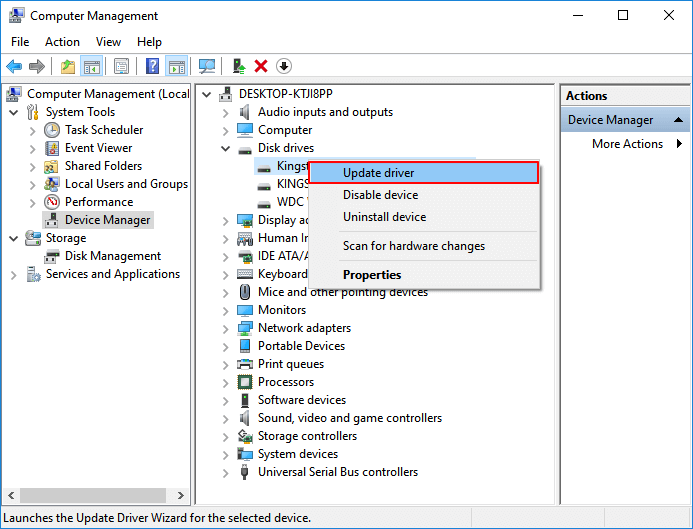
You can recover data from a damaged or corrupted SD card using Qiling data recovery software, as described in Part 1.
How to Prevent SD Card Data Loss
Here are some tips to protect your data in advance:
1. To safeguard your data, it is recommended to back up your photos, files, or other important data. This can be done by saving them to external hard drives, cloud drives, or even other computers. If desired, creating a scheduled backup can also be set up to automatically back up SD card files at regular intervals.
2. Install a reputable antivirus software on your computer to protect it from malware and other online threats, which can compromise your personal data and cause system crashes.
3. When the device's battery is running low, avoid saving new data to the SD card, such as taking new photos or recording videos, to prevent data loss.
4. Do not remove the SD card or shut down the system while the read/write operation is in progress, as it may cause damage to the card.
5. Avoid placing the memory card in a high temperature and high humidity environment.
Related Articles
- How to Recover Files Lost in Cut and Paste
- Windows.old Restore: Restore Files from Windows.old Folder
- Restore Deleted Downloads Folder and Data in Windows 10/8/7
- How to Fix Corrupted Video on Windows 10/Android/SD Card - 3 Ways
- Recover Access Files with Access Database Recovery Software
Free Access database recovery software can recover lost Microsoft Office Access database files due to various reasons such as deletion, formatting, partition loss, or system crashes on your hard disk drive. - Battle of Hard Drives: Fusion Drive vs. SSD vs. HDD. Which Is Better?
Fusion Drive, SSD, and HDD can be compared based on price, speed, performance, and potential risks. This comparison can help you choose the right hard drive for your Apple computer, Windows PC, or laptop.
Products
Articles & Tutorials
- Data Recovery
- Data Backup
- File Recovery
- File Backup
- System Backup and Restore
- Disk and Partition Clone
- Technical articles
- Mobile articles
- Disk Master Help
- Windows Data Recovery Tutorials
- Windows Secure Delete Tutorials
- Windows Partition Management Tutorials
- Windows File Backup and Restore Tutorials
- Windows System Backup and Restore Tutorials
- Windows Disk Backup and Restore Tutorials
- Windows Clone Tutorials