Restore Deleted Downloads Folder and Data in Windows 10/8/7
Lost Downloads Folder, Help!
To restore the deleted Downloads folder in Windows 10, go to File Explorer, click on "This PC" or "Computer", then select "Properties" and click on "Restore Defaults & Apply". This should recreate the Downloads folder in its original location. Alternatively, you can also try using the Command Prompt as an administrator and type "icacls %UserProfile%\Downloads /reset" to reset the permissions of the Downloads folder. If the issue persists, you can try reinstalling Windows 10 or seeking further assistance from Microsoft support.
The Downloads folder icon is missing in Windows 10, and you're trying to clean it up to free up space and improve your PC's performance. To fix this issue, you can try checking the "Show" dropdown menu in File Explorer, ensuring the "Downloads" folder is selected, or checking the "This PC" settings to see if the icon is hidden or disabled. If none of these solutions work, you can try restarting your PC or reinstalling Windows 10. If you're still experiencing issues, feel free to provide more details for further assistance.
The Windows Downloads folder is a default location where downloaded files, programs, and software are automatically saved, allowing users to easily access and find previously downloaded items.
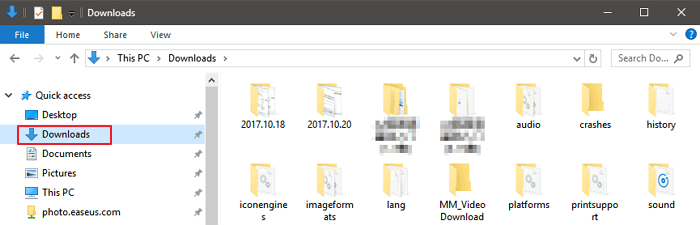
If the Downloads folder is deleted, disappeared, or missing on a Windows PC, all downloaded files and data will be inaccessible, and new downloads may also be affected. To resolve this issue, the following methods can be used to restore the deleted Downloads folder in Windows 10/8/7.
Part 1. Restore Lost Downloads Folder Data with Software
If you've lost important personal files and data in the Downloads folder, don't worry! Professional data recovery software, such as Deep Data Recovery, can help. This trustworthy and highly recommended software can be downloaded directly here.
Deep Data Recovery helps you restore lost data in Windows 10/8/7 by deleting, formatting, virus attacking, system crash or other reasons within 3 simple steps. Install it and follow the steps below to restore your lost Downloads folder data with ease now.
Step 1. Select file types and click "Fast Scan" to start
Launch Deep Data Recovery, select the file types you want to recover, and click "Fast Scan" to begin the recovery process.

Note: You can choose different search modes based on where and why the data was lost.
Step 2. Select a folder to scan for lost files
To recover a lost folder, select "Select Folder" under the "Specify a location" option, then click "Browse" to choose the location where the folder was lost, and finally click "OK" to initiate the scanning process.

Step 3. Find and preview found files in the lost folder
If you remember the folder name, you can quickly find the lost files by typing it in the search box. Once found, open the folder and double-click on the scanned files to preview them. Alternatively, you can use the Filter feature to find a specific type of file.

Step 4. Recover and save the lost folder
Select the folder and files you need, click "Recover", and choose a new and secure location on your PC to keep the recovered data.
Part 2. Restore Disappeared Downloads Folder Manually
Here are the steps to restore a deleted or missing Downloads folder in Windows 10, 8 or 7: You can try checking the Recycle Bin, searching for the folder in File Explorer, checking the Desktop for a shortcut, looking in the "This PC" or "Computer" section, or creating a new shortcut to the Downloads folder. If none of these methods work, you can try using the File Explorer's "Search" function or checking the Windows Task Manager to see if the folder is still running in the background. If all else fails, you can try reinstalling the Windows operating system or seeking help from a professional.
Method 1. Replace missing Downloads folder with File Explorer
- Open File Explorer and navigate to C:\Users\Default folder.
- Right-Click on "Downloads" in the right side panel and select "Copy".
- Navigate to C:\Users\your name folder and right-click the folder.
- Select "Paste".
If you're experiencing issues with your Downloads folder being missing, don't worry! To resolve this, you can replace the missing folder with a new one.
Method 2. Restore the default Downloads folder through desktop.ini file
This method is suitable for restoring all user folders in the "C:\Users\%USERNAME%" folder. If you've lost other folders like Music, Videos, etc.
To restore the default Downloads folder, you can use the desktop.ini file. This file is hidden by default, but you can easily create or edit it to change the folder's properties.
1. Press and hold Win +R to open the Run dialog.
2. Type: shell: downloads and hit Enter.
3. In Folder options, set protected operating system files to show.
4. Download the file desktop.zip containing the desktop.ini file, which can be easily found by searching online.
- Notice:
- Step 3 To open the zip file, you need to have a file archiver like WinZip or 7-Zip installed on your computer. If you don't have one, download and install it first. Once installed, you can open the zip file and it will extract the content.
5. The content of the desktop.zip file was extracted and the desktop.ini file, which was actually a .txt file, was right-clicked on and its Properties selected.
6. In the General tab, click the Unlock button and select OK.
7. Replace the desktop.ini file in C:\Users\%USERNAME%\Downloads with the one you've extracted from the desktop.zip file, then close the folder.
- Notice:
- Confirm any additional dialog boxes that may appear, including the ones alerting about the dangers of moving system files.
8. To remove the read-only, system, and hidden attributes from all files and subfolders in the Downloads folder, open an elevated command prompt, type `attrib +r -s -h %USERPROFILE%\Downloads /S /D`, and press Enter. This will reset the attributes of all files and subfolders within the Downloads folder, allowing you to access and manage them as needed.
9. Close the command prompt and restart Windows.
You'll be able to find and reuse the Downloads folder again.
Method 3. Restore Downloads folder to the original version by System Restore
System Restore can help solve the issue of a missing Downloads folder in Windows by reverting the system to a previous state when the folder was present, assuming the issue is caused by a software change or update. It's recommended to create a system and data backup before using System Restore, as it can potentially cause errors if not used carefully.
To restore the Downloads folder to its original version in Windows 10, follow these steps: System Restore is a feature that allows you to revert your system to a previous state, effectively undoing any changes made since then. To use System Restore, go to the Start menu, type "System Restore" in the search bar, and select the option.
- Go to the Microsoft software download website and create Windows 10 installation media.
- Insert the installation media with PC and restart PC.
- On the Install Windows screen, select Repair your computer.
- On the Choose an option screen, select Troubleshoot, then Safe Mode, followed by Advanced Options, and finally System Restore.
After that, you'll be able to use the Download folder again without any further problems.
When the folder exists but individual downloads are missing, check the browser's actual save path and recover unique files before downloading new data to the same disk.
Related Articles
- How to Recover Data from RAID 1 Disk with Raid 1 Recovery Software
- Get Data Back for NTFS | Best NTFS Data Recovery Software to Get Data Back
- How to Recover Data from Western Digital Hard Disk
- Recover Lost Files with Qiling Portable Data Recovery Software
- How to Recover Deleted Call Recordings from SD Card/Memory Card
To recover deleted call recordings from an SD card or memory card, follow these steps: first, stop using the card to prevent overwriting of data; next, download and install a reliable data recovery software such as Deep Data Recovery; then, connect the SD card to your computer. - How to Recover Deleted Emails in Thunderbird
5 ways to recover deleted emails in Thunderbird are introduced here to help you learn how to recover deleted emails in Thunderbird, covering all the possible and useful ways. 1.
Products
Articles & Tutorials
- Data Recovery
- Data Backup
- File Recovery
- File Backup
- System Backup and Restore
- Disk and Partition Clone
- Technical articles
- Mobile articles
- Disk Master Help
- Windows Data Recovery Tutorials
- Windows Secure Delete Tutorials
- Windows Partition Management Tutorials
- Windows File Backup and Restore Tutorials
- Windows System Backup and Restore Tutorials
- Windows Disk Backup and Restore Tutorials
- Windows Clone Tutorials