How to Fix Corrupted Video on Windows 10/Android/SD Card - 3 Ways
| Workable Solutions | Step-by-step Troubleshooting |
|---|---|
| Fix Corrupted Video from SD Card | Attach SD card to device > right-click on the corrupted video > select "Rename" > change file format to ".avi"...Full steps |
| Repair Broken Videos on Windows | Run Deep Data Recovery > choose specific drive > click "Scan" > select specific video format...Full steps |
| Fix Corrupted Video on Android | Open Qiling Video Repair > click "Update Video" > enter a valid email address > click "Start Repairing"...Full steps |
Fixing corrupted videos on Windows is now a simple task that can be completed with just a few clicks. Various video repair tools are available to help repair corrupted videos, making it easier to access and restore memories or essential content.
Why Do Videos Get Corrupted
Video corruption can occur due to various reasons, including technical glitches, bad sectors in storage devices, malware infection, and improper video transfer. These factors can cause the video files to become damaged or unusable.
- Malware or viral attack: The main reason behind corrupted videos is the presence of malware or viruses, which hinders video players from processing the files.
- Premature shutdown:Video files can become corrupted if they are shut down while playing, especially if the shutdown process starts before the video playback is closed. This premature shutdown can damage the critical elements of the video file, leading to its corruption.
- Usage of low-quality video players: Using low-quality video editors or players can cause video files to become corrupted due to changes in their required properties.
- Storage medium damage:Physical damage to storage mediums like hard drives or memory cards, or their careless handling, can also impact the video file's viability.
- Alteration of file structures: Any damage to a video file's header, metadata, or module can cause tampering, affecting the original status of the video and potentially leading to corruption.
Can I Recover My Corrupted Videos
We understand your concern, and we are here with three different solutions to guide you on corrupted video file repair. You can go through the details of each section and can select the solution that suits your requirements well.
How to Fix Corrupted Videos on Windows 10/Android/SD Card
Before making any fixes, always follow the backup rule and create a secure backup of your data to ensure you can access it whenever and wherever required, even if the file is corrupt.
If you don't have an option, this guide offers three methods for recovering corrupted videos on Windows 10, Android, or SD Cards, allowing you to easily select the one that suits your needs best.
Method 1. Fix Corrupted Video from SD Card with VLC Media Player
Many SD card users have experienced video file corruption, particularly with videos recorded from cameras and phones. Fortunately, VLC media player has a built-in feature that can repair corrupted video files and restore them to their original state.
You can easily fix AVI video files manually using VLC Media Player and repair corrupted videos from an SD card. The process involves detailed steps that can be followed to perfect the fix.
Step 1. Attach the SD card to your device and open the corrupted video file. Right-click on the corrupted video file and select "Rename". Change the file format to ".avi".
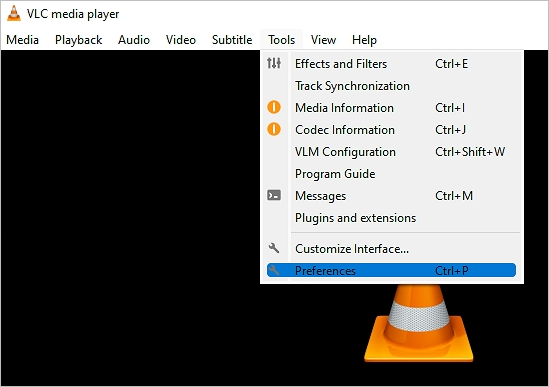
Step 2. To proceed, launch VLC Media Player on your device, then tap on the Tools segment and select "Preferences".
Step 3. To resolve the issue with damaged or incomplete AVI files, navigate to the Input/Codecs section, and within that, select the "Always fix" option under the "Damaged or incomplete AVI file" setting. This will ensure that any AVI files encountered are automatically repaired.
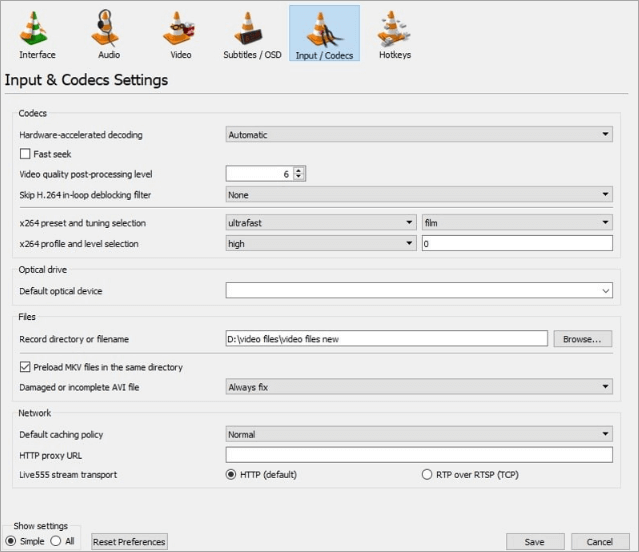
Step 4. To fix the issue, tap on "Save" to save the changes, then launch the corrupted video file with VLC media player. This should resolve the problem and allow the file to run successfully.
Method 2. Repair Broken Video Files on Windows 10 with Video Repair Software
If you've accidentally deleted or corrupted your videos, Deep Data Recovery is a trusted solution that can help you recover them. It's a wizard that can recover lost files, documents, photos, and videos, even if they've been deleted, formatted, or affected by a virus or OS crash.
Qiling file repair tool is a powerful tool that repairs corrupted MP4/MOV files, photos (JPEG/JPG), and documents. It offers advanced features such as repairing corrupted files, recovering deleted files, and previewing recoverable files. The tool is ideal for users who need to recover lost data from various file types.
- Repair corrupted or damaged files perfectly
- Provide a preview of the files before recovery
- Provides free remote assistance
- Ensures flexible scanning modes for convenient access
- Works well on different file formats
To repair broken video files on Windows 10 with Deep Data Recovery, follow these steps. First, download and install Deep Data Recovery software on your computer.
Step 1. Run Deep Data Recovery. Select file types and click "Fast Scan" to start the recovery process.

Note: You can choose different search modes based on where and why the data was lost.
Step 2. Choose the correct drive that contains the corrupted videos, which can be a removable disk or a local drive, and then click "Scan" to initiate the recovery process.

Step 3. This program scans the selected drive, displays all files, and allows users to select a specific file type (e.g. videos) and format (e.g.

Step 4. Once you can preview the video, the software has already fixed it for you. Click "Recover" to save the fixed video to a different location.
Method 3. Fix Corrupted Video on Android with Online Video Repair Tool
You can also fix corrupted video on Android using the online video repair tool, Qiling Video Repair, which is a feature-loaded option that can recover deleted or formatted data perfectly.
- Perfectly repair corrupted or unrepairable video files
- Provides free services to the users
- Features straightforward and easy-to-go interface
- Works well on different file formats
To repair corrupted video files on Android, follow these steps. First, install a video repair software on your device, such as Video Repair or Repair Video Files.
Step 1. Open Qiling RepairVideo and Upload Problematic Video
To use Qiling RepairVideo, go to the repair page https://repair.qilingtech.com/, click "Update Video", or upload a corrupted, broken, or non-playing video by dragging and dropping it into the designated area on the page.

Step 2. Enter a Valid Email Address and Start Repairing Video
Enter a valid email address and click "Start Repairing" to upload and repair the malfunctioning video.
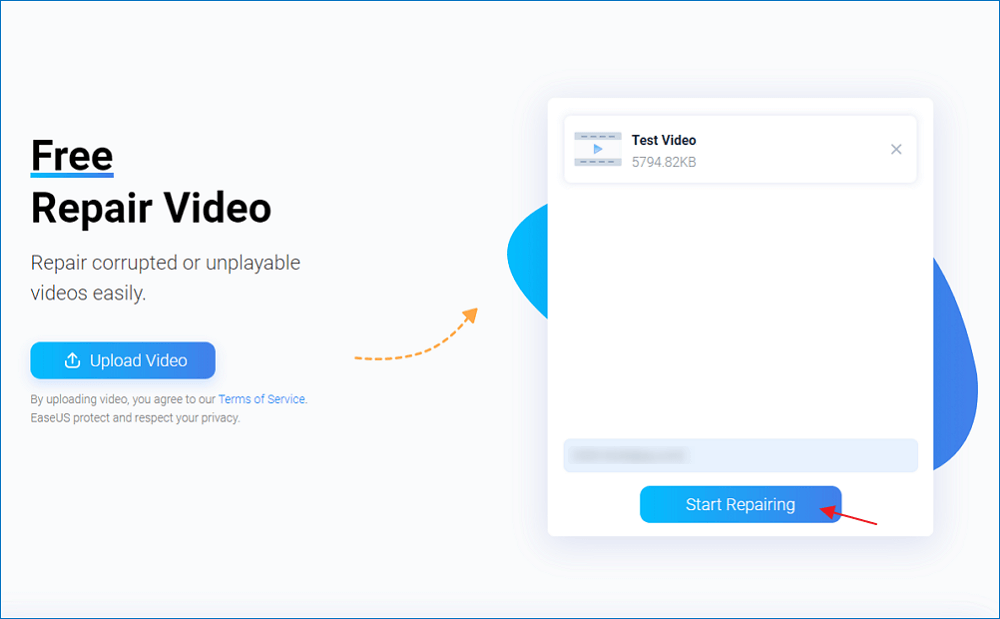
Step 3. Wait for the Automatic Uploading and Repairing Process to Finish
Qiling RepairVideo will automatically upload and repair the corrupted or broken video for you, allowing you to leave the page open and continue with other tasks while the repair process is completed.

Step 4. Enter Extraction Code and Download Repaired Video
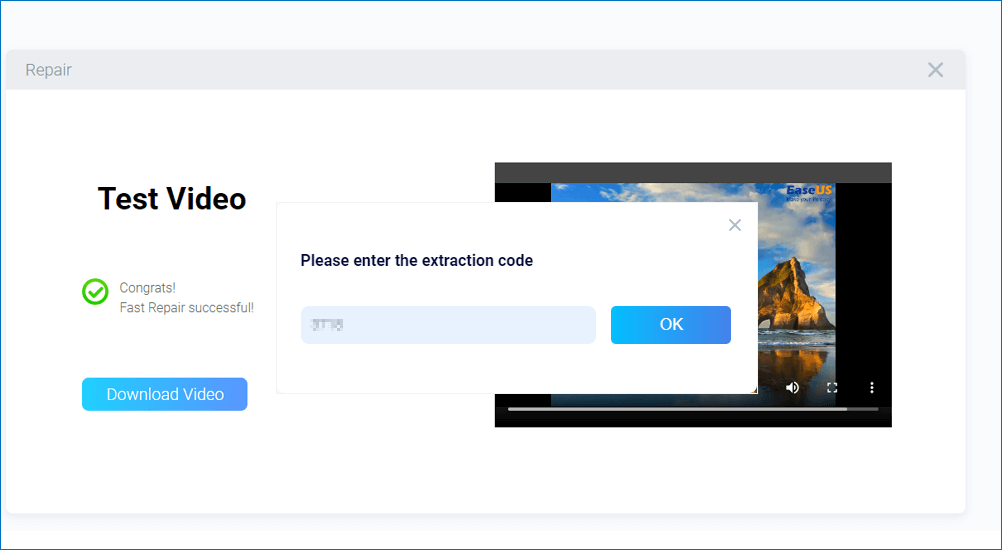
When the repair process is finished, you can preview the video in the right pane and also receive an email with a video extraction code.
To repair a video, go to the Qiling RepairVideo page, click on "Download Video", enter the extraction code, and then click "OK" to initiate the download of the repaired video.
Tips to Avoid Video Corruption on Windows 10
Avoiding video corruption is not a big issue. Make sure to deal with the video files carefully and be organized throughout, so you stay prevented from creating any mess. Here we are with the best tips to help prevent and fix corrupted video files.
- Install antivirus: Installing a reliable antivirus and keeping it updated can significantly reduce the risk of virus and malware attacks on your device. It's recommended to choose a comprehensive security solution that offers advanced protection for your PC and external storage drives.
- Insert or eject external drives very carefully: Taking out external drives from a computer system abruptly may cause video file corruption or unreadable media, so it's essential to carefully follow the procedure for inserting and ejecting them.
- Use the copy of the original video file: To avoid any potential issues with your video file, it's recommended to save a copy of the original file and work on the copy instead. This way, you can edit or convert the video without risking any damage to the original file, ensuring that you have a secure backup in case something goes wrong.
- Make use of the storage devices carefully:Storage devices like pen drives and hard drives are prone to corruption due to various logical and physical issues, including file system corruption, heat, liquid, and electrical surges, which can damage or corrupt video files. To minimize this risk, it's essential to use these devices carefully and follow best practices to avoid such issues.
- Ensure proper transferring:To prevent video corruption when transferring footage between devices, ensure proper video footage transfer and enable uninterrupted video transfer.
Conclusion
Managing video files is easy, but video corruption is a common issue that can be frustrating when it prevents access to stored data. Fortunately, there are methods to fix corrupted videos on Windows, including using a data recovery tool like Deep Data Recovery, which can help recover data without effort, making it a perfect solution for such situations.
Related Articles
- Recuva Recovered Files Unreadable and Can't Open [SOLVED]
- How to Fix Location Is Not Available, Access Is Denied Error in Windows 10/8/7
- How to Recover Data from Western Digital Hard Disk
- The Best SSD Data Recovery Software for SSD Data/File Recovery
- How to Recover Deleted WhatsApp Audio
Here are the step-by-step guide for how to recover deleted WhatsApp audio files from PC, Mac and iPhone. - Archive Recovery - Recover Deleted/Lost Zip and RAR Files
If you happen to delete or lost archive files, like .rar or .zip files. want to recover archive files? You can free try the archive recovery tool to recover Zip/RAR files on Windows or Mac within 3 steps.
Products
Articles & Tutorials
- Data Recovery
- Data Backup
- File Recovery
- File Backup
- System Backup and Restore
- Disk and Partition Clone
- Technical articles
- Mobile articles
- Disk Master Help
- Windows Data Recovery Tutorials
- Windows Secure Delete Tutorials
- Windows Partition Management Tutorials
- Windows File Backup and Restore Tutorials
- Windows System Backup and Restore Tutorials
- Windows Disk Backup and Restore Tutorials
- Windows Clone Tutorials