How to Fix Location Is Not Available, Access Is Denied Error in Windows 10/8/7
If you're experiencing issues with your location not being available on Windows 10, don't worry, there are some effective methods to fix it. You can try restarting your device, checking your location services settings, and ensuring that your GPS and Wi-Fi are enabled. Additionally, updating your Windows 10 to the latest version, resetting your location settings, and disabling and re-enabling your location services may also resolve the issue. If none of these methods work, you can try resetting your location settings to their default values or seeking further assistance from Microsoft support.
| Workable Solutions | Step-by-step Troubleshooting |
|---|---|
| Important. Restore data from inaccessible hard drive first | When the hard drive is inaccessible, restore data from the hard drive at first to avoid any data loss...Full steps |
| Fix 1. Add authenticated users | You can fix the inaccessible drive by adding an authenticated user. Locate the drive or folder...Full steps |
| Fix 2. Take the ownership of the drive | Right-click on the inaccessible hard drive, and choose "Properties". Click "Security" > "Advanced"...Full steps |
| Fix 3. Run CHKDSK command | If your file system goes wrong, you can use CHKDSK commands to fixing file system errors...Full steps |
| Fix 4. Decrypt the file or folder | If the encrypting file system goes wrong, you can't access it. You should decrypt the file or folder...Full steps |
- "Location is not available. X:\ is not accessible. The volume does not contain a recognized file system"Please ensure that all necessary file system drivers are loaded and that the volume is not corrupted."
- "Location is not available. X:\ is not accessible. Access is denied."
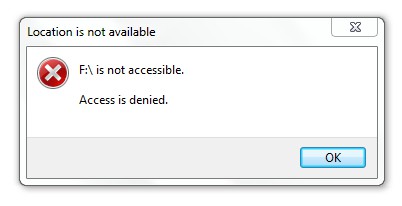
When accessing a hard drive or external hard drive in Windows 10/8/7, you may encounter the "location is not available" problem, making your hard drive inaccessible, and you can't read or change files or folders in it. However, don't panic, as this article will guide you through several ways to fix the Windows 10 location is not available, access is denied error.
First Thing to Do: Restore Data from Inaccessible Hard Drive
When the location of the hard drive is not available or it fails, use data recovery software to retrieve data from the hard drive before attempting to fix the issue.
Deep Data Recovery is the best hard drive data recovery software to restore data from RAW hard drive, external USB drive, SD card, and other storage drives caused by the location is not available error. With this tool, you can recover data from devices that are no longer accessible due to various issues, and it's specifically designed to handle situations where the location is not available, making it a reliable solution for data recovery.
- Recover permanently deleted files in different data loss situations.
- Recover lost documents, photos, audio, music, and emails from any storage safely with our reliable service. With our expertise, you can get back your treasured memories and important files that were lost due to various reasons such as accidental deletion, formatting, or hardware failure.
- Repair corrupted files during data recovery on Windows 10/8/7/Vista/XP.
- Data recovery software can help restore files from an emptied Recycle Bin, a formatted or corrupted hard drive, lost partitions, and other data loss scenarios. This software can scan the affected device, identify recoverable files, and retrieve them in their original format, often with high success rates.
Deep Data Recovery is a vital tool for anyone facing unexpected data loss. It allows for instant data recovery with ease, and you can export the data from the inaccessible drive to another location for safekeeping.
To recover inaccessible data, download the Qiling data recovery software and follow these steps.
Step 1. Launch Qiling Deep data recovery software on your PC, select file types, and click "Fast Scan" to start the recovery process.

Note: You can choose different search modes based on where and why the data was lost.
Step 2. Select the hard drive which becomes inaccessible on your PC. Click "Scan" to let Deep Data Recovery scan and find your hard drive data.

Step 3. After the scan, you can preview and check found files on the scanning result window. The "Deleted Files" and "Other Lost Files" folders contain all your lost files, which you can filter by type to quickly find specific files. You can then preview the files and decide which ones to retrieve.

Step 4. Select the items you want to restore and click "Recover" and then choose a secure location to start recovering lost data from your inaccessible hard drive.
4 Effective Fixes for Location Is Not Available Windows 10
If you encounter an error when trying to access a file or folder, or modify its contents, there are several fixes you can try to resolve the issue. These solutions can be applied one by one, and may help you successfully interact with the file or folder.
Fix 1. Enable the User and Administrator Permissions (Authenticated Users)
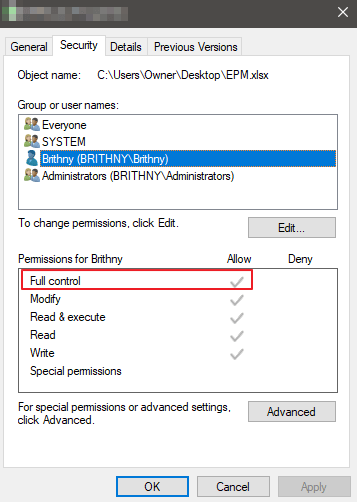
After retrieving data, you can fix an inaccessible drive by adding an authenticated user. Locate the drive or folder you can't access.
Step 1. Right-click on it and choose the "Properties" option
Step 2. Select the "Security" tab, and click on "Edit".
Step 3. Click on the "Add" button, and then, add "Authenticated User".
Step 4. Under the Permission section, check "Full control" and click "OK".
Fix 2. Take the Ownership of the Inaccessible Drive
If you don't have permission to access a hard drive, Windows will deny access and may display a "not available" error. To resolve this, take ownership of the drive, which will grant you the necessary permissions to access it.
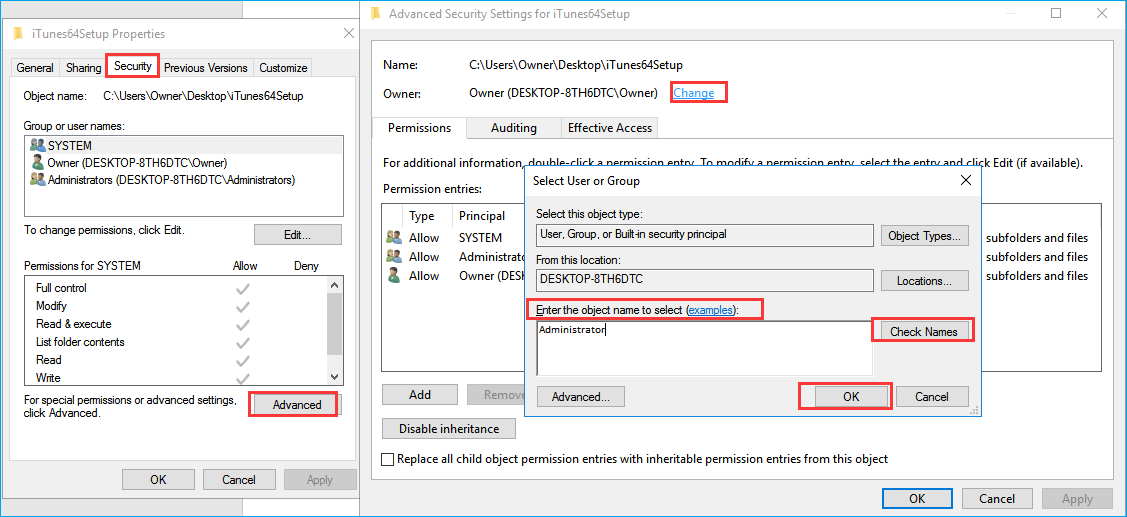
Step 1. Right-click on the inaccessible hard drive, and choose "Properties".
Step 2. Click "Security" > "Advanced", and then click the "Owner" tab.
Step 3. Enter "Administrators" or your user name in the field, click "Check Names" and if successful, click "OK" to save the changes.
Step 4.To change the owner section, select the "Replace owner on sub containers and objects" option and click "Apply" and "OK" to save the changes. Alternatively, you can also check the "Replace all child object permission entries" option.
Fix 3. Run CHKDSK Command to Fix Corrupted Hard Drive
If your file system goes wrong, you can follow this method. CHKDSK marks the bad sectors and prevents data corruption by fixing file system errors. This process helps to identify and resolve issues with your file system, ensuring that your data remains safe and intact.
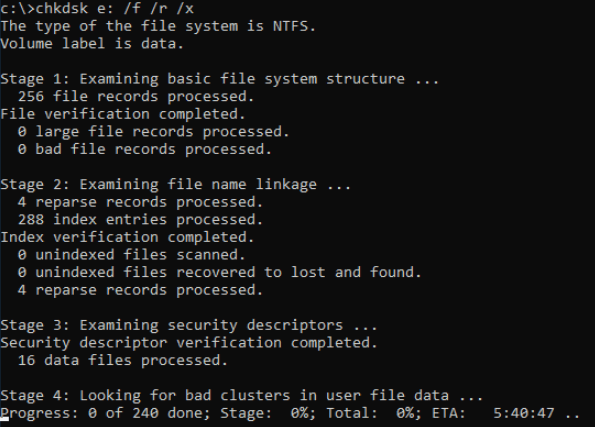
Step 1. Press the "Windows" key and type cmd.
Step 2. Right-click "Command Prompt" and choose "Run as administrator".
Step 3. Run the command "chkdsk e: /f /r /x" to repair a partition, where "e" is the drive letter of the partition you want to fix. This command will perform a thorough check, fix errors, recover readable information, and exit.
Step 4. After the process, shut down the window. Try to access the hard drive or external hard drive again.
Fix 4. Decrypt the File or Folder
You may receive the message if your file or folder is encrypted, and you can only open it with an encryption certificate. If the encryption fails, you won't be able to access it, and you should decrypt the file or folder on Windows 10/8/7.
Step 1. Go to the Command Prompt.
Step 2. Run the command `Cipher.exe /d` and press enter to decrypt the file.
Step 3. After the process, you should copy the decrypted file onto your computer's hard disk.
Step 4. Enter Cipher.exe /r to back up EFS certificates and keys.
Step 5. Try to open the inaccessible file to see if it works.
Conclusion
After trying the suggested solutions, you may have resolved the "location is not available, access is denied" issue. If you have a more effective method, you can share it with us. Before attempting any further troubleshooting, consider using Qiling data recovery software to recover data and avoid potential loss.
Related Topics You Need to Check Out About Location Is Not Available
If you also have any of the following frequently asked questions about location is not available, find solutions here.
Why Windows 10 Location Is Not Available Occurs
Your computer may say the location is not available due to various factors, including issues with the GPS, Wi-Fi or cellular network connections, outdated or corrupted location services software, or problems with the device's hardware, such as a faulty GPS chip or a malfunctioning location sensor, which can prevent the computer from accessing the location information.
- Unplug removable drive improperly
- File system (NTFS, FAT) goes wrong
- HDD power failure
- Bad sectors
- Encrypted file or folder
How do you fix C:\windows\system32\config\systemprofile\desktop is unavailable Windows 10?
1) Check the drive letter and ensure it's correct. 2) Run the Disk Cleanup tool to remove temporary files. 3) Run the Check Disk tool to fix disk errors.
- Repair corrupt system files on the hard drive
- Reset desktop's location
- Move profile's content back to its location
- Create a new user profile
How to fix Location is not available. The file or directory is corrupted and unreadable?
When you encounter the file or directory is corrupted and unreadable issue, you can try checking the file integrity using built-in tools like `chkdsk` in Windows or `fsck` in Linux, or using third-party software like Recuva or Deep Data Recovery to scan and recover the damaged file. Additionally, you can try using the `sfc /scannow` command in Windows to scan and replace corrupted system files, or running a virus scan to check for malware that might be causing the issue.
- Repair disk errors with a partition manager tool
- Fix corrupted file system using CHKDSK utility
- To resolve the "file or directory is corrupted and unreadable" issue, you can try formatting the disk. This will erase all data on the disk, so make sure to back up any important files before proceeding.
If Windows instead reports 'Location is not available' for an external drive, recovering files when an external drive location is unavailable starts with the path and connection before assuming data loss.
Related Articles
- Top 6 Ways to Fix Windows 10 WHEA Uncorrectable Error
- How to Hide Recycle Bin in Windows 10/11
- How to Recover Deleted Files/Folders in Windows 11 [Ultimate Guide]
- How to Restore Lost Data with Easy Recovery Essentials Free Alternative
- Files Getting Deleted Automatically Without Asking Windows 10/11
If your computer is automatically deleting files without asking, there are solutions to recover them. You can try using Qiling Data Recovery Software or the Previous Version feature in Windows 10 to retrieve your deleted files. - Files Missing from External Hard Drive but Still Taking Space
If you're experiencing missing folders and files on an external hard drive, but it's still taking up space, it's likely there's an issue with the drive.
Products
Articles & Tutorials
- Data Recovery
- Data Backup
- File Recovery
- File Backup
- System Backup and Restore
- Disk and Partition Clone
- Technical articles
- Mobile articles
- Disk Master Help
- Windows Data Recovery Tutorials
- Windows Secure Delete Tutorials
- Windows Partition Management Tutorials
- Windows File Backup and Restore Tutorials
- Windows System Backup and Restore Tutorials
- Windows Disk Backup and Restore Tutorials
- Windows Clone Tutorials