Fix: The Volume Does Not Contain A Recognized File System in Windows 10/8/7
To fix the "The volume does not contain a recognized file system" error without data loss, you can try the following methods:
| Workable Solutions | Step-by-step Troubleshooting |
|---|---|
| Procedure 1. Recover Data from Devices with Error | First, use a powerful RAW recovery solution - Qiling hard drive recovery software to recover data from a drive that does not contain a recognized file system...Full steps |
| Procedure 2. Fix and Repair Disk by Formatting | After restoring data from devices that are not accessible or cannot be recognized, you can now repair and fix the problematic devices in Disk Management...Full steps |
| Procedure 3. Copy the Files Back to Storage Device | After formatting your removable disk, you can open it and use it for data storage again. You can copy the files you recovered back to your external hard drive...Full steps |
About "The volume does not contain a recognized file system" error
You may feel familiar with the following descriptions.
Symptoms
When you plug in an external hard drive, USB flash drive, SD card, or other storage devices into your Windows computer, Windows may prompt you to format the disk in drive G: before you can use it, asking if you want to format it.
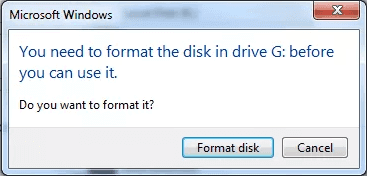
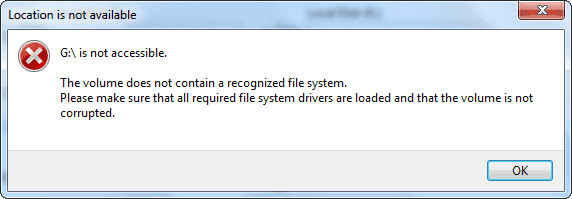
When formatting a disk or card, if there are important data files, you can click Cancel to prevent formatting. If you proceed, Windows may display an error message saying "Drive G:\ is not accessible. The volume does not contain a recognized file system. Please make sure that all required file system drivers are loaded and that the volume is not corrupted." This error often occurs when formatting a disk or card in Windows 10/8/7.
Causes
The error "The volume does not contain a recognized file system" occurs in Windows 10/8/7 when the operating system fails to recognize the file system on a specific volume. This error message is usually displayed when you try to access a drive that has been corrupted, damaged, or has an unknown file system. This could be due to a variety of reasons, including a virus or malware infection, a disk error, or a corrupted file system.
The most likely reason for a device becoming RAW is due to file system errors, which can occur when the file system type information is missing or inconsistent between system tables, leading to a problem with the drive.
- The file system of your storage device is not recognized by your computer, possibly due to a corrupted file system, incorrect file system type, or a hardware issue with the storage device itself.
- The file system of your device is missing
- Your device's file system is not properly formatted or is damaged, which is preventing it from functioning correctly.
Forcibly unplugging an external hard drive without "Safely removing" it can cause errors, resulting in the message "The volume does not contain a recognized file system." Fortunately, once the cause is identified, fixing the issue without losing data becomes relatively straightforward.
Fix "The volume does not contain a recognized file system" error and recover data
To fix an external storage device with file system errors, format the storage device, which will assign a new file system and make it usable again, but first, perform data recovery to save existing files, as formatting will erase all data.
- First, find a reliable data recovery tool to get back the files
- Second, format the device
- Once you've successfully recovered the data, you can copy it back to the device according to your needs. This involves transferring the recovered data from the recovery tool or software to the device, which can be a smartphone, tablet, or computer.
Procedure 1. Recover data from devices with "The volume does not contain a recognized file system" error
Qiling Deep Data Recovery offers a powerful and easy RAW recovery solution, allowing you to recover data from a RAW drive before formatting it to NTFS or FAT32, solving the "Drive is not accessible" issue in Windows.
Step 1. Select file types and click "Fast Scan" to start
Launch Deep Data Recovery software, select the desired file types, and click "Fast Scan" to initiate the recovery process.

Note: You can choose different search modes based on where and why the data was lost.
Step 2. Select a drive and start scanning
To recover lost data, hover over the partition where the data was lost and click "Scan" to initiate the scanning process.

Step 3. Check and preview scanned files
To narrow down the scan results and find the specific files you need, use the file format filter on the left or upper right corner. Once you've filtered the results, you can click the "Preview" button or double-click a file to view its content. This allows you to quickly verify the files you're looking for.

Step 4. Recover lost data to a secure location
To recover lost data, select the file, check the box next to it, and click "Recover" to restore it to a secure location. It's recommended to avoid storing the recovered data on the same disk where it was initially lost.
Consult with Qiling Data Recovery Experts for one-on-one manual recovery service, which includes the following services after a FREE diagnosis:
- Repair corrupted RAID structure, unbootable Windows OS and corrupted virtual disk file (.vmdk, .vhd, .vhdx, etc.).
- Recover/repair lost partition and re-partitioned drive.
- Unformat hard drive and repair raw drive(Bitlocker encrypted drive)
- Fix disks that become GPT protected partitions
Procedure 2. Fix and repair disk with 'the volume does not contain recognized file system' error
After restoring data from devices that are not accessible or cannot be recognized, you can follow these steps to repair and fix devices such as external hard drives, USB drives, SD cards, or hard drive partitions, and repair the file system to be recognizable and detectable again.
- Right-click "This PC"/"My Computer" > "Manage" > "Disk Management";
- Right-click to format a RAW drive, USB, or SD card, click on the drive, select "Format Volume," choose the desired file system (such as NTFS or FAT32), and rename the device. This will reset the file system and make the drive usable again.
- To complete the 'the volume does not contain a recognized file system' error repair process on storage devices, click "Finish" after the software has finished scanning and repairing the drive. This will finalize the repair process and ensure the storage device is functioning properly again.
Procedure 3. Copy the files back to your storage device
After formatting your removable disk, you can open it and use it for data storage again. You can copy the recovered files back to your external hard drive, USB, memory card, or any other storage device to have your data back.
The Bottom Line
If you don't want to keep files on the external storage device, you can format it directly to remove the error message. However, it's recommended to retrieve data first before formatting, as formatted data recovery is possible but better to rescue files beforehand.
To resolve the error "the volume does not contain a recognized file system," consider the following answers, which might be helpful for you. They can provide guidance on how to address this issue.
1. How convert RAW to NTFS without formatting?
CMD is a command-line interface that allows you to perform various tasks, including converting file systems. To convert RAW to NTFS using CMD, you can use the following command: `chkdsk /f` followed by `convert /fs:ntfs` (assuming the drive letter is C).
Step 1. Click on Start, then type: cmd and hit Enter.
Step 2. Right-click on cmd and then click on "Run As Administrator".
Step 3. Type "Diskpart" and then hit Enter.
Step 4. Type format H: /FS:NTFS and hit Enter. (H shall be the drive letter of your RAW storage device)
2. What is file system RAW?
Definition: A RAW file system is a state of a hard drive or storage device where no Windows file system is present, resulting in a device that cannot be used to store data due to the absence of files or folders.
When an external hard drive or USB flash drive becomes RAW, it can indicate three possible scenarios. The RAW format suggests that the drive's file system has been corrupted or damaged, making it inaccessible.
- The file system of the disk is not recognized by the operating system of your computer, likely due to a corrupted or incompatible file system, making it inaccessible.
- There is no file system on your disk
- The file system of your hard drive or partition is damaged, which means that the operating system can't access or read the files on the drive. This can be caused by a virus, power outage, or other system crashes.
Whenever you encounter a RAW drive on your computer, try to perform RAW drive recovery and convert the RAW file system to NTFS or other file systems for proper use.
3. How do I fix error formatting disk in drive using CMD?
Using CMD, you can check and repair most hard drive issues. To fix the error 'you need to format the disk before you can use it', you can apply the following commands.
Step 1. Press Windows + X keys and choose Command Prompt (admin).
Step 2. To run a check on an external storage device, type `chkdsk G: /f` in the Command Prompt and press Enter, replacing "G" with the drive letter of your external storage device.
Step 3. Then Windows will start checking and repairing disk errors and damaged files. Wait for the process to finish.
Related Articles
- Fix Error 0x80070490 in Windows Update, Mail App, and Xbox
- 2022 Aptio Setup Utility Ultimate Guide | How to Access and Fix It
- Undo DiskPart Clean: Recover Data/Partition after DiskPart Clean
- How to Remove/Delete Directory in Linux
- Ext3/EXT2 Recovery | How to Recover Linux Partition in Windows
To repair a Linux partition from Windows, you can use Qiling data recovery software, which supports recovering lost, deleted, and formatted data from ext2 or ext3 Linux partitions. You can download the software to recover data from a Linux partition in Windows. - How to Recover Hike Chats, Messages and Images on Android & iPhone
To recover deleted messages, chat history, conversations, pictures, images and old data on Hike messenger, you can download the Qiling Hike recovery tool. This tool can also be used as a Hike chat backup reader to read, open, and restore Hike chat backup files.
Products
Articles & Tutorials
- Data Recovery
- Data Backup
- File Recovery
- File Backup
- System Backup and Restore
- Disk and Partition Clone
- Technical articles
- Mobile articles
- Disk Master Help
- Windows Data Recovery Tutorials
- Windows Secure Delete Tutorials
- Windows Partition Management Tutorials
- Windows File Backup and Restore Tutorials
- Windows System Backup and Restore Tutorials
- Windows Disk Backup and Restore Tutorials
- Windows Clone Tutorials