Ext3/EXT2 Recovery | How to Recover Linux Partition in Windows
How to Recover Deleted/Lost EXT2/EXT3 Partition in Windows
Step 1. Run Qiling Partition Recovery on your PC.
Step 2. Wait for the scanning process to complete.
Step 3. Preview and restore the lost partition(s).
Step 4. To complete the partition recovery process, click "Recover Now" and follow the instructions to finish the recovery.
If you need to recover EXT3/2 data in Windows 10/8/7, you'll find that Windows can't read Linux partitions without third-party software. To overcome this, you can use Qiling data recovery software and Qiling partition recovery software to help you recover your lost data. This guide will walk you through the process of using these tools to recover your EXT3 data.
You can repair and restore your Linux partition from Windows, allowing you to recover your Linux data as needed.
Is it possible to recover data from a Linux partition in Windows?
Here are a couple of commonplace scenarios that Linux users tend to lose data.
- Careless deletion
- Disk formatting
- Emptied recycle bin
- Virus infection causes drive inaccessible
- Hard drive corrupted, with too many bad sectors to open
We've all likely experienced the frustration of losing important files, and the desire to recover them is strong. However, with the growing popularity of Windows 7 and Windows 10, fewer people are using Linux, and some may have switched to a dual-boot system with Linux alongside Windows.
Linux users who have accidentally deleted or formatted files are not out of luck, as long as they have a nearby Windows computer. Despite the numerous data recovery software options available, most of them are not compatible with Linux operating systems, leaving users with limited options. However, Deep Data Recovery provides a solution, allowing users to recover data from Linux partitions on a Windows computer, offering a glimmer of hope for those who have lost critical files.
Part 1. How to Recover Data from Linux Partition in Windows
Download and install the Qiling hard drive recovery software on your computer or laptop running Windows 10/8.1/8/7/XP/Vista.
To transfer files from Linux to Windows, safely remove the Linux hard drive from your computer, unless it's a dual boot system, in which case you can skip this step. Then, connect the Linux hard drive to your Windows computer, making sure it's properly connected. This will allow you to access and transfer files from Linux to Windows.
To recover data from a Linux EXT2/EXT3 partition using Deep Data Recovery, first, run the software in Windows, then follow the three-step guide provided to initiate the recovery process.
Step 1. Choose file types and click "Fast Scan" to start
Launch Deep Data Recovery, select the file types you want to recover, and click "Fast Scan" to initiate the process.

Note: You can choose different search modes based on where and why the data was lost.
Step 2. Select and scan the lost partition
The software will then scan and list all the lost partitions, allowing you to identify them by their partition size if there are multiple lost partitions.
Since the Windows system doesn't support the Linux file system, the Ext2 or Ext3 partition will be recognized as a lost partition with no drive letter. To recover data from this partition, follow these steps.

Step 3. Filter the scanned results
You can quickly filter scanned files by category, such as pictures, videos, documents, audio, and others, or search for a specific file by name in the upper right corner.

Step 4. Preview and recover data from the lost partition
Before recovery, you can preview the file to ensure it's the data you need. Choose all the files you need and click "Recover" to restore them.
Caution: When recovering data, avoid saving the files to the same partition or drive from where you're recovering, as it may overwrite existing data and result in permanent loss.
Part 2. How to Recover Deleted/Lost EXT2/EXT3 Partition in Windows
If you mistakenly deleted a partition using Disk Management or a third-party partition manager, turning it into empty unallocated space, you can recover the whole partition along with its data using Qiling Partition Recovery.
To recover data from an EXT2/EXT3 partition, connect the Linux hard drive to your Windows computer and follow the guide to begin the recovery process.
Step 1. Run Qiling Partition Recovery on your PC.
Please scan the disk or device where the lost partition is located to continue the process.
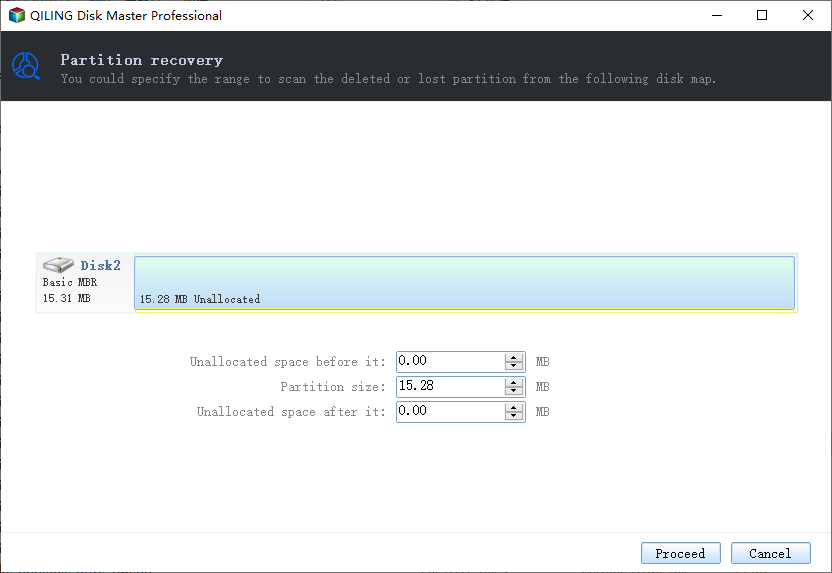
Step 2. Wait for the scanning process to complete.
Let the program scan the selected disk and find the lost partition(s).
Step 3. Preview and restore the lost partition(s).
Double-click on the partition which is marked as "Lost" with "Good" recoverability.
To recover a lost partition, first, you need to preview the content of the lost partition. Once you're satisfied with the preview, click "OK" and then click "Proceed" to initiate the recovery process. This will start restoring the lost partition.
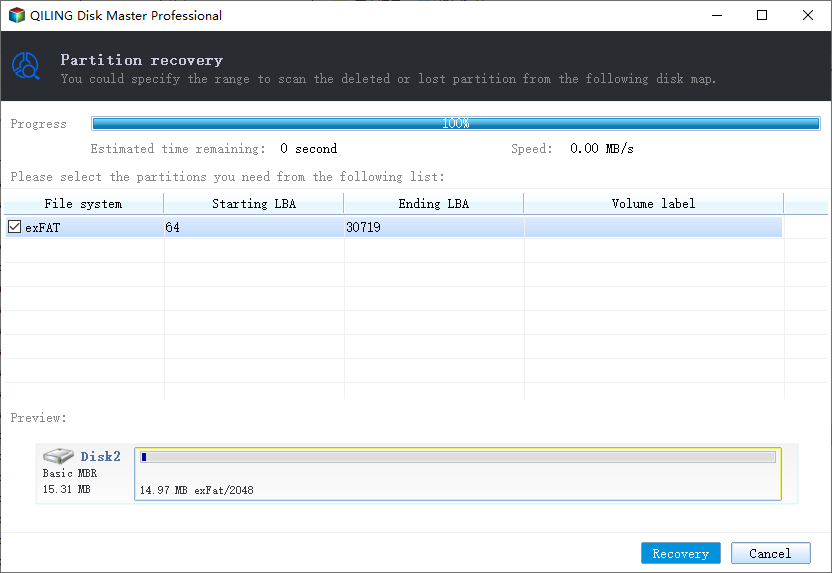
Step 4. Click "Recover Now" to finish the partition recovery process.
If the program warns you of a conflict, back up any essential data from the listed partition to an external hard drive first. Then, proceed with the final operation to restore your lost partition. This ensures that any critical information is safely preserved before making any changes.
Further Reading - What's EXT2 or EXT3 File System
The EXT2 file system is a file system for the Linux kernel that was initially designed as a replacement for the extended file system. It is fast enough to be used as a benchmarking standard, but its main drawback is that it is not a journaling file system. Its successor, EXT3, is a journal file system and is almost completely compatible with EXT2.
The EXT3 file system, a journal file system used on Linux, is gaining popularity among users. It's the default file system for Red Hat, Fedora, and Debian Linux distributions. The main reasons to migrate from EXT2 to EXT3 are improved availability, data integrity, speed, and ease of transition.
EXT3 has the advantage of allowing in-place upgrades from the popular EXT2 file system, eliminating the need to back up and restore data, but its performance and scalability are less attractive compared to competitors like ReiserFS and XFS.
The EXT3 file system adds, over its predecessor:
- A journal
- H-tree (hashed tree) directory indexes
- In-directory file types
The EXT3 file system is built upon the EXT2 file system, inheriting its structure and functionality. As a result, any EXT3 file system is also a valid EXT2 file system, making it possible to use well-established maintenance utilities designed for EXT2 on EXT3 without significant modifications. This compatibility also facilitates easy conversion between the two file systems, allowing for seamless transitions from EXT2 to EXT3 and vice versa.
In the Linux implementation of EXT3, there are three levels of journaling available. These levels provide varying degrees of protection for data integrity and performance.
- The journaling file system writes both metadata and file contents to a journal, a temporary storage area, before committing them to the main file system. This approach enhances reliability by ensuring that data is safely stored in two places, but it comes with a performance cost as all data must be written twice.
- In a writeback journaling system, metadata is recorded in a journal, but file contents are not. This approach is faster, but it introduces the risk of out-of-order writes, where files being appended to during a crash may end up with a corrupted or garbage tail on the next mount.
- The file system uses a mechanism called ordered writeback, where the file contents are written into the origin files after the associated metadata, which is a compromise between reliability and performance. This is the default method used.
Conclusion
We have rounded up two third-Qiling is a party utility that performs Linux partition recovery and EXT2/EXT3 data recovery, allowing users to recover deleted files, restore corrupted files, and access information on an inaccessible drive, making it easy to retrieve EXT data.
Recover Linux Partition in Windows FAQs
The Frequently Asked Questions (FAQ) page is a helpful resource for users who still have questions after reading the provided information. It contains a list of commonly asked questions and their respective answers, covering a wide range of topics and topics.
How do I fix a corrupted partition table?
To start the partition table repair process:
Step 1. To access the Disk Management tool, right-click on "This PC/My Computer" and select "Manage", then navigate to Disk Management.
Step 2. Right-click on the disk showing as "Not Initialized" and select "Initialize Disk".
Step 3. To select the partition style for a disk, you need to choose between Master Boot Record (MBR) and GUID Partition Table (GPT). This is done by clicking on the "OK" button after selecting the desired partition style.
Can I recover data from deleted partition?
When a partition is deleted, the system removes its assignment for that location on the hard drive, but the actual data remains untouched, allowing it to be restored using a recovery utility.
To recover data from a hard drive using Qiling, download and install the software on your computer, then follow the steps to begin the recovery process.
Step 1. Launch Deep Data Recovery and scan Ext2 or Ext3 drive.
Step 2. Preview found Ext partition files from the scan result.
Step 3. Recover found data from Ext2 or Ext3 drive.
How can I recover my lost partition for free?
Recovering Linux partition in Windows:
Step 1. Run Qiling Partition Recovery on your PC, select the disk or device where you lost partition(s), and click "Scan" to continue.
Step 2. Let the program scan the selected disk and find the lost partition(s).
Step 3. Double-click on the partition marked as "Lost" with "Good" recoverability to initiate the recovery process.
Step 4. Click "Recover Now" to finish the partition recovery process.
Can Windows 10 read ext4?
Windows 10 does not natively support the Ext4 file system, which is used by Linux. As a result, Windows 10 is unable to read Ext4 file systems, but third-party software can be used to overcome this limitation, allowing Windows 10 to access and read Ext4 files.
Related Articles
- Free Download Transcend JetFlash Online Recovery Tool
- How to Fix M.2 SSD Not Showing Up in Windows 10 (BIOS/Disk Management)
- Recover Data from Deleted or Lost Partition
- Data Recovery Software Free Download Full Version with Crack (Version 15.2)
- How to Recover MOV Files from SD Card/Formatted SD Card
Whether you want to recover deleted or lost MOV files from SD card, check out the guidelines for how to recover MOV files from SD card due to deletion or SD card format. - Recover My Files Free Download | Recover My Files in Windows PC
Recover My Files is a tool that helps users recover deleted and lost files on their Windows PC, but there's an alternative available for both Windows and Mac.
Products
Articles & Tutorials
- Data Recovery
- Data Backup
- File Recovery
- File Backup
- System Backup and Restore
- Disk and Partition Clone
- Technical articles
- Mobile articles
- Disk Master Help
- Windows Data Recovery Tutorials
- Windows Secure Delete Tutorials
- Windows Partition Management Tutorials
- Windows File Backup and Restore Tutorials
- Windows System Backup and Restore Tutorials
- Windows Disk Backup and Restore Tutorials
- Windows Clone Tutorials