How to Fix M.2 SSD Not Showing Up in Windows 10 (BIOS/Disk Management)
A user's SanDisk m.2 SSD is not being recognized by their Gigabyte Z170 HD3P motherboard's BIOS, despite updating the BIOS to the latest version and disconnecting other SATA drives.
In Windows 10, an M.2 SSD may not show up due to various reasons, including incorrect BIOS settings, outdated drivers, or faulty hardware. Users have reported issues on forums like ASRock, Reddit, and tom's hardware, and have tried various methods to resolve the problem. However, these methods may not work for everyone, and the issue persists.
This article provides a guide on how to fix an SSD not being detected in Windows 10. It covers the details of troubleshooting M.2 SSD not detected in BIOS and disk management, providing a comprehensive solution to the issue.
| Workable Solutions | Step-by-step Troubleshooting |
|---|---|
| Causes of M.2 SSD Not Showing Up | Your computer can't detect M.2 SSD when you haven't configured the BIOS setting or M.2 SSD is not properly connected to the device... |
| M.2 SSD Not Detected in BIOS Laptop/PC | To fix M.2 SSD not detected in BIOS, you can configure your M.2 SSD in BIOS or reinstall the drive... |
| M.2 SSD Not Detected in Disk Management | When M.2 SSD is not showing up in Disk Management, update its driver, use Hardware and Devices... |
| Recover Data from M.2 SSD That Is Not Detected | You can use professional data recovery software to restore data from M.2 SSD to prevent data loss... |
| M.2 SSD Not Showing Up FAQs | Check the frequently asked questions about M.2 SSD not showing up. You can learn the detailed reasons for M.2 SSD not detected as well as more solutions... |
Causes of M.2 SSD Not Showing Up
Before using the solution, consider the possible reasons for disk failure, such as hardware issues, software glitches, or user errors. These reasons may also apply to other device issues, like the SSD not showing up, and trying alternative methods may be more effective.
Causes of BIOS Issue:
- To fix this issue, you need to enter your BIOS setting, navigate to the M.2 SSD section, and enable it. This will allow your system to recognize and utilize the M.2 SSD as a storage device. Please consult your motherboard manual for specific instructions on how to access and configure your BIOS settings.
- Your M.2 SSD is not properly connected to the computer.
Causes of Disk Management Problem:
- Your driver needs to update.
- Troubleshoot your hard disk.
- Your drive letter is missing.
M.2 SSD Not Detected in BIOS Laptop/PC
You can try two solutions for the BIOS issue: fix 1, which is recommended, or fix 2, which involves disassembling the computer and reinstalling the hard disk, a more complex and potentially difficult process for beginners.
Fix 1. Configure Your M.2 SSD
Step 1. Restart the PC and press F2/Delete to enter BIOS.
Step 2. Expand "SATA Configuration" and choose "Configure SATA Configuration as IDE".
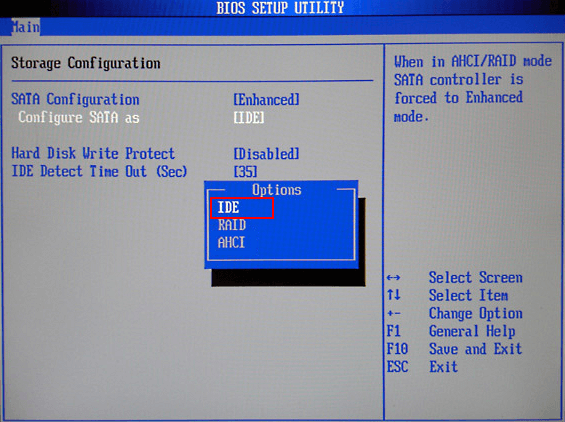
Step 3. Press F8 to save and exit.
Fix 2. Reinstall Drive to Fix M.2 Drive Not Detected in Windows 10
Step 1. To safely disconnect your computer, turn off your PC and unplug it from the power source. If you're using a laptop, you can also remove the battery. This will prevent any accidental power-ons and ensure your safety while working on the computer.
Step 2. To access the PC's internal components, use a screwdriver to remove the screws holding the case together. For laptops, you can also disassemble the shell by removing some screws. This provides you access to the internal parts, allowing you to perform maintenance or upgrades.
Step 3. Disconnect the hard disk and cable. And reinstall it.
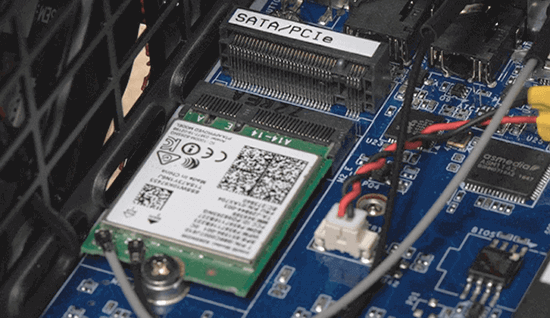
- To install an M.2 SSD on a desktop PC, locate the M.2 connector on the motherboard, which is typically found on the lower middle section. This connector has a horizontal slot labeled as either SATA or PCIe, depending on the type of M.
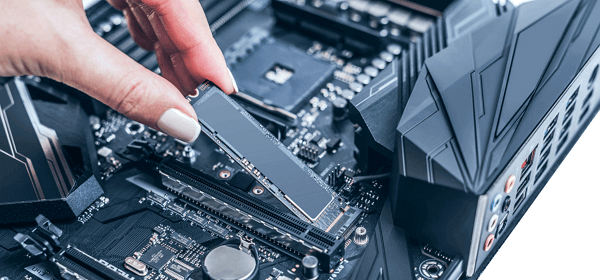
- To add an M.2 SSD to your laptop, start by opening the M.2 slot, then slide the M.2 SSD into the slot, and finally secure it with the provided screw.
M.2 SSD Not Detected in Disk Management
If the M.2 SSD is not showing up in disk management, you can try updating your driver, applying the Hardware and Device Troubleshooter, and assigning a drive letter.
Fix 1. Update M.2 SSD Driver
Step 1. Press "Windows + X" and click "Device Manager".
Step 2. Expand Disk Drives.
Step 3. Right-click M.2 SSD and choose "Update Driver Software".
Step 4. In the update driver software window, select the option to "Search automatically for updated driver software".
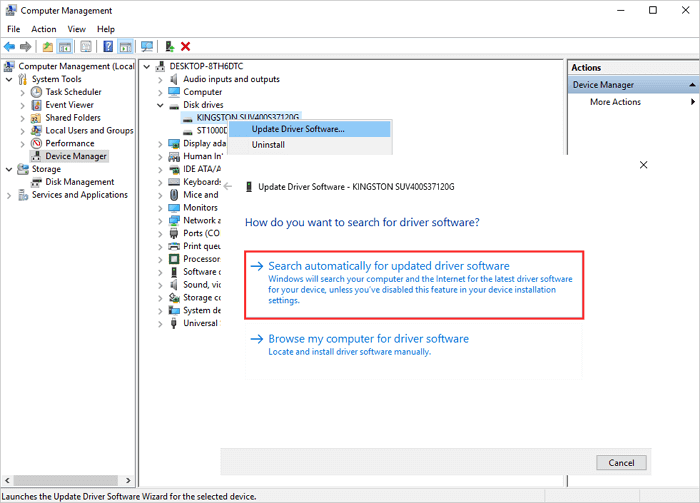
Step 5. Wait until the update completes and restart your computer.
Fix 2. Use Hardware and Devices Troubleshooter
Step 1. Type Hardware and Devices on the search box and click to start.
Step 2. Click "Next" and wait for scanning.
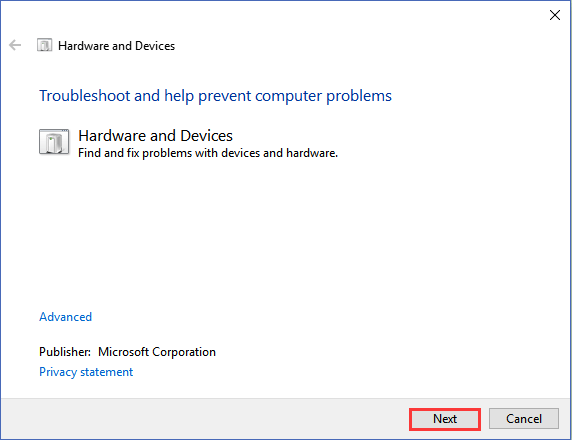
Step 3. If your computer has a problem, it will need to be fixed in order to function properly again. This could involve troubleshooting the issue, identifying the root cause, and implementing a solution to resolve the problem.
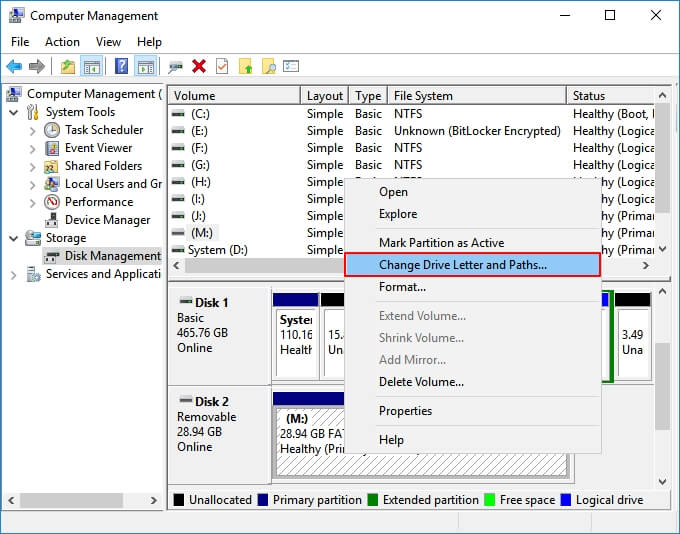
Fix 3. Assign a Drive Letter
Step 1. Open Disk Management.
Step 2. Right-click your SSD and choose "Change Drive Letter and Paths...".
Fix 4. Seek for M.2 SSD Repair Service
To fix the issue of an M.2 SSD not showing up, you can either try repairing it yourself using a manual disk repair service provided by Qiling data recovery service, which offers a user-friendly interface to resolve the problem with simple steps, or opt for a professional disk repair service from the same company, which provides expert assistance to get your M.2 SSD up and running as soon as possible.
Consult with Qiling data recovery service's experts to retrieve data from inaccessible or corrupted digital media from all brands and formats.
- Certified ISO–5 class 100 cleanroom recovery
- Free diagnostic, no data, no charge
- Support all operating systems and devices
- Offer a range of turnaround times for fast recovery
How to Recover Data from M.2 SSD That Is Not Detected
If the above methods can't fix the issue, try retrieving your data using a data recovery software like Deep Data Recovery to access your valuable data.
Deep Data Recovery is a powerful tool that can recover data from corrupted, inaccessible, or RAW hard disks, allowing you to retrieve your important files and information.
Download the data rescue tool and use 3 simple steps:
Step 1. Select file types and click "USB/SD Scan" to start
To recover data from your device, open Deep Data Recovery, select the file types you want to recover, and click "USB/SD Scan" to begin the process.

Note: You can choose different search modes based on where and why the data was lost.
Step 2. Scan the SSD
To recover lost data from an SSD, select the drive where the data was lost and click the "Scan" button. This will initiate a scan of the drive, which may take a few minutes depending on the size of the drive and the amount of data on it.

Step 3. View the results
After the scanning process is complete, you can use the "Filter" and "Search" options to find lost SSD data. To do this, first check the "Deleted Files" and "Other Lost Files" folders.

Step 4. Recover SSD files
To recover lost SSD files, select the desired data and click the "Recover" button. This will initiate the recovery process, allowing you to retrieve your lost files.
Conclusion
To fix an M.2 SSD not showing up in BIOS or Disk Management on Windows 10, follow these steps: Firstly, configure the disk by enabling the M.2 slot in the BIOS settings. Secondly, reinstall and update the drivers for the M.2 SSD controller.
To prevent data loss, use Qiling hard disk recovery software to recover your data and keep it safe.
FAQs About M.2 SSD Not Showing Up
If your M.2 SSD isn't showing up, it could be due to a faulty M.2 slot, a loose connection, or a software issue. To troubleshoot, check the M.
1. Why won't my M.2 SSD show up?
Your M.2 SSD may not be showing up due to various reasons, including a misformatted disk, improperly installed drivers, or a BIOS configuration that doesn't recognize the M.2 SSD.
2. How do I get my M.2 SSD to show up?
If your M.2 SSD is not showing up, check the BIOS settings to ensure it's enabled and the boot order is correct. If it still doesn't show up, try reformatting the disk using a utility like Diskpart.
3. How to fix M.2 SSD not showing up in BIOS?
If your M.2 SSD isn't showing up in BIOS, it's probably because the BIOS isn't configured to recognize it. You can fix this by entering the BIOS settings, enabling the M.2 SSD, saving your changes, and exiting the BIOS.
4. How to fix M.2 SSD not showing up in Disk Management?
If the M.2 SSD isn't detected in Disk Management, it might be due to incorrect formatting. You can use Diskpart or a third-party tool to reformat the M.2 SSD, which should then be visible in Disk Management.
Related Articles
- How to Activate Windows 10/11 with Product Key/Digital License/CMD
- WhatsApp Recovery and Backup on Windows 11/10/8/7 PC or Laptop
- Qiling Free Trial Code: Free Get Deep Data Recovery License Code & Serial Key
- Free Download Transcend JetFlash Online Recovery Tool
- 5 Ways to Fix BSOD Error 0x00000133
If you're experiencing issues with the Blue Screen of Death, specifically Error 0x00000133 or DPC Watchdog Violation 0x00000133, this guide can help you fix the problem in Windows 10. Additionally, if you're looking to recover data, you can consider using Qiling. - MS SQL Error 4064/4062: Cannot Open User Default Database
If the MS SQL database is unavailable, you may get error messages 4062 or 4064 when trying to connect. To resolve this, you can either manually fix the issue or use Qiling MS SQL Recovery software to recover the database.
Products
Articles & Tutorials
- Data Recovery
- Data Backup
- File Recovery
- File Backup
- System Backup and Restore
- Disk and Partition Clone
- Technical articles
- Mobile articles
- Disk Master Help
- Windows Data Recovery Tutorials
- Windows Secure Delete Tutorials
- Windows Partition Management Tutorials
- Windows File Backup and Restore Tutorials
- Windows System Backup and Restore Tutorials
- Windows Disk Backup and Restore Tutorials
- Windows Clone Tutorials