How to Restore Lost Data with Easy Recovery Essentials Free Alternative
You can turn to Easy Recovery Essentials and its free alternative to get help when you face system crashes, inaccessible data problems, or data loss issues.
- Easy Recovery Essentials Overview
- Easy Recovery Essentials Free Alternative
- Easy Recovery Essentials vs the Alternative
- How to Protect Data in Windows 10/8/7
- Easy Recovery Essentials FAQs
Part 1. Everything You Need to Know About Easy Recovery Essentials
You'll learn about free Easy Recovery Essentials in this section. This includes what it is, how to use it, and more. Read on to get all the information about Easy Recovery Essentials.
What Is Easy Recovery Essentials
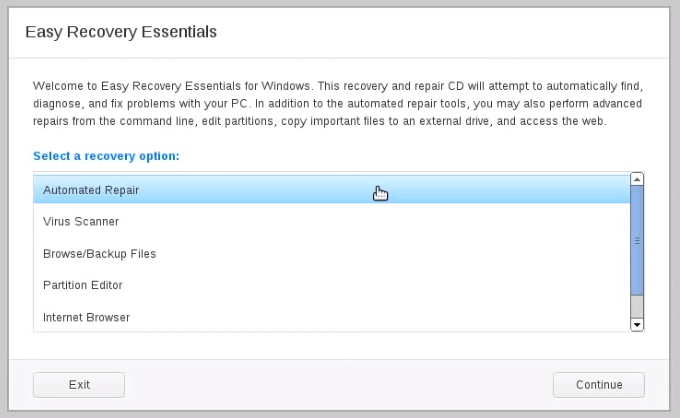
Easy Recovery Essentials for Windows (EasyRE) is a bootable repair and recovery program from NeoSmart Technologies that can be used to repair non-booting/crashed laptops and PCs. It is compatible with all Windows PCs and laptops and is guaranteed to work with your computer, methodically testing and validating each component in your system, simulating the boot process and identifying where things go wrong.
EasyRE Features and Highlights
This software has many excellent features:
- The program can automatically repair your computer without requiring a full format and reinstall of the operating system, allowing for a more efficient and convenient repair process.
- Boot into Windows without entering the operating system.
- Recovering from a PC virus can be a straightforward and hassle-free process with Easy Recovery Essentials for Windows, making it easy to get back on track quickly.
- Make your PC work again without losing any of your precious files. With some simple steps, you can breathe new life into your computer and keep all your documents, pictures, media, and other important files safe and secure.
- Include other features like partition editor, safe browser, etc.
How to Use Easy Recovery Essentials
EasyRE supports Windows operating systems, including Windows 10/8/7 and Windows XP/Vista, as well as Windows server 2003-2019, and can be used to repair disk errors and recover data through a step-by-step guide.
Preparations:
To create a bootable CD, DVD, or USB drive, follow these steps: Insert a blank CD, DVD, or USB drive into your computer. Download a bootable media creation software such as Rufus, Etcher, or PowerISO.
Download Easy Recovery Essentials on your PC according to your specific Windows version, following the instructions provided for your Windows 10, 8, 7, or XP system.
Step-by-step Guide:
Step 1. Download a copy of EasyRE to any PC or Mac and save it to a CD or USB by visiting the website https://neosmart.net/EasyRE/.
Step 2. Start the PC that needs fixing by booting from the EasyRE CD/USB, even if you normally can't start your PC.
Step 3. EasyRE scans your PC and displays a list of recovery options, which can be initiated by clicking "begin".
Step 4. EasyRE automatically searches for problems and fixes them, and after completing the process, you can simply reboot your PC to have it up and running again.
Part 2. Alternative to Easy Recovery Essentials Free - Deep Data Recovery
Easy Recovery Essentials free works with crashed or unbootable computers, repairing the system and restoring lost data with a USB/CD bootable media. However, it requires technical skills, making it difficult for beginners who know little about computers. A more user-friendly option is Deep Data Recovery with Bootable Media.
What Is Deep Data Recovery with Bootable Media
It is an easy-to-use program that allows data recovery even for those unfamiliar with computers. It can also recover data from computers experiencing various booting issues, such as crashes, freezes, or constant reboots.
Deep Data Recovery Features and Highlights
- To restore deleted files when the Windows system is unable to boot, you can try using a Linux live USB or a Windows recovery environment. Boot from the USB drive or recovery media and access the file system using a tool like `extundelete` or `photorec`.
- To recover lost data, you can create a bootable media that temporarily runs your existing operating system, allowing you to access and retrieve your lost files.
- 100% safe to recover deleted files without overwriting original data.
- This software is compatible with almost all Windows versions, including Windows 10, 8.1, 8, 7, and more.
How to Use Deep Data Recovery
To recover data using this free alternative to Easy Recovery Essentials, start by downloading and installing the software, then boot from the created USB drive or CD/DVD. Once the software loads, select the operating system you want to recover data from and choose the type of recovery you need.
Step 1. Create a bootable disk
To create a bootable USB, first, back up any important data on the USB drive to another device. Then, download and install Deep Data Recovery WinPE Edition. This software will guide you through the process of creating a bootable disk, erasing the existing data on the USB in the process.
To create a bootable USB drive for Deep Data Recovery WinPE Edition, connect the USB drive to your PC and launch the software. Select the USB drive and click the "Create" button to initiate the process. This will prepare the USB drive to boot into the Deep Data Recovery WinPE Edition environment.
Step 2. Boot from the bootable USB
Connect a bootable disk to the PC that won't boot, change the boot sequence in the BIOS, and restart the computer while pressing F2 to enter the BIOS. This usually resolves the issue.
To boot your PC from a device other than the hard drive, press F10 to save and exit the settings, allowing you to select "Removable Devices" (such as a bootable USB drive) or "CD-ROM Drive" (such as a bootable CD or DVD) as the boot priority. This enables you to start your PC from an external source instead of the hard drive.
Step 3. Recover data from a hard drive that won't boot
When you boot from a USB, you can run Deep Data Recovery from the WinPE bootable disk and select the drive to scan, which will help find all your lost files.

Click "Scan" to start the scanning process.

After scanning, you can preview all recoverable files, select the targeted files, and click the "Recover" button to restore your files. It's recommended to save all recovered data to another place to avoid data overwriting. This will ensure that you can recover your important files safely and efficiently.

Easy Recovery Essentials VS Deep Data Recovery
To determine the best data recovery or repair software for your needs, check out the comparison table below, which provides a concise overview of the key features and differences between various options. This table allows you to quickly compare and contrast the various software, making it easier to choose the one that best suits your requirements.
| Comparison | Deep Data Recovery | Easy Recovery Essentials |
|---|---|---|
| Recover data without OS | Yes | Yes |
| Create a WinPE disk | Yes | Yes |
| Preview data | Yes | No |
| Multiple file recovery | Yes | No |
| Easy-to-Use | Yes | No |
| Deep Scan | Yes | No |
Part 4. How to Avoid Data Loss Issues
While there's no foolproof way to prevent data loss entirely, taking proper precautions can help mitigate the frequency and impact of such events. The type of data loss event, whether it's due to hardware failure, software glitches, or human error, requires a specific type of precaution, underscoring the importance of having a comprehensive data protection strategy in place.
Tip 1. Use a journaling file system and RAID storage to protect against certain types of software and hardware failure, ensuring data integrity and availability.
Tip 2. Regular file backups are essential for recovering data after a loss event, but they don't prevent user errors or system failures.
Tip 3. A well-rounded approach to data protection involves a combination of proactive measures, such as maintaining antivirus and firewall protection, and user education, which is crucial in preventing data loss events. This comprehensive approach ensures that all aspects of data protection are addressed, reducing the likelihood of data loss.
Tip 4. User education is the most important and challenging aspect of preventing data loss, as it is the users who can inadvertently put data security at risk through their actions.
Part 5. Easy Recovery Essentials FAQs
Here are the most common questions that people ask about Easy Recovery Essentials.
Is Easy Recovery Essentials legit?
Answer from Tome's guide:
The product is legitimate, but it doesn't offer any functionality that a skilled PC user can't achieve with free software. It's not a solution that fixes all PC problems, as no single tool can accomplish that.
How do I use Easy Recovery Essentials?
You can refer to the video and the detailed steps in Part 1.
What is EasyRE?
Easy Recovery Essentials for Windows is a bootable repair and recovery program that can be used to repair non-booting/crashed laptops and PCs.
How can I boot from USB?
To boot from USB in Windows 10:
- Press the Power button and restart your PC.
- To access the BIOS settings during the initial startup screen, press one of the following keys: ESC, F1, F2, F8, or F10.
- You should select the "BOOT" tab using the arrow keys on your keyboard.
- Move the USB to the first in the boot sequence.
Related Articles
- How to Recover Data Files Deleted by Antivirus
- Top 10 Best Hard Drive Repair Software
- Download Data Recovery Wizard Free Edition!
- Features, Benefits, Comparisons of RAID Levels | Advanced Techniques for Data Storage
- Best Free Data Migration Software for Windows 7/10
Are you looking for the best free data migration software to transfer data from one location to another? Look no further! Here are 5 top-notch free data migration software tools that can help you migrate data quickly and efficiently. - [Solved] Can't Find Recycle Bin in Windows 10/8 – 2 Solutions
Can't find recycle bin in Windows 8 and cannot open recycle bin in Windows 10? Here are the solutions for how to find and open recycle bin on Windows PC.
Products
Articles & Tutorials
- Data Recovery
- Data Backup
- File Recovery
- File Backup
- System Backup and Restore
- Disk and Partition Clone
- Technical articles
- Mobile articles
- Disk Master Help
- Windows Data Recovery Tutorials
- Windows Secure Delete Tutorials
- Windows Partition Management Tutorials
- Windows File Backup and Restore Tutorials
- Windows System Backup and Restore Tutorials
- Windows Disk Backup and Restore Tutorials
- Windows Clone Tutorials