How to Repair Windows 11 and Fix Corrupted Files
Upgrading to Windows 11 can be done for free, but users may still encounter issues such as boot problems, slow loading, or even a black screen of death.
If you're experiencing issues with your Windows 11 installation, With the methods outlined in this tutorial, you'll be able to repair Windows 11 and get your computer running smoothly again. Whether you're dealing with errors, glitches, or other problems, these steps will help you troubleshoot and resolve the issues, making your computer functional once more.
| Workable Solutions | Step-by-step Troubleshooting |
|---|---|
| Fix 1. Use Windows Startup | Windows Startup Repair can fix problems that the Windows 11 OS face while booting...Full steps |
| Fix 2. Run SFC to Repair System Files | You can perform an SFC scan to check for any corrupted files and repair them...Full steps |
| Fix 3. Use DISM to Fix System Files | Use Windows Deployment Imaging and Servicing Management to repair the Windows image...Full steps |
| Fix 4. Run Windows Repair Services | Windows repair services are suitable for solving all system errors like system failure, BSOD, unbootable...Full steps |
| Fix 5. Perform System Restore | Using Windows Restore, you can revert the Windows to the state that it was working without any problem...Full steps |
| Fix 6. Reset Your PC | The last way to repair Windows 11 is to reset your PC and reinstall Windows...Full steps |
First Thing to Do Before Windows 11 Repair: Recover and Back Up Files
Windows 11 repair may result in data loss, so it's recommended to restore and back up data before attempting fixes. A data recovery tool like Deep Data Recovery can be used to recover various file types in case of complex data loss causes.
If your Windows 11 fails to start, you can still use Deep Data Recovery Pro with Bootable Media to recover data from a dead hard drive and inaccessible Windows computer.
Step 1. Create a bootable disk
Prepare an empty USB. If you have important data on it, copy the data to another device. Then, Deep Data Recovery WinPE Edition will help you create a bootable disk on the USB.
Connect the USB drive to your PC, then launch Deep Data Recovery WinPE Edition. Select the USB drive as the target and click "Create" to create a bootable disk.
Step 2. Boot from the bootable USB
Connect a bootable disk to the PC that won't boot, and change the boot sequence in the computer's BIOS settings. This usually works when the computer is restarted and the F2 key is pressed simultaneously to access the BIOS.
To boot the PC from a device other than the hard drive, press F10 to save and exit the BIOS settings. This will allow you to boot from a removable device such as a USB drive or a CD/DVD drive.
Step 3. Recover data from a hard drive that won't boot
When you boot from a USB drive, you can run Deep Data Recovery from the WinPE bootable disk, select the drive you want to scan to find all your lost files.

Note: You can choose different search modes based on where and why the data was lost.
Click "Scan" to start the scanning process.

After scanning, you can preview and select the files you want to recover, then click "Recover" to save them to another location, avoiding data overwriting.

After recovering data using a file recovery tool, you can try the following solutions to fix Windows 11 safely. Start by trying the top solution and work your way down until you find the one that gets your PC or laptop running properly again.
Fix 1. Use Startup Repair to Repair Windows 11
If your Windows 11 is experiencing issues, try running the Windows Automatic Repair utility, which can fix system booting problems. To do this, follow the steps:
Step 1. Insert Windows 11 installation disk or USB to your PC.
Step 2. Restart your computer PC and boot from the disk or USB.
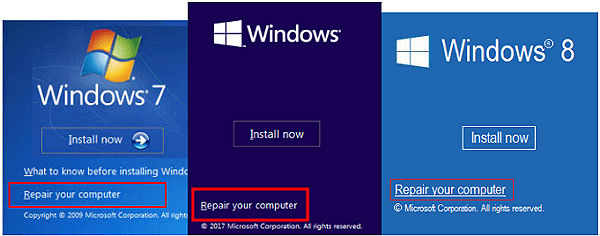
Step 3. After the Windows Install now screen appears, click "Repair your computer".
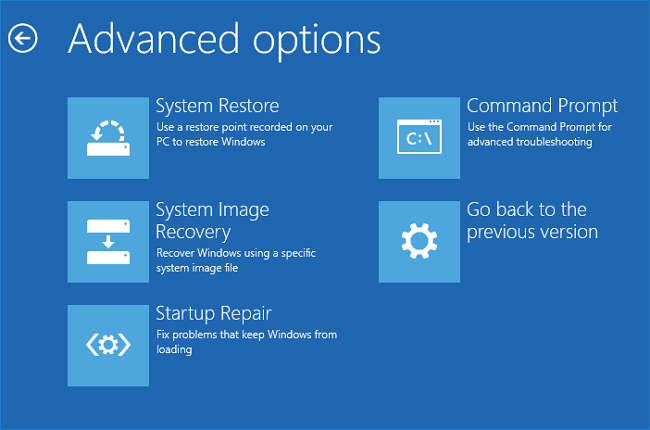
Step 4. To resolve an issue, go to the "Choose an option" screen, click the "Troubleshoot" option, and proceed to the Advanced options window.
Step 5. Windows 11 users who encounter startup issues can try to fix them by selecting the "Startup Repair" option in the Windows Recovery Environment. This process involves choosing "Startup Repair" after accessing the Windows Recovery Environment, and then waiting for Windows to diagnose and potentially fix the issue, which may resolve the startup problem.
Fix 2. Run SFC Scan Fix System Problem
If system files are corrupted, Windows 11 may malfunction and stop working. To resolve this issue, you can use the System File Checker (SFC) and Deployment Image Servicing and Management (DISM) tools to scan and repair Windows system files.
Steps to run SFC scan:
Step 1. Press Windows + X keys and choose Command Prompt((Admin) from the list.
Step 2. To run the System File Checker (SFC) tool on a Windows system, open the Command Prompt window, type the command "sfc /scannow", and press the "Enter" key. This command will scan all protected system files and replace any corrupted or missing ones with a cached copy.
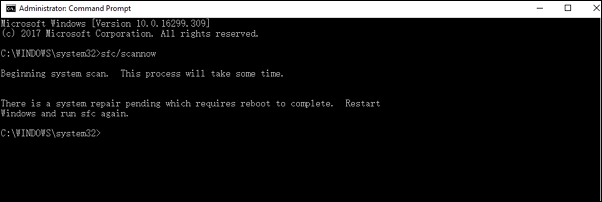
If the System File Checker (SFC) detects that a protected file has been corrupted or altered, it will automatically repair and replace it with the correct version. Additionally, the SFC can also attempt to repair the file cache if it finds any issues with it.
Fix 3. Run DISM Scan to Repair Windows 11 System File
If SFC doesn't work, try using DISM instead, which is more powerful and capable. This process may take some time, depending on the number of files on your computer. After completing the process, restart your computer and see if Windows 11 works properly.
Step 1. Click the search button and look for "Command Prompt".
Step 2. Right-click the icon and select "Run as administrator".
Step 3. To fix corrupted system files in Windows, type the command "DISM /Online /Cleanup-Image /RestoreHealth" in Command Prompt, press "enter", and wait for 2-5 minutes for the program to run and fix any damaged system files.
Fix 4. Use Windows Repair Services to Repair Windows 11
If you're struggling with Windows issues despite trying your best, don't worry. Qiling Windows repair services specialize in resolving Windows problems, including system errors, system failure, BSOD, and unbootable devices. Their technical team is equipped to help you troubleshoot and fix these issues.
Consult with Qiling data recovery experts for a one-on-one manual recovery service, which includes a FREE diagnosis. After diagnosis, the following services can be offered:
- Fix Windows boot issues, including BSOD
- Fix Windows error and configure Windows environment
- Restore the system when it fails to boot
- Optimize Windows computer to make it run quickly
Fix 5. Fix Windows 11 Through System Restore
To repair Windows 11, you can try using Windows System Restore, which can restore the operating system to its normal working status. However, this method requires creating a recovery point ahead of time, so if you didn't do that earlier, it won't work and you'll need to move on to the next method.
Step 1. To resolve Windows 11 issues, restart your computer and press F11 as it boots up to access the Advanced Startup, where you can select "Troubleshoot" to troubleshoot and fix problems.
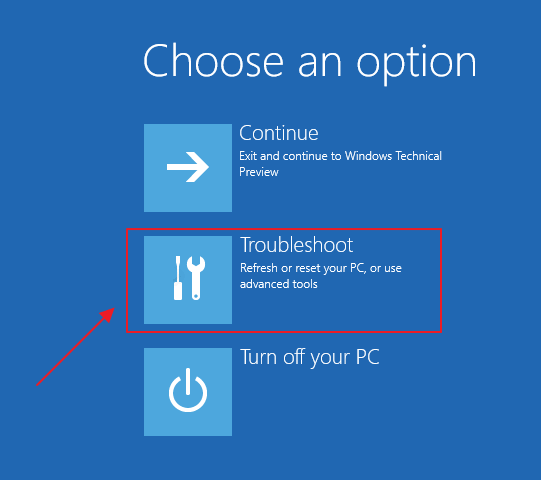
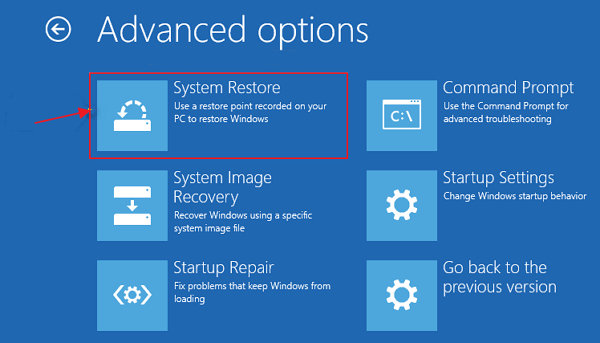
Step 2.Select Advanced options, and then choose System Restore, and your PC will restart.
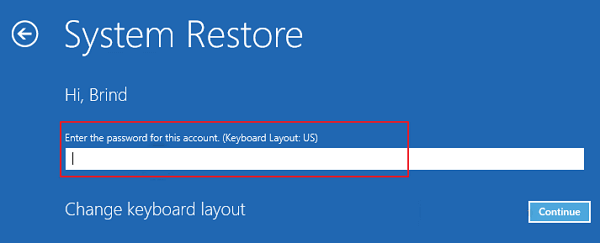
Step 3.To access your account, select your account and enter your password. After that, click "Continue" to proceed to the next step.
Step 4. On the System Restore window, select a restore point to which you want to revert, and then click Next.
You can select San for affected programs, and you can check what programs will be added to your system or what programs will be removed.
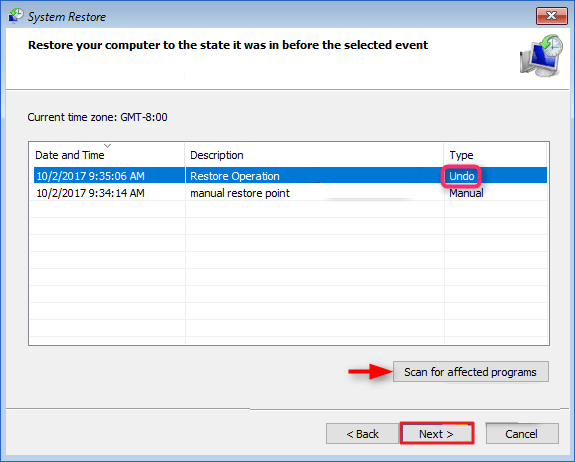
Step 5. The user needs to click the next button and follow the on-screen instructions to restore their Windows.
Fix 6. Reset Your Windows 11 PC
If Windows 11 is not running smoothly, resetting your PC can be a helpful solution. This process allows you to choose whether to keep your personal files or remove them, and then reinstalls Windows. If you decide to delete all data on your PC, it's essential to have made a backup beforehand.
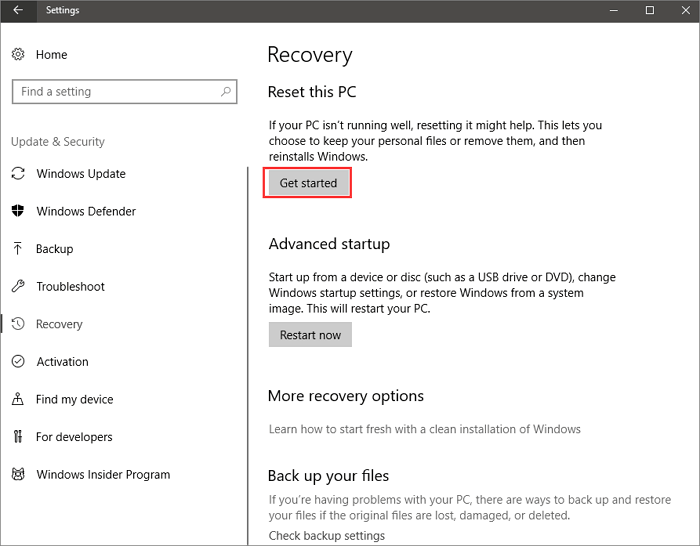
Step 1.To start the process, click the "Start" button on your computer, then navigate to the "Settings" menu. From there, select "Update & Security" and finally click on "Recovery".
Step 2. Under "Reset this PC", choose "Get Started".
Step 3. When you click on "Keep my files" or "Remove everything", both options will delete all apps and settings, but the difference lies in what happens to your files. "Keep my files" will preserve your files, while "Remove everything" will delete them. Both options will reset your device to its factory settings.
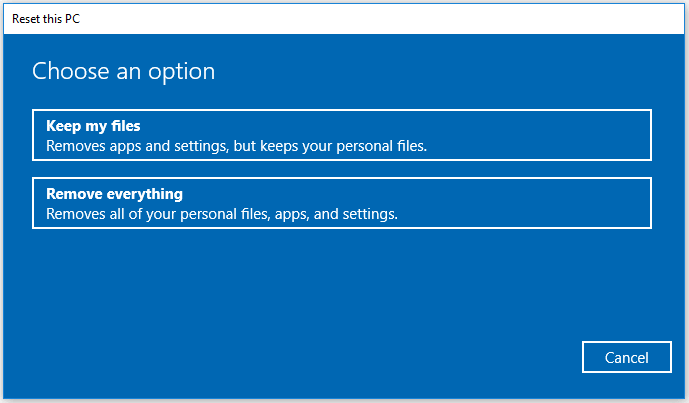
Step 4.Once you choose an option, a window will pop up stating that your apps will be removed. To proceed, simply click "Next".
Step 5. To reset your PC on the Ready to reset this PC screen, click the "Reset" button to reinstall Windows 11.
Final Words
Here are some tried and true methods to help you repair Windows 11, and it's a good idea to back up your files in advance with data recovery software.
To resolve Windows 11 issues, you can try using the Windows Startup Repair tool, running an SFC and DISM scan, performing a system restore, or resetting your PC. Follow the step-by-step guides above to troubleshoot and resolve the problem.
Related Articles
- How to Fix Location Is Not Available, Access Is Denied Error in Windows 10/8/7
- How to Convert RAW to NTFS Without Formatting (3 Ways)
- Top 10 Best Free SD Card Data Recovery Software (100% Working)
- Lost Bitlocker Recovery Key? Here's How to Get It Back Easily
- Microsoft File Recovery Software – How to Use and 10 Best Alternatives
Microsoft File Recovery is a software that can help recover lost or deleted files, but it may not always be the most effective solution. Fortunately, there are alternative software options available that can provide better results. - HP Pen Drive Online Recovery – Recover Data from HP Pen Drive
If you're looking for information on HP pen drive data recovery online, this article is a helpful resource. It provides insights into HP pen drive online recovery and recommends the best online recovery tool for HP pen drive, allowing you to recover your lost data with ease.
Products
Articles & Tutorials
- Data Recovery
- Data Backup
- File Recovery
- File Backup
- System Backup and Restore
- Disk and Partition Clone
- Technical articles
- Mobile articles
- Disk Master Help
- Windows Data Recovery Tutorials
- Windows Secure Delete Tutorials
- Windows Partition Management Tutorials
- Windows File Backup and Restore Tutorials
- Windows System Backup and Restore Tutorials
- Windows Disk Backup and Restore Tutorials
- Windows Clone Tutorials