How to Convert RAW to NTFS Without Formatting (3 Ways)
How to Convert RAW to NTFS Without Losing Data
- 1. Locate and scan the RAW hard drive.
- 2. Find and preview found data in the RAW drive.
- 3. Restore and save RAW drive data.
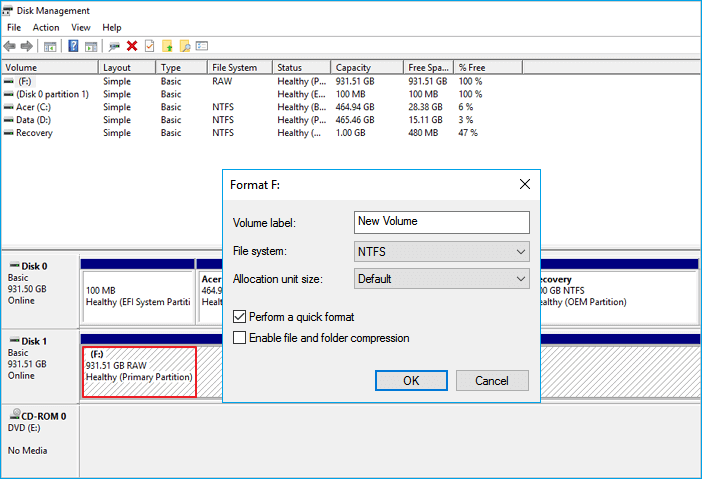
- 4. To format a RAW disk or partition in Windows 10, open the "This PC" window, right-click on the RAW disk or partition, and select the "Format" option from the context menu. This will initiate the formatting process, allowing you to create a new file system on the disk or partition.
- 5. To set up the NTFS file system, select it as the file system to use for the new volume in the Disk Management console. Then, set up other necessary options such as the volume label, file system options, and other settings as required.
- 6. Click "Start" > "OK".
Why Do You Need to Convert RAW to NTFS
A hard drive or partition, external hard drive, USB/SD card, or memory card becomes RAW when it can't be accessed or read, resulting in an error. This occurs due to various reasons, including file system corruption, power failure, or physical damage to the drive, leading to a RAW file system that prevents data recovery.
- If the file system on a partition suffers structural damage, it may become RAW.
- A disk or partition becomes RAW if there are bad sectors on a hard drive.
- The access permission to the partition is configured improperly.
- The partition table of the drive may be corrupted
Formatting a RAW file system to NTFS can make a disk/drive reusable, but it will erase all data on the storage device. To avoid data loss, you can try to convert the RAW file system to NTFS using CMD, but if that fails, you can use a hard drive recovery software like Qiling to restore files from the RAW drive and then format it to NTFS.
How to Convert RAW to NTFS Without Losing Data (Save Data First)
Before formatting a RAW drive to NTFS, we recommend trying data recovery via Professional Deep Data Recovery. This program enables you to recover lost files from internal and external storage devices after formatting, deletion, partition loss or damage, software crash, virus infection, unexpected shutdown, or other unknown reasons, thus avoiding unnecessary data loss.
Qiling RAW Recovery Software
- Data recovery services can help recover lost data due to sudden deletion, formatting, hard drive corruption, virus attacks, and system crashes, providing a solution for various data loss situations.
- Recover files from various storage devices, including the emptied recycle bin, memory card, SD card, flash drive, digital camera, and camcorders.
- Restore files from RAW drives, lost partitions, and formatted hard drives with ease.
To recover data from a RAW drive:
Step 1. Select file types

Note: You can choose different search modes based on where and why the data was lost.
Step 2. Select and scan the RAW partition
If the RAW partition has a label, you can select it from the drive list and click "Scan" to search for lost files. If the RAW partition has lost its label, it will be recognized as "Lost Partition", and you can select it and click "Scan" to initiate a full scan of the RAW drive.

Step 3. Preview found data from the scan result
After the scan is completed, all available files on the RAW hard drive will be displayed, allowing you to view and select the files you want to recover. You can sort the scanned data by file format or search directly in the "Search files or folders" box to find specific files.

Step 4. Recover data from RAW partition
To recover data from a RAW drive, select all files and click "Recover" to retrieve all data. Then, choose another internal or external hard drive to save the recovered data and click "OK" to initiate the RAW drive recovery process.
If data recovery software can't restore RAW files, you can still get your data back by using Qiling RAW recovery services.
Consult with Qiling data recovery experts for one-on-one manual RAW recovery service, which includes the following services after a FREE diagnosis:
- Repair damaged RAW drive without formatting
- Recover data from RAW drive, including BitLocker encrypted drives
- Recover data from RAW partitions, RAW USB drives, RAW flash drives, and RAW external hard drives
The reasons for a drive being in RAW format in Windows 10/8/7 vary, and the solutions to convert it to NTFS differ accordingly. Various scenarios, such as a drive being converted from NTFS to RAW, a RAW drive being created after a system crash, or a RAW drive being the result of a virus attack, require different approaches to convert the RAW drive to NTFS. By understanding the underlying cause, users can take the necessary steps to change RAW drives to NTFS in their specific situation.
Method 1. Convert RAW to NTFS via CMD (Without Formatting)
If you don't want to format your RAW drive, you can convert RAW to NTFS using CMD. Before doing so, it's recommended to restore data from the RAW drive to save your files. Once that's done, you can follow the step-by-step guides to convert RAW to NTFS without formatting using CMD.
Step 1. Click on Start, then type: cmd and hit Enter.
Step 2. Right-click on cmd and then click on "Run As Administrator".
Step 3. Type "Diskpart" and then hit Enter.
Step 4. Type H: /FS:NTFS and hit Enter. (H shall be the drive letter of your RAW storage device.)
If your RAW partition is not responding to CMD commands, don't worry - there are still ways to fix it without losing data. Although the CMD might fail and display the message "CHKDSK is not available for RAW drives", you can still attempt to change the RAW partition to NTFS using RAW. Just be patient and keep reading to learn how to do it.
Method 2. How to Convert RAW to NTFS with Disk Management
To convert a RAW partition to NTFS, follow these steps: After retrieving lost data, you can format the RAW partition to NTFS by following the steps below. First, ensure you have backed up any important files from the RAW partition. Then, open the Disk Management tool (Press the Windows key + R, type 'diskmgmt.
Step 1. To format a RAW partition or drive, go to This PC or Disk Management, right-click on the RAW partition or drive, and select the "Format" option.
Step 2. To format a drive, set the volume label, file system (NTFS), and allocation unit size, then click "OK" to start the quick format operation.
Step 3. You can now access and use the RAW file system partition or drive as normal after reformatting.
Method 3. Convert RAW to NTFS with Qiling Partition Master
You can also change RAW to NTFS using Qiling Partition Master, a partition manager software that can help you easily format RAW to NTFS. This software has many highlights that can greatly assist you, and you can even cancel the process before clicking Execute.
- Migrate OS to SSD or HDD
- Partition a hard drive in Windows 10/8/7
- Increase C drive space with simple steps
- Wipe a disk or delete a partition
How to Convert RAW to NTFS with Qiling Partition Master:
Step 1. Launch Qiling Partition Master.
Right-click on the RAW partition or RAW external hard drive/USB/SD card and select the "Format" option.

Step 2. Format RAW Partition and reset the file system.
Assign a new partition label, set the file system to NTFS, FAT32, EXT2, EXT3, EXT4, or exFAT, and cluster size to the chosen partition, then click "Proceed".

Step 3. Click "OK" to start formatting your RAW partition/USB/SD/external hard drive in the Warning window.
Additional Tips - What Does RAW Mean
RAW data typically refers to tables of data where each row contains an observation and each column represents a variable that describes some property of each observation, often referred to as tidy data.
RAW refers to a file system that is not formatted by the NT file system, such as NTFS and FAT. This issue can occur on various storage devices, including hard disks, external hard drives, USB flash drives, SD cards, and more, often resulting in error messages.
- You need to format the disk in drive F before you can use it.
- "A message is displayed saying that the disk in drive F is not formatted and asking if you want to format it."
- The file system of the drive is RAW, which means CHKDSK (Check Disk) is not a supported feature and cannot be used on this drive.
- The error message "There was an error accessing drive F: The disk is not formatted" indicates that the system is unable to access the F drive because it's not properly formatted, meaning it's not been initialized or prepared for use. This can occur due to various reasons such as a corrupted file system, a hardware issue, or a software problem. To resolve this, you might need to format the drive, which will erase all data on it, or try to recover the data if possible.
Conclusion
This article offers various solutions to retrieve and convert RAW data, allowing users to choose the most suitable approach based on their specific requirements. If further assistance is needed, users can feel free to reach out for help.
How to Convert RAW to NTFS Without Formatting FAQs
Many people are curious about various topics and have questions on their minds. To get extra tips and help, it's a good idea to explore and read on these questions and answers. This can provide valuable insights and assistance.
How do I change RAW to NTFS?
You can convert RAW to NTFS by these methods:
- Convert RAW to NTFS via CMD
- Convert RAW to NTFS by Disk Management
- Convert RAW to NTFS with Software
How convert RAW to NTFS without formatting?
- Click on Start, then type: cmd and hit Enter.
- Right-click on cmd and then click on "Run As Administrator".
- Type "Diskpart" and then hit Enter.
- To change the file system of a RAW storage device to NTFS, you would type the command "chkdsk /FS:NTFS" and then hit Enter, replacing "H" with the actual drive letter of your RAW storage device.
How do I recover files from a raw partition?
To recover data from a RAW drive, you can use a reliable data recovery software. First, download and install the software, then connect the RAW drive to your computer. Next, launch the software and select the RAW drive as the location to scan. The software will then scan the drive and recover any recoverable files.
Step 1. On Deep Data Recovery, locate the RAW drive and then click "Scan". The program will automatically scan all lost files and data on the RAW drive.
Step 2. After the scanning process is complete, you can find lost RAW drive data in the "Deleted Files", "Lost Files", or "Existing Files" sections. The Filter and Search features allow you to easily locate the found files, and you can preview each file by checking and double-clicking on it.
Step 3. Select the recovered files from the RAW Drive and click "Recover" to save them to a new location.
Related Articles
- How to Recover Data from RAID 1 Disk with Raid 1 Recovery Software
- Restarted My Computer and Everything Is Gone Windows 11/10/8/7
- Free Download | Undelete Files with Windows Undelete Software
- How to Recover Data from Micro SD Card
- [4 Ways] How to Remove Write Protection from USB in Windows
When you get the 'disk is write protected' error on USB or other devices, you can't make changes on your drive. Here is how to remove write protection from USB, HDD in Windows 11/10/8/7: [1] Remove write protection in 4 ways; [2] Let deep file recovery software restore all your files. - How to Repair a Corrupted Hard Disk Without Formatting It in Windows 10/8/7
This guide shows you how to fix a corrupted hard drive in Windows 10/8/7 without formatting it, and also introduce you to a program that can help recover data from your hard drive to a safe place, giving you five ways to do so.
Products
Articles & Tutorials
- Data Recovery
- Data Backup
- File Recovery
- File Backup
- System Backup and Restore
- Disk and Partition Clone
- Technical articles
- Mobile articles
- Disk Master Help
- Windows Data Recovery Tutorials
- Windows Secure Delete Tutorials
- Windows Partition Management Tutorials
- Windows File Backup and Restore Tutorials
- Windows System Backup and Restore Tutorials
- Windows Disk Backup and Restore Tutorials
- Windows Clone Tutorials