USB Fixes: Troubleshoot/Repair Corrupted USB Errors in 2022 [Full Guide]
USB drives are extremely popular and important due to their convenience and versatility. They allow for quick and easy storage and transportation of data, making them a staple in many industries and personal use cases. However, despite their importance, USB drives are also prone to errors, which can be frustrating and time-consuming to resolve. Despite this, they remain a widely used and essential tool for storing sensitive data, such as personal information and work documents, and are available in various sizes and pre-loaded options.
Fixing USB errors in Windows 10 can be a frustrating experience, but fortunately, there are simple steps you can take to resolve the issue. These errors can occur for a variety of reasons, but by following a few easy steps, you can get your USB devices up and running smoothly again.
| Workable Solutions | Step-by-step Troubleshooting |
|---|---|
| Fix 4 Common USB Problems |
USB Shows No Media in Disk Management...Full steps Fix Windows Has Stopped This Device...Full steps Fix The Disk Is Write Protected...Full steps Fix USB Pen Drive Not Showing Data...Full steps |
| The Best USB Repair Tool | Here is a list of the most popular USB repair tools to help you make the best decision for your needs...Full steps |
| How to Repair USB Drive | 1. Determine the Cause of the USB Problems > 2. Repair the USB Drive...Full steps |
| Fix USB Drive Not Detected/Show Up |
USB Drive Not Detected...Full steps USB Not Showing Up...Full steps |
Troubleshoot the Four Most Common USB Problems
Applies to Windows 11, Windows 10, Windows 8.1, Windows 7
If you're experiencing issues with a USB device on your Windows PC or laptop, such as a malfunctioning USB port, printer, keyboard, or flash drive, you can troubleshoot common USB-related problems by checking the provided resources.
USB Fix 1. How to Fix USB Shows No Media in Disk Management
One of the most common errors with a USB flash drive is when it shows no media in Disk Management, with Windows not recognizing it and displaying the "There is no disk in the drive" error in File Explorer.
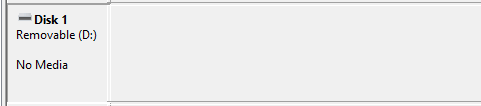
The error can be caused by corrupted files, missing drivers, or faulty USB devices. It can be resolved by checking and updating drivers, running a virus scan, and checking the USB device for any physical damage or issues. If the issue persists, the user can try resetting the USB device or reinstalling the drivers.
- Unplug the USB from your computer properly.
- If your USB flash drive is not detected by your PC, try plugging it into a different USB port on your computer. This can help resolve any issues related to the USB port or the drive itself.
- To see if Disk Management detects your USB flash drive as a regular removable disk, open Disk Management. It's usually found in the Control Panel, but can also be accessed by right-clicking on the Start menu and selecting Disk Management.
- Connect a USB drive to the rear USB port on the motherboard.
- To resolve the issue, you can try updating the USB drive and reconfiguring the USB settings. This can be done by going to the Device Manager, selecting the problematic USB device, and updating the driver.
The error can be fixed by updating USB drivers or reconfiguring USB settings. If that doesn't work, the USB device may be damaged and need repair.
Full Guide
If you're experiencing issues with a USB device not showing up in Disk Management, there are several solutions you can try. First, ensure the USB drive is properly connected to your computer and that the drive is not damaged. If the issue persists, try using a different USB port or using a USB extension cable to rule out any issues with the port itself.
USB Fix 2. Windows Has Stopped This Device with Code 43
USB error code 43 occurs when Windows can't recognize a USB device, which can be caused by a faulty device, a corrupted driver, or a malfunctioning USB port. This error can be resolved by checking the device for physical damage, updating the device driver, or trying a different USB port. If the issue persists, a system restore or reinstalling the device driver may be necessary. In some cases, a hardware issue may require professional assistance.
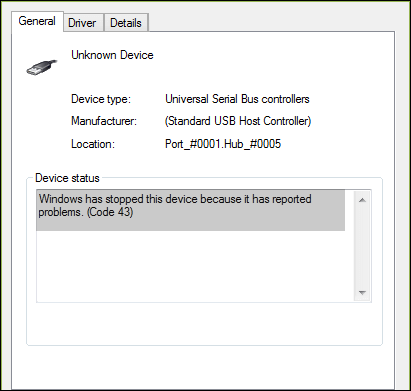
- A corrupted or outdated driver
- A hardware issue
- A conflict with another USB drive
To fix the issue with Windows has stopped this device with code 43, you can try uninstalling and reinstalling the driver, updating the device drivers, checking for hardware conflicts, running a virus scan, and checking the device for physical damage. You can also try rolling back the driver to a previous version, or disabling and re-enabling the device.
1 - Update the USB Drivers
To resolve the issue of a USB device not being recognized by Windows, updating outdated or corrupted drivers can be a solution. This can be done by checking for driver updates in the Device Manager, or by using a driver update tool to scan for and install the latest drivers for your device.
- To open the Device Manager, go to the "Search" function, type "device manager", and select "Device Manager" from the search results.
- Find and right-click the problematic device and choose "Properties".
- Click "Driver" and then choose "Update Driver".
- Click "Search automatically for updated driver software".
2 - Check for Hardware Issues
If updating your drivers doesn't solve the problem, it's possible that there's a hardware issue with the USB device itself. You can try using a different USB port or a different computer to see if the device works. If it does work on another computer or port, it suggests that the issue lies with your original computer or USB port, indicating a hardware problem.
3 - Check for Conflicts with Other Devices
Try unplugging all other USB devices from your computer, then plug in the problematic device. If it works, it's likely a conflict with another USB drive.
Full Guide
If you've tried troubleshooting steps and are still seeing error code 43 on your Windows device, refer to the post on how to fix Windows has stopped this device because it has reported problems. (code 43 USB).
USB Fix 3. The Disk Is Write Protected
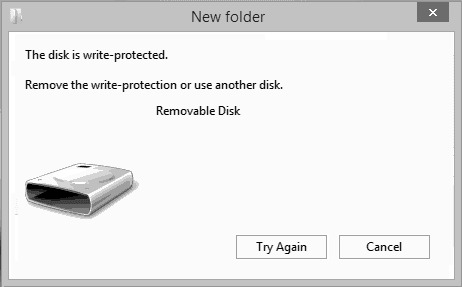
You may be facing a write-protected USB issue, indicated by a "The disk is write protected" error message, which means the USB drive or SD card is locked and can't be written to. This issue can be resolved by removing write protection, which can be caused by various factors, depending on the specific situation.
1 - Check the Switch and Remove USB Write-Protection
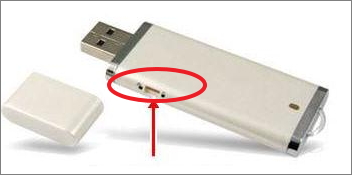
In some cases, you may need to physically remove the write protection switch from the device in order to resolve the issue.
- Locate and turn the physical switch from ON to OFF on your USB.
- Connect the unlocked USB to your computer.
- Check if the write-protected state disappears.
2 - Run USB Write Protection Removal Tool
Qiling CleanGenius is a tool that can help remove write protection from USB drives, making it easy to fix issues with USB devices with just a few clicks.
Full Guide
If the write protection error persists, the issue is likely with the device itself, so it's best to seek the help of experts to remove write protection from the USB.
USB Fix 4. USB Pen Drive Not Showing Data
When trying to access files on a pen drive, a frustrating issue can occur where the data is missing, despite the drive taking up space. This error can be caused by various reasons, including corrupted files, deleted data, or a faulty pen drive. To fix this issue, you can try running a disk check on the pen drive, which can help identify and repair any corrupted files. Additionally, you can also try using data recovery software to scan the pen drive and retrieve any missing files. If the issue persists, it may be necessary to reformat the pen drive or seek professional help to recover the data.
- The pen drive is damaged and the data is no longer accessible.
- The files or folders on your USB/pen drive are hidden.
- The pen drive simply hasn't been formatted correctly.
Fortunately, there are a few things you can try to fix this problem.
- If the pen drive is damaged, you may be able to repair it using specialized software. The best USB repair tool will be mentioned in the next part.
- If files and folders are set to be hidden, they can be unhidden using Windows Explorer.
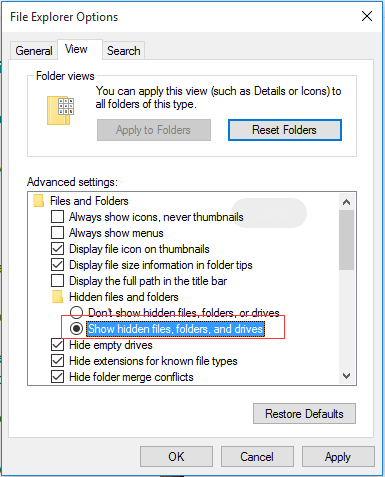
If the pen drive hasn't been formatted correctly, you can fix the problem by formatting it manually. This involves deleting any existing data and reorganizing the drive's file system.
Full Guide
Never mind if you failed to fix the pen drive error. This post provides you with the most effective solutions to fix pen drive data not showing errors in Windows 10/8/7.
The Best USB Repair Tool for USB Fixes (Recommended)
USB drives are prone to errors and can become corrupted, making it difficult to access the data they contain. Fortunately, a USB repair tool can be a lifesaver in such situations. There are many USB repair tools available for Windows 10/8/7, and choosing the right one can be a challenge. To make the best decision, consider using one of the most popular USB repair tools listed.
Windows Check Disk Tool
This is a command-A tool that can check and repair file system errors on your USB drive can perform several tasks. It can scan your drive for errors, identify and fix corrupted files, and rebuild the file system index. Additionally, it can also perform a disk check, which can help to identify and repair any physical errors on the drive, such as bad sectors or disk fragmentation.
- Ensure data recovery successfully
- Fixe bad sectors or logical system errors effectively
- It is a command-based USB repair solution
- Store problematic and orphaned files and folders
To use this tool, connect the USB drive to your computer and open the Command Prompt. Type "chkdsk f: /f /r /x" into the Command Prompt and press Enter.
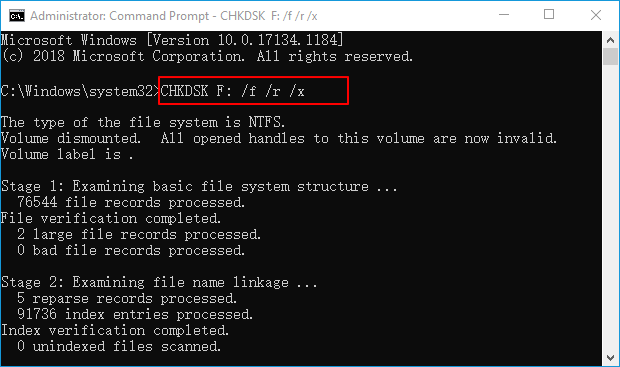
Run CHKDSK on the USB drive to scan for errors and attempt to repair them. This process may take some time, so be patient. Once finished, restart your computer and try accessing the data on the USB drive again.
Full Guide
To fix a malfunctioning USB drive and recover your lost data, download a reliable USB repair tool, which can be found online for free.
Kingston USB Repair Tool
Kingston USB repair tool is a software that helps fix Kingston USB flash drives, allowing users to recover lost or deleted data and repair corrupted drives.
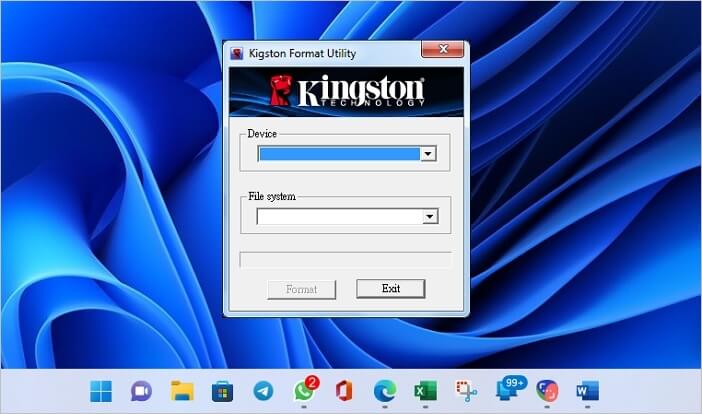
- It can repair corrupted Kingston USB flash drives within minutes.
- This software can repair various types of data, including documents, photos, videos, and music files, among others.
- It is compatible with all major versions of the Windows operating system.
- It can create bootable Kingston USB flash drives to repair Windows errors.
This software is extremely user-friendly and easy to use, making it accessible to anyone regardless of technical knowledge. The process of repairing Kingston USB flash drives is straightforward, requiring only a simple connection to the computer, launching the software, and following on-screen instructions. With these easy steps, your corrupted Kingston USB flash drive can be repaired quickly and efficiently.
Full Guide
Kingston USB repair tool is a software designed to repair corrupted or damaged Kingston USB drives. It can recover data from Kingston USB drives that are not accessible due to corruption, damage, or other issues. The tool can also help to format Kingston USB drives that are not recognized by the computer.
SanDisk USB Repair Tool
Unlike Kingston, SanDisk doesn't have a specialized USB repair tool, but there are other USB repair tools that can repair corrupted or damaged files, as well as recover lost or deleted data, offering various features and benefits.
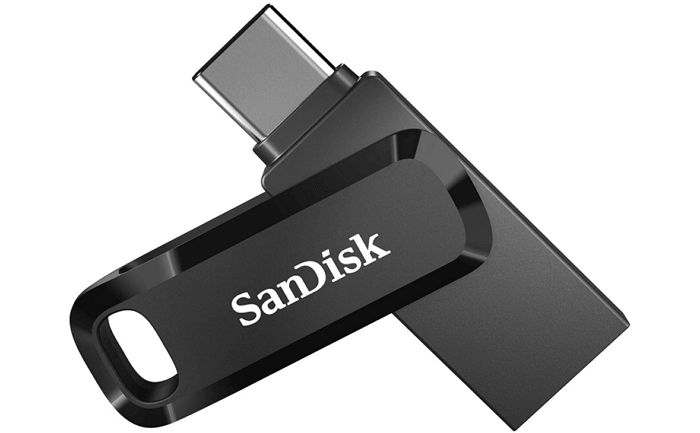
- The software supports all major SanDisk USB drive models, including SanDisk Ultra, SanDisk Extreme, SanDisk Cruzer, and SanDisk Clip.
- The software is compatible with various versions of the Windows operating system, including Windows XP, Vista, 7, 8, and 10.
- Support for all major file types.
- Support for FAT32 and NTFS file systems.
SanDisk USB repair tools are valuable tools to have on hand, saving time and frustration if a SanDisk drive becomes corrupted.
Full Guide
Check this guide to get the most effective SanDisk USB repair tool for SanDisk USB fix.
How to Repair/Fix USB Drive in Windows 10
If your USB drive is not working, you can try resolving the issue by reformatting the drive or replacing the damaged component. If the problem is severe, you may need to repair the drive using a USB repair tool. You can select the best USB tool according to your needs.
Step 1. Determine the Cause of the USB Problems
To repair a USB drive, you'll need to identify the cause of the problem, which could be a driver issue or physical damage, and take the necessary steps to fix it, such as updating drivers or replacing damaged components.
Step 2. Repair the USB Drive
Once you've identified the cause of the issue, you can start fixing the USB drive.
To reformat a drive, you'll need to delete all files and then format it using a compatible file system, which can be done using tools like Disk Management in Windows or Disk Utility in macOS.
If your USB drive isn't working due to damaged hardware, you'll likely need to replace the affected component, which is usually the USB controller or port, and can be purchased from the manufacturer's website or a computer store.
If you need help from experts, you can turn to USB repair services to fix your USB drive remotely.
Consult with Qiling data recovery experts for one-on-one manual recovery service, which includes a FREE diagnosis and the following services thereafter.
- To repair a corrupted RAID structure, unbootable Windows OS, and corrupted virtual disk file, follow these steps:
- Recover/repair lost partition and re-partitioned drive
- Unformat hard drive and repair raw drive (BitLocker encrypted drive)
- Fix disks that become GPT-protected partitions
If you can't fix the USB drive yourself, take it to a computer repair shop. They have the tools and expertise to fix the issue.
Full Guide
You can repair USB drives with the most reliable and workable solutions, so don't worry.
How to Fix USB Drive Not Detected/Show Up
If your pen drive is not detected in Disk Management or not showing up on your Windows computer, you can try the following fixes: restart your
USB Drive Not Detected
If your USB drive isn't being detected or recognized, there are several possible explanations. The drive might be faulty or damaged, or the USB port on your computer or device may be malfunctioning.
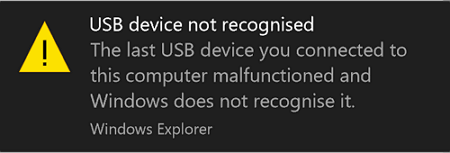
- USB connection issue
- Drive letter issues
- USB drive error
- Hardware damage
- File system errors on a USB drive can cause it to be formatted as RAW, leading to data loss and corruption. This can occur due to various reasons such as sudden power outages, improper shutdowns, or physical damage to the drive.
You can fix a USB drive by addressing the underlying causes of the issue. If it's not recognized by your computer, try updating your operating system or reinstalling the USB drive.
Method 1. Restart Your Computer
Sometimes, simply restarting your device can resolve issues you didn't even know existed.
Method 2. Check the USB Port
If your computer isn't detecting your USB drive, try plugging it into a different USB port, as one port may be damaged or not working properly.
Method 3. Check for USB drive Updates
If your computer isn't detecting your USB drive, it might be due to outdated or incompatible drivers. You can check for updates on the manufacturer's website and download the latest drivers.
Method 4. Inspect the USB Drive for Physical Damage
If you suspect that the reason your USB drive is not being detected is due to physical damage, you will need to inspect the circuitry for any signs of damage. If any damage is found, the affected component will need to be replaced.
Method 5. Format the USB drive
If you're still having trouble, you can try formatting the USB drive, but this will delete all files, so back up or recover data first, and then use a software like Qiling or a built-in tool like Disk Management (Windows) or Disk Utility (macOS) to format the drive.
If none of the above solutions work, it may be necessary to take the USB drive to a professional repair shop that specializes in USB repairs, as they will have the necessary equipment and expertise to diagnose and fix the issue.
Full Guide
If your USB drive is not being recognized in Windows 10, try restarting your computer, checking the USB port, and updating the USB drivers. You can also try formatting the USB drive, checking for physical damage, and using a different USB port.
How to Fix USB Not Showing Up
If your USB drive is not showing up in Windows 10, don't worry - there are solutions! The issue might be due to an outdated USB drive, which can be easily updated. Alternatively, the USB drive might not be properly connected, so double-check all connections and try reinstalling the driver. If that doesn't work, you might need to reformat the drive and create new partitions, which will erase all data, so be sure to back up important files first. You can also refer to a video tutorial for step-by-step instructions to fix the issue in Windows 11/10/8/7.
If none of the solutions work, there may be a hardware problem with the USB drive itself. In this case, you will need to contact the manufacturer for further assistance.
Full Guide
If you prefer a step-by-step guide, click here to fix the USB not showing up error.
Conclusion
USB issues are often caused by outdated drivers or Windows device manager errors, and can manifest as a USB device not showing up, not being recognized, or displaying an error code 43. Fortunately, a free USB fix guide is available for all Windows versions, offering solutions to resolve these common problems with USB devices.
USB Fix FAQs
To resolve your USB error, check out the frequently asked questions for a better solution.
1. How do I fix USB disconnecting and reconnecting Windows 10?
To fix the issue of a USB device constantly disconnecting and reconnecting on Windows 11/10, you can try the following solutions:
- Try a Different USB Port
- Reinstall USB drive
- Run USB Troubleshooter
- Disable Power Saving...
2. What to Do if Your USB Port Stops Working?
If your USB port isn't working, don't worry! You can easily fix the issue with some simple solutions.
Step 1. Diagnose If USB Port Not Working.
Step 2. Fix USB Port Not Working with Reliable Solutions.
Step 3. Restore Data from USB Drives.
3. How do I reset my USB ports?
5 ways to reset USB ports:
- Physically Inspect the USB Ports.
- Restart Your Computer.
- Check your Power Management Settings.
- Reset USB Ports by Disabling and Re-enabling the USB Controller.
- Reset USB Ports with Windows Troubleshooter.
4. Does Windows 10 have a repair tool?
Windows 10 has a built-in repair tool that helps troubleshoot and repair typical PC issues without losing data, allowing you to resolve common problems and maintain a stable system.
Related Articles
- Everything You Need to Know About Shortcut Virus
- Data Recovery Software for Windows 10/Mac/iPhone/Android
- A Complete Guide to Recover Deleted Files
- Flash Drive Data Recovery Software: Recover Files from a USB or Pen Drive
- Btrfs RAID Recovery with NAS Data Recovery Software [Solved]
If you're looking to restore deleted or lost Btrfs data, try using Deep Data Recovery, which works well in recovering data from Btrfs file systems. - Btrfs vs EXT4, All You Need to Know About Btrfs and EXT4!
EXT4 and Btrfs are two file systems with distinct differences, which are compared in detail in this tutorial. It also provides information on using Btrfs or EXT4 on Synology NAS devices and offers guidance on recovering lost data from Synology NAS Raid drives. - Fix BUGCODE_USB_DRIVER BSOD (0x000000FE) in Windows 11
Products
Articles & Tutorials
- Data Recovery
- Data Backup
- File Recovery
- File Backup
- System Backup and Restore
- Disk and Partition Clone
- Technical articles
- Mobile articles
- Disk Master Help
- Windows Data Recovery Tutorials
- Windows Secure Delete Tutorials
- Windows Partition Management Tutorials
- Windows File Backup and Restore Tutorials
- Windows System Backup and Restore Tutorials
- Windows Disk Backup and Restore Tutorials
- Windows Clone Tutorials