Hard Drive Recovery| Recover Files from a Hard Disk
Losing important data can be a frustrating experience, whether it's due to accidental deletion or a hard drive failure. However, hard drive recovery is often possible, allowing you to recover files from a hard drive with or without software, depending on the cause of the data loss.
4 Most Common Reasons for Hard Drive Data Loss
Hard drive data loss can occur due to physical damage, logical damage, software errors, or malware, resulting in the loss of important files and data.
Hard Drive Formatting
Hard drive data can be lost through formatting, erasing all data on the drive, which is difficult to recover from once deleted.
Accidental Deleting
Hard drive data can be lost through deletion, where a user accidentally deletes a file or folder, but the data remains until it's overwritten, allowing recovery with special software.
Hard Drive Crash/Damage
A hard drive crash is one of the most common ways people lose data, making it inaccessible to the computer. This can happen due to improper shutdown, bad sectors, or malware infection. Fortunately, logical damage can be repaired using data recovery software, but physical damage requires a professional data recovery service. In cases of corrupted hard drive recovery, experts are needed to run the process.
Software Errors
Software errors can cause hard drive data loss due to corrupt firmware or deleted system files, but can often be resolved by reinstalling the operating system or applications.
Hard Drive (HDD) Data Recovery Methods
Hard drive data loss can be devastating, but fortunately, recovery is often possible. Whether caused by hardware failure or accidental deletion, files can be recovered using specialized software in many cases. However, if the hard disk is damaged or crashed, it's usually best to seek the help of a professional hard drive recovery service, who can quickly and safely retrieve your lost data.
Hard Drive (HDD) Data Recovery Service
A hard drive data recovery service is typically performed by a team of experts who physically open up the hard drive in a clean room environment, attempting to repair any damage that may have occurred, usually at a high cost but with the highest success rate. This service is often necessary if you're faced with a damaged or failed hard drive, such as a physical crash, water damage, or a logical failure due to a virus or software issue.
- Repair corrupted RAID drive and recover data from NAS.
- Repair corrupted virtual disk file (.vmdk, .vhd, .vhdx, etc.).
- Unformat a hard drive that was formatted by mistake.
- Repair unbootable Windows operating system, including Windows 10/8/7.
- To fix a damaged RAW drive that needs to be reformatted, you can use a data recovery software like Deep Data Recovery. This software can help recover data from the damaged drive and then you can use a disk management tool like Qiling Partition Master to format the drive.
- Recovering a lost partition and repartitioning a drive that cannot be recovered by software requires a more manual and technical approach. This typically involves using specialized tools and techniques to manually recreate the partition table, identify and recover the lost partition, and then repartition the drive to a desired configuration.
A data recovery service salvages data from failed, damaged, or corrupted storage devices, such as hard drives. To recover data, the drive is sent to a service where it is processed in a clean environment using dedicated equipment. There are several reputable HDD recovery services available, including Ontrack HDD Recovery, Secure Data Recovery Service, SALVAGEDATA Data Recovery Service, Stellar Data Recovery Lab-services, and Qiling Manual Data Recovery Service.
Hard Drive Recovery Software
Hard drive recovery software is a self-service solution that uses specialized software to scan your hard drive for recoverable data, often at a lower cost than a data recovery service, but with a lower success rate. If you have some technical know-how, you can try using this software to recover your data.
- Retrieve lost files after deletion or emptying the recycle bin.
- Accidentally formatted a hard drive and caused data loss.
- The hard drive becomes "RAW" or some software error happens.
- Run GPT partition recovery or MBR partition recovery with simple steps.
Hard Drive Recovery Software VS Hard Drive (HDD) Data Recovery Service
The difference between hard drive data recovery service and hard drive recovery software lies in the approach to recovering lost data. A data recovery service involves sending the hard drive to a professional company that specializes in data recovery, whereas hard drive recovery software allows users to attempt data recovery themselves by installing and running the software on their computer. The choice between the two ultimately depends on the individual's comfort level and technical expertise, with a service offering a more personalized and potentially more effective solution, while software provides a DIY option.
| Comparison | Hard Drive Recovery Software | Hard Drive Recovery Service |
|---|---|---|
| Hard Drive Recovery Cost | Cheap | Expensive |
| Recovery Guarantee | No | Yes |
| Executor | You | Experts |
| Process | Time-consuming | Easy |
| Supported Devices | Internal/External Hard Drive, SSD, USB, etc | Almost All |
| Supported Brands | Western Digital, Seagate, Sony, Toshiba, SanDisk, etc. | Almost All |
| Supported File Systems | FAT32, exFAT, NTFS, etc. | Almost All |
If you have valuable data that you can't afford to lose, a hard drive data recovery service is likely your best option. However, if you're dealing with less critical data or are on a tight budget, using hard drive recovery software might be a viable alternative.
How to Recover Deleted Files from Hard Drive in Windows 10
If you're running Windows 10, you can try using the built-in File Recovery feature, which can help you recover deleted files from your hard drive. You can also use a third-party file recovery software, such as Deep Data Recovery, to scan your hard drive and recover lost files. Additionally, if your hard drive is not physically damaged, you can try using a data recovery service, such as a professional data recovery company, to help you recover your files.
Method 1. Recover HDD Data from Recycle Bin
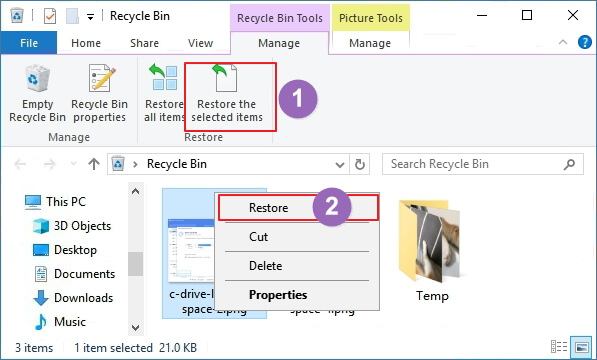
To recover deleted files in Windows 10, start by checking the Recycle Bin, as most deleted files are typically stored there. From there, you can easily perform a Recycle Bin recovery and retrieve the removed files.
Step 1. Double-click the Recycle Bin icon on the Desktop.
Step 2. To restore a deleted file or folder, locate and select the one you need to recover.
Step 3. Right-click the selected item and choose "Restore".
Method 2. Recover HDD Data with Hard Drive Recovery Software
Another option is to use third-Party data recovery software offers a range of tools to recover files, often surpassing Windows' built-in capabilities. Qiling hard disk data recovery software stands out for its ease of use and effectiveness, requiring only 3 steps to restore data and supporting over 1000 file types.
Step 1. Launch Deep Data Recovery, select the desired file types and click "Fast Scan" to initiate the recovery process.

Note: You can choose different search modes based on where and why the data was lost.
Step 2. To recover lost data from a hard drive, select the drive where the data was lost and click on the "Scan" button.

Step 3. When the scan is complete, you can use the "Filter" or "Search" feature to find the lost files. This will allow you to narrow down the results and locate the specific files you're looking for.

Step 4. Select the desired HDD files, click "Recover", and save them to a secure location.
Method 3. Restore Hard Drive Files from a Backup
To try and recover lost files, you can first try using the built-in File History tool, which automatically backs up files regularly. If that doesn't work, or if you didn't have File History turned on, you can try using the System Restore feature, which will take your system back to a previous point in time, potentially including a working copy of the lost files.
Full Guide
To recover deleted files from a hard drive in Windows 10, follow this guide. If you're a Mac user, refer to the Mac hard drive recovery guide.
To Sum Up
For hard drive recovery, you can use various methods depending on your system. In Windows 11/10/8/7, check the Recycle Bin, use File History, or run Qiling data recovery software. If you're using a Mac, try Time Machine or Mac hard drive recovery software to restore lost hard drive files.
Hard drive recovery is possible in both Windows 10 and macOS, allowing you to restore your hard drive to its original state with the right tools. Effective solutions can also repair corrupted hard drives, making data recovery a feasible option. This means you can recover your lost data and get back to normal, even if your hard drive has been damaged or corrupted.
Hard Drive Recovery FAQs
If you are still having trouble with your hard drive, you're not alone. Here, we'll answer some of the most frequently asked questions about hard drive recovery. Keep reading and get further help.
1. How can I recover my hard drive for free?
Qiling free data recovery software allows you to recover up to 2GB of data for free.
- Download, install and launch Qiling hard drive recovery software.
- Select the disk or partition that contained the lost files.
- Click the "Scan" button to start scanning for lost files.
- Choose the deleted files you want and preview these files.
- Click the "Recover" button to get back your hard drive files for free.
2. Can a file be recovered from a failed hard drive?
Files can be recovered from a failed hard drive using a reliable recovery program, such as Deep Data Recovery, if the system can be booted. If access to the drive is lost, refer to recovering data from a dead hard drive.
3. How much does it cost to recover a hard drive?
The cost to recover data from a hard drive can vary greatly depending on the complexity of the recovery, the type of data being recovered, and the company or individual performing the recovery. In general, the cost can range from a few hundred to several thousand dollars, with some companies charging by the hour or by the gigabyte. Factors such as the amount of data to be recovered, the level of data corruption, and the expertise of the recovery team can all impact the final cost.
- The size of the lost data
- The data loss scenarios
- The time spent on the hard drive
4. How to repair corrupted or damaged hard drives on Windows 10/11?
Hard disk repair can be a complex process, as a damaged hard drive may cause your computer to behave erratically, prevent access to files, or even prevent the computer from booting up. Fortunately, there are ways to repair a corrupted hard drive without formatting and data loss, offering a solution to this frustrating issue.
Note: Be sure to back up your data before using data recovery software, as it can potentially overwrite existing data. If you haven't previously backed up your data, use data recovery software to retrieve it first.
1- Repair Hard Drive Using CMD
CHKDSK can scan and mark bad sectors, as well as fix corrupted file system errors, to prevent data loss. To run CHKDSK and fix damaged hard disks without formatting, follow the instructions below.
- Click the Search box and type cmd.
- Right-To open Command Prompt as an administrator, click on the "Start" button and type "cmd" in the search bar. Then, click on the "Command Prompt" and select "Run as administrator" from the search results.
- Run the command "chkdsk E: /f /r /x" in the Command Prompt, replacing "E" with the actual drive letter of the corrupted drive, to scan and repair disk errors. Press Enter to execute the command.
- Wait for the process to finish. Then, check if the hard drive works properly.
2 - Fix Corrupted Hard Drive with File Manager
Windows has its own tool to check and repair a corrupted hard drive, which can be done manually.
- Click This PC or My Computer.
- Select the damaged hard drive, right-click it, and choose "Properties".
- To check and correct errors on your hard drive, select the "Tools" option and click on "Check" under the "Error-checking" section. This will initiate a scan and correction process to identify and fix any potential errors on your hard drive.
5. How can I recover data from a hard drive that won't boot?
To recover data from a hard drive that won't boot:
- Create a bootable disk with Deep Data Recovery WinPE Edition.
- Boot from the bootable disk to open Deep Data Recovery.
- Recover files/data from a PC/laptop hard drive that won't boot.
6. How do you fix a hard drive failure?
To fix hard drive failure:
- Clean out the computer vents.
- Check the power and data cables.
- Check the BIOS...
Related Articles
- Email Recovery for Gmail, Yahoo, Outlook, Hotmail
- macOS Update Ultimate Guide: How to Update OS on All Models of Mac
- USB Fixes: Troubleshoot/Repair Corrupted USB Erros in 2022 [Full Guide]
- Ultimate Guide on SD Card Recovery in 2022
- Is Qiling Safe | Is Qiling Data Recovery Safe [True Review on Qiling]
Qiling products are 100% secure and reliable as long as you download and purchase them from the official Qiling website. - [2023 Tips] PS5 Data Recovery: How to Recover PS5 Game Save
If you lose your PS5 game saves, you can use Qiling data recovery software or PS5 backups to restore your PS5 data. To do this, follow the detailed steps below to get back your PS5 games, videos, and clips. Keep reading to learn how to recover your lost PS5 data.
Products
Articles & Tutorials
- Data Recovery
- Data Backup
- File Recovery
- File Backup
- System Backup and Restore
- Disk and Partition Clone
- Technical articles
- Mobile articles
- Disk Master Help
- Windows Data Recovery Tutorials
- Windows Secure Delete Tutorials
- Windows Partition Management Tutorials
- Windows File Backup and Restore Tutorials
- Windows System Backup and Restore Tutorials
- Windows Disk Backup and Restore Tutorials
- Windows Clone Tutorials