Seagate External Hard Drive Data Recovery (A 3-Step Guide)
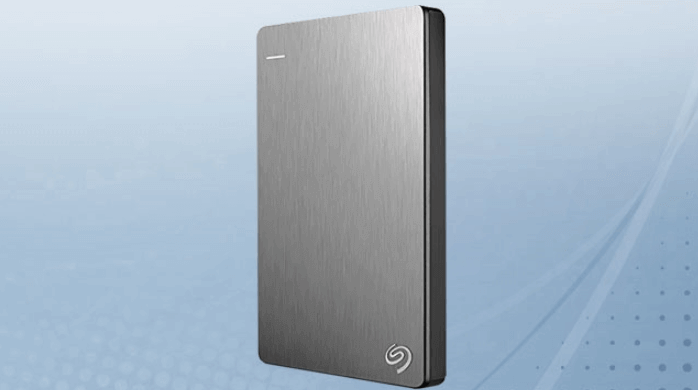
Seagate external hard drives offer instant capacity, speed, and convenience for both work and home use, allowing you to save files like photos, music, movies, and documents, even games, on the go. However, they can sometimes fail to work, resulting in lost files.
What Can Cause Seagate Data Loss
Most data loss cases are typically caused by a few common reasons, including various factors.
- Logical failure
A logical hard drive failure happens when a hard drive can't be accessed due to non-mechanical issues, such as accidental deletion, formatting, system corruption, or a virus attack.
- Physical Damage
Hard drives are generally resistant to physical damage if handled and stored correctly, but common issues include overheating, water damage, and power surges, which can make data recovery difficult and time-consuming.
- Mechanical Failure
Mechanical hard drive failures occur when the moving components stop functioning due to stress or wear, causing the drive to fail and potentially leading to data loss. Symptoms include the drive not mounting, slow operation, and file corruption.
How to Recover Files from Seagate External Hard Drive
If your Seagate hard drive is experiencing logical faults, a professional data recovery service is not necessary, but rather a reliable data recovery software can help. Fortunately, recovering data from a Seagate external drive is a straightforward process if you have an efficient hard drive recovery tool, such as Deep Data Recovery, which offers many highlights.
- Data recovery software can recover data from various storage devices, including hard drives, USB drives, memory cards, and more.
- Recover lost files, including pictures, documents, videos, and many other types (over 250) with this software.
- The product supports most of the major hard disk drive (HDD) brands, including Seagate, Western Digital, Toshiba, Hitachi, and Sandisk, among others.
- This software supports various types of recovery, including formatted recovery, lost partition recovery, OS crash recovery, and RAW recovery, among others.
To recover data from a Seagate external drive, first connect it to your computer and ensure it's recognized. Then, follow these steps: (text about steps to recover data from external drive)
Step 1. Connect your external hard drive to your computer using a correct USB cable and run Deep Data Recovery. Choose the file types you want to recover and click "Fast Scan" to begin the process.

Note: You can choose different search modes based on where and why the data was lost.
Step 2.The external disk will be displayed in the next window under External drives. This software supports popular external disk brands such as WD, Seagate, Toshiba, LaCie, SanDisk, Samsung, and others.
Select the external hard drive and then click the "Proceed" button.

Step 3. As soon as the scan process starts, the software will find and display lost and deleted data in the scan results, which will be organized in a user-friendly manner, allowing you to quickly find target files or folders by file type or by searching for exact file names.

Step 4. To preview and recover files from a Seagate drive, you can use Deep Data Recovery's scanning algorithms to find the files, select them, and then click "Recover" to save them to a different drive. This helps avoid overwriting the original data.
Conclusion
If your external hard drive gets corrupted, you can repair it without losing data. It's also a good idea to create backups on your cloud or HDD to prevent data loss in the future. If you don't have any backup, you can seek help from a professional.
Related Articles
- Top 10 Best Free Data Recovery Software for Windows 11
- Top 5 PST Repair Tools in Windows 10/11
- How to Recover Formatted BitLocker Encrypted Hard Drive
- Use Disk Doctor Freeware to Recover Lost Data
- Is Qiling Safe | Is Qiling Data Recovery Safe [True Review on Qiling]
Qiling products are 100% secure and reliable as long as you download and purchase them from the official Qiling website. - [2023 Tips] PS5 Data Recovery: How to Recover PS5 Game Save
If you lose your PS5 game saves, you can use Qiling data recovery software or PS5 backups to restore your PS5 data. To do this, follow the detailed steps below to get back your PS5 games, videos, and clips. Keep reading to learn how to recover your lost PS5 data.
Products
Articles & Tutorials
- Data Recovery
- Data Backup
- File Recovery
- File Backup
- System Backup and Restore
- Disk and Partition Clone
- Technical articles
- Mobile articles
- Disk Master Help
- Windows Data Recovery Tutorials
- Windows Secure Delete Tutorials
- Windows Partition Management Tutorials
- Windows File Backup and Restore Tutorials
- Windows System Backup and Restore Tutorials
- Windows Disk Backup and Restore Tutorials
- Windows Clone Tutorials