Fix External Hard Drive Not Initialized, I/O Device Error
Overview: external hard disk not initialized I/O error
The reasons for a hard drive or external hard drive showing "Unknown, Not Initialized" on your PC include a faulty or loose connection, a corrupted or missing driver, a hardware malfunction, a power issue, or a software problem. Additionally, the drive may not be recognized if it's not formatted in a compatible file system, or if it's not properly configured in the BIOS settings. Furthermore, a virus or malware infection can also cause the drive to be unrecognized.
- Virus attack
- Bad sectors
- Partition Loss
- File system corruption
- Corrupted Master Boot Record (MBR)
Symptoms of the disk not initialized:
- 1. Disk shows as Unknown, Not Initialized with unallocated space.
- 2. Disk shows as Unknown, Not Initialized with no space displayed.
What's I/O error?
An I/O device error occurs when Windows is unable to perform input/output actions, such as reading or copying data, when accessing a drive or disk. It can affect various hardware devices or media.
To fix the 'Disk Unknown Not Initialized' error on an external hard disk, initialize the disk to GPT or MBR first, but be aware that some users may encounter a successive error message 'the request could not be performed because of an I/O device error' due to the initialization process.
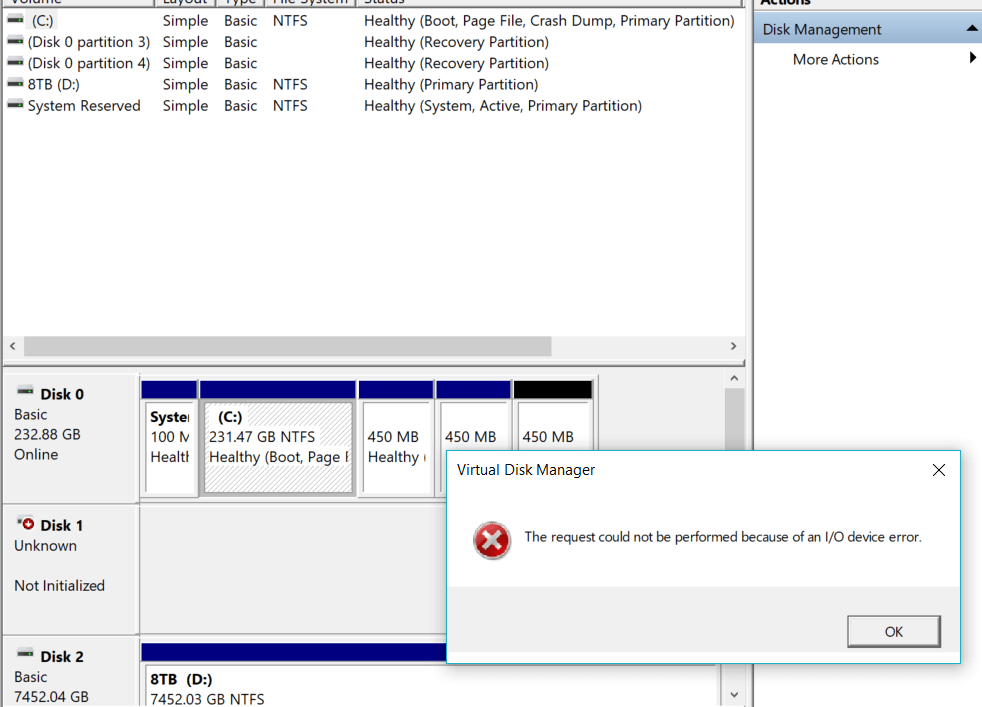
When initializing a disk fails and you're caught up in the other unfamiliar I/O error, the solution can be found by troubleshooting the external hard disk not initialized I/O error. This involves checking the disk for physical damage, updating the disk's firmware, and ensuring the disk is properly connected to the computer. Additionally, running a disk check and scan can help identify and fix any issues. If the problem persists, it may be necessary to replace the disk.
Part 1. Recover data from external hard drive unknown not initialized I/O error
Initializing a disk will not damage data or cause data loss. It is safe to initialize a disk to a normal state when it shows as unknown and not initialized.
To initialize a hard disk in Windows Disk Management:
Step 1. Connect the uninitialized external hard drive, HDD or other storage devices to your PC.
Step 2. To open the Disk Management console, press the Windows key + R to bring up the Run dialog box, type "diskmgmt.msc" and press Enter.
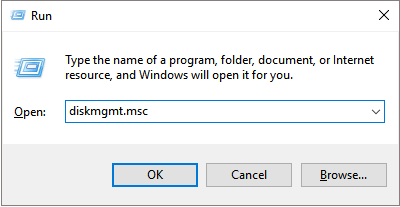
Step 3. To resolve the issue of an uninitialized, unknown external hard drive with an I/O device error, right-click on it and select the "Initialize Disk" option. This action will allow the system to recognize and utilize the external hard drive.
Step 4. Initialize the disk and set it as either Master Boot Record (MBR) or GUID Partition Table (GPT) in a single step.
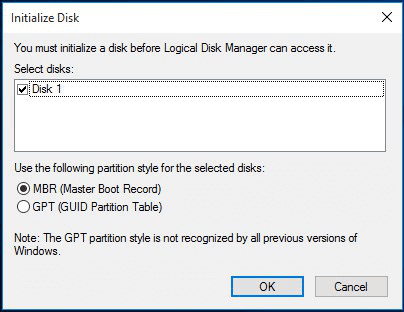
However, this time is different. You cannot perform the manner of initializing a disk because of I/O error, so you must turn to other workarounds instead of the most approachable one, which could potentially lead to data loss. It's smart to recover data from the inaccessible external hard drive before heading to the troubleshooting in Part 2.
Deep Data Recovery is a renowned hard drive data recovery software that can recover all types of files, including pictures, raw images, and documents, from various storage devices, as long as the hard drive is detected by Windows. If the hard drive is not showing up in Disk Management, trying to make it visible.
To recover data from external hard drive with I/O error:
Step 1.Connect your external hard drive to your computer using a correct USB cable. Then, run Deep Data Recovery, select the desired file types, and click "Fast Scan" to begin the recovery process.

Note: You can choose different search modes based on where and why the data was lost.
Step 2.You will see your external disk listed under External drives in the next window. This software supports a wide range of external disk brands, including WD, Seagate, Toshiba, LaCie, SanDisk, Samsung, and more.
Select the external hard drive and then click the "Scan" button.

Step 3. Once the scan process begins, the software will identify and display more lost and deleted data, organizing the recovered files and folders in a clear and easily accessible format. Users can quickly locate specific files by type or search for exact file names using the search box, making it simple to find the desired data.

Step 4. After scanning, you can preview the files found by Deep Data Recovery's algorithms, select the desired files, and click "Recover" to retrieve them. To prevent data overwriting, it's recommended to save the recovered data to a different drive than the original Seagate drive.
Part 2. Fix external hard drive not initialized with I/O device error
To resolve the external hard drive not initialized I/O error, try replacing the connection cable, repairing the Master Boot Record (MBR), using the DiskPart command, or removing any viruses from your computer or laptop.
To clean an external hard drive using DiskPart commands, follow these steps. However, please note that this process will erase all data on the uninitialized hard drive, so ensure you've recovered any important data before proceeding. If you haven't, refer to Part 1 to restore lost data.
To clean the external hard drive with DiskPart:
Step 1. Press Win+R > Type: diskpart and hit Enter.
Step 2. Type: list disk and hit Enter.
Step 3. The command select disk n should be used, where n is the drive letter of an uninitialized external hard drive, and then hit Enter.
Step 4. Type: clean and hit Enter.
Step 5. Type: convert gpt or convert mbr and hit Enter.
Step 6. Type: create partition primary and hit Enter.
Step 7. Type: format quick fs=ntfs and hit Enter.
Step 8. Type: assign and hit Enter.
Step 9. Type: exit and hit Enter.
If your external hard drive is not initializing due to an I/O error, you can try fixing it by running the following command lines: chkdsk /r, chkdsk /f, and chkdsk /x. Then, run the command line "chkdsk /r" again to check for any remaining issues.
Related Articles
- Repair a Corrupted Pen Drive/SD Card for Free
- Fix and Restore External Hard Drive Shows Only 32GB to Full Capacity
- Fix Hard Drive Disappeared in Windows 10 Without Losing Data
- How to Recover Data from Corrupted or Scratched CD/DVD
- How to Permanently Delete Files from Recycle Bin
Emptying does not mean permanently delete files from the recycle bin. Check out the guidelines for how to completely delete files from recycle bin without recovery. - How to Permanently Remove Sensitive Files and Data from a Computer (PC & Mac)
You can use Qiling File Shredder to delete sensitive files and data from a Windows computer and Disk Utility as well as Terminal Command to remove sensitive files on Mac.
Products
Articles & Tutorials
- Data Recovery
- Data Backup
- File Recovery
- File Backup
- System Backup and Restore
- Disk and Partition Clone
- Technical articles
- Mobile articles
- Disk Master Help
- Windows Data Recovery Tutorials
- Windows Secure Delete Tutorials
- Windows Partition Management Tutorials
- Windows File Backup and Restore Tutorials
- Windows System Backup and Restore Tutorials
- Windows Disk Backup and Restore Tutorials
- Windows Clone Tutorials