Top 10 Best SSD Recovery Software Windows and Mac 2022
Computing devices such as laptops, gaming consoles, and supercomputers often use Solid-State Drives (SSDs) for improved performance over traditional Hard Disk Drives (HDDs). However, SSDs are also susceptible to accidental deletion, and recovering deleted data requires a different approach than standard HDDs due to their distinct working mechanisms.
If you've accidentally deleted or lost critical data from your SSD card, don't panic - there are SSD recovery software options available to help you recover your data. We'll guide you through the top 10 best SSD recovery software for Windows and Mac in 2022, providing you with a solution to retrieve your lost data.
What Is Solid State Drive (SSD Overview)
A Solid State Drive (SSD) is an electronic storage device that uses memory chips to read and write data, extending notebook battery life and improving performance. Unlike traditional Hard Disk Drives (HDDs), SSDs have no moving parts, making them more durable and faster for data retrieval. This design effectively solves issues related to physical constraints, making SSDs a convenient and efficient storage solution.
How to Know if an SSD Is Corrupted
Right from a power surge to an outage, different reasons serve behind the corruption of SSDs. If you are eager to know whether your SSD card is working fine or corrupted but don't know how to do it, here we are with some of the most prominent symptoms that will help you know that in detail.
Errors Caused By Bad Blocks
SSD cards can also have bad blocks, which can cause it to take much longer to read or save data, or even fail, resulting in an error message appearing on the screen.
If your device is experiencing issues such as continuous error messages while moving files, slow system performance, file copy freezes or crashes, system crashes, or inability to read or write to the SSD card, it's likely that the SSD card needs to be replaced. To troubleshoot the issue, you can use software to diagnose the SSD card.
Files Cannot Be Read or Written
If your computer is unable to write to the drive, it could be due to a bad block system that's refusing to write to the drive, indicating potential issues with your SSD card.
The File System Needs Repair
A blue screen of death (BSOD) can occur when your PC needs to be repaired, often due to corrupted data on your solid-state drive (SSD) or issues with the connector ports. This can also cause your PC to shut down improperly, making it difficult to access your files and programs. When this happens, it's essential to troubleshoot the issue to prevent further damage to your SSD and ensure your PC runs smoothly and efficiently.
Crashes During Boot
If your PC crashes during boot and loops after a reset, it's a sign that your drive is failing. Make a secure data backup before it's too late.
Read-Only Error
While not as noticeable, a corrupted SSD card can also prevent any data from being written to it, putting it in read-only mode instead.
Top 10 Best SSD Card Recovery Software on Windows and Mac
Don't worry about SSD card corruption issues, as we have the top 10 SSD recovery software for Windows and Mac in 2022 to help you recover your data.
- 1. Deep Data Recovery
- 2. Disk Drill
- 3. SysTools SSD Data Recovery
- 4. Stellar Data Recovery
- 5. TestDisk Recovery
- 6. Orion File Recovery Software
- 7. Remo Recover
- 8. Puran Data Recovery
- 9. SoftwarePro SSD Recovery Software
- 10. Pcvita SSD Data Recovery Software
1. Deep Data Recovery (Windows&Mac)
Deep Data Recovery is a trusted software for recovering lost files, pictures, videos, documents, and more, due to various issues such as formatting, deletion, partition loss, virus attacks, and OS crashes. It is used by billions of users across 160 nations, offering flexible scanning modes and free remote assistance, allowing users to preview files before completing the recovery process.

Features:
- Ensures free deleted, raw, formatted file recovery
- Provides preview before recovery
- Featured with flexible scanning modes
- Ensures free remote assistance
- Ensures quality data recovery
2. Disk Drill (Windows&Mac)
This fantastic data recovery software can easily recover all types of deleted files in Windows, including Office documents, messages, and media files. It's a free tool that can restore deleted files from various storage devices, such as SSD drives, HDD, USB drives, and more, and also offers free data protection with a recovery vault and byte-level backups.
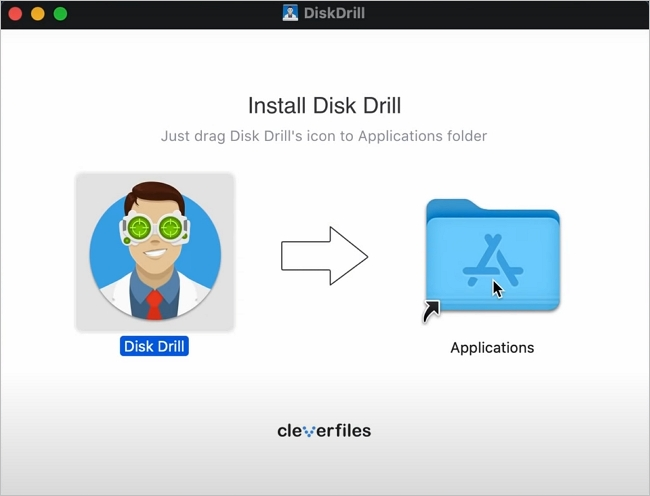
Features:
- Free data recovery up to 500MB
- Preview of the lost files
- Free data protection
- Free byte-level backups
- Easy data recovery from several devices
3. SysTools SSD Data Recovery (Windows)
The tool is efficient in recovering crucial data from an SSD drive, offering a reliable solution to rescue missing files. It's an automated solution that can recover permanently deleted, formatted, lost, or corrupted files, and allows users to preview recovered files before finalizing the data recovery. Additionally, it provides users with the flexibility to access their preferred language.
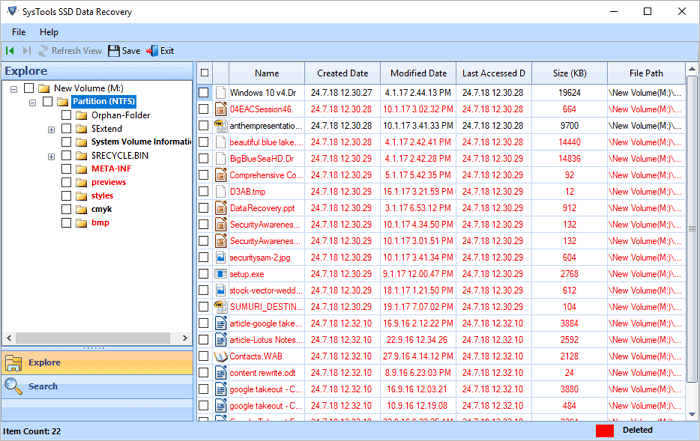
Features:
- A data recovery software that supports the recovery of various file types, including RAW files, deleted multimedia, documents, and images, allowing users to recover lost data.
- Provides preview of the deleted data files
- Restores different file formats effectively
- Supports recovery for both internal and external drives
- Adds up deleted data in the disk image category
4. Stellar Data Recovery (Windows)
The tool is a complex SSD data storage structure that efficiently recovers data from various sources, ensuring safe, secure, and confident data recovery. With a high success rate, it employs proprietary techniques to recover data from SSDs in different data loss scenarios.
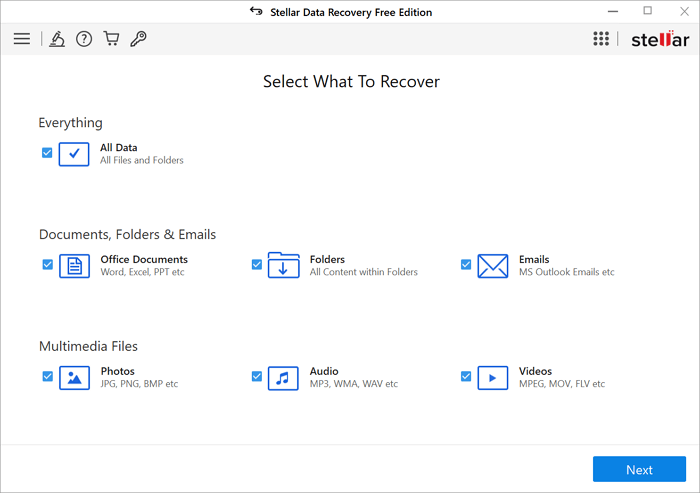
Features:
- Data recovery from accidental deletion or formatted drives
- Recovery from corrupted drives
- Recovery from physically damaged drives
- Keeps data safe and secure throughout
- Ensures high-end success rate
5. TestDisk Recovery (Windows&Mac&Linux)
TestDisk is a portable application that can recover data safely and securely, and is compatible with various file formats and operating systems, requiring no installer to run.
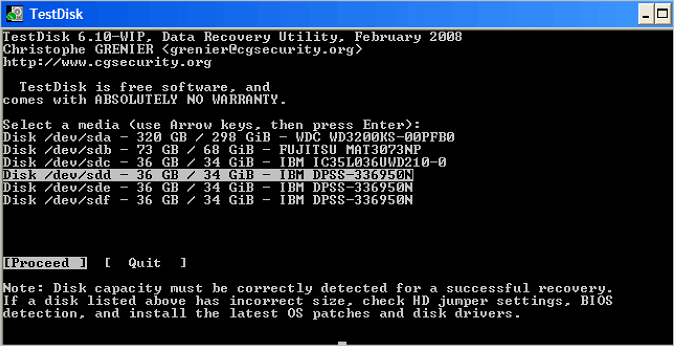
Features:
- Portable application for extracting files and applications
- Keeps data safe, secure, and confident
- It doesn't require an installer to run
- Works effectively on different file formats
- Supports multiple operating systems
6. Orion File Recovery Software (Windows)
Orion File Recovery Software is a solution for recovering and undeleting lost files or permanently erased data from SSD drives. It thoroughly searches for deleted files on the SSD drive, allowing for the recovery of files that haven't been overwritten, recovered, or permanently deleted. This tool can recover deleted files, music, and photos, and can also be used to securely erase files to increase system security.
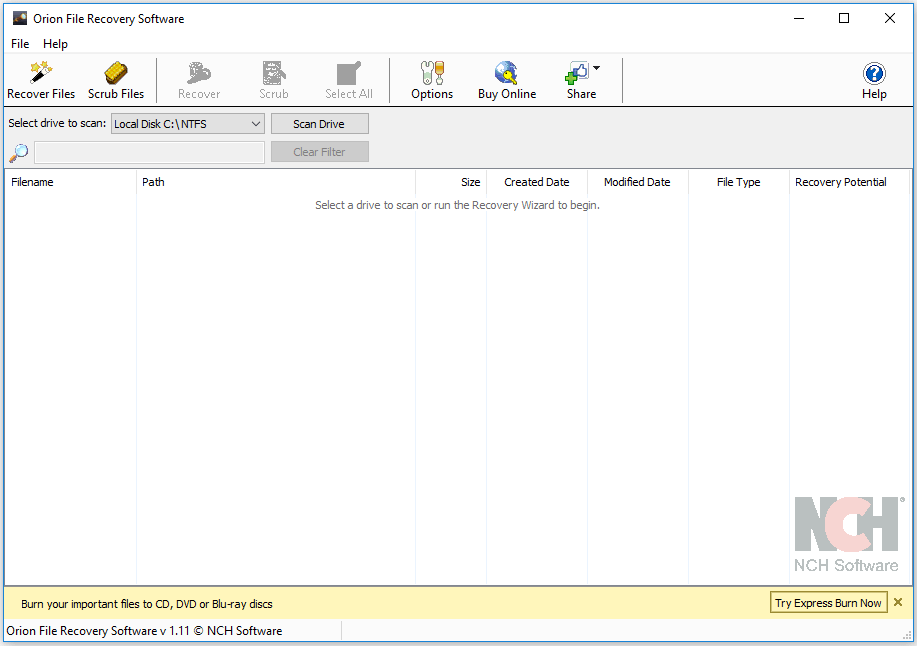
Features:
- Recover deleted files, pictures, and videos
- Data recovery software can recover data from various sources, including hard drives, solid-state drives (SSD), and USB devices.
- Erase files permanently for ensured high-end security
- Works well on different file formats
- Ensures quick and easy file recovery
7. Remo Recover (Windows&Mac)
The tool is designed to help recover deleted files, photos, and videos, and can be used to restore files from various storage devices, including hard drives, USB drives, and SSDs, and can also recover files that were shifted or emptied to the recycle bin, all for free.
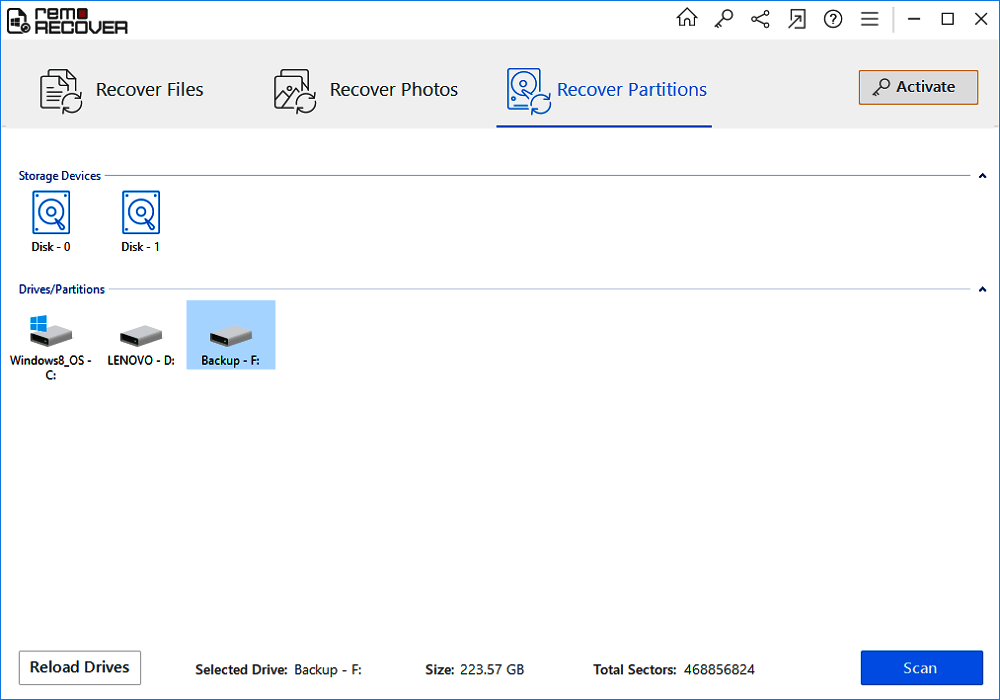
Features:
- Quick recovery of deleted files
- Recover files from different storage devices
- Restores shift deleted files
- Free data recovery tool
- Works well on all versions of Windows and Mac
8. Puran Data Recovery (Windows)
Puran Data Recovery is a free utility that allows you to recover maximum data from damaged media files. It provides a free preview of the recoverable data files, making it easier to assess the potential outcome. The tool is user-friendly and can copy entire drives, individual files, or folders, ignoring bad sectors that may be encountered during the process. Additionally, it supports drag-and-drop solutions and offers adjustable speed levels for convenient data recovery.
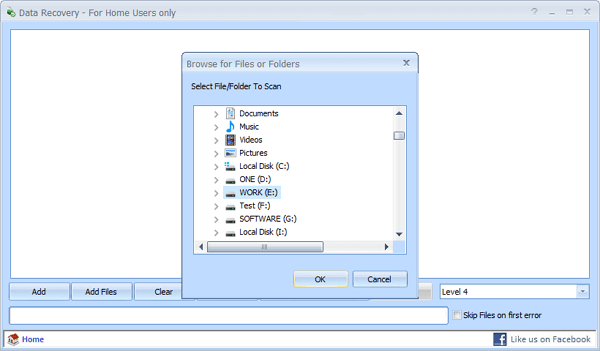
Features:
- Copy entire drives, files, and folders
- Features drag and drop operations
- Includes different speed levels
- Provides the perfect balance between recovered files and speed
- Recovers different file formats
9. SoftwarePro SSD Recovery Software (Windows)
This data recovery solution is the best option in the list, capable of recovering permanently deleted, formatted, or corrupted data from SSD drives. It effectively supports recovery from all brands' SSD and restores lost files from exFat, FAT, and NTFS SSD partitions.
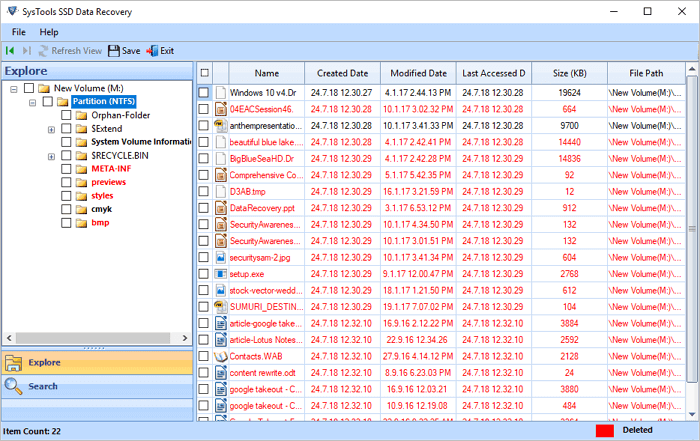
Features:
- Recover files from internal and external drives
- Provides preview of the deleted files
- Mechanical detection of the storage device for perfect scanning
- Compatible with SSD
- Apply category filter for easy navigation
10. Pcvita SSD Data Recovery Software (Windows)
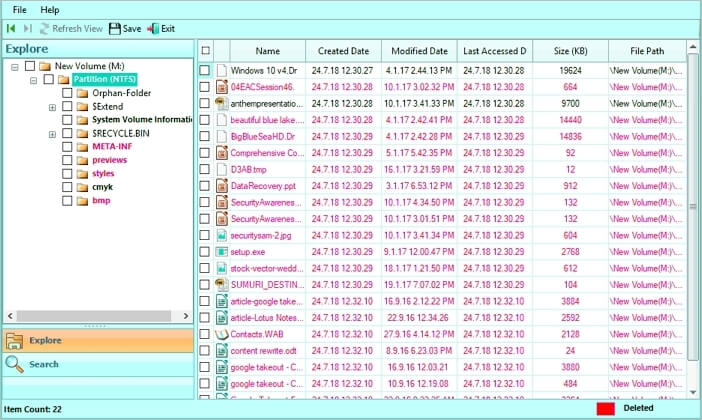
This data recovery software is a powerful solution that scans the user system, recovering corrupted, formatted, and lost data. With an easy-to-use interface, it helps retrieve and restore files from SSDs, including shifted deleted files or folders, and effectively saves data items from corrupted SSDs.
Features:
- Recovers corrupted or deleted files
- Supports multiple languages
- Ensures quick recovery process
- It works well on different Windows and Mac versions
- Provides permission to store the restored deleted data
Tips to Protect Your Files from Further SSD Data Loss Disasters
SSD data loss can be a catastrophic event, resulting in significant financial and emotional losses. However, it can be easily prevented by following a few simple tips, such as taking regular backups, using data recovery software, and implementing robust security measures to protect against malware and other threats. By taking these precautions, individuals can safeguard their valuable data and avoid the devastating consequences of data loss.
- Use OEM Software for Trimming: Instead of manually optimizing your SSD, we suggest using OEM software to manage the TRIM feature, which prolongs the drive's life and reduces data loss due to hardware issues.
- Backup Important Data: Users are advised to back up important data to prevent loss, which can be done using online and offline methods such as SSD, Hard Drive, USB, etc.
- Download and Install Anti-virus Software: Antivirus software effectively safeguards your data by protecting your device from malware, viruses, and other threats, preventing drive corruption and ensuring overall system security.
- Use SSD Drive Recovery Software: SSD drive recovery software like Qiling can be a lifesaver in case of data loss, efficiently recovering files even in the most disastrous situations.
- Properly Use SSD: Using an SSD can also help keep your data safe by ensuring regular backups and maintaining optimal performance. Regularly monitoring the SSD drive and PC performance can help identify any issues, allowing for prompt action to be taken to prevent data loss.
Conclusion
Having perfect SSD recovery software can significantly reduce the risk of data loss in various scenarios, making it a safe and secure way to keep your data intact. The software mentioned above offers confident data recovery without any issues.
SSD Recovery FAQs
We've provided comprehensive information on SSD recovery software solutions, covering various aspects. If you still have unanswered questions, our FAQs section is here to help. It addresses common issues related to SSD corruption, offering solutions to your queries.
How Can I Recover My SSD Files for Free?
Step 1. To recover data from a damaged SSD, download and install SSD recovery software on your Windows or Mac computer.
Step 2. Connect your SSD to the computer.
Step 3. Launch the SSD recovery software.
Step 4. Select the disk or partition for recovery.
Best Free SSD Recovery Software
The top free SSD recovery software is:
- Qiling Data Recovery Wizard
- Disk Drill
- SysTools SSD Data Recovery
- Stellar Data Recovery
- TestDisk
Does Recuva Work on an SSD?
Recuva works well even on SSDs with TRIM enabled, but it's not necessary as TRIM can handle space allocation effectively.
TRIM: the Problem with Recovering SSDs
The TRIM command is an advanced technology used by the system to inform an SSD which blocks are no longer in use. This presence of TRIM can hinder the effectiveness of data recovery software, but it doesn't pinpoint the exact location of deleted data, making recovery a bit more challenging.
Related Articles
- [Solved] - Window 10 Quick Access Files/Folders Missing
- How to Fix 'Python Setup.py egg_info' Failed with Error Code 1
- How to Convert RAW to NTFS Without Formatting (3 Ways)
- Top 6 Best Hard Drive Data Recovery Services
- How to Fix Deep Data Recovery Crashes, Stuck, Hangs and Freezes Up Error
If Deep Data Recovery gets stuck on scanning or freezes up, try restarting the software or your computer, then scan the data again. If it still doesn't work, try using Qiling data recovery software to recover your lost data. It's a reliable and efficient solution to get back your lost files. - Deep Data Recovery Technician 2.6 Crack + License Code
You can use Deep Data Recovery Technician crack software to recover deleted, lost, formatted, or corrupted data from various devices, including PCs, laptops, external hard drives, SD cards, and USB drives.
Products
Articles & Tutorials
- Data Recovery
- Data Backup
- File Recovery
- File Backup
- System Backup and Restore
- Disk and Partition Clone
- Technical articles
- Mobile articles
- Disk Master Help
- Windows Data Recovery Tutorials
- Windows Secure Delete Tutorials
- Windows Partition Management Tutorials
- Windows File Backup and Restore Tutorials
- Windows System Backup and Restore Tutorials
- Windows Disk Backup and Restore Tutorials
- Windows Clone Tutorials