FIX: Seagate External Hard Drive Not Working Without Losing Data
Seagate external hard drive not working, is it showing up?
Seagate is a well-known brand for hard drive storage, popular among worldwide customers. Many people use Seagate external hard drives, such as 500GB, 1TB, or 2TB models, as backup drives. However, like any big brand, Seagate products can experience issues after long-term use, particularly when used improperly, including software compatibility problems with newer operating systems, frequent connections to multiple computers, unsafe ejection, and physical vibration, ultimately leading to the drive no longer working.
When a Seagate external hard drive is not working, it means you can't save or access your data. To fix it without losing data, you need to identify the problem, address different levels of damage, and know when data loss is unavoidable. This approach ensures your data remains safe throughout the repair process.
| Workable Solutions | Step-by-step Troubleshooting |
|---|---|
| Fix 1. Basic troubleshooting |
|
| Fix 2. Advanced troubleshooting |
|
Basic troubleshooting
Let's address issues step by step, from basic checking to advanced troubleshooting. If the connected Seagate drive is not detected or not showing up in Windows Explorer, try these basic troubleshooting steps first.
- Change a USB port on your computer
- Change a different data cable if possible.
- The drive can be connected to another computer and the data can be transferred from the external drive to the other computer. This way, the data can be accessed and viewed without needing to connect the drive to the original computer. If you're unable to connect the drive to another computer, you can also try using a USB cable to connect the drive to a different device, such as a smartphone or a tablet, and then transfer the data to the other computer using a cloud storage service or a file transfer app.
- The Seagate external hard drive light is blinking if it is receiving power, and if it's not blinking, it means the power adapter is not connected to power.
- If a power outlet is not working and there's no light on it, or if you need to plug your power adapter directly into the wall outlet, you should replace the outlet.
After some basic troubleshooting, if the hard drive shows up again, you don't need to worry much about losing data. However, it's always a good idea to back up your hard drive data regularly, and Qiling Backup Free offers an automatic backup scheme on schedule to ensure your files are safe.
If the Seagate external hard drive is not showing up in Windows, there are a few troubleshooting steps you can take. If the drive is not recognized, you can try to reset it by unplugging it, waiting for 10 seconds, and then plugging it back in. If that doesn't work, you can try to check the drive's status in Disk Management.
Step 1: To open the Computer Management console, press the Windows key + R keys on your keyboard, type "compmgmt.msc" in the Run dialog box, and then click Enter.
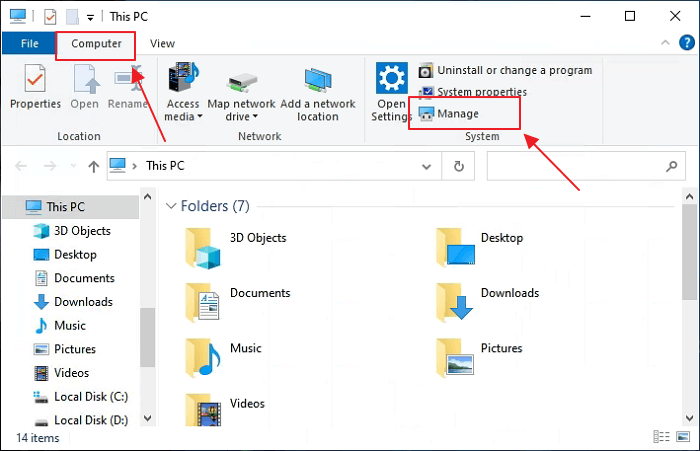
Step 2: To view the disk information of your Seagate external hard drive in Computer Management, click on Disk Management on the left, which will display the disk information representing your Seagate external hard drive.
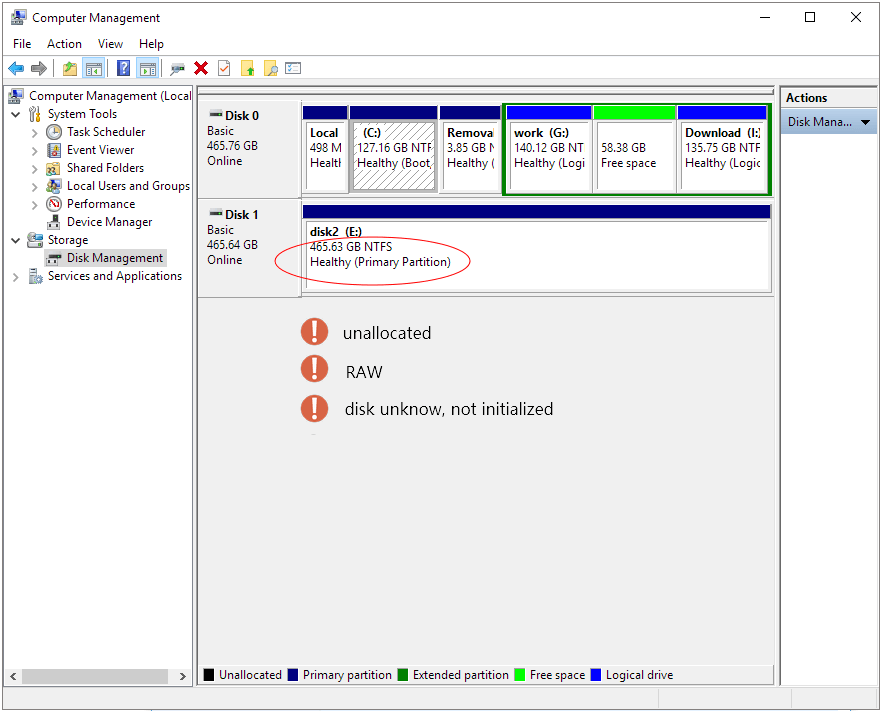
If you see the disk showing there, even displaying as strange characters including "Unallocated", "RAW", "Disk unknown, not initialized", The Seagate external hard drive in these circumstances is neither accessible nor opening, but you can try to recover data with the help of Deep Data Recovery. The linked pages are with corresponding solutions, and they are 100% applicable to the Seagate external hard drive as well.
Advanced troubleshooting
If there's no sign of a Seagate external hard drive in Disk Management, you should try checking the storage device in Device Manager.
Step 1:To open Device Manager, click on Computer Management on the left side of the window, then click on Device Manager on the left.
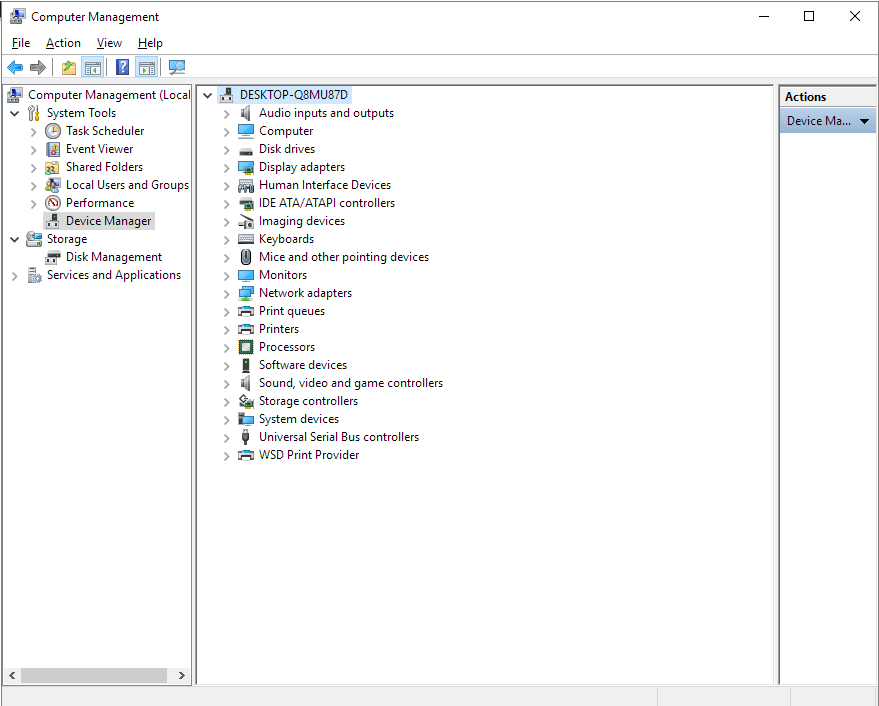
Step 2: To check the status of your Seagate external hard drive, look for its name under the Disk drives section. This will indicate whether it's connected and accessible, or if there are any issues preventing it from being recognized.
Step 3: If the drive is not detected under Disk drives, try looking for entries called "unknown device", "other device" or "mass storage device" with a yellow exclamation icon.
Step 4: Right-click on the drive and choose Properties.
Step 5: You may see an error code 10, error code 28, or error code 43 under the General tab.
Step 6: Go to the Device Manager, right-click on the problematic drive, and select "Uninstall" then "Search automatically for updated driver software" to resolve the issue.
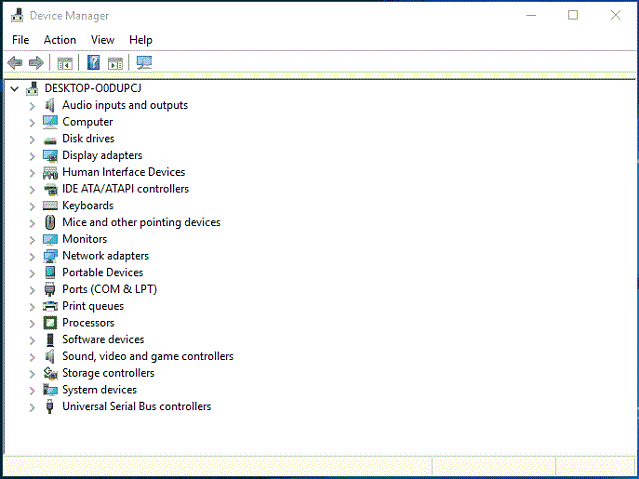
Step 7: Unplug the Seagate external hard drive, shut down your computer, wait a bit, reboot, and then plug the drive into a different USB port. This should trigger Windows to install the necessary drivers.
How to recover data from not working Seagate external hard drive
After fixing the Seagate external hard drive that was not responding, you can now check if you can access your data. If not, Deep Data Recovery is a reliable and powerful software that can help you recover data from the non-working drive. It's easy to use and has a high reputation worldwide, making it a good option for hard drive data recovery.
If your Seagate external hard drive is showing as unallocated, RAW, or unknown and you're having trouble opening it, Deep Data Recovery can be a helpful tool. Since Windows Disk Management can recognize the drive, Deep Data Recovery can also access and potentially recover the data from the drive.
Download the software, run it on your computer, let it scan the hard drive, and find the inaccessible data. It can also recover data from a formatted hard drive partition, including NTFS and FAT32. Now, it's your turn to run the software for a full Seagate hard drive data recovery.
Step 1. Connect your external hard drive to your computer using a correct USB cable, then run Deep Data Recovery and select the file types you want to recover. Click "Fast Scan" to start the process.

Note: You can choose different search modes based on where and why the data was lost.
Step 2.In the next window, you will see your external disk listed under External drives, which supports popular brands like WD, Seagate, Toshiba, LaCie, SanDisk, Samsung, and more.
Select the external hard drive and then click the "Scan" button.

Step 3. As soon as the scan process starts, the software will locate and display lost and deleted data in the scan results, which will be organized in a clear and user-friendly manner. The recovered data can be easily found by file type or by searching for exact file names in the search box, making it a quick and efficient process.

Step 4. To recover data from your Seagate drive, Deep Data Recovery's scanning algorithms will find the files and allow you to preview them. You can then select the files you want to recover and click "Recover", saving the data to a different drive than the original to avoid overwriting.
If you're struggling to recover data from your external hard drive, you can also refer to a video tutorial that provides a step-by-step guide on how to do so.
Related Articles
- SD Card/USB Drive/Pen Drive Shows 0 Bytes
- Fix 'This Drive Is Read Only' on SD Card/USB/Hard Drive [5 Methods]
- [SOLVED] Hard Drive/External Hard Drive Only Shows Half Capacity
- External Hard Drive Keeps Freezing or Freezes Computer (3 Solutions)
- Best SD Card Recovery Software to Recover Files from SD Card
Want to SD card recovery or recover deleted files from SD card? The best SD card recovery software can effectively recover lost, deleted or formatted photos, video and more files from SD card on Windows or Mac. - How to Recover Deleted File from SATA Hard Drive Recovery?
How to recover deleted or lost data from hard drive? especially data lost on Sata Hard Drive. The article shows useful tips about SATA hard drive recovery.
Products
Articles & Tutorials
- Data Recovery
- Data Backup
- File Recovery
- File Backup
- System Backup and Restore
- Disk and Partition Clone
- Technical articles
- Mobile articles
- Disk Master Help
- Windows Data Recovery Tutorials
- Windows Secure Delete Tutorials
- Windows Partition Management Tutorials
- Windows File Backup and Restore Tutorials
- Windows System Backup and Restore Tutorials
- Windows Disk Backup and Restore Tutorials
- Windows Clone Tutorials