[Solved] This Folder Is Empty on This PC/USB
Check the Solutions of "This Folder is Empty"
"This folder is empty" on USB, but it has size and files, how to fix this problem? Check the effective solutions below.
| Workable Solutions | Step-by-step Troubleshooting |
|---|---|
| Fix 1. Run attrib command |
|
| Fix 2. Use a data recovery tool |
|
"How to fix a USB flash drive when it says 'This folder is empty', but it's not! Certainly, the folder is there with my files because I never deleted it. The files in the folder are of great importance to me with which I can continue my ongoing study project. Please help me to solve this irritating problem. "
Overview
When you try to open folders inside an external USB disk, SD memory card or a pen drive on your PC with Windows 10/8/7, you may receive a warning that "This folder is empty" like the screenshot shows below.
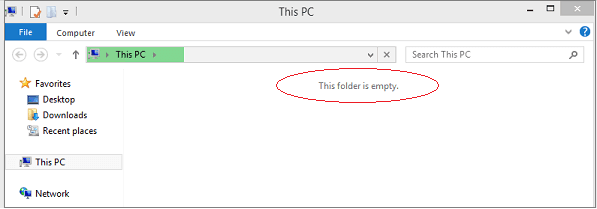
You might be skeptical and think "it's not true!" but the reality is that your files, including pictures, videos, and documents, could have been hidden or you might not have permission to access them. If the files weren't manually deleted, the message should be incorrect. To resolve this issue, follow the guides provided to address the problem.
Solutions to Recover Files from a Folder Showing Empty
You can fix the 'this folder is empty' error and recover hidden files using two popular methods: a free USB recovery software and the attrib command. These tools can help you retrieve files that are hidden from view, allowing you to access and manage your files more effectively.
Solution 1. Run Attrib Command to Show Invisible Files
To show hidden and unseen items in Windows, open File Explorer, click on the 'View' tab, select 'Show hidden files, folders and drives', and uncheck the checkbox. If this option doesn't work, you can try using the command prompt instead.
Step 1. To open the Command Prompt as an administrator, follow these steps: Click on the "Start" button, type "cmd" in the search box, right-click on "Command Prompt" and select "Run as administrator".
Step 2. This command is used to remove the hidden, read-only, and system attributes from all files and subfolders on the specified drive, which is the USB drive in this case. The `/s` and `/d` switches are used to apply the changes to all subfolders and files on the drive, and the `*.*` at the end specifies that the command should apply to all files on the drive. The `attrib` command is used to modify the attributes of files and folders, and the options `-h`, `-r`, and `-s` are used to remove the hidden, read-only, and system attributes, respectively.
Step 3. Close the command prompt window. Now, check if the folder is displaying files.
Solution 2. Use Deep Data Recovery to Restore Files from "this folder is empty" Folder
A third-If you're encountering a "This folder is empty" error message, you can try using party data recovery software as a suggested solution. In many cases, this issue is caused by a virus, but fortunately, Qiling virus file recovery software can recover files from virus-infected hard drives, memory cards, and USB flash drives.
If you're experiencing the issue where a folder appears empty but has files, download Deep Data Recovery to restore the hidden files.
To get rid of the virus, you should first delete or remove it using the command prompt (cmd), and then restore any lost files by accessing the "This folder is empty" option.
Step 1. Run Deep Data Recovery. Select file types and click "Fast Scan" to start the recovery process.

Note: You can choose different search modes based on where and why the data was lost.
Step 2. If you've misplaced a folder on your computer, you can try searching for it in the location where you last used it. To do this, navigate to the location where you think you last had the folder, such as your desktop, documents folder, or a specific project folder. Once you're in the correct location, click on the "Scan" button to initiate a search for the folder. This will search through all the files and folders in that location to try and find the missing folder.

Step 3. You can search for a specific folder or use the Filter feature to find a particular type of files within the folder.

Step 4. You can preview the recovered folder, then click "Recover" and choose a new and secure location on your PC to keep the recovered data.
Related Articles
- How to Recover Virus Infected Files from USB Dirve and Pen Drive
- Folder Shows Empty but Files Are There Windows 10/8/7
- Excel Recovery Tool Full Version Free Download: Recover Corrupted Excel File
- How to Recover Deleted Files from Eclipse
- 4 Working Ways to Recover Lost Files After macOS Monterey Update
If you've lost files after updating to macOS Monterey, There are practical ways to recover them, and Qiling Mac data recovery software is a standout option for its ease and efficiency. To get started, simply follow the steps to recover your lost files on macOS Monterey. - How to Recover Unsaved/Deleted Quicktime Recordings
This how-For Mac users, guide offers full solutions to recover unsaved Quicktime recordings from temp files and deleted Quicktime videos and audios.
Products
Articles & Tutorials
- Data Recovery
- Data Backup
- File Recovery
- File Backup
- System Backup and Restore
- Disk and Partition Clone
- Technical articles
- Mobile articles
- Disk Master Help
- Windows Data Recovery Tutorials
- Windows Secure Delete Tutorials
- Windows Partition Management Tutorials
- Windows File Backup and Restore Tutorials
- Windows System Backup and Restore Tutorials
- Windows Disk Backup and Restore Tutorials
- Windows Clone Tutorials