How to Recover Virus Infected Files from USB Dirve and USB Flash Drive
Experiencing a virus attack can be devastating, especially when it results in unexpected data loss on a hard drive, external hard drive, memory card, or USB USB flash drive. If you've had the misfortune of being attacked by one or more unknown viruses, you'll know the stress and worry that comes with it. The loss of important data can be a significant blow, making it essential to take preventive measures to protect your digital assets.
If your USB drive is infected with a virus, recovering your files can be a daunting task, especially if you're not sure where to start. Fortunately, there are two possible solutions: you can try to recover hidden files from the infected USB drive using the Command Prompt, or you can use professional data recovery software to retrieve your virus-infected files. If the first method doesn't work, you can proceed to the second one, which should help you recover your important files.
How to Recover Hidden Files from Virus Infected USB Pen Drive Using Command Prompt
If your data is hidden, inaccessible, or lost due to a virus attack on a USB pen drive, try using the Command Prompt (cmd) to recover hidden files. This is a free and well-understood option that can help you retrieve your data. The process is similar across various OS versions, including Windows 10, which I will be using for this demonstration.
Step 1. Plug your USB drive, pen drive, or memory card into your computer
Step 2. To open the Command Prompt, go to the Start menu, type "cmd" in the search bar, and hit Enter. This will display a list of programs, including "cmd.exe".
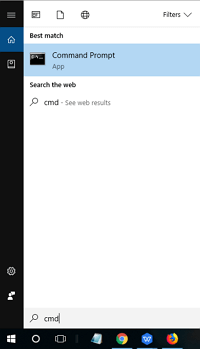
Step 3.To recover virus-infected files, click on "cmd.exe" which will direct you to the Windows command line. From there, you can access tools and commands to help you recover your files.
Step 4. The command `attrib -h -r -s /s /d *.*` is used to remove the system, read-only, and hidden attributes from all files and subdirectories in the current directory and below. When you run this command, it will remove the attributes from all files and directories, making them visible and editable. The `/s` option tells the command to operate on all subdirectories, and the `/d` option tells it to operate on directories themselves, not just their contents.
Windows will then start to find and display the virus-infected and hidden files on the external hard drive, memory card, or USB drive. Once the process finishes, you can navigate to your disk or card and check if you can see all of the previously virus-infected files.
If you're unable to recover your data. You can try using a third-party data recovery software. This provides you another chance to recover your lost data.
How to Recover Virus Infected Files from USB with Qiling Virus Attack Data Recovery Software
When you fail to recover hidden files from a virus-infected USB using the command line, Qiling hard drive data recovery software can help. This professional recovery tool supports restoring files from all storage devices, including USB, pen drives, SD cards, hard drives, solid-state drives, emptied Recycle Bins, and more.
With a powerful file recovery utility, you can recover virus-infected files in various types, and even repair corrupted photos, videos, and documents if a virus corrupts them. To start recovering files from a virus-infected USB drive, follow the step-by-step tutorial below.
Step 1. Select file types
Launch Deep Data Recovery. Select file types and click "Fast Scan" to begin the recovery process.

Note: You can choose different search modes based on where and why the data was lost.
Step 2. Select the virus infected drive to scan
To recover files affected by a virus, run Qiling virus file recovery software on your Windows PC. Select the disk that was attacked by the virus to scan for lost or hidden files.
- If you're dealing with a virus-infected HDD where files were hidden or deleted, it's best to install the software on a separate volume or an external USB drive to prevent overwriting of existing data.
- If the infected device is an external hard drive, flash drive, or memory card, it's okay to install the software on the local drive of the computer.

Step 3. Check all scanned results
Deep Data Recovery will immediately start a scan process to find deleted or hidden files on the virus-infected hard drive. To quickly locate wanted files, you can use the Filter or type grouping feature to display only pictures, videos, documents, emails, etc.

Step 4. Preview and recover deleted/hidden files
Once the scanning process is complete, you can preview the recovered files and select the ones you want to recover. Click the "Recover" button to save the restored files to a different, secure location on your computer or storage device, avoiding the original lost location.
Recover Virus Infected Files FAQs
If your USB flash drive, pen drive, or computer is infected with a virus, There are ways to recover your files.
1. How show hidden files from virus infection in pen drive?
To recover hidden files from a virus-infected USB pen drive, you can use either the attrib command lines or a professional virus file recovery tool. The attrib command lines can help, or alternatively, a dedicated virus file recovery tool can be applied to recover infected files.
2. How can I recover files from virus infected USB?
Step 1. To open the Command Prompt, go to the Start menu, type "cmd" in the search box, and press Enter.
Step 2. To access the Windows command line, you can simply click on the "cmd.exe" file, which will then direct you to the Windows command line interface.
Step 3. To recover virus-infected files, use the command `attrib -h -r -s /s /d G:\*.*` (replace `G` with your actual drive letter) to remove hidden, read-only, and system attributes from all files on the specified drive. This can help recover files that were accidentally marked as hidden, read-only, or system files by a virus.
3. How do I recover hidden files on my USB?
To view and retrieve hidden files from a USB drive, go to File Explorer options, select View, click on Hidden files and folders, and choose Show hidden files, folders, and drives. Click Apply and then OK. This will make your hidden files visible on the USB drive.
4.. How can I remove virus from my USB without deleting files?
You can remove a virus from a USB pen drive without losing any data by following a specific process.
Step 1. In the Search box, type cmd to open the command prompt.
Step 2. Now, type your flash drive letter (for example J) followed with colon i.e. J:.
Step 3. The command find . -type f -exec rm -i {} \; searches files in the current directory and its subdirectories, then asks for confirmation before deleting each file. Review each prompt carefully so you do not remove normal files by mistake.
Related Articles
- How to Change Your Gmail Password on PC/iPhone/Android
- How to Recover Deleted or Lost PS4 Game Files from PS4 Hard Drive
- How to Recover Files After Factory Reset Windows 10/11
- How to Recover OBS Recording Deleted, Crashed and Corrupted
- How to Disable AutoSave in Word and Excel
Learn how to disable AutoSave in Microsoft Word and Excel to prevent unwanted automatic saves. Step-by-step guide for Office 365, 2019, 2016 and earlier versions. Take control of your document saving with these quick methods. - 2022 Fix: Discord Not Opening, Stuck or Not Responding on Startup
If you're experiencing issues with Discord not opening on startup in Windows 10, there are 11 potential solutions to help resolve the problem.
Products
Articles & Tutorials
- Data Recovery
- Data Backup
- File Recovery
- File Backup
- System Backup and Restore
- Disk and Partition Clone
- Technical articles
- Mobile articles
- Disk Master Help
- Windows Data Recovery Tutorials
- Windows Secure Delete Tutorials
- Windows Partition Management Tutorials
- Windows File Backup and Restore Tutorials
- Windows System Backup and Restore Tutorials
- Windows Disk Backup and Restore Tutorials
- Windows Clone Tutorials