How to Recover Files After Factory Reset Windows 10/11
Windows 10 Factory Reset Overview
When a Windows 10 PC freezes, crashes, or gets stuck, users may refresh the computer, but some unknown problems can cause them to reset their PC to its factory settings instead.
Windows 10 reset is a more drastic option than a Windows 10 refresh, completely changing your PC into a brand new machine. This process returns your laptop or desktop to its original state, erasing all files, including photos, documents, and downloaded data. If you don't have a system backup before resetting, you'll permanently lose this data. However, it's still possible to recover lost files after a Windows 10 reset.
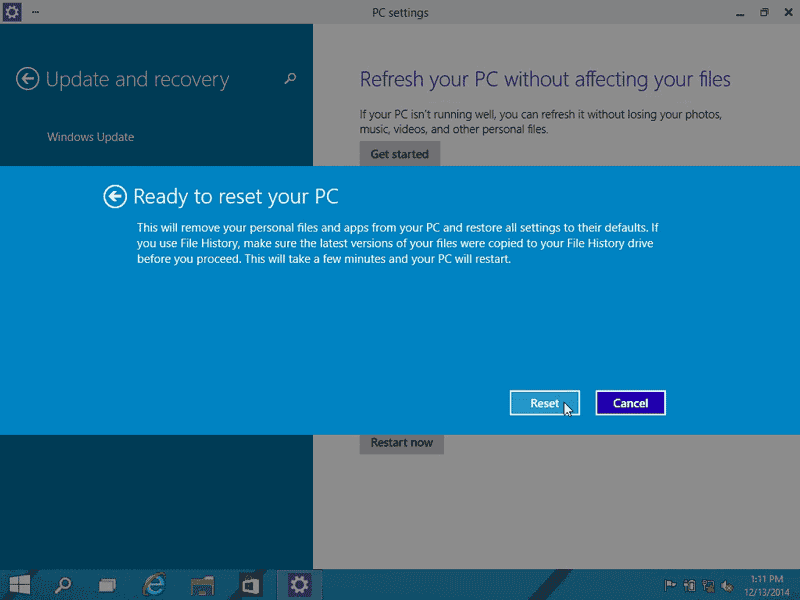
Can You Recover Data After Factory Reset Windows 10
You can recover files after a factory reset on Windows 10, but the recovery should be done immediately after the reset, as the chance of recovery decreases over time due to data overriding.
Qiling data recovery software enables Windows 10 users to recover files after a Windows 10 reset, supporting the recovery of various file types, including graphics, audio, documents, videos, and emails.
How to Recover Files After Factory Reset with Data Recovery Software
Deep Data Recovery is a user-friendly solution that offers all-in-one file recovery for Windows 10, allowing users to restore lost files from various storage devices, including recovering data from emptied Recycle Bin, formatted hard drives, RAW drives, and lost partitions.
Qiling data recovery software is a free option for recovering files after a Windows 10 reset, with no charge for users with 2GB or less of files to recover. The recovery process involves a three-step guide that can help users recover their files.
Step 1. Run Deep Data Recovery on your computer. Choose file types and click "Fast Scan" to begin the recovery process.

Note: You can choose different search modes based on where and why the data was lost.
Step 2. Connect the external storage device to your computer, choose the drive where you lost files, and click "Scan" to retrieve them.

Step 3. The software rapidly scans deleted files, followed by a deep scan to locate more lost files. Upon completion, it allows users to filter specific file types using the "Filter" feature.

Step 4. To recover files, click the "Preview" button or double-click on a file to see a full preview. Select the desired files, click "Recover", and choose a safe location to save them all at once.
How to Recover Files After Factory Reset with Windows 10 File History
File History is a Windows 10 tool that automatically backs up personal files from the Desktop, Documents, Videos, and Downloads folders, saving them every hour by default, and allowing for file restoration after a factory reset.
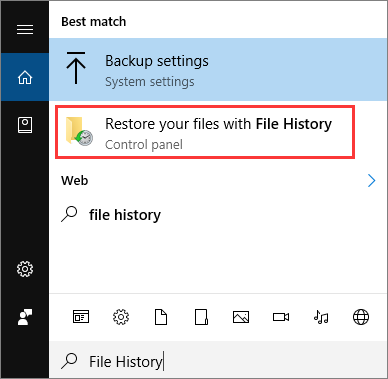
Step 1. Search for file history in the Search box. Click "Restore your files from File history" from the results.
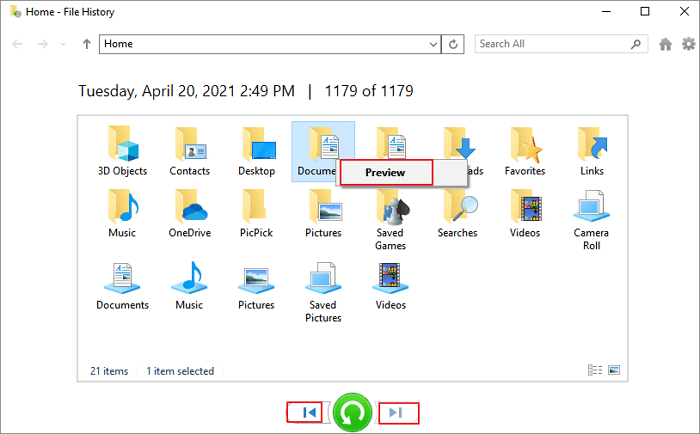
Step 2. On the File History window, you can view all the backup files, including photos, videos, and documents, and preview them before recovering. By clicking the left and right arrows at the bottom of the window, you can access multiple backup versions.
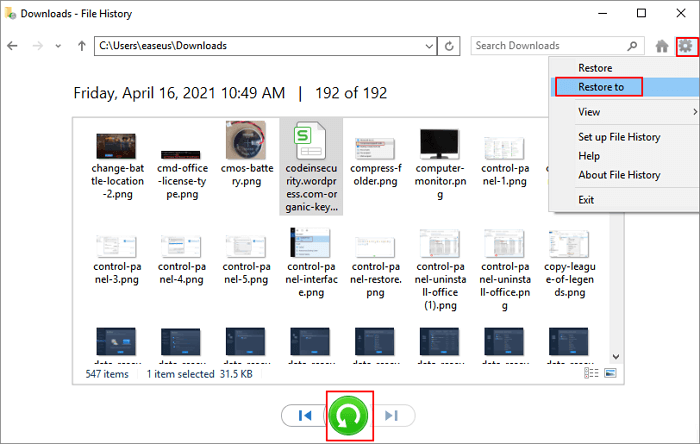
Step 3. To recover your target files, choose the files you want to restore and click the green arrow to initiate the recovery process. You can then click the gear icon near the top right corner and select "Restore to" to save the recovered files to a safe location.
Conclusion
If you've performed a factory reset on Windows 10 and lost files, there are two ways to recover them. You can use Qiling data recovery software or Windows File History to restore your lost files. To prevent further data loss, it's essential to have a regular backup of your data or have data recovery software handy.
Related Articles
- How to Recover Unsaved Excel Files from Excel Temporary Files in Windows 10/11
- Delete and Remove Virus Without Antivirus
- How Can I Recover EXE Files Automatically Deleted? Got It!
- How to Recover Norton Deleted Files (2 Ways)
- How to Format HDD/Disk/Hard Drive using CMD
You can easily learn how to format HDD using CMD or how to format hard disk using CMD. This article is a step-by-step guide for the Command prompt to format a hard drive or external hard disk in Windows 10/8/7. - How to Format Flash Drive Using CMD
This article covers two parts: how to format flash drive using CMD and how to recover formatted data from flash drive using CMD. Check them to restore USB flash drive using command prompt now!
Products
Articles & Tutorials
- Data Recovery
- Data Backup
- File Recovery
- File Backup
- System Backup and Restore
- Disk and Partition Clone
- Technical articles
- Mobile articles
- Disk Master Help
- Windows Data Recovery Tutorials
- Windows Secure Delete Tutorials
- Windows Partition Management Tutorials
- Windows File Backup and Restore Tutorials
- Windows System Backup and Restore Tutorials
- Windows Disk Backup and Restore Tutorials
- Windows Clone Tutorials