Fix: Discord Not Opening, Stuck or Not Responding on Startup
Discord is a platform that allows users to create communities, called "servers", where they can collaborate, share, and chat with others. It's designed for finding and joining groups based on shared interests, such as school clubs, gaming groups, or art communities. If Discord won't open on startup in Windows 10, users can troubleshoot the issue on this page to get back to enjoying their Discord experience.

How to Record Discord Audio on All Platforms
To record Discord audio, you can use third-party screen recording software like OBS Studio, Camtasia, or Bandicam. These tools can capture both video and audio from your screen, including Discord calls. You can also use browser extensions like Record Audio or Record Discord Audio, which specifically allow you to record Discord audio without capturing the entire screen. Additionally, you can use online recording platforms like Loom or ScreenFlow, which offer cloud-based recording capabilities. By using these alternatives, you can still capture and save your Discord audio conversations.
Pre-check Issues and Fixes
Before we start, let's do a quick check to identify the problem and see if it's a simple issue that can be fixed quickly and easily by yourself.
- Try restarting your system and opening Discord again to see if the issue continues.
- To log in to Discord, open the web version of Discord on your browser, which will reset the Discord session. After that, launch the Discord app on your PC to access your account.
- You can get the latest update for Discord by either checking for updates within the program itself or by manually downloading the latest version from its official website.
- Check the status of Discord servers to confirm they are functioning properly.
- No changes were made to the PC configuration. Uninstalling and reinstalling Discord is the next step to resolve the issue.
- Updating the Windows system may resolve the issue, as some users have reported that upgrading to the latest version solved the problem
- Tip
- Are you tired of losing fun media files like pictures, videos, or audio files that you've downloaded to your computer or external storage? Whether it's due to careless deletion or interrupted transfers, it's frustrating to lose valuable content. If you've accidentally erased or emptied files from Discord servers, don't worry - you can use Deep Data Recovery to retrieve them all.
Further Troubleshooting Discord Not Opening Issue with 8 Tricks
If you're still having trouble opening Discord after trying the previous troubleshooting steps, there are eight additional workarounds that may help you successfully reopen the program.
| Workable Solutions | Step-by-step Troubleshooting |
|---|---|
| 3 General Solutions |
1. Close Discord from Task Manager...Full steps |
| 8 Advanced Solutions |
5. Check Proxy settings...Full steps |
Method 1. End Discord from Task Manager
If a Windows program is not running or working properly, it may get stuck in a loop, freeze, or not respond after a long time. To troubleshoot such programs, you can try closing them from the Task Manager. If your Discord application is not opening on your PC, go to the Task Manager and end the process immediately.
Step 1. Hold and press Windows + Alt + Delete (Del) on your keyboard at one time. This will open the Task Manager, where you can see a list of running processes, and you can select which ones to close.
Step 2. Click Task Manager.
Step 3. In the Processes tab, find and select Discord, then click End Task.
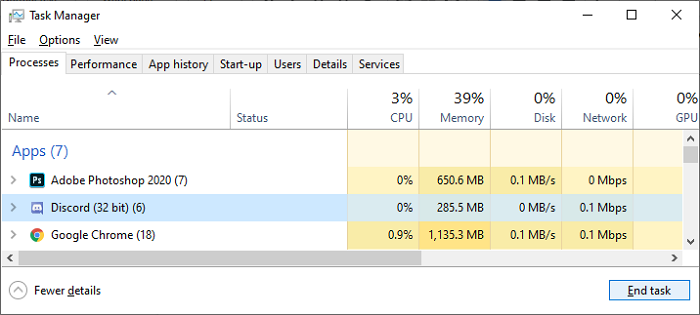
Step 4. Close Task Manager and restart Discord again to see if the problem persists.
Method 2. Kill Discord Process from Command Prompt
If you're unable to find Discord in the Task Manager, don't worry! There's an alternative way to close the program using the Windows Command Prompt, which is a bit more advanced but still easy to follow with clear steps and pictures. This method should help you completely close the program if you're having trouble finding Discord in the Task Manager.
Step 1. To open the Run dialogue, press the Windows key + R on your keyboard. This will open a small window where you can type a command or program name to run it directly.
Step 2. Press the Windows key + R to open the Run dialog box. Type "cmd" in the Run box and press Ctrl + Shift + Enter keys on your keyboard to launch the Command Prompt with administrative permissions.
Step 3. Type the command line: taskkill /F /IM discord.exe and hit Enter.
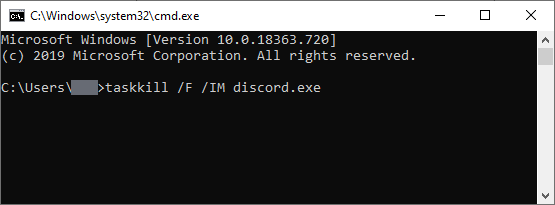
Step 4. Close the Command Prompt window and try to reopen Discord this time.
Method 3. Delete AppData & LocalAppData Contents
The AppData folder, usually invisible, stores unique application settings, files, and data for the applications on your PC, including Discord's cache files that are essential for opening and closing the app. If your system runs out of storage space, you won't be able to use Discord until you clear the AppData folder and make space for its files.
Step 1. Press the Windows key and the R key on your keyboard at the same time to open the Run dialog box.
Step 2. To access the AppData folder, type `%appdata%` in the Run box and click OK, which will redirect you to the AppData folder in File Explorer.
Step 3. Find Discord, right-click on the folder and select Delete.
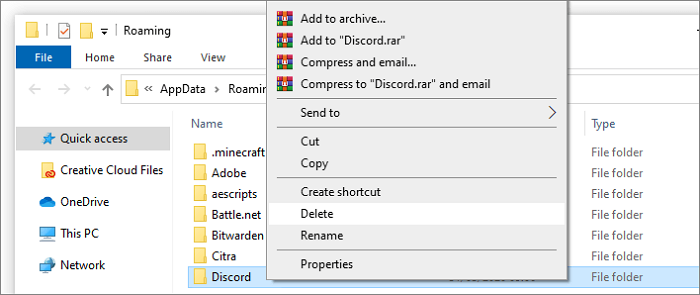
Step 4. If you're having issues with Discord, try relaunching it to see if it resolves the issue. If not, navigate to the LocalAppData folder, which can be found by searching for %localappdata%, and delete the contents of the folder. This may help resolve the issue.
Method 4. Launch Discord.exe from original install location
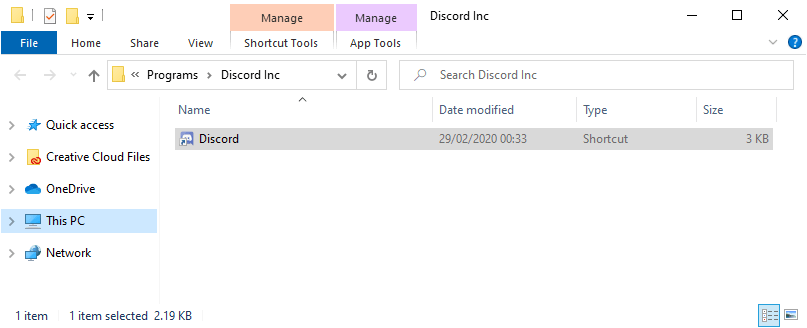
Launching Discord directly from its installation folder may resolve the issue for some users. To try this, navigate to the installation folder, usually located in C:\Users\YourUsername\AppData\Local\Programs\Discord, and run the Discord.exe file directly.
Step 1. Press the Windows + E keys to launch File Explorer.
Step 2. To find the Discord installation location, follow the path: C:\ProgramData\%user%\Discord, replacing %user% with your actual username.
Step 3. Double click on the Discord.exe file to launch the application.
Method 5. Check Proxy Settings
If you're having trouble connecting to Discord on your computer, try disabling any VPN service or proxy you're using, as they may interfere with Discord's ability to connect. This could resolve the issue and allow you to access the service.
Step 1. Type Control Panel in Windows Search and hit Enter.
Step 2. In Control Panel, find and open Internet Options.
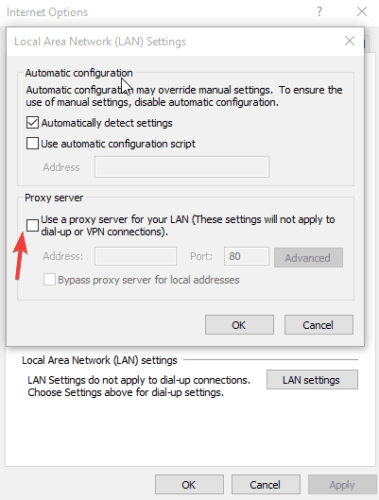
Step 3. To access the LAN settings, go to the Connections tab and click LAN settings under Local Area Network (LAN) settings.

Step 4. To disable the proxy server, go to Internet Options, uncheck "Use a proxy server for your LAN" under the Proxy server section, click OK, and then Apply.
Step 5. Try again to relaunch Discord on your PC.
Method 6. Reset DNS settings
When Discord isn't working as expected and general troubleshooting steps don't resolve the issue, resetting DNS settings may help. This can be done by following the steps similar to the Proxy suspect, which involves correcting corrupted DNS settings to allow the Discord program to contact the internet again.
Step 1. To open the Run box, press and hold the Windows key and the R key simultaneously. This will bring up a small window where you can type in a command or program name to run.
Step 2. Type cmd and press Enter.
Step 3. Type the command line: ipconfig/flushdns and hit Enter.
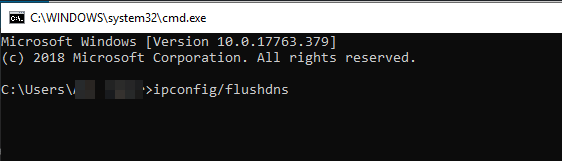
Step 4. Wait for a while until the process finishes. Again, go back to launch Discord on your PC.
Method 7. Install Discord PTB
If previous solutions didn't work and you're not willing to install software to troubleshoot, try installing the Discord PTB (public test beta) instead. This will allow you to use a separate version with its own data and cache, without interfering with your regular Discord, and you can log in with your account.
Step 1. Download Discord PTB setup on its official website link.
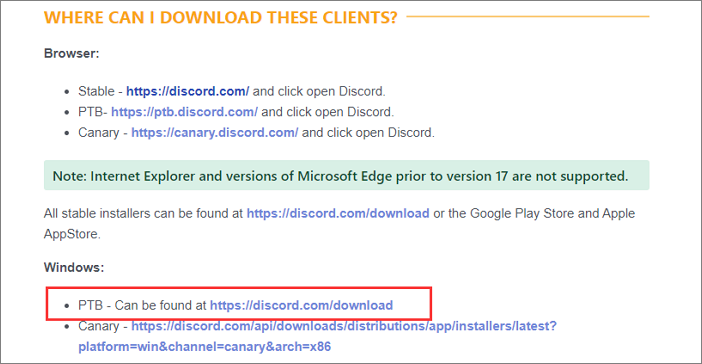
Step 2. Launch the setup, follow the wizard to download and install, and the application will launch automatically after a successful installation.
Method 8. Check and Repair Corrupted System File
If your Discord files were damaged or deleted, you may need to restore them before you can open the app again. Windows has a built-in tool called System File Checker (SFC) that can automatically fix corrupted system files and some related issues, which may resolve the problem.
Step 1. To open the Run dialogue, press the Windows + R keys on your keyboard. This will bring up a small window where you can type a command or program name to run.
Step 2. To launch the Command Prompt with administrative permissions, type "cmd" in the Run box, and then press the Ctrl + Shift + Enter keys on your keyboard. This will open the Command Prompt with admin privileges.
Step 3. The command line `sfc /scannow` should be typed and entered to scan and repair computer files, including fixing corrupt files if any are found.
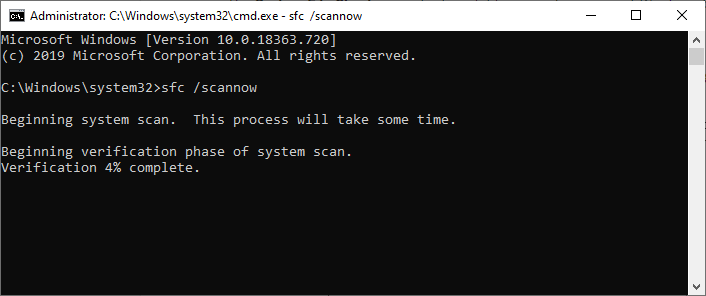
Step 4. After completing the process, close the Command Prompt window and restart your PC. Recheck if you can open Discord.
The Final Thoughts
Discord customers are still on the rise, but some users experience an issue where the app won't open on startup in Windows 10. Despite the developers' professionalism in maintaining a smooth experience, this problem can occur. Fortunately, there are a few feasible solutions to resolve the issue, which will be covered in the article, helping to remove the Discord error that prevents the app from opening on startup or not working properly after launch.
To recover deleted files on your PC for Discord, download and install Deep Data Recovery. This software can help you retrieve deleted files such as photos, videos, or audio.
Deep Data Recovery
- Recover lost or deleted files, documents, photos, audio, music, and emails easily with specialized software or tools. These programs can help you retrieve accidentally deleted files, restore corrupted files, and even recover files from formatted or damaged storage devices.
- Recover files from formatted hard drive, emptied recycle bin, memory card, flash drive, digital camera, and camcorders.
- Data recovery services can help recover lost data due to sudden deletion, formatting, hard drive corruption, virus attacks, or system crashes, providing a solution under various circumstances.
Related Articles
- Locked Out Of Windows 10? We Got It! [Solved]
- 5 Ways to Fix BSOD Error 0x00000133
- Btrfs vs EXT4, All You Need to Know About Btrfs and EXT4!
- [Tried & True] How to Download and Update USB Drivers in Windows 10
- You Want to Perform SWF File Recovery? Got it
If you've accidentally deleted SWF files from your hard drive, memory card, or SD card, you can recover them with Qiling data recovery software. To get back your lost .swf video files, follow these steps. - Terraria Load Failed No Backup Found (Terraria Data Recovery)
If you're experiencing the “Terraria Load Failed No Backup Found” issue, you can recover lost data using Qiling data recovery software.
Products
Articles & Tutorials
- Data Recovery
- Data Backup
- File Recovery
- File Backup
- System Backup and Restore
- Disk and Partition Clone
- Technical articles
- Mobile articles
- Disk Master Help
- Windows Data Recovery Tutorials
- Windows Secure Delete Tutorials
- Windows Partition Management Tutorials
- Windows File Backup and Restore Tutorials
- Windows System Backup and Restore Tutorials
- Windows Disk Backup and Restore Tutorials
- Windows Clone Tutorials