5 Ways to Fix BSOD Error 0x00000133
| Workable Solutions | Step-by-step Troubleshooting |
|---|---|
| Fix BSOD Error 0x00000133 |
Fix 1. Change SATA AHCI Controller Driver...Full steps Fix 2. Rollback Your Driver...Full steps Fix 3. Fix System Files with SFC...Full steps Fix 4. Perform a Disk Check/Repair...Full steps Fix 5. Restore Windows 10...Full steps |
| Restore Data from a PC | Create a bootable disk; Boot from the bootable USB; Recover data from a hard drive that won't boot...Full steps |
The BSOD Error 0x00000133, also known as the DPC_WATCHDOG_VIOLATION error, is a recent bug in Windows that occurs when the system fails to handle a Deferred Procedure Call, resulting in a Blue Screen of Death error while booting.
Microsoft is actively working to resolve the BSOD Error 0x00000133, which is a common problem reported by several users. To fix this error, it's essential to understand its causes, and fortunately, there are some fixes available that can help get rid of it.
The BSOD Error 0x00000133 can be caused by various factors, including compatibility issues with software or hardware, problems within the CPU or graphics card, or driver issues. To fix this error, we'll explore different solutions that can help resolve the issue.
How to Fix BSOD Error 0x00000133 in Windows 10
The BSOD Error 0x00000133 is a common issue in Windows 10, but it's relatively easy to fix. Fortunately, there are several methods that can resolve the problem, and users can try them to get their system back to normal.
IMPORTANT NOTE: Enter Safe Mode First
Windows can encounter different issues even with regular updates and a constant error-checking process. That is why entering the Safe Mode of the system is a great way to resolve problems that you are facing, as it allows the system to boot with a minimum set of drivers and services, which can help identify and isolate the root cause of the issue.
The Safe Mode is an in-Windows built diagnostic mode designed to provide a basic Windows state with minimal drivers and files, allowing for a straightforward identification of the root cause of issues, and facilitating easy resolution of problems.
There are three distinct types of Safe Mode, allowing you to choose the one that best suits your needs. If the BSOD error prevents normal booting, entering Safe Mode is necessary to diagnose and resolve the problem. You can adopt the fixes listed below in Safe Mode.
Fixes list:
- 1. <Change SATA AHCI Controller Driver
- 2. <Rollback Your Driver
- 3. <Fix System Files with SFC
- 4. <Perform a Disk Check/Repair
- 5. <Restore Windows 10
Fix 1. Change SATA AHCI Controller Driver
One of the primary causes of the DPC_WATCHDOG_VIOLATION bug error in Windows 10 may be the SATA AHCI drivers, and changing the SATA AHCI controller driver may resolve the problem.
Take a look at the steps that you need to follow –
Step 1: To open the Device Manager, press the Windows + R keys simultaneously, which will open the Run dialog box, then type devmgmt.msc and click on the OK button.
Step 2: To open the Device Manager, click on the Start menu, type "Device Manager" and press Enter. Then, in the Device Manager window, expand the "IDE ATA/ATAPI Controllers" option by clicking on the arrow next to it. Finally, click on "SATA AHCI Controller" to select it.
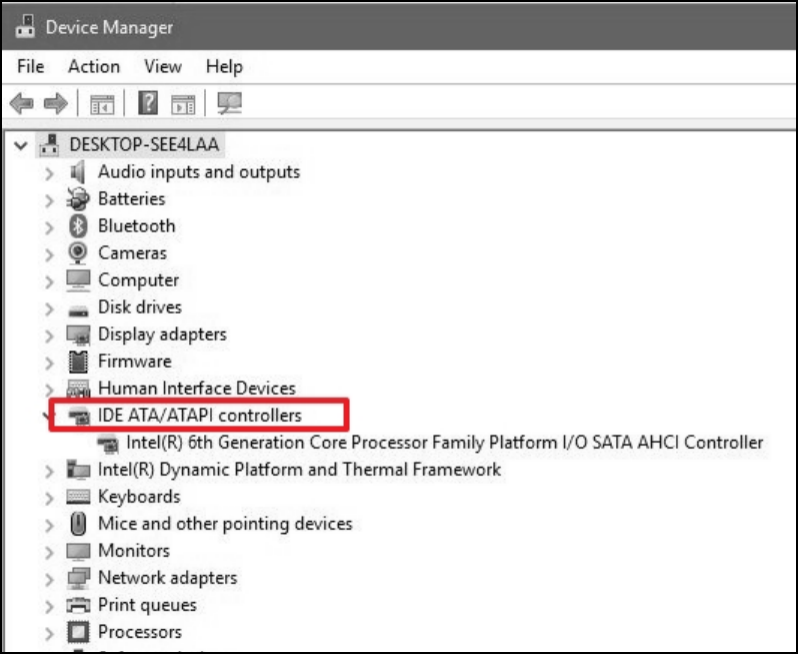
Step 3: To update the driver, go to the Device Manager, find the device you want to update, right-click on it, and select Update driver. Then, click on Search automatically for updated driver software or Browse my computer for driver software.
Step 4: To resolve the error, click on "Let me pick from a list of device drivers on my computer", select the "Next" button, then choose the "Standard SATA AHCI Controller", and finally click "Next". Wait for the process to complete, then restart your system to see if the error is resolved.
Fix 2. Rollback Your Driver
The Blue Screen of Death error 0x00000133 may occur if your computer's drivers are outdated or incompatible with the latest version, even if they are updated.
If the latest driver version doesn't work with your current system, you can resolve the issue by rolling back the driver to the previous version. To do this, follow the steps:
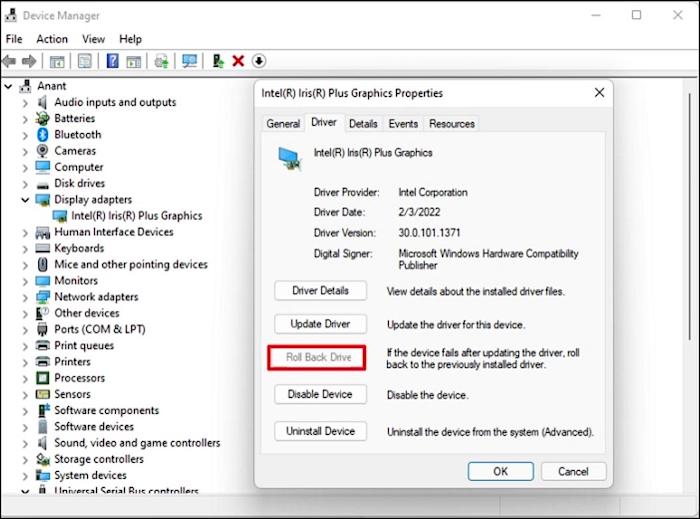
Step 1: To open the Device Manager, press the Windows + R keys at the same time, type devmgmt.msc in the Run dialog box, and then click OK.
Step 2: To resolve the issue, go to the Device Manager, select Display adapters, right-click on this option and select Properties. Then, go to the Driver tab and select the Roll Back Driver option.
Step 3: After that, click on OK. Restart your computer and check if the error still occurs.
Fix 3. Fix System Files with SFC
Running the System File Checker (SFC) utility can also resolve blue screen errors caused by faulty or corrupt system files. This command-line tool identifies and repairs damaged or problematic files within the operating system, helping to resolve various issues and potentially resolving the blue screen error.
To run the SFC command, follow these steps –
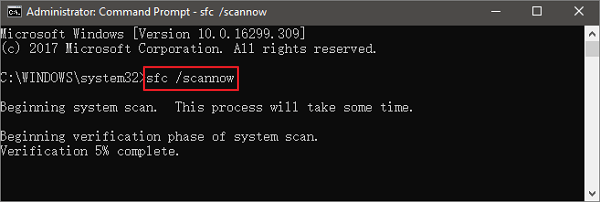
Step 1: To open Command Prompt as administrator, press the Windows and R keys simultaneously to open the Run dialog box, then enter "cmd" in the box, and finally press Shift+Ctrl+Enter at the same time.
Step 2: To run the System File Checker, type `sfc /scannow` in the command line window, press Enter, and wait for the verification to complete at 100%.
Step 3: After that, you can close the command window. Reboot the system and see if the error is resolved.
Fix 4. Perform a Disk Check/Repair
The BSOD Error 0x00000133 can be caused by hard drive corruption, which can be resolved using the Check Disk Utility or chkdsk.exe, a Windows tool that checks for potential problems and fixes them.
These are the steps you can follow to perform a disk check or repair –
Step 1:To open Command Prompt as administrator, press the Windows key + R keys simultaneously to open the Run dialog box, then enter "cmd" in the box. Next, press Shift + Ctrl + Enter at the same time to open Command Prompt with administrator privileges.
Step 2: To run the Check Disk utility on a specific drive, enter the command `chkdsk x: /f` in the command line, where 'x' represents the drive letter of the drive you want to scan. Press Enter to execute the command.
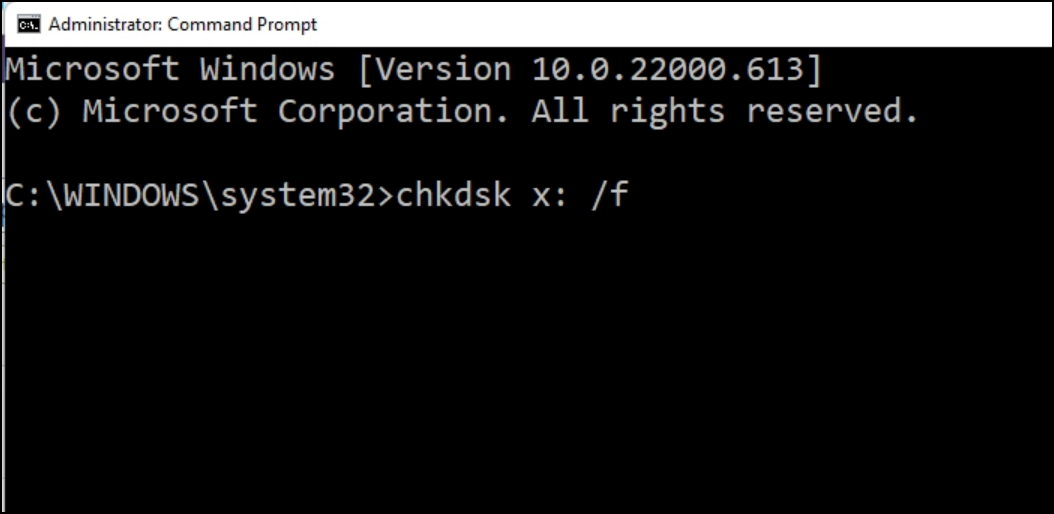
Step 3: Next, enter Y. Wait for the scan to complete. After that, restart the system.
The scan and repair process for your computer is a time-consuming task that requires scheduling during spare time.
Fix 5. Restore Windows 10
If the BSOD Error 0x00000133 persists, you can try restoring the system to its previous state, which will roll back the software and drivers, potentially resolving the issue. However, this will also remove any recent updates and files, so it's recommended to have a backup of personal files before proceeding.
To restore Windows 10, follow these steps: Go to the Settings app, then click on Update & Security, followed by Recovery. From there, click on Get started under the Reset this PC section, and then select either Keep my files or Remove everything, depending on your preference.
Step 1: Press the Windows + Pause keys at the same time, select System Properties, and click on System Restore.
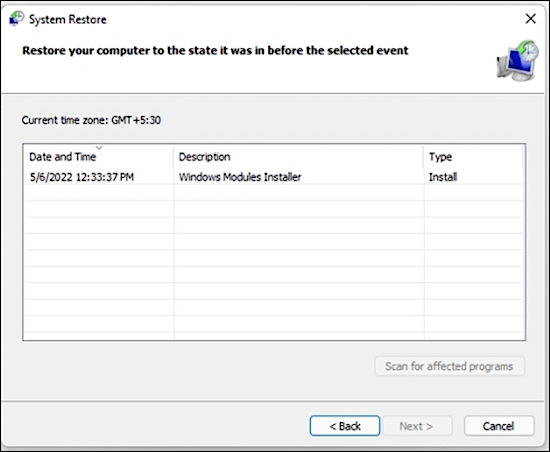
Step 2: Click on "Next". Choose a particular restore point. It means you have to select a specific date and time. Click on "Next".
Step 3: The user should follow the on-screen instructions and then restart the system to see if the BSOD Error 0x00000133 still occurs.
How to Restore Data from a Computer with a Booting Problem?
If you're experiencing issues accessing data, computer, or have lost data during a Windows restoration, the solution is relatively simple.
If you're experiencing booting issues and want to recover data, consider using reliable data recovery software like Deep Data Recovery with Bootable Media, which can help restore deleted or lost data easily.
When the operating system crashes or fails to start, Deep Data Recovery with Bootable Media can be used to recover data. This app allows access to lost files even when the system is having issues launching.
The software creates bootable media, allowing the operating system to run, which makes it easy to recover lost data.
The software allows users to preview data such as audio files and photos before recovering them, giving them a chance to see what they want to recover and then proceed with the process.
Step 1. Create a bootable disk
To prepare for creating a bootable disk, first make sure the USB is empty or back up any important data on it to another device, as the process will erase the data. Once you've cleared the USB, you can use Deep Data Recovery WinPE Edition to create a bootable disk.
Connect a USB drive to your PC, then launch Deep Data Recovery WinPE Edition. Select the USB drive and click "Create" to create a bootable disk.
Step 2. Boot from the bootable USB
Connect the bootable disk to the PC that won't boot, then change the computer's boot sequence in the BIOS. Most users can achieve this by restarting their computer and pressing F2 at the same time to enter the BIOS.
To boot the PC from a device other than the hard drive, press the F10 key to save and exit the BIOS settings, allowing the system to boot from a removable device like a USB drive or a CD/DVD.
Step 3. Recover data from a hard drive that won't boot
When you boot from a USB drive, you can run Deep Data Recovery from the WinPE bootable disk, and then select the drive you want to scan to find all your lost files.

Click "Scan" to start the scanning process.

Recover data from the computer or laptop by scanning the device, previewing and selecting the files to recover, and saving them to a different location to avoid overwriting.

Conclusion
The BSOD Error 0x00000133 is a common Windows 10 issue that can occur due to compatibility problems between software, drivers, and the system. However, this error can be resolved by taking a few simple steps, such as rolling back drivers or restoring Windows to a previous point. These solutions can help resolve the issue and get your system running smoothly again.
If the system doesn't boot, the ideal solution is to use Deep Data Recovery, which can be used by following simple steps and even allows previewing of photos and audio before recovery.
Related Articles
- Best Hard Drive Recovery Solutions | Recover Data from Hard Drive
- [Solved] 2018-11 Update For Windows 10 Version 1803 For X64-Based Systems (Kb4023057) – Error 0x80070643
- Fix Windows 11/Windows 10 Is Not Shutting Down or Won't Shut Down
- What Is Dynamic Disk | Everything About Windows Dynamic Disk
- Easiest Way for How to Recover Deleted Files from a Toshiba External Hard Drive
To recover files from a Toshiba external hard drive, use Deep Data Recovery and follow these 3 easy steps: scan the drive, preview the recoverable files, and retrieve the desired data. - How to Recover Deleted/Lost Files in Windows 10/8/7/XP
If you accidentally deleted or lost files in Windows, you can try the following way for how to recover deleted/lost files in Windows 10/8/7/XP.
Products
Articles & Tutorials
- Data Recovery
- Data Backup
- File Recovery
- File Backup
- System Backup and Restore
- Disk and Partition Clone
- Technical articles
- Mobile articles
- Disk Master Help
- Windows Data Recovery Tutorials
- Windows Secure Delete Tutorials
- Windows Partition Management Tutorials
- Windows File Backup and Restore Tutorials
- Windows System Backup and Restore Tutorials
- Windows Disk Backup and Restore Tutorials
- Windows Clone Tutorials