Terraria Load Failed No Backup Found (Terraria Data Recovery)
| Workable Solutions | Step-by-step Troubleshooting |
|---|---|
| Find the File from the File Location | Go to My Documents -> My Games -> Terraria -> Players or Worlds to change the player or world name...Full steps |
| Recover Terraria Files and Reload | Select the drive on your hard disk where you lost or deleted files. Click "Scan" and let Qiling...Full steps |
| Re-install Terraria to Fix It | Right-click on Terraria in your Library and select Properties from the drop-down menu...Full steps |
Terraria is a game that lets players create, explore, and survive on a new planet with each new game. The gameplay involves combining items discovered through excavation and spelunking to create new products, structures, and machines, allowing for emergent gameplay that creates a unique experience each time. The game takes place in a massive 2D side-scrolling world.
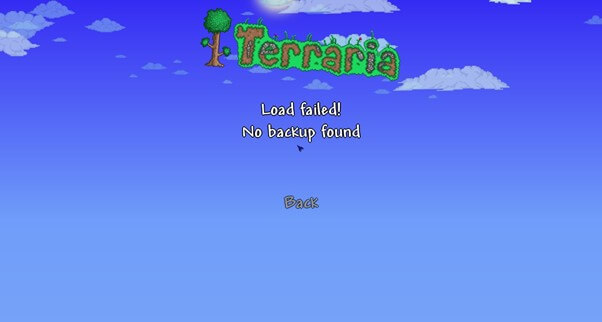
Many players have encountered the "Load Failed No Backup Found" message when running Terraria, but you're not alone. This article provides a step-by-step guide to resolve Terraria backup issues, and by working your way down the list, you should be able to find a solution that works for your situation.
Terraria Load Failed. No Backup Found
Terraria is a simulation game where players can take on new challenges and progress through the game, uncovering new sections as they advance. The game offers a variety of missions with different difficulty levels, providing players with a range of objectives to achieve.
The game has received positive feedback for its role-playing content and style, but has been troubled by a glitch that causes the game to fail to load when players leave and re-join their world, resulting in an error message or the loss of NPCs and inventory.
If your Terraria game is experiencing frequent loading failures with the error "Load failed No backup found," it is likely due to a corrupted save file. Try removing the ".bak" suffix from the backup file to see if it loads instead. Alternatively, you can use TEdit to load the world file and assess the extent of the corruption and lost data.
If your game backup file doesn't load and shows an error, try exiting and restarting the game to see if your saved files load. If not, there's a possibility you may have lost all your game's progress.
Also read: It Takes Two Lost Save File, How to Recover?
How to Fix Terraria Load Failed No Backup Found
Restoring your game files from a backup can be helpful if someone has griefed your world or if a clown or another character has destroyed something valuable. This process can also be used to back up your player profile if desired.
However, if you face trouble recovering your lost data, try the three solutions below to recover lost Terraria files.
Fix 1. Find the File from the File Location
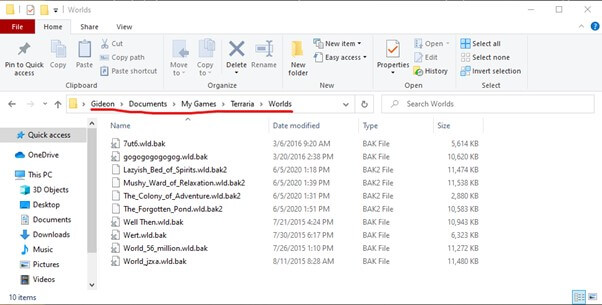
If your Minecraft world is corrupted, you can try to recover it by accessing the Worlds directory in the documents folder. Here, you'll find multiple files with the .wld.bak or .wld extension. If you have a backup of your world's .wld.bak file, you might still be able to retrieve your data.
Step 1. To change the player or world name in Terraria, navigate to the "My Documents" folder, then select the "My Games" folder, followed by the "Terraria" folder, and finally the "Players" or "Worlds" folder, where you can modify the desired name.
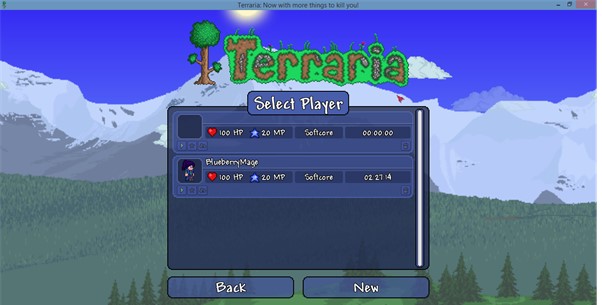
Step 2. To view the context menu, press on the username. The character at the top of your character list, referred to as Player1, is displayed at the top of the game.
Step 3. Select the file you want to restore, then right-click and select Restore earlier versions.
Step 4. To preserve both files, you can either restore or copy them to the computer, depending on your desired outcome.
Step 5. Now, you should be able to re-access your old character.
Fix 2. Recover Terraria Files and Reload
When playing Terraria, encountering the "Terraria Load Failed No Backup Found" error indicates a game malfunction. This issue arises when you die in the game and try to re-enter, displaying the error message on your screen. Despite the game loading, you won't be able to access any chests, and unfortunately, all your game progress will be lost.
If you've lost your Terraria game data, it might have been accidentally deleted or lost. To recover it, you can use a professional service like Deep Data Recovery to help you retrieve your Terraria files. This can be a helpful solution to get your game data back.
This tool offers a wide range of file recovery functions, from simple undelete to recovering data lost due to formatting a hard disk. It can recover data from various storage devices, including hard disk drives, solid-state drives, SD cards, flash drives, USB drives, and other storage devices.
Step 1. Select file types
Launch Qiling file recovery software on your Windows computer, select the file types, and click "Fast Scan" to start the recovery process.

Note: You can choose different search modes based on where and why the data was lost.
Step 2. Scan the hard drive partition
Select the drive on your hard disk where you lost or deleted files and click "Scan" to let Qiling data recovery software scan for all lost data and files on the selected drive.

Step 3. Check the results
When the scan is finished, you can apply the "Filter" feature or click the "Search files or folders" option to find the lost files on the hard drive.

Step 4. Restore lost hard drive data
Select the files you want to recover and click "Recover" to save them to another location.
You can also recover RAW drives that your computer's operating system hasn't recognized. A valuable feature of this program is the pre-recovery preview, which allows you to quickly search for lost objects or check storage sector-by-sector, depending on the situation. This convenience lets you review lost data before it's restored to its original state.
Fix 3. Re-install Terraria to Fix It
If you're experiencing the Terraria Load Failed No Backup Found error and recovering data from the documents file didn't work, try exiting the game and reinstalling it. Before reinstalling, check the integrity of your files and re-download any missing or modified data. This should resolve the issue.
Step 1. To update Terraria, right-click on the game in your Library and select "Properties" from the drop-down menu, then click on the "Updates" tab to check for available updates.
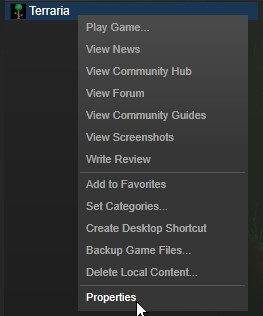
Step 2. Go to the Local Files tab, click on "Verify File Integrity", and add a description for the image in the field.
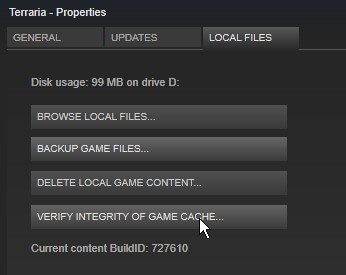
Step 3. Wait until it has finished confirming, and then your game should begin to function correctly.
If the technique doesn't work, you'll need to delete the local data for Terraria by right-clicking on it in the Library, which will remove the game. Alternatively, you can delete the entire Terraria folder, which contains your saved worlds and characters, and then reinstall the game as usual.
Conclusion
If you're experiencing the 'Terraria Load Failed No Backup Found' issue, try one of the suggested solutions: closing the game, deleting the.wld file, or re-installing the game. Alternatively, you can try retrieving the.wld.bak file from your computer's documents folder.
If the methods in this guide don't work, you can try using Deep Data Recovery to recover your files securely and efficiently. That's all for now. We hope these solutions help you.
Related Articles
- Fix Unspecified Error When Copying File or Folder on Windows 10
- How to Get Your Account Back on TikTok
- Does SSD Need the Power to Retain Data? Answers Are Here!
- Sticky Notes Not Available Error in Windows 11, 10, 8, 7 Without Losing Data
- Free Download and Install iOS 10.2 Update without Losing Data
This tutorial provides a free guide to download and install the latest iOS 10.2 update without losing any data. If you're trying to update your iPhone, iPad, or iPod touch to iOS 10.2, follow these steps to do so with ease. - How to Have Two Kik Accounts on One Phone
Users often prefer to use two Kik accounts on one phone, and to achieve this, they can follow specific steps to set up and switch between the accounts. For this purpose, Qiling MobiSaver is recommended to restore Kik data after changing accounts on both iPhone and Android devices.
Products
Articles & Tutorials
- Data Recovery
- Data Backup
- File Recovery
- File Backup
- System Backup and Restore
- Disk and Partition Clone
- Technical articles
- Mobile articles
- Disk Master Help
- Windows Data Recovery Tutorials
- Windows Secure Delete Tutorials
- Windows Partition Management Tutorials
- Windows File Backup and Restore Tutorials
- Windows System Backup and Restore Tutorials
- Windows Disk Backup and Restore Tutorials
- Windows Clone Tutorials