How to Recover OBS Recording Deleted, Crashed and Corrupted
OBS Recording Recovery Overview
To start using OBS to record your screen, download and install the free and open-source software suite on Windows, Mac, or Linux, and then complete the screen recording quick start setup.
If you've lost valuable OBS recordings due to accidental deletion, system crashes, or corrupted files, You can recover them using three effective methods. The most popular OBS video formats, FLV and MP4, can be restored using these methods, allowing you to retrieve your valuable recordings.
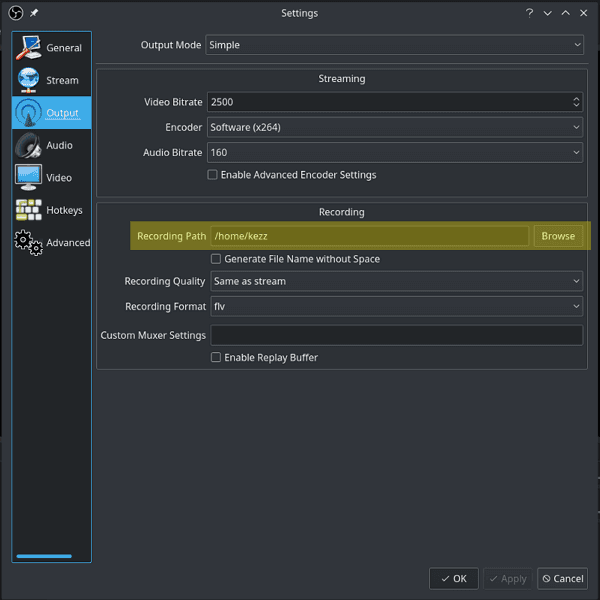
How to Recover Deleted OBS Recordings with Ease
If your OBS recordings are accidentally deleted or your storage device is formatted, the best way to recover them is by using a data recovery tool. Deep Data Recovery is a suitable option that can recover lost and deleted videos in various formats, including .flv and .mp4.
To recover OBS files, download Qiling data recovery software and follow the provided guides for OBS recovery.
Step 1. Launch Deep Data Recovery, select the desired file types, and click "Fast Scan" to initiate the recovery process.

Note: You can choose different search modes based on where and why the data was lost.
Step 2. Select the location or device where you lost/deleted videos. Click "Scan" to find the missing videos.

Step 3. After scanning, go to the "Videos" section, select "Lost" or "All", find the desired videos, select them, and click "Preview".

Step 4. Select the video files that you want to restore. Click "Recover" to save them to another secure location on your PC or external storage device.
How to Recover Unfinished OBS Recordings
"Hi, guys. I used OBS to record video files yesterday, but my computer crashed. And I had a not finished record, which is 4GB. Now I want to recover it somehow. I need this record, can anyone help me out how to make the file work?"
If a power failure or system crash occurs while using OBS, unfinished recordings may be lost. However, if the recording is saved in a recoverable format, it's possible to recover the file. Unfortunately, recordings saved in MP4 format are typically unrecoverable due to their container structure, but other output types may allow for recovery.
To be safe for future recordings, set the output format to .flv and convert it to .mp4 afterwards. This way, if OBS crashes, the .flv file will still be usable, and converting it to .mp4 won't re-encode the video frame by frame.
How to Recover Corrupted OBS Recordings
If your OBS recordings are completed without error, but you can't open them someday, the files are likely corrupted. To view the corrupted recording, you need to search for specialized video repair utilities instead of using data recovery software.
Renowned file repair software such as Stellar video repair and Youdot video repair can effectively assist in fixing OSB corrupted recording. These tools can help restore the recording to its original state, making them ideal for use in such situations.
For a completed OBS recording saved as .mkv that was later deleted, see how to recover deleted OBS MKV recordings on Windows. Recovery of a deleted file is different from repairing an unfinished recording.
Related Articles
- Excel Cannot Open the File Because The File Format or File Extension Is Not Valid
- How to Make Files Undeletable in Windows
- How to Fix Microsoft Office Cannot Open This File Because Some Parts Are Missing or Invalid
- How to Open Numbers File in Excel
- Sandisk Recovery Online | Sandisk Pen Drive Data Recovery Online
Get this SanDisk recovery online tool – conveniently restore deleted, formatted or lost data from SanDisk SD card, pen drive, and USB flash drive on Windows or Mac. - Best SD Card Recovery Software to Recover Files from SD Card
Want to SD card recovery or recover deleted files from SD card? The best SD card recovery software can effectively recover lost, deleted or formatted photos, video and more files from SD card on Windows or Mac.
Products
Articles & Tutorials
- Data Recovery
- Data Backup
- File Recovery
- File Backup
- System Backup and Restore
- Disk and Partition Clone
- Technical articles
- Mobile articles
- Disk Master Help
- Windows Data Recovery Tutorials
- Windows Secure Delete Tutorials
- Windows Partition Management Tutorials
- Windows File Backup and Restore Tutorials
- Windows System Backup and Restore Tutorials
- Windows Disk Backup and Restore Tutorials
- Windows Clone Tutorials