How to Open Numbers File in Excel
People use Microsoft Excel to manage various activities and keep financial records, but a primary issue arises when trying to open Numbers files in Excel on Windows computers. This is because Windows does not support the Numbers file format, leading to specific problems.
3 Ways to Open Number in Excel (Quick Navigation)
To open a Numbers file on a PC, there are specific ways to assist users. However, before diving into those methods, it's essential to understand the difference between Numbers files and Excel files. Numbers files are specific to Apple's Numbers app and contain unique formatting and features, whereas Excel files are used in Microsoft Excel and have their own set of features.
| Workable Solutions | Step-by-step Troubleshooting |
|---|---|
| 1. Export Numbers to Excel | Open the previously saved Numbers file using the Numbers app. Select the "Export To"...Full steps |
| 2. Open Numbers File via iCloud | Launch a web browser on our computer and go to iCloud.com...Full steps |
| 3. Convert the Numbers to XLSX | Open the Zamzar converting tool in a new window. To convert a Numbers file...Full steps |
Numbers File VS Excel File, What's the Difference
Microsoft Excel and Apple Numbers are the go-to spreadsheet tools for many reputable businesses, offering numerous advantages to organizations of all sizes. Large corporations have long used one or both of these spreadsheets to track their company's progress, but Microsoft Excel is generally the more popular choice in this comparison.

The Apple version of Excel is Numbers, which is pre-installed on new Macs and available for download on the Mac App Store. Numbers uses the .numbers file type, making it convenient for Mac users, but sharing with Excel users can be more complicated.
The main difference between Apple Numbers and Microsoft Excel lies in their accessibility and features. While both software are available for PCs, Apple Numbers is only accessible on Macs, whereas the online version is accessible to both Mac and PC users. Additionally, the number of features in each software differs significantly, with Apple Numbers offering around 250 functions and Microsoft Excel boasting 484 features organized into 14 categories.
How to Open Numbers File on a PC (3 Ways)
You can easily open Numbers files in Excel using several tools, and the quickest method is to access a Numbers file on a PC through iCloud.
You can easily convert a Numbers file to an Excel-compatible format by using the Numbers software or an online conversion tool, both of which are free. The process is relatively straightforward once you get started, and going through it will make it simple. Just follow these three simple solutions to get the job done.
Method 1. Export Numbers File to Excel on Mac
When opening a Numbers file in Excel, you must first convert it to the appropriate format. If you are a Mac user and have the Numbers application installed on your device, follow this method.
Step 1. Open the previously saved Numbers file using the Numbers app.

Step 2. To export your document to another format, go to the "File" menu and select the desired export option from the dropdown list.

Step 3. Choose the file format you need, such as .xlsx or .xls.
Step 4. Choose a location for saving this file and then shut the Numbers application.
Step 5. To transfer the exported file from your Mac to your PC, you can use a USB drive, cloud storage, or a file transfer service. First, locate the exported file on your Mac, typically found in the designated export folder.
Step 6. To open the file on your PC, double-click it.
Method 2. Open Numbers File on PC via iCloud
To access Numbers via iCloud, simply log in to your iCloud account and follow the steps to open the app.
Step 1. Launch a web browser on your computer and go to iCloud.com.
Step 2. To log into your iCloud account, enter your login credentials, including your username and password, and click the arrow to proceed.

If you have an iCloud account, you can use it to transfer files between devices. If you don't have an iCloud account, you can create one for free on the Create an Apple ID website, which is required for this method.
Step 3. To create a new spreadsheet in Apple Numbers, choose the "Apple Numbers" option on the left side of the screen.
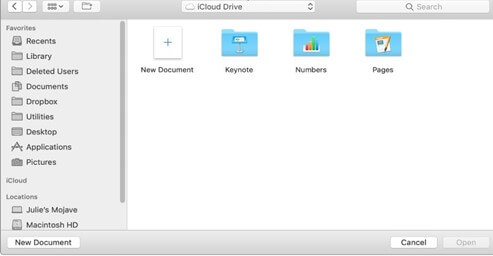
Step 4. To upload a Numbers file, click the "Upload" button at the top right of the page, select the file from your PC, and click "Open" from the context menu.
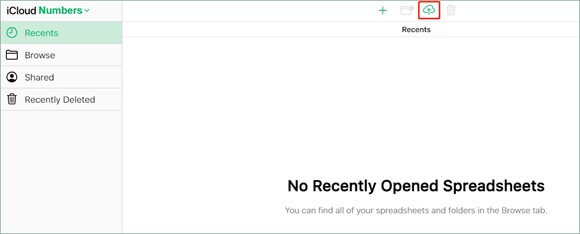
Step 5. To complete the task, download the "Numbers files" which will be viewed later for editing once they are completed and stored in the cloud.
Method 3. Convert the Numbers File to Excel-compatible File Format
To convert a Numbers file to an Excel-compatible file format, you can use either the Zamzar software or a conversion program, which will allow you to access the file on a PC. This will enable you to open the Numbers file on a PC, despite the fact that Numbers is an Apple-exclusive program.
Step 1. Open the Zamzar converting tool in a new window.
Step 2. To convert a Numbers file, choose the file you wish to convert.
Step 3. Select the desired output file format, such as .xlsx, .xls, or .csv.
Step 4. To convert now, use the Convert Now button.
Step 5. When the conversion is finished, find the converted file on your computer and double-click it to open it on your computer.

How to Open a Corrupted Numbers File
When a file becomes corrupted, it can be difficult to try and open it. However, the most effective solution is often using a deep data recovery tool. This approach can help recover the file and make it accessible again.
Using a file repair program is the most effective method of restoring data, and Qiling file repair tool is a powerful tool that can repair and restore lost or damaged files, including Word, Excel, PowerPoint, and PDF files, in various corruption circumstances, and is compatible with all major operating systems.
Key Features
- Repair the damaged Excel or Word file immediately after recovery,
- Multiple corrupt files may be repaired at the same time.
- You can repair damaged files from a variety of devices, including a computer, laptop, external device, and more.
To repair damaged Numbers or Excel files, follow these steps. For Excel files, the process is the same across Windows 11, 10, 8, and 7. You can use the built-in repair tool in Excel to fix corrupted files.
Step 1. Launch Deep Data Recovery, select file types, and click "Fast Scan" to initiate the recovery process.

Note: You can choose different search modes based on where and why the data was lost.
Step 2. This software allows you to fix damaged Word, Excel, PPT, and PDF files in the same steps, making it easy to recover corrupted documents.

Step 3. Qiling data recovery and repair tool scans for all lost and corrupted files, allowing you to find target files by type or search for them by name.

Step 4. Deep Data Recovery can automatically repair damaged documents, allowing you to recover and save Word, Excel, and PDF files to a safe location after previewing them.
Conclusion
Everything you need to know about opening Numbers in Excel has been covered in this article, with three distinct methods provided. Additionally, a Microsoft repair tool has been introduced, which can be used to restore and repair damaged Excel/Number Files for both business and personal use.
Related Articles
- Folder Is Not Accessible Access Is Denied
- How to Change Your Gmail Password on PC/iPhone/Android
- Microsoft Has Committed to Right to Repair, What Does It Mean?
- How to Recover Unsaved Excel Files from Excel Temporary Files in Windows 10/11
- Missing File Headers? We Can Resolve the Header Missing Case
To fix the header missing error, use the best manual options in the guide provided, or run the Qiling file repair tool for file repair to fix corrupted Word, Excel, PowerPoint, and PDF files with header-related issues. - How to Mount ISO File in Windows 10/11
You can access and mount the contents of an ISO image in several ways. In this guide, you'll learn to mount ISO images on Windows 10. A reliable file recovery tool is provided to help you restore ISO files if necessary.
Products
Articles & Tutorials
- Data Recovery
- Data Backup
- File Recovery
- File Backup
- System Backup and Restore
- Disk and Partition Clone
- Technical articles
- Mobile articles
- Disk Master Help
- Windows Data Recovery Tutorials
- Windows Secure Delete Tutorials
- Windows Partition Management Tutorials
- Windows File Backup and Restore Tutorials
- Windows System Backup and Restore Tutorials
- Windows Disk Backup and Restore Tutorials
- Windows Clone Tutorials