Top 9 Ways to Recover Folders Disappeared from Desktop Mac and Windows 10/8/7
Issue: Folder Disappeared from Desktop Mac
Users who frequently place their important folders or files on the desktop for easy access often unknowingly put themselves at risk of data loss due to accidental deletion, system crashes, or power failures. This has led to a growing need for recovering folders that were mistakenly deleted or lost from the desktop.
This article provides various methods to restore desktop files or folders that have disappeared on a Mac, as well as useful ways to recover folders that vanished from the Windows desktop, offering a comprehensive solution for users experiencing this issue.
| Workable Solutions | Step-by-step Troubleshooting |
|---|---|
| Folder Disappeared From Desktop Mac (6 Ways) |
|
| Folder Disappeared from Desktop on Windows (3 Ways) |
|
Why Do Files/Folders Disappear from Desktop
If you've noticed that files have disappeared from your desktop on your Mac or Windows PC, don't panic! There are ways to recover and get them back. Before taking any action, it's helpful to understand the possible reasons behind this issue, which may save you a lot of time and effort.
- Files disappear after changing your password.
- Forget to save a file that you're working on.
- Power outages or computer crashes cause data loss.
- Files are no longer there after updating the software.
- You have clicked the "Hide extensions for known file types" option.
If you've experienced a desktop file disappearing, there are ways to recover it on both Mac and Windows. While the list above doesn't include every instance, it's essential to know that there are methods to retrieve lost files on both operating systems. Whether it's a Mac or Windows desktop, you can try various techniques to recover your lost file, and in some cases, it may be possible to get it back.
6 Ways to Recover Folder Disappeared From Desktop Mac
If your Mac desktop folders have disappeared, it's likely due to them being hidden or deleted. In either case, you can recover the missing files using the following methods.
- Tip 1. Unhide files by using Finder
- Tip 2. Show hidden files with Terminal
- Tip 3. Find folders through Stacks
- Tip 4. Restore files from Trash
- Tip 5. Turn Off iCloud Drive
- Tip 6. Use Mac data recovery software
If you're missing Mac files, the most effective way to recover them is by using Qiling Mac data recovery software. Alternatively, if you don't want to use software, you can try other methods to recover your missing files.
Tip 1. Use Finder to Find Missing Mac Desktop Folders
macOS Finder helps organize files and folders, but if you can't find a particular file or folder, you can find hidden files in Finder by using the built-in methods.
Step 1. To relaunch the Finder, click the Apple logo at the top left corner, then select "Force Quit" and choose Finder, followed by "Relaunch". If this doesn't work, you can try troubleshooting with the Finder.
Step 2. To view hidden files on a Mac, open the Finder and navigate to the Macintosh HD folder. Press Command + Shift + . (dot) to make the hidden files appear, or access this shortcut from within the Documents, Applications, and Desktop folders.
Tip 2. Show Hidden Files with Terminal
The terminal command can unhide any hidden files on Mac.
Step 1. Go to "Finder > Applications > Utilities" and double-click "Terminal".
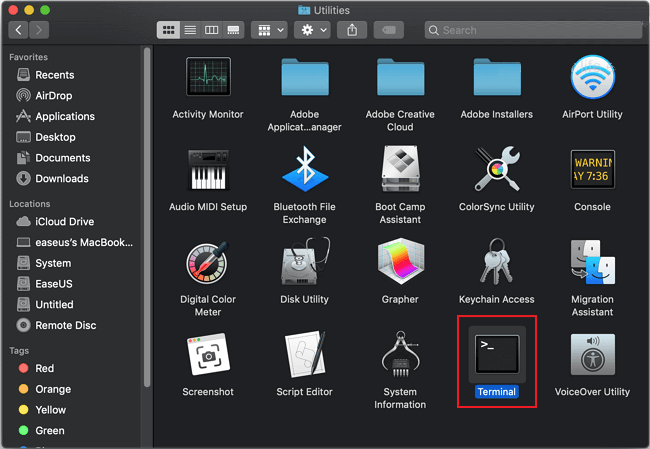
Step 2. In Terminal, run these commands in order:
Type defaults write com.apple.Finder AppleShowAllFiles true, and press Return
Type killall Finder and press Return

When the commands run, you can see your hidden files in Finder and any temporary files saved on the desktop. In Finder, go to "Go" menu and select "Go to Folder" and enter `~/Library/` to see your hidden files.
Step 3. Type Quit in the Terminal to exit the Terminal window.
Tip 3. Find Disappeared Mac Folder Through Stacks
If the Stack feature is enabled on your Mac, all your files will be organized into categories. When you click on a category, it will expand and display all the content on the desktop.
Step 1. To enable Stacks on your desktop, go to the "View" menu at the top of your screen, then select "Use Stacks".
Step 2. To better organize your files, select the "Group Stacks By" option and check how your files were organized. This will help you understand the structure and hierarchy of your files, making it easier to manage and maintain them.
Step 3. Find your missing folders and place them at the destination.
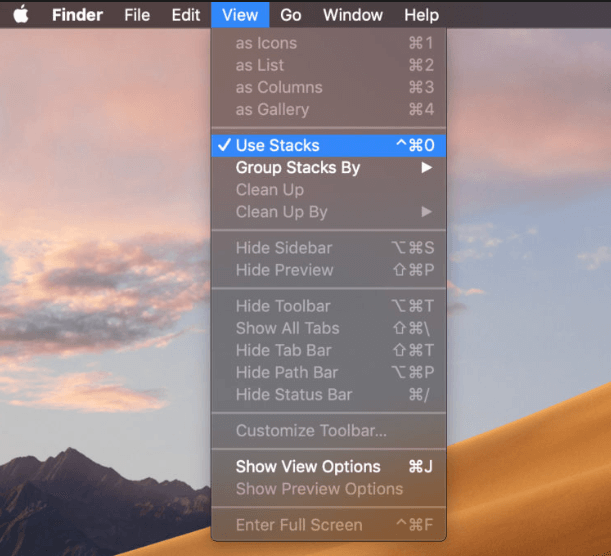
If you're unable to find your Mac desktop files due to missing desktop folders, try disabling the "Use Stacks" feature to see if that resolves the issue. This may help you locate your files.
If your Mac folders are deleted or removed, there are still ways to recover lost files or folders on the Mac desktop. If the files are not deleted but hidden, you can try using Spotlight to search for them, checking the Trash folder, or using a third-party recovery software. However, if the files are truly deleted, you can try using Time Machine or other backup solutions to restore them. In any case, it's essential to have a backup system in place to prevent data loss in the future.
Tip 4. Restore Deleted Desktop Files/Folders from Trash
If you accidentally deleted Mac desktop files, you can retrieve them from Trash easily. Follow these steps to get back deleted desktop files on Mac.
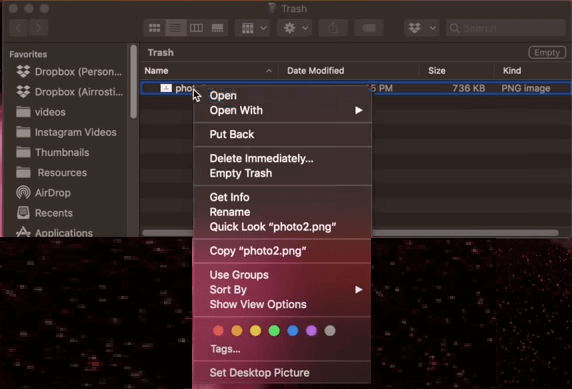
Step 1. To view deleted files, open the Trash Bin icon on your desktop. This will display all the files that have been deleted from your device.
Step 2. To recover deleted files on a Mac, find the files you want to recover, either by looking for them on the desktop or by searching for them in the Trash. Once you've located the files, you can either drag them to the desktop or right-click on them and select the "put back" option. This will restore the files to their original location.
Tip 5. Turn Off iCloud Drive to Restore Lost Desktop Folders on Mac
You can sync your Mac's desktop and document folders to iCloud Drive, moving them to the iCloud section of your Finder sidebar. However, if you turn off iCloud, the folders will reappear on your desktop.
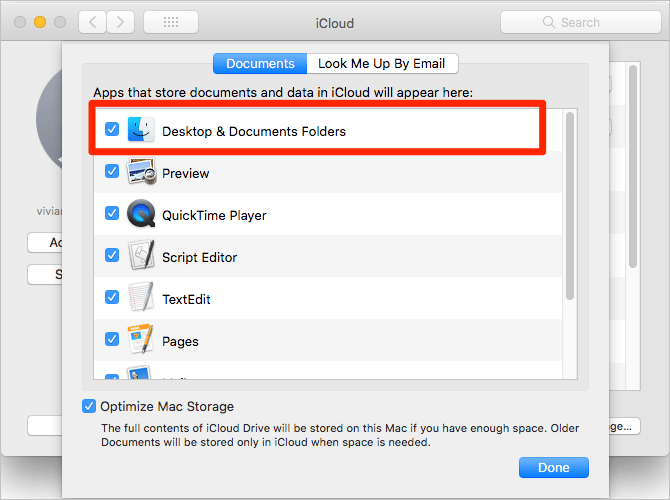
Step 1. Go to "Apple menu" > "System Preferences" > "iCloud".
Step 2. Click "Options".
Step 3. Uncheck "Desktop & Documents Folders" and click "Done".
Tip 6. Recover Disappeared Folders with Mac Data Recovery Software
The most effective way to recover disappeared or deleted desktop files on Mac is by using professional Mac data recovery software, such as Deep Data Recovery for Mac, which can effectively recover lost data due to accidental deletion or other causes.
- Recover deleted files from your computer, phone, or storage device with ease. This tool can restore lost Word documents, Excel spreadsheets, photos, videos, audio files, and hundreds of other file types.
- Lost important files? Don't worry!
- The software supports all versions of Mac operating systems, specifically from macOS 10.15 to 10.9, covering a range of operating systems including Catalina, Mojave, and earlier versions.
You can recover folders or files that disappeared from the desktop on Mac by downloading a free data recovery tool.
To recover desktop files on a Mac device, follow these steps: first, check if the files are still on the desktop by looking for them in the usual location, then try restarting your Mac to see if it resolves the issue, if the files are still missing, try using the "Time Machine" feature to restore your desktop files from a previous backup, or use a third-party data recovery software to scan your Mac for deleted files, and finally, if none of the above steps work, contact Apple support for further assistance.
Step 1. Launch Deep Data Recovery. Choose file types and click "Fast Scan" to start.

Note: You can choose different search modes based on where and why the data was lost.
Step 2. Select the disk location where you lost data and click the "Scan" button.

Step 3. Deep Data Recovery for Mac will immediately scan your selected disk volume and display the scanning results on the left pane.

Step 4. To recover deleted files, select the desired file(s) from the scan results and click the "Recover" button to have them restored.
You can apply Tip 4 - If you've deleted files from your Mac desktop, don't worry! Qiling Mac data recovery can help you recover permanently deleted files or folders on your Mac, even if you've deleted them thoroughly.
3 Ways to Recover Folder Disappeared from Desktop on Windows 10/8/7
If you're a Windows user, you can recover disappeared desktop files using Windows 10 data recovery software, the Command Prompt (CMD), or by reverting to a previous version of the operating system.
- Tip 1. Show hidden files using Control Panel
- Tip 2. Restore lost desktop files from previous versions
- Tip 3. Recover desktop files with Windows data recovery Software
Tip 1. Show Hidden or Disappeared Files Using Control Panel
Here are the steps to show hidden desktop files using the command prompt:
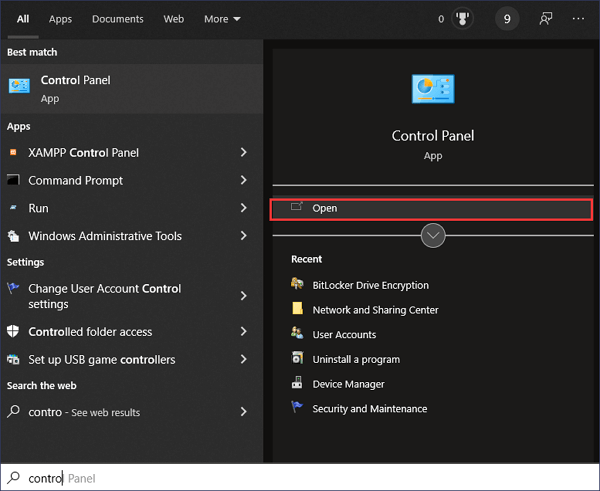
Step 1. In Windows 10, click the Start button.
Step 2. Search for Control Panel and click "Open".
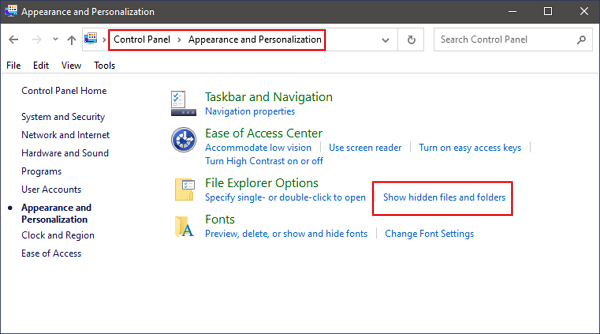
Step 3. Choose "Appearance and Personalization".
Step 4. In the File Explorer Options dialog box, select "Show hidden files and folders, and drives" to view them.
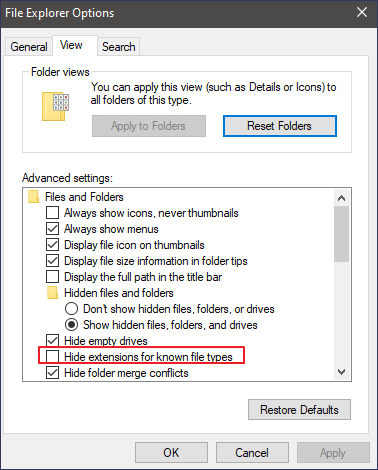
Step 5. Deselect "Hide extensions for known file types" and click OK.
Tip 2. Restore Lost Desktop Files from the Previous Version
To show files that disappeared from the desktop on Windows 10/8/7, you can try the following manual solution: Look for the files in the Recycle Bin, check if they were deleted by mistake. If not, check if they were moved to a different folder on the desktop or elsewhere on the computer.
Step 1. To recreate the folder, first, go to the desktop and click on the "File" menu. Select "New" and then choose "Folder" from the dropdown menu.
Step 2. Right-click the folder, click "Properties" and then select "Previous Versions" to search and list the previous versions of deleted or lost files or folders.
Step 3. To recover a disappeared folder from the desktop, choose the latest one and click "Restore" > "OK".

Tip 3. Recover Missing Desktop Files on Windows with Software
For Windows users, Deep Data Recovery software is a viable option. It boasts a high recovery rate and offers advanced features, allowing users to recover deleted files from the recycle bin, formatted disks or partitions, corrupted internal or external hard drives, lost partitions, and more.
Now, download this top-rated data recovery tool. To recover folders that disappeared from the desktop on a Windows computer, use a data recovery tool like Deep Data Recovery or Qiling file recovery software. First, download and install the software, then run it and select the drive where the missing folders were located. Next, the tool will scan the drive and show you a list of recoverable files and folders, including the ones that disappeared from your desktop.
Step 1. Choose file types and click "Fast Scan" to start
Launch Deep Data Recovery, select the desired file types, and click "Fast Scan" to initiate the recovery process.
Note: You can choose different search modes based on where and why the data was lost.
Step 2. Select a folder to scan for lost files
To recover a lost folder, select the location where the folder was last seen and click "Scan" to initiate a search for the missing folder.
Step 3. Find and preview found files in the lost folder
If you remember the folder name, type it in the search box to quickly find the lost files. Once found, open the folder and double-click to preview the scanned files, or use the Filter feature to find a specific type of file.
Step 4. Recover and save the lost folder
To recover your data, select the folder and files you need, click "Recover", and choose a new and secure location on your PC to keep the recovered data.
Conclusions
The article presents 10 methods to recover lost desktop files, with the most effective way being the use of Qiling data recovery software to restore hidden, deleted, lost, inaccessible, and corrupted files on Mac or Windows desktops with minimal effort.
FAQs to Desktop Files Disappeared on Mac
You can show missing files from the Mac desktop by using the "Force Hide" feature, checking the "Show" box in the Finder, or using the "Show All" command. If you have related questions, you can read the provided questions and answers for more information.
Where did all my desktop files go Mac?
If your desktop files have disappeared from Mac, but you saved them on iCloud Drive, they will be moved to the iCloud section of your Finder Sidebar.
Why did everything on my desktop disappear Mac?
When everything disappears from the desktop, the first issue to investigate is likely missing folders or hidden Mac folder icons. This could be due to system settings being altered or something being accidentally deleted.
How do I restore my desktop files?
To restore desktop files on Mac:
- Tip 1. Recover Folder Disappeared from Desktop with Software
- Tip 2. Restore Missing files on Mac via Trash
- Tip 3. Get Back Deleted Files on Mac with Terminal
- Tip 4. Use Finder to Find Missing Mac Desktop Files
- If you're experiencing missing desktop files on your Mac, try turning off iCloud Drive to restore them. This can be done by going to System Preferences > Apple ID > iCloud > iCloud Drive and unchecking the box next to "iCloud Drive". This will disconnect your Mac from iCloud Drive and may allow your desktop files to reappear.
- On macOS, disable Desk Stacks to find missing Mac folder by going to System Preferences > Desktops, then unchecking "Show Stacks" and clicking "Done". This will remove the clutter and allow you to see all your files and folders on the desktop.
To restore desktop files on Windows:
- 1. Recover Missing Desktop Files on Windows with Software
- 2. Restore Lost Desktop Files from the Previous Version
- 3. Show Hidden or Disappeared Files Using CMD
Related Articles
- 'The file cannot be opened because there are problems with the contents' Fixes
- Repair Corrupted PSD Files with Online Free PSD Recovery Tool
- How to Decrypt a File Without Password, Certificate, and Key
- My Documents and Settings Folder is Not accessible in Windows 10! Fix It Now!
- How to Recover Data from Damaged External Hard Drive
External hard drives are a popular storage solution for many users, offering a convenient way to store and transfer large files. However, like any other electronic device, they can be prone to damage, resulting in lost data. - Damaged Partition Recovery Software Free Download - Recover Data from Damaged Partition
Damaged partition recovery: whenever your partition is damaged, the very first thing is to recover the data from the damaged partition and create a new partition to transfer data. Learn the recover damaged partition steps.
Products
Articles & Tutorials
- Data Recovery
- Data Backup
- File Recovery
- File Backup
- System Backup and Restore
- Disk and Partition Clone
- Technical articles
- Mobile articles
- Disk Master Help
- Windows Data Recovery Tutorials
- Windows Secure Delete Tutorials
- Windows Partition Management Tutorials
- Windows File Backup and Restore Tutorials
- Windows System Backup and Restore Tutorials
- Windows Disk Backup and Restore Tutorials
- Windows Clone Tutorials