How to Fix a Slow WD External Hard Drive Without Losing Data
Problem: WD external hard drive slow transfer rate
"I have a three-year-old WD My Passport 1TB external hard drive that has been experiencing slow transfer rates, especially when transferring data or opening files. This issue could be serious, potentially indicating a problem with the drive's internal components or firmware. How can I fix this?"
If you're experiencing slow transfer speeds, slow responses, or slow boot problems with your WD Elements or WD My Passport (Ultra) external hard drive, this post offers guidance on how to fix the issue. Additionally, it introduces the Qiling data recovery solution to protect important data stored on a corrupted, inaccessible, or slow WD external drive.
What's the risk of having a slow external hard drive?
If your hard drive suddenly becomes very slow without warning or reporting errors, be alert to potential risks that could cause severe damage to your hard drive and the data it stores.
A slow WD external hard drive may pose several risks, including data corruption, loss, or inaccessibility due to the drive's inability to keep up with the system's demands, potentially leading to lost files, projects, or other valuable digital assets. Additionally, the drive's slow performance may cause frustration and wasted time, impacting productivity and efficiency.
1. The hard drive starts making clicking sounds or other noises.
2. Files cannot open anymore and become corrupted.
3. The hard drive is no longer being recognized by Windows, resulting in an inability to access or view the stored data.
4. The hard drive is experiencing frequent crashes, lagging, hanging, or freezing when its icon is double-clicked or when trying to open files, resulting in system instability and potential data loss.
8 Solutions to WD external hard drive slow and unresponsive
If your data is fully protected, you can start applying every possible workaround to resolve the slow issue on a WD external drive. To do this, we've compiled eight viable solutions for you. We'll cover these solutions further down, but first, let's make sure your data is secure.
1. Change the SATA data cable.
2. Change the USB 2.0 port to a USB 3.0 port.
3. Perform disk fragmentation to optimize the disk.
4. The process involves checking the hard drive for any logical errors or bad sectors, which can cause data loss or corruption.
5. Send the drive to a hard drive repair center or simply replace the slow hard drive with a new one.
Next, we're going to give you detailed instructions on the seventh and eighth solutions, which people can easily test all by themselves on their PCs.
7. To optimize a slow WD external hard drive
Step 1. Go to Computer (Windows 7) or This PC (Windows 10).
Step 2. Right-click on the slow WD external hard drive and choose Properties.
Step 3. Select the Tools tab and click Optimize.
Step 4. Follow the on-screen wizard to complete the process.
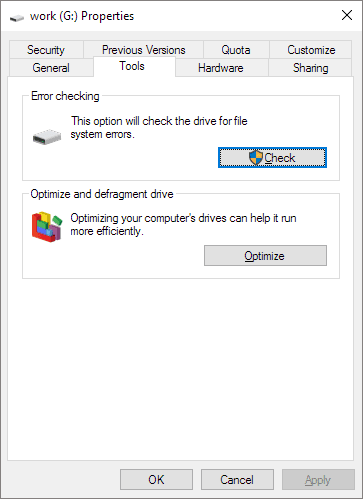
To optimize your drives and help them run more efficiently, follow the steps we taught you, which can help speed up a hard drive that's suddenly sluggish or overloaded. This is one of the most common ways to achieve this.
8. To check for and repair hard disk bad sectors
Step 1. Open the WD external hard drive Properties window likewise.
Step 2. Go to the Tools tab and click Check to check the drive for file system errors that may affect its performance.
Step 3. To complete the process, follow the onscreen wizard or check and repair your file system.
- Tip
- If the hard drive crashes while you're trying to open it by right-clicking, instead, go to check it for partition errors and remove bad sectors using an alternative method.
- To check for and repair bad sectors on a WD external hard drive, download and install Qiling free partition manager software.
If the slow drive prevents you from applying both troubleshooting techniques, you should check if its LED light is flashing properly and if Windows recognizes the disk. If not, the drive may be heavily damaged and you should consider sending it to a professional repair center or contacting WD support for assistance.
How to prevent data from being corrupted or becoming inaccessible on a slow hard drive?
When you're faced with a slow hard drive, whether it's a Western Digital, SanDisk, Toshiba, Kingston, or Samsung, try to protect your data from being damaged as soon as possible.
If your WD external hard drive is having trouble opening, don't worry - Deep Data Recovery can help you access your stored data. This top-notch hard drive recovery software is designed to help WD users quickly and easily recover all their desired data in just three simple steps.
Step 1. Select file types and click "Fast Scan" to start
- To recover lost data, download and install Qiling Data Recovery on your PC or laptop.
- Connect the external hard drive to your computer.
- Run Deep Data Recovery. Select file types and click "Fast Scan" to start.

Note: You can choose different search modes based on where and why the data was lost.
Step 2. Choose and scan the external hard drive
- Choose the external drive from the External drives list, then click on "Scan for lost data" to begin the recovery process.

Step 3. Check the scan results
- Qiling data recovery software scans the selected drive for all data, including deleted, corrupted, and existing data, immediately after selection.
- You can use the Filter feature to quickly locate files of one kind, such as Pictures, Word, Excel, PDF, videos, emails, and more.

Step 4. Preview and recover data
- Double-clicking a file from the scanned results to preview.
- Choose the files you want and click "Recover".
- Select a different drive to save the recovered files instead of the original one.
To err on the side of caution, clone your external drive that's acting up, which will further reduce the risk of data loss.
People also ask
1. How do I fix a slow external hard drive?
If your external hard drive is running slowly, there are several troubleshooting steps you can take to resolve the issue on your own. The guide outlines five methods to help you identify and fix the problem, allowing you to potentially recover your device's performance without needing professional assistance.
1. Change the SATA data cable.
2. Change the USB 2.0 port to USB 3.0 port.
3. Perform disk fragmentation to optimize the disk.
4. Hard drive logic errors and bad sectors can cause data corruption and loss, and should be checked and repaired to prevent these issues.
5. If the drive is damaged or corrupted, it's best to send it to a professional hard drive repair center or replace it with a new one. This will ensure the data is safely recovered and the drive is functioning properly.
2. Why is my hard drive suddenly slow?
The primary causes of a sudden slowdown in your computer's performance are software and hard drive corruption. As the health of your hard drive and associated software deteriorates, it can develop bad sectors, viruses, and fragmentation, leading to a significant decrease in data transfer speed and impacting your daily life and work. To address this issue, it's essential to learn how to solve the problem of a hard drive becoming very slow suddenly.
3. How can I increase my external hard drive transfer speed?
Consider converting FAT32 to NTFS and adjusting hardware settings for potentially improved transfer speeds.
4. Can external hard drive speed up my computer?
An external hard drive can provide additional storage for your computer, allowing you to store and run large files, such as videos and photos, more efficiently. However, it may not necessarily speed up your system, but rather provide more space for your files.
Related Articles
- 4 WD My Passport Repair Tools: Fix Cannot Access My Passport External Hard Drive
- Fix External Hard Drive Not Showing Full Capacity on Windows & Mac
- How to Recover (Permanently) Deleted Files from Google Drive [5 Proven Ways]
- Fixed: USB Device Malfunctioned and Not Recognized in Windows
- Lenovo Data Recovery - How to Recover Deleted Files on Lenovo Laptop/Tablet
To recover deleted files from your Lenovo laptop or tablet, use the Lenovo data recovery software to restore lost photos, videos, music, and documents. Follow these steps: the steps outlined below. - SSD Data Recovery – How to Recover Deleted Files from SSDs
Free download SSD data recovery software, allows you to recover deleted files from SSD drive easily and effectively. Check out the details to recover SSD on Windows or Mac now.
Products
Articles & Tutorials
- Data Recovery
- Data Backup
- File Recovery
- File Backup
- System Backup and Restore
- Disk and Partition Clone
- Technical articles
- Mobile articles
- Disk Master Help
- Windows Data Recovery Tutorials
- Windows Secure Delete Tutorials
- Windows Partition Management Tutorials
- Windows File Backup and Restore Tutorials
- Windows System Backup and Restore Tutorials
- Windows Disk Backup and Restore Tutorials
- Windows Clone Tutorials