Fixed: USB Device Malfunctioned and Not Recognized in Windows
6 Fixes| USB Device Malfunctioned and Not Recognized
Here are the solutions to the USB device malfunctioned and is not recognized issue. If you have this USB device error. Use the methods below to make your USB recognizable and usable again. These solutions include checking for loose connections, updating drivers, running a virus scan, checking for corrupted files, and using a USB troubleshooter.
| Effective Solutions | Step-by-step Troubleshooting |
|---|---|
| Fix 1. Unplug Computer | Shut down the computer > Unplug power cable...Full steps |
| Fix 2. Change USB Cable/Port | Check all the available USB cables and ports...Full steps |
| Fix 3. Uninstall Device Driver | Navigate to the Driver tab, choose Uninstall...Full steps |
| Fix 4. Update Device Driver | Choose Update Device Driver in Device...Full steps |
| More Fixes and USB Data Recovery | Change USB settings and reinstall the USB...Full steps |
The "USB device not recognized" error on Windows computers occurs when a USB device is plugged in, causing it to not show up on the computer and preventing access to data. This error is often followed by different messages in various situations, but the result is the same - the USB device remains inaccessible.
"Windows does not recognize the last USB device connected to this computer."
"A USB device attached to your computer has stopped working, and Windows can't recognize it. Click the message for help to troubleshoot the issue."
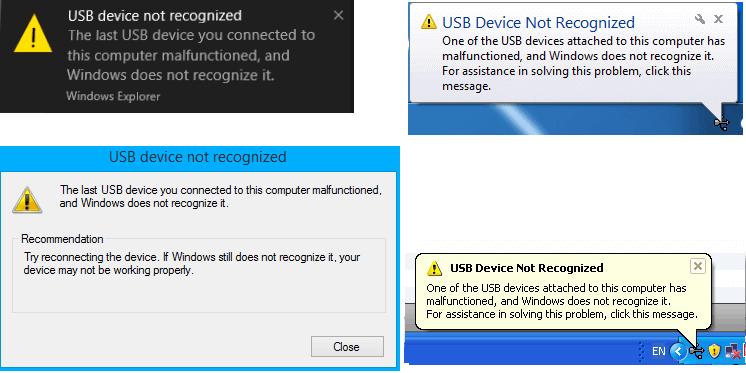
How to Fix USB Device Not Recognized in Windows
If your device isn't recognized on your computer, try the following solutions to make it show up again. We recommend trying the methods in sequence as there are many reasons that can cause a Windows failed to recognize the USB device error, and each method is for a specific scenario.
Fix 1. Unplug Your Computer from the Power Source
A simple computer restart can often resolve issues with unrecognized USB devices, as it reboots the motherboard and its connected hardware, including USB ports, which can help resolve temporary power supply issues for external devices.
Step 1. Unplug your computer from the power source to cut its power.
Step 2. To reset your computer, unplug it from the power source, wait for a few minutes, and then plug it back in. This simple process can often resolve issues and get your computer up and running smoothly again.
Step 3. Check if the computer detects the USB device and assigns it a drive letter.
If the fix didn't work, Try updating your browser or operating system to the latest version, or clear your browser's cache and cookies. You can also disable any browser extensions or add-ons that might be interfering with the website.
Fix 2. Change the USB Port
If your computer's USB port isn't working, try plugging the device into a different port to see if the issue is with the port or the device itself. If switching ports solves the problem, the issue is likely with the original port, which may be damaged and require repair or replacement.
Fix 3. Uninstall USB Device Driver to Make USB Recognizable
If the USB drivers are unstable or damaged, this method removes those drivers, which may cause all USB ports to become dysfunctional.
Step 1. Right-click on the Windows logo and choose Device Manager.
Step 2. To uninstall USB drivers, find and expand Universal Serial Bus controllers, right-click on any of the USB drivers, and click Uninstall, repeating this process for all USB drivers individually.
Step 3. Restart your PC. The USB drivers will automatically reinstall and solve the corrupted USB devices problem.
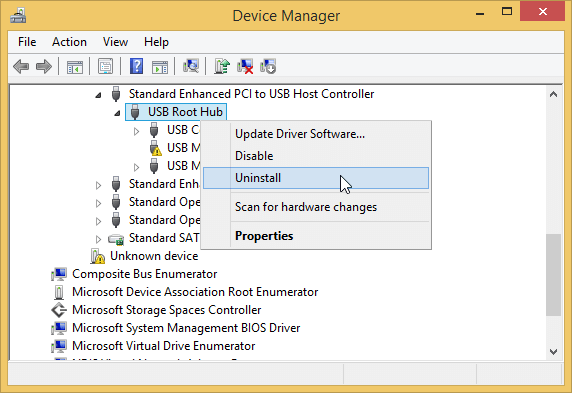
Fix 4. Update/Rollback a Device Driver
Try using Device Manager to troubleshoot non-recognizable USB devices, as suggested by many YouTube videos and IT forums. This method might resolve the issue for you.
Step 1. Right-click on the Windows logo and choose Device Manager.
Step 2. The "Universal Serial Bus Controllers" section can be expanded, revealing an item called "Generic USB Hub". Right-clicking on the first "Generic USB Hub" and selecting "Properties" is the next step.
Step 3. Navigate to the "Driver" tab and choose "Update Driver".
Step 4. The two options for searching for driver software are to search online or search your computer.
1. Search automatically for updated driver software
To update the USB device driver, Windows will automatically install the latest driver. Once this process is complete, simply disconnect the USB device, restart the computer, and then reconnect the USB device again, at which point Windows will install the updated driver.
2. Browse my computer for driver software
When you choose this option, you'll need to continue with the pop-up "let me pick from a list of device drivers on my computer."
From the list, select Generic USB hub, which is normally the only choice. Click "Next" and then Windows will install the driver for you.
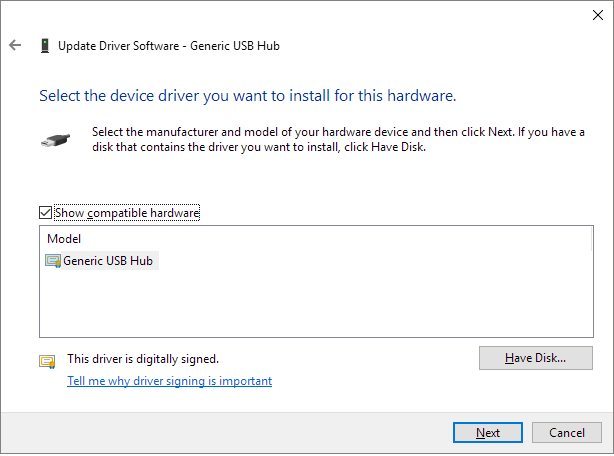
- Tip
- If updating the driver doesn't resolve the USB device issue, try to update each Generic USB Hub until all have been updated.
To fix an issue where the error didn't occur when rolling back the driver, instead of selecting "Update Driver" in the "Driver" tab, choose "Roll Back Driver" this time. This will revert to the previous driver, potentially resolving the problem.
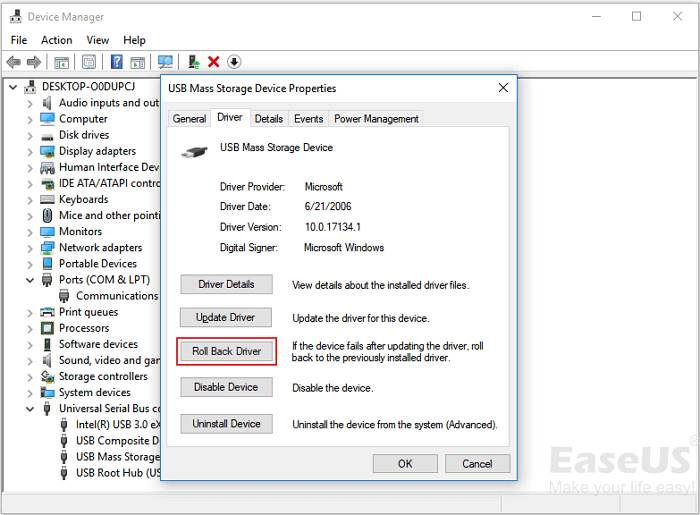
If the changes made on the computer power and the device driver do not take effect, try resetting the USB device, updating the device driver, or reinstalling the device driver to resolve the issue. If these methods also do not work, you can try other troubleshooting methods.
Fix 5. Change the USB Selective Suspend Settings
If your USB is malfunctioning, it's possible that the hub driver is suspending the USB automatically, and changing the USB selective suspend settings could help resolve the issue.
Step 1. Right-click on the Windows icon and click Power Options.
Step 2. In the Choose or customize a power plan window, click Change plan setting.
Step 3. In the Edit Plan Settings window, click Change advanced power settings.
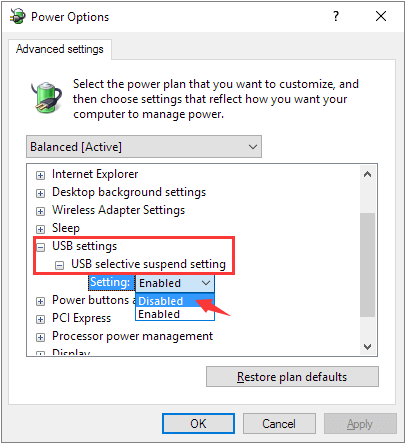
Step 4. In the Power Options window, expand the USB settings and disable both the "On battery" and "Plugged in" settings for USB selective suspend.
Step 5. Click Apply and then OK to save the settings.
Fix 6. Fix USB Root Hub
The USB root hub is a software driver that enables multiple USB peripherals to connect to a computer, allowing data to be shared across devices through multiple root hubs. If your computer can't recognize your USB drive, try troubleshooting the USB root hub as it may be the cause of the issue.
Step 1. To access the Universal Serial Bus controllers in the Device Manager, follow these steps: Open Device Manager, find the Universal Serial Bus controllers option, and single-click it to expand it. This will list all USB devices connected to your computer, allowing you to view and manage them.
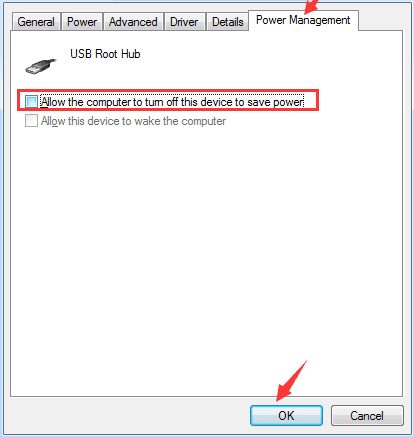
Step 2. To access the USB Root Hub properties, navigate to the Device Manager, find the USB Root Hub option in the list of categories, right-click it, and select Properties from the context menu.
Step 3. To disable the power management for a device, go to the Power Management tab, uncheck the box that says "Allow the computer to turn off this device to save power", and click OK to save the changes.
Fix 7. Turn to Remote USB Repair Service
If you're unable to fix your USB drive, you can seek the help of experts. Our team of USB repair specialists can quickly and easily resolve your issues.
Consult with SalvageData's experts to recover data from inaccessible or corrupted digital media, regardless of brand or format.
- Certified ISO–5 class 100 cleanroom recovery
- Free diagnostic, no data, no charge
- Support all operating systems and devices
- Offer a range of turnaround times for fast recovery
Further Troubleshooting: Data Recovery from USB Flash Drive
The "USB device malfunctioned and not recognized" error can be resolved through six possible solutions. Firstly, restarting the computer can resolve the issue.
If one of the fixes worked, you should be able to access your USB and use the saved data on it again.
If you've resolved the issue but find missing data on your USB flash drive, you can use third-party software like Qiling disk data recovery to retrieve your data, even if the device doesn't show up on your computer but appears in Disk Management, which works well in Windows 10/8/7/XP and previous versions.
Qiling Hard Drive Data Recovery Software
- You can recover data from various storage devices, including SD cards that have been emptied, recycle bins, memory cards, flash drives, digital cameras, and camcorders.
- Data can be restored in various situations such as sudden deletion, formatting, hard drive corruption, virus attack, and system crash, allowing users to recover lost files and get back to work quickly. This can be achieved through various methods, including using backup software, data recovery tools, and professional services.
- To repair corrupted files on a USB drive, including damaged photos, videos, and documents, you can try using data recovery software. This type of software scans the USB drive for recoverable files and attempts to restore them to their original state.
Step 1. Choose the USB drive to scan
Launch Deep Data Recovery and choose file types, then click "USB/SD Scan" to begin the process.

Note: You can choose different search modes based on where and why the data was lost.
Step 2. Choose the USB drive to scan
To recover lost files from a USB drive, select the drive where the files were lost, then click the "Scan" button to initiate the scanning process. This will allow the software to search for and identify the lost files.

Step 3. Check and preview USB drive data
After the scanning process is complete, you can easily find a particular type of file by utilizing the Filter feature in conjunction with the Search option.

Step 4. Restore flash drive data
After recovering lost files from your USB drive, click "Recover" to restore them. Save the recovered files to a safe location on your PC, rather than back to the USB drive itself.
When retrieving data from USB devices, save the retrieved files to a secure location to prevent further issues.
Bonus Tip: Format USB to NTFS/FAT32 and Recreate Partition on USB
Some users reported that their USB device started malfunctioning again after a short period of repair. If you're experiencing this issue, formatting and creating a new partition may help resolve the problem.
- To connect and manage a USB device, insert the USB into the computer, right-click on "This PC" or "My Computer," and select "Manage" from the drop-down menu. This will open the Computer Management window, where you can view and manage the USB device.
- To resolve a malfunctioning USB drive, go to Device Manager, select Disk Management, locate the problematic USB drive, right-click on it, and choose Format volume. This will erase all data on the drive and restore it to its original factory settings.
- Finish the format process and set the file system to NTFS or FAT32.
Check if the USB drive shows up on your computer. If not, ensure it's properly inserted and restart your computer. If the issue persists, try using a different USB port or reinstalling the USB drive.
- Open Disk Management, right-click on USB, select Delete Volume, and complete the process.
- If a USB drive shows up as unallocated, you can resolve the issue by right-clicking on it, selecting "New Simple Volume", and following the prompts to set the drive letter and file system (NTFS or FAT32) for it, and then completing the process.
After this, you should be able to access the USB drive on your PC and save data on it again.
Related Articles
- Fix Hard Drive Disappeared in Windows 10 Without Losing Data
- Fix An External Hard Drive That's Not Working/Responding/Showing Up
- Fix SanDisk Cruzer Not Recognized Issue
- SSD vs HDD Lifespan, Which Lasts Longer SSD or HDD? What's the Difference
- Download 2022 Best SQL Server MDF Viewer (for Free)
Qiling software offers the best MDF viewer software - MS SQL Recovery to help you download and apply to check, and view the MDF or NDF files for free. You can also use this software to open corrupted MDF/NDF files with detailed information and repair the file without installing a new MS SQL Server. - Top 10 Best NAS Recovery Software for RAID Recovery in 2025
The best software for NAS data recovery is Qiling NAS data recovery software, which allows you to recover deleted files from Synology, QNAP, Buffalo, and WD NAS drives in simple steps, without needing to physically remove and connect disks. - Fix BUGCODE_USB_DRIVER BSOD (0x000000FE) in Windows 11
Products
Articles & Tutorials
- Data Recovery
- Data Backup
- File Recovery
- File Backup
- System Backup and Restore
- Disk and Partition Clone
- Technical articles
- Mobile articles
- Disk Master Help
- Windows Data Recovery Tutorials
- Windows Secure Delete Tutorials
- Windows Partition Management Tutorials
- Windows File Backup and Restore Tutorials
- Windows System Backup and Restore Tutorials
- Windows Disk Backup and Restore Tutorials
- Windows Clone Tutorials