Recover Sticky Notes in Windows 10/8/7
If you've accidentally deleted Sticky Notes, there are four ways to recover them and regain the contents. You can search for the .snt files directly, check the Outlook folder, show hidden Sticky Notes, or use professional data recovery software to leave the mess to the experts.
| Workable Solutions | Step-by-step Troubleshooting |
|---|---|
| Fix 1. Use Data Recovery Software | Use Deep Data Recovery to recover deleted .snt file. Scan your C drive for deleted files...Full steps |
| Fix 2. Recover from .snt Files | Navigate to C:\Users\AppData\Roaming\Microsoft\Sticky Notes directory...Full steps |
| Fix 3. Restore notes from Outlook | Sticky Notes syncs files to the cloud, you can recover deleted notes from Microsoft Outlook account...Full steps |
| Fix 4. Restore from previous version | Windows file backup tool can automatically back up certain files. Restore deleted Sticky Notes from...Full steps |
Overview of Accidentally Deleted Sticky Notes Issue
You can try using the Windows built-in feature, "Previous Versions" or a third-party data recovery software to recover your deleted Sticky Notes contents. The "Previous Versions" feature might be able to retrieve the deleted notes if you had previously synced your computer or if the notes were saved to the cloud. If not, you can try using a data recovery software to scan your computer for any recoverable data, including Sticky Notes. Be sure to act quickly, as the longer you wait, the lower the chances of successful recovery.

Sticky Notes doesn't have the archive feature, which means clicking on the delete button will directly delete it. Fortunately, there are four practical ways to recover Sticky Notes.
Method 1. How to Recover Sticky Notes with Data Recovery Software
When using Sticky Notes to create desktop notes, you can't save them locally, and deleting them means losing all data. However, you can recover Sticky Notes by following the steps mentioned earlier.
Qiling Sticky Notes Recovery Software Free Download
If you accidentally delete or lose the .snt file, you don't have to give up. You can use hard drive recovery software like Qiling to recover the file and restore Sticky Notes in Windows.
Qiling data recovery software can restore Sticky Notes .snt files, as well as recover many other types of files, including Word, Excel, PPT documents, photos, audios, and videos. It offers a solution to recover deleted files, including those from emptied recycle bins, providing an easy way to recover accidentally deleted Sticky Notes on Windows.
Step 1. Select file types and click "Fast Scan" to start
Launch Deep Data Recovery, select file types, and click "Fast Scan" to initiate the recovery process.

Note: You can choose different search modes based on where and why the data was lost.
Step 2. Select a location and start scanning
To recover deleted files, hover over the partition/drive where the files were stored, and click "Scan" to initiate the recovery process and locate the lost files.

Step 3. Select the files you want to recover
After the scanning process is complete, select the deleted files you want to recover. You can filter the results by file type or search for a specific file name in the "Search files or folders" box, which is the fastest way to find the target file.

Step 4. Preview and recover deleted files
Preview the recoverable files, select the desired files, and click "Recover" to move them to a new storage location, bypassing the original disk where the data was lost.
After the .snt file has been recovered, you can manually filter the data you need as explained in Method 2.
Method 2. How to Recover Sticky Notes from .snt Files
If you close the Sticky Notes application by right-clicking it on the taskbar, your data will return the next time you open Sticky Notes. Similarly, if you leave the Sticky Notes up when rebooting your computer, your data will also be preserved. However, if you accidentally delete a Sticky Note by hitting "Delete Note", your best chance to recover it is to follow the steps shown below.
Step 1. Navigate to where the Sticky Notes are stored: C:\Users\AppData\Roaming\Microsoft\Sticky Notes directory.
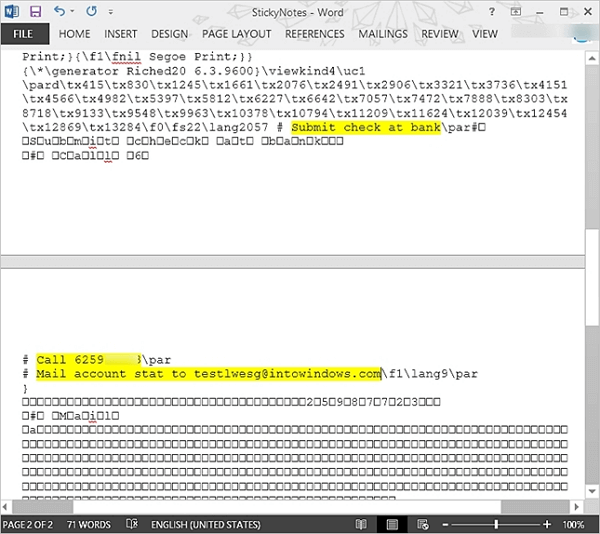
Step 2.To open a .snt file, right-click on it and select the option to open it with a text editor such as Notepad, WordPad, or MS Word. This allows you to view the file's contents, which may not be possible with the usual file opening methods.
When you try to open the file in the editor (such as MS Word), it will prompt you to decode the file. Simply follow the default actions and proceed. Once you're in the editor, use the search feature (usually Ctrl+F) to locate the content of your deleted notes. This should help you recover the lost information.
Method 3. How to Recover Sticky Notes from Outlook Deleted Folder
To delete a note in Outlook, you can follow these steps:
Step 1. To open Outlook in a browser, go to outlook.com and sign in with your Microsoft account.
Step 2. To recover deleted notes, select "Deleted" in the left sidebar, where you will see all the notes you want to recover.
Step 3. Find the deleted Sticky Notes that you need to restore.

Method 4. Recover Deleted Sticky Notes from Previous Versions
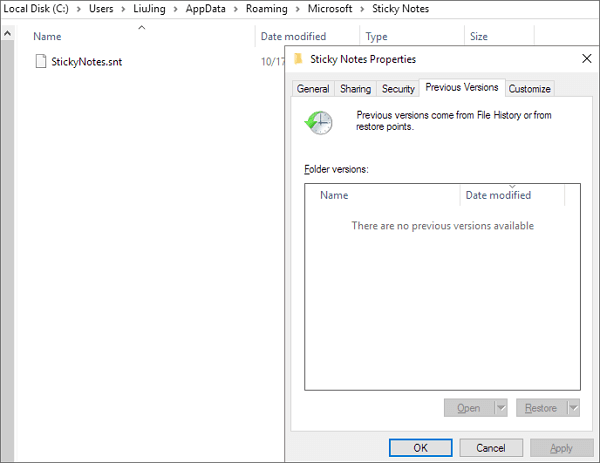
To restore deleted Sticky Notes, you can enable file backup on your Windows 10 and then use the Restore Previous Versions feature to retrieve the lost data. This will allow you to recover your deleted Sticky Notes.
Step 1. The Sticky Notes .snt file can be found, right-clicked on, and its properties selected.
Step 2. To restore a previous version of Sticky Notes, go to the "Previous Versions" tab and select the desired version. Click "Restore" and then "Apply" and "OK" to apply the changes.
Extra Tips - Enable Delete Confirmation for Sticky Notes
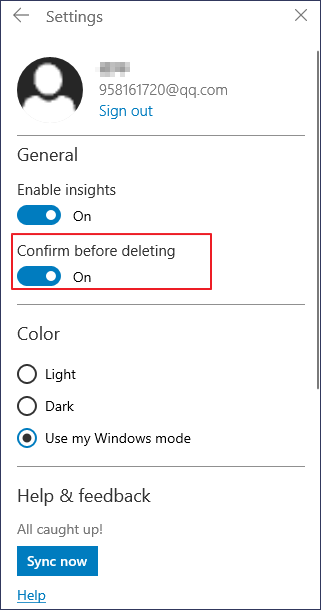
To avoid deleting Sticky Notes by mistake, go to Settings, enable "Confirm before deleting", and a pop-up will ask for confirmation when you try to delete a note. Don't choose "Don't ask me again" to keep the confirmation prompt.
How to Create a Backup of Sticky Notes to Avoid Data Loss
To recover deleted Sticky Notes, you can only do so if you have enabled File History or system backup on your Windows computer. This is the only way to restore deleted Sticky Notes, as they are not automatically backed up. However, you can also manually back up your Sticky Notes by following the steps for backing them up on Windows 10.
Step 1. Navigate to the path:
C:\Users\AppData\Local\Packages\Microsoft.MicrosoftStickyNotes_8wekyb3d8bbwe\LocalState
Step 2. Right-click the plum.sqlite file, copy it, and store your Sticky Notes anywhere you like, allowing for easy restoration in case of loss.
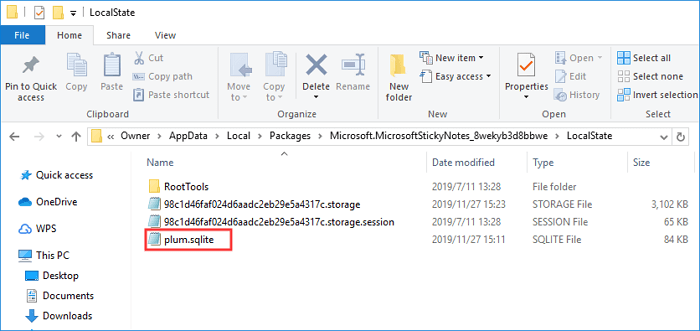
To restore your Sticky Notes, place the plum.sqlite file in the same location where Sticky Notes saves backups, then open Sticky Notes and your notes should reappear in their original location.
Important: You can replace an existing plum.sqlite file, but this will delete any previous notes stored on the device if you do so.
Conclusion
In addition to recovering deleted sticky notes, Qiling data recovery software can also restore deleted Word documents, videos, photos, and repair corrupted MP4 or MOV files, making it a useful tool for retrieving lost data.
Related Articles
- How to Restore Previous Version of Excel File
- [Solved] Recover Corrupted or Invalid ZIP Files
- Windows 10 Startup Folder Location, How to Change Startup Programs
- 3 Ways to Recover Deleted or Lost Torrent Files
- How to Recover Deleted Temp Files
If you've accidentally deleted your temp files, as you can recover them with Deep Data Recovery. - How to Recover Deleted TikTok Videos in Android/iPhone/PC
If you've accidentally deleted a video on TikTok, you can try to recover it instead of re-shooting it. Fortunately, there are methods to retrieve deleted TikTok videos, including drafts.
Products
Articles & Tutorials
- Data Recovery
- Data Backup
- File Recovery
- File Backup
- System Backup and Restore
- Disk and Partition Clone
- Technical articles
- Mobile articles
- Disk Master Help
- Windows Data Recovery Tutorials
- Windows Secure Delete Tutorials
- Windows Partition Management Tutorials
- Windows File Backup and Restore Tutorials
- Windows System Backup and Restore Tutorials
- Windows Disk Backup and Restore Tutorials
- Windows Clone Tutorials