How to Restore Previous Version of Excel File
Quick navigation for solutions to recover previous version of Excel whether the Excel file is saved or not:
| Workable Solutions | Step-by-step Troubleshooting |
|---|---|
| Fix 1. Restore from Previous Version | To recover saved over Excel file, right-click on the saved Excel > "Properties" > "Previous Versions"...Full steps |
| Fix 2. Recover previous saved Excel | To recover overwritten Excel file, open Excel > "File" > "Info" > "Manage Documents" > "When I closed"...Full steps |
| Fix 3. Recover from AutoRecover | Recover unsaved Excel file, open Excel > "File" > "Info" > "Manage Workbook" > "Recover Unsaved..."...Full steps |
| Fix 4. Recover from .TMP File | Restore Excel previous version, Find Excel temp file with .TMP extension > Copy and change extension...Full steps |
Q: To recover a previous version of an Excel spreadsheet after saving it, you can follow these steps: Check if the file has been saved with AutoRecover enabled. If so, Excel will automatically save a copy of the file at regular intervals.
If you've accidentally overwritten an Excel file and lost important data, you may be able to recover a previous version using Excel's built-in recovery feature. Check if the file has been autosaved, which can be accessed by going to "File" > "Info" > "Manage Versions" in Excel. If not, you can try using a third-party data recovery software to scan your computer for deleted files, including Excel files. It's also a good idea to check your system's Recycle Bin or Trash for the overwritten file, as it may still be recoverable from there. If you have a backup of your file, you can restore it from there. If none of these methods work, you may want to consider seeking the help of a data recovery professional. However, it's worth noting that the success of data recovery depends on various factors, including the type of file system, the amount of data overwritten, and the time elapsed since the overwrite occurred.
Recovering an Excel file that was saved over is a long-standing issue. If the Excel file is still open, you can use Ctrl + Z or the Undo option to revert it to an earlier state. If the file is closed, you can try using the "Recover Unsaved Workbooks" option, which may allow you to restore the file to its previous state. However, if you've saved over the file without making a backup, recovering it may be more challenging.
If you've edited an Excel file and want to recover a previous version, it's not always easy, especially if you've saved and closed the file. Fortunately, we can recover previous versions of Excel files in two cases: restoring an older version if you've saved the file, or recovering the previous version if you haven't saved it. If you're having trouble, we recommend trying Deep Data Recovery to recover lost saved Excel files with ease.
How to Recover Previous Version of Excel File After Saving
You can restore a previous version of an Excel file using either the Windows backup feature or Excel's Manage Workbook feature. These tools allow you to recover earlier versions of your file, providing a safety net in case of data loss or accidental changes.
1. Recover Earlier Version of Excel File from Previous Versions
Windows can automatically save old versions of your data files when you have enabled File History and system backup and restore features.
Step 1. Open File Explorer and locate the Excel/Word file.
Step 2. Right-click on the Excel file and select "Properties".
Step 3. Click the "Previous Versions" tab and select the version you would like to get back and then hit "Restore".

2. Restore Excel File to Previous Version with Excel's Built-in Tool
Step 1. Open the file you are working on;
Step 2. Go to "File" and click "Info". Under "Manage Documents", click the file labeled "When I closed without saving".
Step 3. Click "Restore" in the bar at the top of the file to overwrite any previously saved versions.

How to Restore Previous Version of Excel File Not Saved
If you haven't saved the file, you can try two approaches to recover an earlier version of your Excel file. First, check if Excel has automatically saved a previous version of the file.
1. Recover Unsaved Excel File from AutoRecover
If the AutoRecover option is enabled, Windows can automatically save versions of your file while you're working on it, allowing you to recover previous versions of Excel that weren't saved.
Step 1. Click "File" > "Info" > "Manage Workbook" > "Recover Unsaved Workbooks".
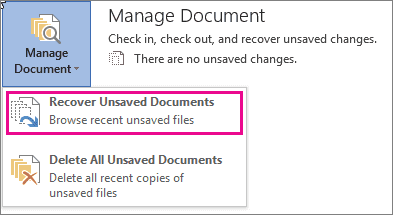
Step 2. Select the file and click "Open".
In the bar at the top of the file, click "Save As" to save the file.

2. Recover Old Version of Excel File from .TMP file
Microsoft Office has a feature that automatically saves temporary files for the file being edited. To retrieve an earlier version of an Excel or Word file, you can search for the .TMP file associated with it. This can help recover an earlier version of the file.
To find the Excel/Word temp files, follow the temporary file folder location on your PC and locate the Excel/Word temp files with a .TMP extension.
- For Windows 7 users: C:\Users\UserName\AppData\Roaming\Microsoft\Excel\
- For Windows 8/10 users: C:\Users\UserName\AppData\Local\Microsoft\Office\UnsavedFiles\
Locate the temporary Excel or Word files starting with "$" or "~" and ending with ".TMP", select the correct version based on date, and copy the file to a safe location by changing the extension from ".TMP" to ".XLS" or ".XLSX" for Excel, or ".DOC" or ".DOCX" for Word.
Conclusion: If your Excel file got overwritten accidentally with data loss, you could use the four methods to recover the previous version. However, if the loss is caused by mistaken deletion, storage device formatting, OS crash, virus attack, or emptying the recycle bin, these methods won't be helpful. In such cases, you can use data recovery software to easily recover deleted Excel documents.
How to Retrieve Deleted/Lost Excel File with Data Recovery Software
If you've already deleted an Excel file or it got lost due to careless deletion, formatting, or other reasons, you can use Deep Data Recovery software to restore it within three steps.
Deep Data Recovery
- Recover lost or deleted files, including photos, documents, videos, audio files, emails, and over 1000 other file types, with effective recovery solutions.
- Recover files from emptied Recycle Bin, as well as from various storage devices such as HDD, SSD, memory cards, USB flash drives, digital cameras, and camcorders, using data recovery software.
- After recovering data, the tool supports repairing corrupted files, including Excel, Word, PPT, and PDF documents, helping to restore their original functionality.
Install this program to easily recover your lost Excel/Word files. Once installed, follow the instructions to retrieve your files with minimal effort.
Step 1. Run Deep Data Recovery, select file types and click "Fast Scan" to start the recovery process.

Note: You can choose different search modes based on where and why the data was lost.
Step 2. To recover lost files, choose the drive where the files were lost and start scanning. This software allows you to recover data from various devices, including hard drives, solid state drives, USB drives, SD cards, pen drives, and cameras.

Step 3. You can browse the full scan results and choose the file type you need by clicking on the file type filter, as Qiling data recovery software supports over 1000 file types, including photos, videos, documents, emails, audio files, and many more.

Step 4. Select the files you want to preview. Click "Recover" and set a storage location to save the recovered data.
Related Articles
- Fix Files Missing After Restarting Computer and Recover Lost Data
- How to Decrypt a File Without Password, Certificate, and Key
- How to Recover Data from Specific Folder
- Recover Sticky Notes in Windows 10/8/7
- How to Recover Deleted Tweets and Twitter Photos/Pictures/Images
If you've accidentally deleted your tweets or memories on Twitter. You can recover them using the methods outlined in this tutorial. - How to Recover Deleted User Profile and Files in Windows 10/11
If you've accidentally deleted your User Profile or removed a User account in Windows 10/11.
Products
Articles & Tutorials
- Data Recovery
- Data Backup
- File Recovery
- File Backup
- System Backup and Restore
- Disk and Partition Clone
- Technical articles
- Mobile articles
- Disk Master Help
- Windows Data Recovery Tutorials
- Windows Secure Delete Tutorials
- Windows Partition Management Tutorials
- Windows File Backup and Restore Tutorials
- Windows System Backup and Restore Tutorials
- Windows Disk Backup and Restore Tutorials
- Windows Clone Tutorials