Unlock PDF Without Password and Recover PDF Files
Quick Navigation: How to Open PDF Without Password
We offer three ways to unlock a PDF without a password. These methods provide a brief overview of the options, and clicking on them will open the PDF without a password.
| Workable Solutions | Step-by-step Troubleshooting |
|---|---|
| Unlock PDF Without Password on Windows |
|
| Unlock PDF Without Password on Mac |
|
"Hi there, do you know how to decrypt an encrypted PDF file without a password? I encrypted an important thesis PDF file a few days ago and didn't record the code word. Right now, I need to use the file. But I cannot access it. Do you know how to open encrypted PDFs without a password?"
- If a PDF contains sensitive or confidential information, it may be encrypted to prevent unauthorized access, editing, copying, or printing of its content.
- Users often receive PDF files that require a password to unlock before they can be read.
- You can decrypt the encrypted PDF document with a key, allowing you to access and edit it easily.
Users often forget the password to their encrypted PDF files, making it impossible to open them. Fortunately, there are three common methods to open encrypted PDF files without a password, and this page will outline them. Additionally, reliable software is recommended to recover lost PDF files.
First Thing to Do: Restore Deleted or Lost PDF Files
Deep Data Recovery is a tool that allows you to recover lost documents with a few clicks, supporting various file types including Microsoft Word, Excel, PPT, PDF, CWK, HTML, and more.
Qiling PDF Recovery Software
- Recover lost photos, video, audio files, and other 1000+ file types
- Recover files from various storage devices, including SD cards, hard disk drives (HDD), solid-state drives (SSD), emptied Recycle Bin, memory cards, USB flash drives, digital cameras, and camcorders.
- Data recovery support is available for various scenarios, including sudden deletion, hard drive corruption, virus attacks, lost partitions, system crashes, and more. This assistance helps users recover their important files and data in case of unexpected events.
To recover lost data, download Deep Data Recovery and follow these three steps: the steps outlined below.
Step 1. Select file types and click "Fast Scan" to start
Launch Deep Data Recovery, select file types, and click "Fast Scan" to begin the recovery process.

Note: You can choose different search modes based on where and why the data was lost.
Step 2. Choose the location
Select the drive where you lost your PDF/PPT/Word/Excel files and click "Scan" to initiate the recovery process.

Step 3. Scan for lost documents
When the scanning process is complete, click on "Documents" in the left panel to view the scanned files. You can search for specific documents by file type or search for them by name. Once you find the desired document, click on "Preview" to verify its contents. This allows you to confirm that it is the correct document before proceeding.

Step 4. Recover lost documents
Select the desired files and click the "Recover" button to save them to a secure location.
Part 1. How to Unlock PDF Without Password on Windows 10/8/7
If you're unable to remove the password from your PDF file, it's possible that you don't have a password to begin with. In this case, you can try different approaches until you can access the encrypted file. One solution is to check the table that outlines the key features of three possible solutions. These may include using a password remover or decrypting the file using a password cracker.
| Comparison | Adobe Acrobat (Recommend) | Free Online Password Mover | Google Chrome |
|---|---|---|---|
| Success Rate | High | High | Low |
| Information Security | Yes | Yes (Secure Handling of your info.) | Not Sure |
| Suitable users | Adobe Acrobat users | Online Tool enthusiast | Prefer manual way without third-party software |
| Free or Paid | Paid | Free | Free |
Fix 1. Unlock Encrypted PDF Without Password via Adobe Acrobat
Adobe Acrobat will work even if the PDF has printing restrictions, and can't be printed in other applications, as it has its own built-in print functionality that bypasses any restrictions set by the original creator. This means you can print the PDF even if other apps can't.
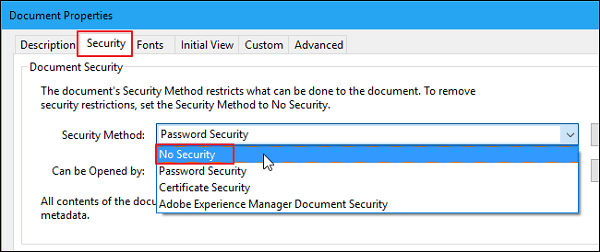
1. Open the encrypted or locked PDF file in Adobe Acrobat.
2. Click "File" and open Properties.
3. Now, click on "Permission Details" and open the Security tab. Check the "No Security" option.
4. To remove a password from a security method, click on the "Remove Password in Security Method" option, which will then remove the password.
5. Save the PDF file and now access the file.
Fix 2. Remove Password from PDF files with Free Online PDF Password Remover
When searching for a PDF password remover on a web browser, it's essential to choose a reputable and credible tool to avoid data theft or damage. A highly recommended option is SmallPDF, a free online service that allows you to easily open encrypted PDF files.
Tip: Be aware that the PDF password remover mentioned here may have security issues, and we recommend choosing a trusted one to be 100% safe.
Step 1. Go to the Smallpdf website.
Step 2. Click on "Choose file" and upload your encrypted PDF document.
Step 3.To unlock a password-protected PDF file, follow these steps: click on "Unlock PDF!" and wait for the process to finish, then download the file to save it locally, and finally, access and open the PDF without a password.

Fix 3. Open/Unlock Encrypted PDF Using Google Chrome
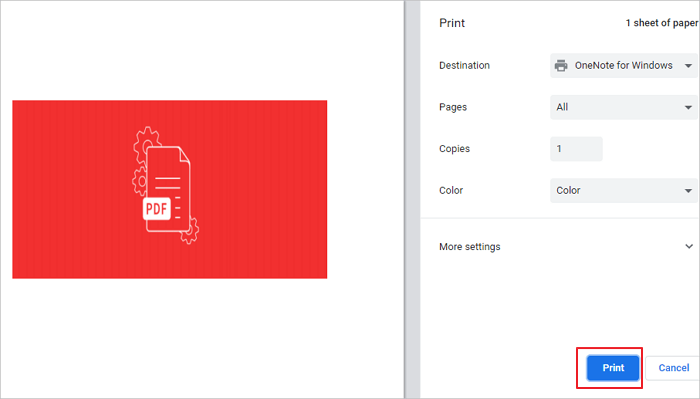
If a PDF document is restricted from copying but allows printing, you can use Google Chrome to print the PDF file as you would a normal PDF. Once printed, you can easily copy the required text from the printed document.
Step 1. Open the Secured PDF Document.
Step 2. Print the Secured PDF.
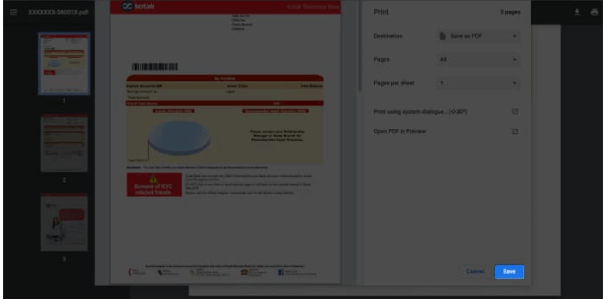
To print a webpage in Google Chrome, click on the three vertical dots in the top right corner of the browser, then select the "Print" option from the drop-down menu. This will open the print preview page, where you can adjust the print settings as needed, such as selecting the number of copies or choosing which pages to print.
Step 3. Save the secured Normal PDF.
Save the file by clicking on the Save button, giving the title. Select the text and press Ctrl+C to copy the desired text. Then, go to the destination and press Ctrl+V to paste the copied text.
Fix 4. Open Encrypted PDF with Adobe Reader
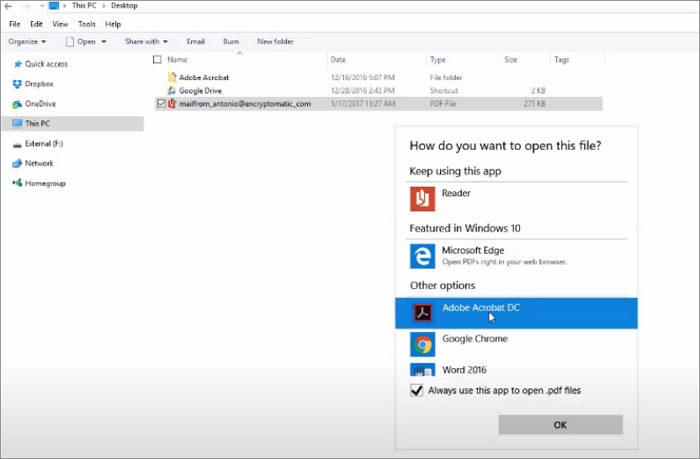
Step 1. To access an encrypted PDF file, start by locating and opening the file. Once the file is open, right-click on it and select the option to open it with a specific application or program. This will allow you to access the contents of the encrypted file.
Step 2. To open PDF files with Adobe Reader or Adobe Acrobat, click "Choose another app" and select the desired application, then press "OK".
Step 3. If Adobe Reader prompts you for a password, enter it as required. This will allow you to open and view encrypted PDF files.
Part 2. How to Unlock PDF Without Password on Mac
If you're a Mac user, you can unlock PDF files using free utilities on your MacBook. To do this, follow the solutions below, which will guide you through the process of unlocking PDF files on your device.
Method 1. Free Unlock PDF Free in Preview on Mac
Preview is a free utility on Mac that allows users to open, view, edit, and manage both image and PDF files. However, to unlock PDFs that are protected with an owner password, users need to input the password, as Preview requires it to access the content.
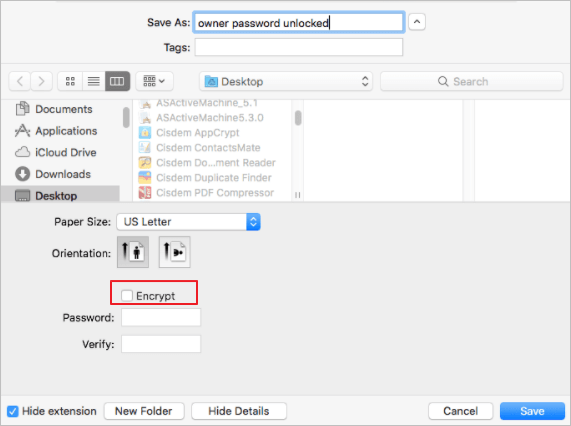
1. Open the owner's password-protected PDF document with Preview.
2. Go to "File" > "Export as PDF".
3. Input the owner password as required and click "Unlock".
4. Rename the PDF file, leave Encrypt unchecked and click "Save" to unlock PDF on Mac. However, if you need to edit the PDF, you may need to use a PDF editor like Adobe Acrobat or Preview.
Method 2. Remove PDF Password on Mac with a Web Browser
There is a way to remove your PDF password on a Mac using the web browser. You can upload your PDF file to a website like SmallPDF or PDFCrack, which offer password removal tools. Once uploaded, the website will process the file and remove the password, allowing you to download the password-free PDF.
Step 1. To open a PDF in Google Chrome or Safari, right-click on the file and select the browser from the context menu. This will allow you to view the PDF within the browser, rather than opening it in the default PDF viewer.
Step 2. Enter the password to unlock the file.
Step 3. Press Command + P to open the print dialog box.
Step 4. In Google Chrome, click "Save".
Step 5. In Safari, select Save as PDF in the drop-down menu.
Step 6. Save the file with a new file name.
Now, you can access this file without the password. It will be saved locally on your device.
Wrap It Up
If you're unable to open an encrypted PDF without a password, you can try using Google Chrome or Adobe Acrobat, which are secure methods to unlock the PDF. Once unlocked, you can retain the document for future use.
To safeguard your PDF files, consider combining encryption with regular backups, which can be automated using scheduled backup software. This ensures your files are protected against deletion or loss. If you do accidentally delete a PDF, a professional data recovery program can help you recover the lost file with ease.
How to Open Encrypted PDF FAQs
Here are a few more questions related to how to open an encrypted PDF file. Check the answers if you have the same problems.
How do I unencrypt a PDF?
- Open Adobe Acrobat, click "Advanced" at the top of the window.
- To remove the encryption from a file, go to the "Security" section and click on "Remove Security." Then, click "OK" to confirm the removal of the encryption.
- If Acrobat prompts for the password, enter it and press "OK" to continue.
How do you open an encrypted PDF file?
Open Encrypted PDF with Adobe Reader:
Step 1. To open an encrypted PDF file, locate and open the file, then right-click on it and select "Open with".
Step 2. To open the PDF file, click on "Choose another app", then select Adobe Reader or Adobe Acrobat, and finally press "OK".
Step 3. If Adobe Reader asks for a password, enter it as needed. You can then open and view encrypted PDF files.
How do I upload an encrypted PDF?
To unlock and upload an encrypted PDF file, you can visit a website that provides this functionality. On the main page, click on "Browse" or "Select File" to access your file directory. From there, navigate to the location of the encrypted PDF file on your hard drive and click "Open" or "Upload" to begin the process.
How do I unlock encrypted PDF from Google Drive?
- Upload encrypted PDF to Google Drive.
- Double-click to complete the task, click on the PDF file, enter your password, and then press the "OK" button. After that, click on the "Submit" button.
- Press "Ctrl +P" to open the Print window.
- Under the targeted printer, choose "Save as PDF"
- Download the PDF file to your PC.
Related Articles
- Retrieve Deleted Files not in Recycle Bin
- Excel Recovery Tool Full Version Free Download: Recover Corrupted Excel File
- Delete and Remove Virus Without Antivirus
- How to Retrieve Deleted Emails from Gmail, Outlook, Hotmail, and Yahoo Step by Step
- How to Restore Lost AI Files After Adobe Illustrator CC Crashes
If you lost AI files in Windows 10 due to Adobe Illustrator CC 2019 suddenly stopping or crashing. You can try to fix Illustrator crashes when closing, and then use the best Adobe file recovery software to restore deleted or lost AI files with ease. - Apacer USB 3.0 Repair and Format Tool Free Download (Official)
This page provides a direct download link for the Apacer USB 3.0 repair tool and a step-by-step guide on how to use the Format and Restore function to repair a malfunctioning Apacer USB drive. Before attempting these steps, it's essential to back up any files on the drive to prevent data loss.
Products
Articles & Tutorials
- Data Recovery
- Data Backup
- File Recovery
- File Backup
- System Backup and Restore
- Disk and Partition Clone
- Technical articles
- Mobile articles
- Disk Master Help
- Windows Data Recovery Tutorials
- Windows Secure Delete Tutorials
- Windows Partition Management Tutorials
- Windows File Backup and Restore Tutorials
- Windows System Backup and Restore Tutorials
- Windows Disk Backup and Restore Tutorials
- Windows Clone Tutorials