How to Restore Lost AI Files After Adobe Illustrator CC Crashes
Adobe Illustrator Keeps Crashing When Closing on Windows 10/11
Unfortunately, when Adobe Illustrator crashes, it can be difficult to recover the unsaved file. However, you can try using the "Recover" feature in Adobe Illustrator to see if it can recover any unsaved work. Additionally, you can try using a third-party file recovery software to scan your computer for any lost files. To prevent Illustrator from crashing in the future, you can try updating to the latest version of Adobe Illustrator, closing other resource-intensive programs while using Illustrator, and checking for any conflicts with other software. If the issue persists, you may want to consider reinstalling Adobe Illustrator or seeking further technical support.
If you're experiencing Adobe Illustrator crashing or not responding when opening or saving files, or if you've encountered data loss of Illustrator files, don't worry! You can try the solutions provided to fix the crashing error on Windows 10 and restore lost AI files with ease.
| Workable Solutions | Step-by-step Troubleshooting |
|---|---|
| Fix 1. Restore AI Files from AutoSave | Go to "Preference" > click on "File Handling & Clipboard" > check "Automatically Save Recovery...Full steps |
| Fix 2. Use File Recovery Software | Launch Deep Data Recovery, hover on the partition you want to recover...Full steps |
| Fix 3. Update Adobe Illustrator | Open Adobe Creative Cloud desktop app. Click the three vertical dots icon on the upper-right side...Full steps |
| Fix 4. Fix Illustrator in Safe Mode | Restart PC and relaunch Adobe Illustrator CC 2017/18/19 on Windows 10...Full steps |
Why Does Illustrator Keep Crashing
Adobe Illustrator may crash due to various reasons, and the cause is often unidentified. Possible reasons for the crash include various factors.
- The old versions of Illustrator, like CC 2017/2018
- Third-party plugins
- Corrupted fonts
- Network issue when you open and save files
How to Fix Adobe Illustrator Keeps Crashing on Windows 10/11
If the Adobe Illustrator keeps crashing when opening or closing, there will be a great inconvenience. To troubleshoot, try the solutions here.
1. Restore Lost AI Files After Adobe Illustrator Crashes
If Illustrator crashes while editing a file, you risk losing your work. To recover the unsaved file, try to restore it first, and then address the crash issue promptly. You have two options to recover lost AI files: you can either try to recover the unsaved file or follow the steps to fix the crash issue.
Option 1. Restore Unsaved AI files from AutoSave
If you've turned on the Data Recovery feature in Adobe Illustrator, you can easily restore unsaved AI files. To do this, simply follow these tips:
Step 1. To enable automatic data backup, go to the "Preference" section, click on "File Handling & Clipboard", check the box next to "Automatically Save Recovery Data Every" to set a backup frequency, and uncheck "Turn off Data Recovery" for complex documents. This will save your work every few minutes and prevent data loss.
To recover unsaved Adobe Illustrator files, force quit Adobe Illustrator and re-open it again. Click "OK" and save the recovered file as a new file on your PC. If the lost AI files are not found, follow the guidelines to restore them.
- Navigate to the path C:/Users//AppData/Roaming/Adobe/Adobe Illustrator Settings/en_US*/x64/Adobe Illustrator Prefs and open the Preference file.
- To modify the PDF compatibility settings in the "Preference" file, open the file with a text editor and navigate to the "aiFileFormat" section. There, you can adjust the settings by changing the values of the following keys: /PDFCompatibility, enableATEReadRecovery, enableContentRecovery, enableATEWriteRecovery, and clipboardPSLevel.
- Change the value of "enableContentRecovery" from 0 to 1 in the /aiFileFormat configuration file, then save the file. If the configuration is not found, add a new file named /enableContentRecovery1 and save all changes.
- Click "OK" to save the file on your PC then.
Option 2. Restore Lost Adobe Illustrator Files with Adobe File Recovery Software
If you've accidentally deleted or lost Adobe Illustrator files on your PC, don't worry. You can directly restore lost files from your Windows PC within three steps using professional hard drive recovery software, such as Deep Data Recovery.
This software allows you to thoroughly scan and find all AI files in Windows 10 with its Quick Scan and Deep Scan modes, also enabling you to restore lost PSD files in any situation.
Step 1. Select file types and click "Fast Scan" to start
Launch Deep Data Recovery software, select the desired file types, and click "Fast Scan" to begin the recovery process.

Note: You can choose different search modes based on where and why the data was lost.
Step 2. Choose the location and start scanning
To recover deleted or lost pictures, hover over the SD card, camera, or hard drive partition where the pictures were deleted/lost, then click "Scan".

Step 3. Select the pictures you want to recover
After scanning completes, select "Pictures" in the left panel and click "Lost" on the top list to locate the lost photos. You can then find them by device, type, or date.

Step 4. Recover lost photos
After the preview, click "Recover" and choose another location to save the desired pictures.
2. Update Adobe Illustrator to the Latest Version
Since Adobe Illustrator CC 2017/2018 crashes frequently, updating to the latest version, Adobe Illustrator CC 2019, can resolve the issue.
Step 1. Open Adobe Creative Cloud desktop app.
Step 2. Click the three vertical dots icon at the upper-right side of the app and choose "Check for APP Updates".

Step 3. If the Adobe Illustrator CC is not updated, you will see an "Update" button next to it in the Creative Cloud application. Clicking this button will update the software.
After updating Adobe Illustrator, you can re-open it to see if the crashing issue persists. If the problem continues, you can try the next method to resolve the issue.
3. Fix Crashed Adobe Illustrator in Safe Mode on Windows 10/11
Here are the steps you may need to follow to repair corrupted AI file if Adobe Illustrator crashes on your PC:
To resolve the issue with Adobe Illustrator CC 2017/18/19 on Windows 10, restart your PC and then relaunch the application. This simple step can often resolve any issues that may have arisen. By restarting your PC and then opening Adobe Illustrator CC 2017/18/19, you may be able to resolve any problems you were experiencing, such as the application not launching or not functioning properly.
Step 2. Check and update Adobe Illustrator CC to the latest version.
Step 3. To troubleshoot Illustrator crashing issues, click on "Run Diagnostics" and select to launch the program in "Safe Mode". Then, go through the list and click on each item that's causing the error, which may include corrupted fonts, outdated plug-ins, or problematic drivers, among other potential culprits.
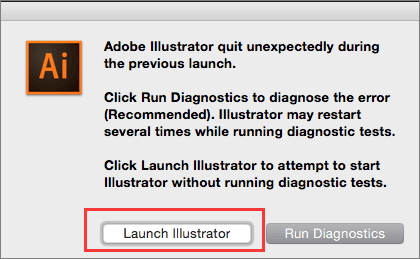
Step 4. Check the troubleshooting tips for each item and follow tips to correct problems.
Step 5. When Illustrator is relaunched after fixing all issues, select "Enabled" and click "Enable on Relaunch" to resolve the problem, allowing it to work normally again.
Related Articles
- Ctrl+Z Deleted Files Recovery: How To Recover Files Lost by Ctrl+Z
- How to Recover Deleted User Profile and Files in Windows 10/11
- Full Recovery of Files And Folder Structure
- How to Recover Corrupted Files from a USB Flash Drive
- Find Missing Pins and Boards on Pinterest
If you've deleted or lost Pinterest pins or boards, there are four ways to try and recover them: restoring from a backup or multiple accounts, recovering from a cached copy, or using data recovery software. You can also try to retrieve missing pins and boards on Pinterest and good luck. - How to Find Pictures on an Old Hard Drive on Windows 10/8/7
You can recover pictures from an old hard drive using two effective methods on Windows 10/8/7. One way is to use the Command Prompt, which allows you to access files with specific formats such as jpg, jpeg, png, tiff, bmp, and pdf. Both methods are useful for accessing files on old hard drives.
Products
Articles & Tutorials
- Data Recovery
- Data Backup
- File Recovery
- File Backup
- System Backup and Restore
- Disk and Partition Clone
- Technical articles
- Mobile articles
- Disk Master Help
- Windows Data Recovery Tutorials
- Windows Secure Delete Tutorials
- Windows Partition Management Tutorials
- Windows File Backup and Restore Tutorials
- Windows System Backup and Restore Tutorials
- Windows Disk Backup and Restore Tutorials
- Windows Clone Tutorials