Find Missing Pins and Boards on Pinterest
As a Pinterest fan, you likely "Pin" a lot of interesting content that you come across on the web, including pictures and videos.
Pinterest, a free social media platform, allows users to upload, save, sort, and manage images and videos as "pins" and collections called "boards". A frequently asked question is how to find missing pins and boards on Pinterest.
To recover deleted, missing, or lost Pins or Boards on Pinterest, you can try the 4 official methods provided by the platform, or use a reliableHow to Recover Deleted Files from Laptop/PC on Windows 10/8/7 to restore your content with ease.
| Workable Solutions | Step-by-step Troubleshooting |
|---|---|
| Fix 1. Restore from Backup | Open your email inbox and find the link by searching for the name of the board...Full steps |
| Fix 2. Recover from Accounts | Go to https://pinterest.com/logout. Click and follow this link...Full steps |
| Fix 3. Recover Group Board | Click the board you'd like to join to open it. Click "Follow" at the top of your screen...Full steps |
| Fix 4. Search for A Cached Copy | According to Pinterest's suggestion, it said that searching Google for your Pinterest...Full steps |
| Fix 5. Use Data Recovery Software | Launch Deep Data Recovery, hover on the partition or device you want to recover...Full steps |
Part 1. Pinterest Official Help - Find Missing Boards or Pins
Pinterest uses its own account-based cloud service to store all uploaded shares is suggested. However, when deleting pins and boards, there is no foolproof method to retrieve them.
The Pinterest support team offers 4 official tips to help resolve the issue of missing boards or pins, despite the known issue. These tips include checking the applicable methods to find the missing content.
#1. Restore Deleted Board from Backup
To recover deleted or missing Pinterest boards, you can try accessing them through a backup. If you've shared board links via email or social network account, you can refer to those links to restore the lost boards. However, if you're unable to find the links, you can also try searching for the board name on Pinterest to see if it appears in search results, which may indicate that it's still available in your account.
Step 1. To find the link to the online board, open your email inbox and search for the name of the board.
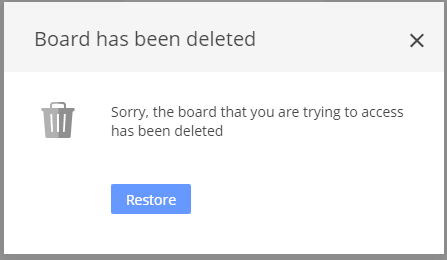
Step 2. To restore a deleted board, click on the link you've found, and you'll be prompted to click the "Restore" button.
Once a board is deleted, it will reappear in the "Owned by me" section on the dashboard.
#2. Retrieve Pins and Boards from Multiple Pinterest Accounts
If you think you've created a new account, you can try checking your email or search history to see if you've logged in to Pinterest from a different device or browser. If you're still unsure, you can also try contacting Pinterest's customer support for assistance.
To solve the problem, list all your available email addresses and try logging in with each one until you find the right account. This should help you recover all missing pins and boards.
Here are the steps:
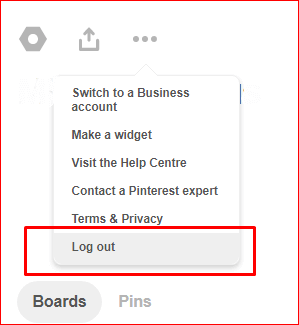
Step 1. Go to https://pinterest.com/logout.
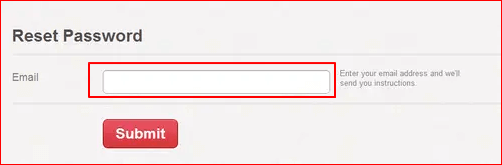
Step 2. Click and follow this link: https://pinterest.com/password/reset/.
Search for the email, name, or username associated with your accounts, type it into the column, and click "Submit" to initiate the search.
If you use a name or username, click "This is me" next to your account, and click "Send".
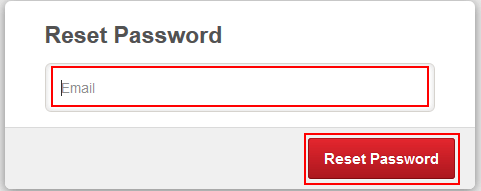
Step 3. Please check and confirm the email associated with your accounts, then click "Reset password".
Step 4. To resolve the issue, log in to your Pinterest account at https://pinterest.com/login using your email address and a new password. This should allow you to check if all missing pins and boards have been recovered.
#3. Recover Group Board
If your group boards listed on your profile suddenly vanished, it's either because you left the group boards or they were removed by the group board creator.
You can try contacting the owner and ask them to invite you again, or simply follow the board again.
To send a request to follow a group board, you can simply tap the "Follow" button on the board's profile page. This will send a request to the board's administrators, who can then approve or decline your request.
Step 1. Log into your Pinterest account.
Step 2. Click the board you'd like to join to open it.
Step 3. Click "Follow" at the top of your screen, next to the board name.

#4. Search for A Cached Copy
Searching Google for your Pinterest username and the name of the board or Pin may help you find a cached copy.

Part 2. Pinterest Recovery: Restore Cached Images on a Local Disk
Some users may also manually save a cached copy of Pinterest images or videos to their local hard drive, in addition to the official Pinterest recovery feature.
If you've lost Pinterest images and videos, there's still hope to recover them. Using third-party data recovery software can increase the chances of fully restoring the lost content. This is especially helpful if you've lost the locally saved files or don't know the location of the loaded images/videos.
Here, Deep Data Recovery is able to scan and find all data files that are kept on a local disk. This software can be downloaded and used to recover Pinterest cached images or videos by following a series of tutorial steps.
Step 1. Select file types and click "Fast Scan" to start
Launch Deep Data Recovery. Select file types and click "Fast Scan" to start.

Note: You can choose different search modes based on where and why the data was lost.
Step 2. Choose the location and start scanning
After deleting or losing pictures, hover over the SD card, camera, or hard drive partition where the pictures were stored, and click on the "Scan" option.

Step 3. Select the pictures you want to recover
After the scanning process is complete, navigate to the "Pictures" section in the left panel. To locate lost photos, click on "Lost" at the top of the list, and then browse through the results by device, type, or date.

Step 4. Recover lost photos
After the preview, click "Recover" and save the desired pictures to a different location.
After saving the found Pinterest images and videos, you can easily upload them back to your Pinterest account.
Part 3. Tips to Protect Pinterest Pins and Boards
It's challenging to recover deleted or missing Pinterest pins or boards, but backing up your favored content can make a big difference.
Here are some tips to help you back up and protect your digital photos, videos, and other important files:
# 1. Load and save favored Pinterest images and videos on a local drive
If you have a large drive or an external hard drive with enough space, consider downloading and saving your favorite Pinterest images and videos there. This approach is likely to be more convenient than trying the "Recovery Methods" offered by Pinterest.
# 2. Save links that you've shared in your email, social network
If you've lost Pinterest pins or boards, you can try a manual method by collecting and saving shared links to your favored content in your email address or social network account. This way, you can access your saved links even if your Pinterest content is missing, making it easier to restore them.
Conclusion
If you've lost Pinterest pins and boards, there are ways to get them back. You can try using Qiling photo recovery software to restore downloaded pictures, camera shots, and other photos. This tool can help you recover lost SD card photos, making it easier to find the missing content.
Related Articles
- [Solved] Recover Corrupted or Invalid ZIP Files
- [Solved] The Program Can't Start Because MSVCR110.dll Is Missing from Your Computer
- How to Corrupt a File So It Won't Open on PC and Mac [Easy Guide]
- How to Find Pictures on an Old Hard Drive on Windows 10/8/7
- Fix the Album Artwork Not Showing on iPhone Issue
Fix album artwork not showing on iPhone and learn how to restore missing music artwork or lost songs safely. - FIX 'Attempting data recovery' on iPhone X/8/7/6 After iOS 12 Update
This page covers everything you need to know about fixing the iPhone/iPad 'attempting data recovery' loop and recovering lost data after an iOS 12 update failed to recover data via iTunes.
Products
Articles & Tutorials
- Data Recovery
- Data Backup
- File Recovery
- File Backup
- System Backup and Restore
- Disk and Partition Clone
- Technical articles
- Mobile articles
- Disk Master Help
- Windows Data Recovery Tutorials
- Windows Secure Delete Tutorials
- Windows Partition Management Tutorials
- Windows File Backup and Restore Tutorials
- Windows System Backup and Restore Tutorials
- Windows Disk Backup and Restore Tutorials
- Windows Clone Tutorials