Fix the Album Artwork Not Showing on iPhone Issue
Summary
If Album Artwork is missing on your iPhone after an iOS update, don't worry! This article will guide you to restore lost Album Artwork songs and effectively fix the error on your iPhone, iPad, or iPod. You'll learn how to restore missing Album Artwork and get lost music files back. Just follow the steps to get your music collection back in order.
We received letters from Apple users who were experiencing an issue where album artwork wasn't showing on their iPhone after updating to iOS 14. To help, we consulted with Apple technicians and tried various methods. We were able to identify some proven solutions to resolve this problem, and if none of these work, you can try recovering your music or songs from your iPhone using the last method.
| Workable Solutions | Step-by-step Troubleshooting |
|---|---|
| 1. Restart Your iPhone | A restart is helpful in any situation where your iPhone is behaving weirdly...Full steps |
| 2. Force Close the Music App | Some iOS users reported that a force restart of the Apple Music app can...Full steps |
| 3. Sign out and Resign in Account | Sometimes, your album artwork might not be showing due to the update latency...Full steps |
| 4. Update Your Device | This method is specially prepared for devices running iOS 12/13/14...Full steps |
| Other Solutions | Free up Space on Your iPhone > Delete iTunes Cache folder...Full steps |
Why Does My Album Artwork Disappear on iPhone?
The disappearance of album artwork can be attributed to several factors. These may include changes in consumer behavior, such as the shift towards digital music consumption, which often omits physical album art. Additionally, the rise of streaming services has led to a decrease in physical album sales, making album artwork less relevant.
- Delayed synchronization in account
- Bugs that come with iOS 13/14 affect your album artwork
- Your iPhone is running out of storage space
7 Common Solutions to Fix Album Artwork Not Showing on iPhone
To resolve the issue, consider restarting your iPhone, updating it to the latest version, freeing up more space on your device, or forcing close the Music app and re-opening it. These common fixes can help resolve the problem, and by following the instructions, you can learn how each tip works to resolve your issue.
1. Restart Your iPhone
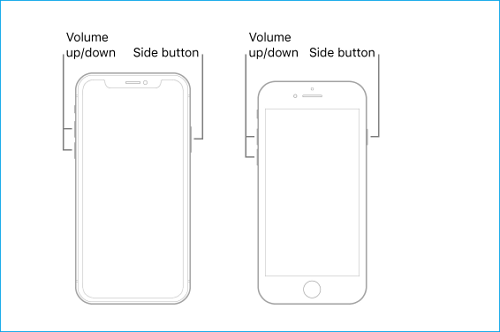
Restarting your iPhone can be helpful in various situations where your device is behaving erratically, such as maps not working, a non-functional touch screen, iPhone being disabled, or issues with the flashlight. Restarting can also resolve problems with your album not showing. The method for restarting an iPhone differs depending on the model you own, and you can refer to Apple's official instructions for guidance on how to restart your iPhone.
2. Force Close the Music App and Re-open It
To resolve the Apple Music app issue, some iOS users have found that a force restart of the app can resolve the problem, although it may not work for everyone. To force restart the Music app, users with a Home button can double press the Home button, find the Music app and swipe up to close it, while those without a Home button can swipe up from the bottom of the screen, find the Music app and swipe up on the icon to close it. This is a simple and easy solution to try.
3. Sign out Your Account and Resign in
If your album artwork isn't showing, try signing out of your Music app and then signing back in, as the update latency of your Music account might be the issue. If that doesn't work, consider trying other solutions.
4. Update Your Device to the Latest Version
This method is specifically designed for iOS 12/13/14 devices, as 2 out of 3 users with these versions experience the issue. Updating to the latest version may resolve the problem due to bugs present in these versions.
5. Free up Space on Your iPhone
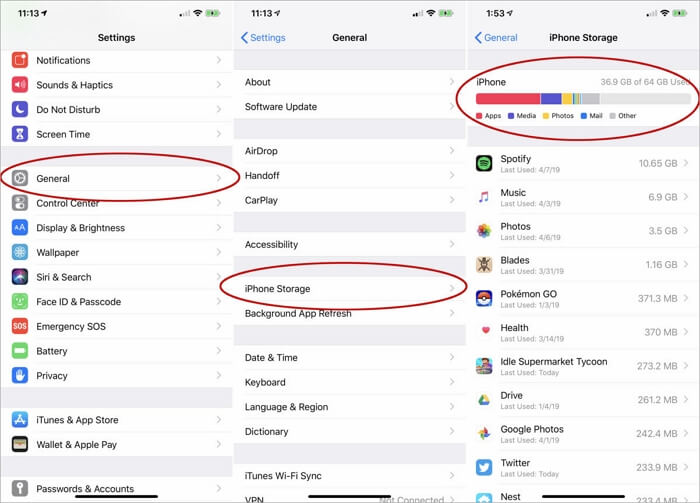
Insufficient storage space in your system can cause problems, so freeing up space is necessary. You can do this by deleting unwanted apps, removing pictures, or cleaning up your storage. To see which app takes up the most space, go to Settings > General > iPhone (or iPad) Storage, and then check if your artwork is loaded.
6. Delete iTunes Cache folder
Go to Music > iTunes > Album Artwork, delete the Cache folder, then quit and relaunch iTunes to see if the album artwork shows up.
7. Recover Deleted Songs with a Recovery Tool
If the solutions above don't work, your album artwork may be permanently deleted. To recover it, you can use an iPhone data recovery app, such as Qiling MobiSaver for iOS, which can scan your iPhone or iTunes/iCloud backup and recover the desired data.
To recover deleted songs with Qiling MobiSaver for iOS:
Step 1. Choose the Recovery Mode
Connect your iPhone to your PC and launch Qiling MobiSaver. Select the recovery mode - "Recover from iOS Device" on the left, and click "Start".
Step 2. Scan iPhone and Find Lost Data
Qiling MobiSaver will automatically scan your iPhone and find present and lost data for you.
Step 3. Preview and Restore iPhone Data
You can recover lost data from your iPhone, including photos, videos, contacts, SMS, notes, voice mails, and other files, regardless of the model (iPhone 13/12/11/X/XR/XS/8/7/6/5/4). Simply choose the data you want to recover, click "Recover", and save it to a new location.
The Bottom Line
If you're experiencing the issue of album artwork not showing on your iPhone, the solutions above can help resolve the problem. We hope this guide has been helpful in solving your issue, and if not, don't worry, we'll keep updating this guide regularly.
Related Articles
- Recover Deleted WhatsApp Photos and Videos on iPhone/iPad/iPod
- How to Fix iCloud Backup Greyed Out (iOS 15 Supported)
- How to Fix iPhone Stuck at Apple Logo Without Data Loss
- How to Recover iPhone Data After Restore Without Backup
- PDF Won't Open? 3 Quick Ways to Fix 'can't open pdf' Error on Windows/Mac
If your PDF file won't open, several factors might be at play, causing the issue. To resolve the problem, you can try checking for reliable solutions to fix the issue with your PDF file. - 2022 Guide: How to Recover Deleted Files from Pen Drive in 3 Ways
When you lose or delete files on a pen drive, USB flash drive, or other drives, stop using the device immediately. To recover deleted files, you can use a pen drive data recovery software like Deep Data Recovery, or try using CMD or a data recovery service if the files are hidden.
Products
Articles & Tutorials
- Data Recovery
- Data Backup
- File Recovery
- File Backup
- System Backup and Restore
- Disk and Partition Clone
- Technical articles
- Mobile articles
- Disk Master Help
- Windows Data Recovery Tutorials
- Windows Secure Delete Tutorials
- Windows Partition Management Tutorials
- Windows File Backup and Restore Tutorials
- Windows System Backup and Restore Tutorials
- Windows Disk Backup and Restore Tutorials
- Windows Clone Tutorials