PDF Won't Open? 3 Quick Ways to Fix 'can't open pdf' Error on Windows/Mac
Here are three quick ways to fix the "can't open PDF" error:
| Workable Solutions | Step-by-step Troubleshooting |
|---|---|
| Fix 1. Check Your Adobe Reader/Acrobat | You can try to fix PDF can't open problem by updating Adobe Reader/Acrobat, disabling the Protected Mode at Startup, or repairing the Adobe PDF reader...Full steps |
| Fix 2. Repair Your Corrupted PDF Files with a file repair tool | Use a file repair tool To fix corrupted or damaged PDFs, Qiling data recovery and repair software can scan and repair the documents by recovering lost data and repairing damaged structures, effectively restoring the original content and layout of the PDF.Full steps |
| Fix 3. Use Another PDF Reader Program or Re-transfer Files | If the former two ways fail to solve can't open PDF issue, your PDF may not compatible with the Adobe Acrobat reader. Try to change your PDF reader program, such as Cool PDF Reader...Full steps |
PDF files are a popular choice for storing and sharing data, but they have a weakness in file stability due to internal and external reasons. This can lead to issues where PDF files won't open, prompting questions and concerns from users on forums and social media.
Fortunately, we've tried several ways and found 3 reliable solutions to fix the problem of a PDF not opening. If you're a Windows or Mac user, you can check out the solutions below, while users looking to open a PDF on Chrome, Outlook, or Gmail may find extra tips helpful.
Why I cannot Open PDF File | Why PDF File Are Not Opening
Here are the common reasons why clouds on PDFs fail to open:
- Your PDF files are not compatible with your PDF reader.
- Your PDF is infected by a virus.
- Your Adobe Reader is out of date or damaged.
- PC transfer error.
- Your PDF files are corrupted (File content is missing).
If you're experiencing issues opening PDF files, it can be difficult and disrupt your daily study and work. To resolve the problem, try checking if Adobe Reader is installed and working properly, repairing any damaged PDF files, or using an alternative PDF reader if needed. Alternatively, you can try sending the files again to see if the issue persists.
1. Check Your Adobe Reader/Acrobat
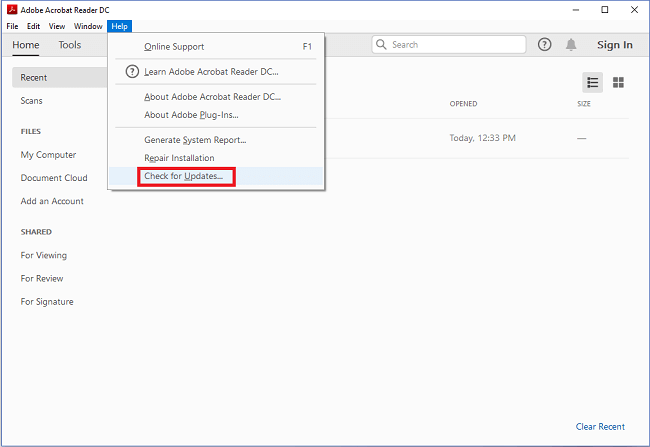
Update Adobe Reader/Acrobat:
- Run Adobe Reader.
- Select Help from the top menu.
- Choose Check for Updates on the drop-down menu.
- Wait for the Update Successful message and restart your PC.
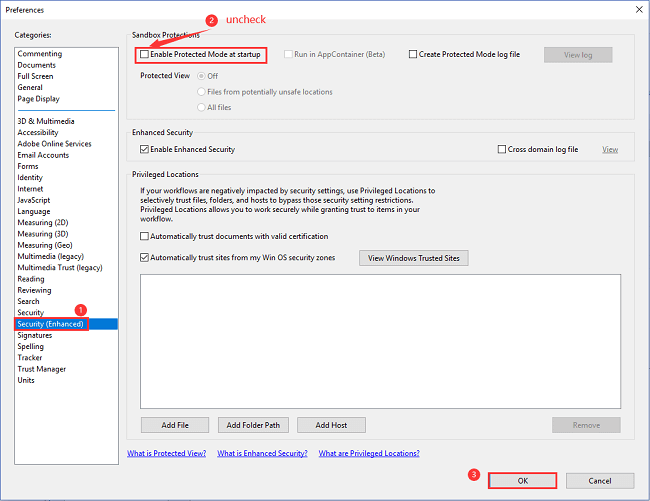
Disable the Protected Mode at Startup:
- Open Adobe Reader.
- Choose Edit on the top menu.
- Select Preferences on the drop-down menu.
- In the pop window, select the Security (Enhanced) option from the Categories menu.
- Uncheck Enable Protected Mode at startup.
- Click OK.
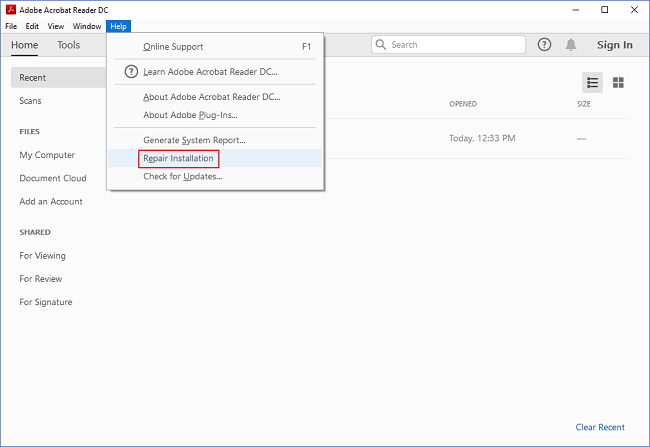
Repair Adobe PDF reader:
- Launch Adobe Acrobat Reader
- Choose Help on the top menu.
- Click Repair Installation.
- Choose Yes to start the repair process.
2. Repair Your Corrupted PDF Files
Repairing corrupted PDF files usually involves using a file repair tool, which can recover your files with the help of third-party software.
Deep Data Recovery
- Recover lost or deleted files, documents, photos, audio, music, and emails easily with various data recovery tools and techniques. These methods can help restore deleted data from various storage devices, including computers, laptops, smartphones, and external hard drives.
- You can recover files from a formatted hard drive, emptied recycle bin, memory card, flash drive, digital camera, and camcorder using specialized software, such as Disk Drill, Deep Data Recovery, or Recuva. These tools scan the device for recoverable files and allow you to preview and recover them.
- Data recovery can be crucial in various situations such as sudden deletion, formatting, hard drive corruption, virus attacks, and system crashes. In these cases, it's essential to have a reliable data recovery solution to retrieve lost files and prevent permanent data loss.
3 steps to recover PDF corrupted files:
Step 1. Choose file types and click "Fast Scan" to start
Launch Deep Data Recovery, select the file types you want to recover, and click "Fast Scan" to initiate the recovery process.

Note: You can choose different search modes based on where and why the data was lost.
Step 2. Choose the location
Select the drive where you lost your PDF/PPT/Word/Excel files and click "Scan".

Step 3. Scan for lost documents
When the scanning process is complete, click on "Documents" in the left panel to view the scanned documents. You can search for specific documents by file type or name. Once you find the desired document, click "Preview" to verify its contents.

Step 4. Recover lost documents
Select the desired files and click the "Recover" button to save them to a safe location.
3. Use Another PDF Reader Program or Re-transfer Files
If you're unable to open your PDF using Adobe Acrobat reader, it's possible that your PDF is not compatible with the reader. In this case, you may need to switch to a different PDF reader program, such as Cool PDF Reader or Expert PDF Reader. You can search for these alternatives on Google and find one that suits your needs.
Resending the files is likely the simplest solution to open the file, assuming you have a backup file or the original data was saved by someone else, such as your partner.
P.S. If your PDF won't open with a password, read our article to unlock PDF.
Still, Hesitate? We Can Help You!
If you're experiencing issues opening PDFs, don't worry - there are three ways to fix the problem. Each method is suitable for specific scenarios, which can be determined by checking the table. If you're still unsure which approach to take, feel free to ask for assistance.
| Scenes | Adobe Acrobat Reader | Deep Data Recovery | Use Another PDF Program or Resend the file |
|---|---|---|---|
| Need Backup | No | No | Yes (for Resend) |
| "PDF File Open" Rate | High | High | Not Sure |
| Recover Corrupted PDF | No | Yes | No |
- To resolve the issue of the file not opening due to a PDF setting problem, I recommend adjusting the settings of Adobe Acrobat Reader. This may involve tweaking the program's settings to better accommodate the specific PDF file in question.
- Download and run it to get data back on account of file corruption.
Extra Tips - PDF Won't Open on Chrome/Outlook/Gmail
1. Why PDF is not opening in Chrome?
To view a PDF file in Chrome, save the file to your computer and then open it with Adobe Reader, as Chrome does not use Adobe Reader to check PDF files.
2. Why I cannot open PDF on Outlook?
You may not see your files in Outlook because you don't have or need to update Adobe Reader. You can download it from the website and then access your files again.
3. Why my PDF can't open on Gmail?
We are not sure this method is suitable for you. Check out the articles and proceed carefully.
- Clear device - Install junk cleaner from Google Play store.
- Clear Google Drive - To clear the cache and data of the Google Play Store app, go to Settings, then App & notifications, then App info, select Google Play Store, tap Force Stop, and finally, tap Storage and then Clear.
- To update Gmail, go to Settings, then Apps & notifications, Apps info, Gmail, Force stop, 3 dot menu, Uninstall update, and finally re-install Gmail from the Google Play store.
Check solutions released by Gmail Help...
Related Articles
- Undo System Restore in Windows 11, 10, 8, 7 Without Data Loss
- Download USB Pen Drive Repair Software Full Version with Crack
- Reliable Ways to Fix i saved a word document and can't find it Issue
- [Solved] Recover Data from Ext4/3/2 NAS/Linux Device
- 10 Ways to Fix Non System Disk or Disk Error on Laptops/PC
If you're experiencing a “non-system disk or disk error” on your HP, Dell, Compaq, Acer, or Lenovo PC or laptop, this page provides solutions beyond basic troubleshooting methods. - Fix Nothing Happens When Plug in USB Flash Drive in Windows
If nothing happens when plug in your USB flash drive through the USB port on a Windows PC/laptop, you need professional help. This article provides you with easy and clear steps to make your computer recognize the USB device properly.
Products
Articles & Tutorials
- Data Recovery
- Data Backup
- File Recovery
- File Backup
- System Backup and Restore
- Disk and Partition Clone
- Technical articles
- Mobile articles
- Disk Master Help
- Windows Data Recovery Tutorials
- Windows Secure Delete Tutorials
- Windows Partition Management Tutorials
- Windows File Backup and Restore Tutorials
- Windows System Backup and Restore Tutorials
- Windows Disk Backup and Restore Tutorials
- Windows Clone Tutorials