Reliable Ways to Fix i saved a word document and can't find it Issue
Quick navigation to the main content of this page:
| Workable Solutions | Step-by-step Troubleshooting |
|---|---|
| To fix the issue of not being able to find a saved Word document, start by checking the default save location in Word. Go to the "File" tab, click on "Options," and then select "Save" to see where Word is saving the file by default. | You can find the Word document by searching or using Windows File Explorer to locate your files. Input file name in the search box...Full steps |
| How to Recover Lost/Deleted Word Documents | If you can't find the Word document or it's lost or deleted by accident, don't worry, use Qiling data recovery to get back lost Word documents in simple steps...Full steps |
| How to Recover Unsaved Word Documents | If you don't know to restore unsaved Word documents. Here are the 2 effective ways you can try: use Temp files or apply AutoRecover...Full steps |
Can't Find A Word File I Saved?
"I just saved and closed a word document but I can't find it anywhere and I really need it! I closed A word document and didn't pay attention to where I saved it and I cannot find it anywhere and I really need it and I don't want to type 4 pages again."
Why you cannot find your word document?
- Do not remember where the word file was saved.
- Word document gets lost or deleted.
- The file gets unsaved or corrupted.
If you can't find your saved Word document, don't worry! There are several reasons why this might be happening. To help you locate your file, we've compiled a list of possible explanations and solutions in this article. Whether you're searching for a document due to a lost file, a misplaced document, or simply because you can't remember where you saved it, we've can help.
Locate File Location to Fix "I saved a word document and can't find it"
Locating files can be as simple as finding the word file location, but many users struggle to remember where they saved their files. This can be due to storing data in a less frequently used path or saving documents to a lengthy path that's hard to recall. Fortunately, there are ways to locate your file location, making it easier to find the files you need.
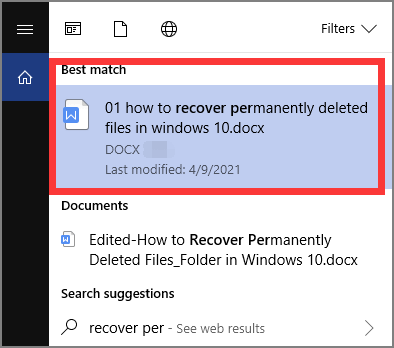
If you know the filename you saved, you can use the search box to find your data.
Step 1. You can search for a specific input file by typing its full name or a keyword in the search box. If you're unsure of the file name, you can start by typing a keyword related to the file, and then refine your search based on the results that appear. This allows you to find the file even if you don't know its exact name.
Step 2. Check the best match result.
You can use Windows File Explorer to search your files.
Step 1. Run Windows File Explorer.
Step 2. Type file name or keywords on the search box.
Step 3. Wait for the search result to complete.
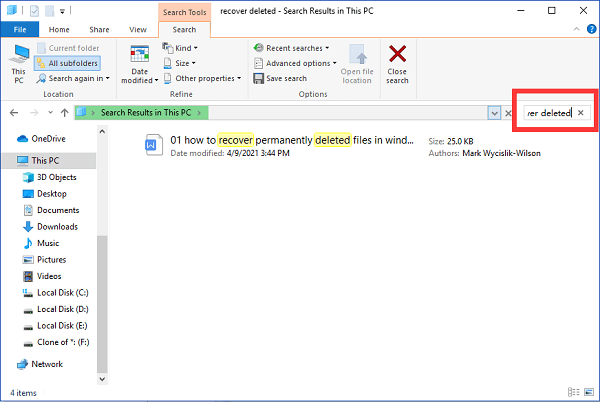
If you can't locate your Word files on this PC, it's likely that they were lost by accident or unsaved by yourself. To recover lost or deleted files, or retrieve unsaved Word documents, refer to parts 2 and 3.
How to Recover A Lost/Deleted Word Document
If you can't find your Word files in the recycle bin, it's likely they were deleted accidentally or due to a computer crash or hard drive formatting. Don't overwrite the files and use a robust data recovery software like Deep Data Recovery to recover your lost Word documents.
This tool allows you to recover deleted files from various devices, including laptops, PCs, HDDs, SSDs, SD cards, USB drives, flash drives, and memory cards.
Check Tutorial to Recover Deleted Files:
Step 1. Select file types
Download and install Deep Data Recovery on your Windows 11/10 64-bit computer, then select the file types you want to recover and click "Fast Scan" to begin the process.

Note: You can choose different search modes based on where and why the data was lost.
Step 2. Choose the Word file location
Select the drive or a specific folder you want to scan, then click the "Scan" button.

Step 3. Locate your Word files
The software will immediately start scanning all lost data on the selected drive, and after the scan, click the "Documents" option in the left panel, choose "Word" from the category bar, and then click "Preview" to view the recovered files.

Step 4. Recover Word files
Preview the lost Word files, select the desired files, click "Recover", and choose a folder to store the recovered Word files.
We have written more files about how to recover deleted files, go to the full guide:
How to Recover Permanently Deleted Files/Folder in Windows 10
Files and folders can be "permanently deleted" from hard drives and storage devices by using various methods, including pressing the Shift + Delete buttons, emptying the Recycle Bin, or other deletion techniques.
2 Built-in Functions to Recover Unsaved Word Documents
If you've lost an unsaved Word document, don't worry! Microsoft Word has built-in functions to help you recover it. There are two easy ways to restore your document: using temporary files and applying AutoRecover.
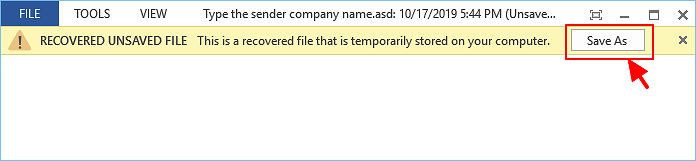
1 - Using Temp Files to Recover Unsaved Word Documents.
Step 1. Click on New and select Blank Document to create a new Word document. Alternatively, you can click on Recent to open a recently used document, or click on Open to select a document from your computer.
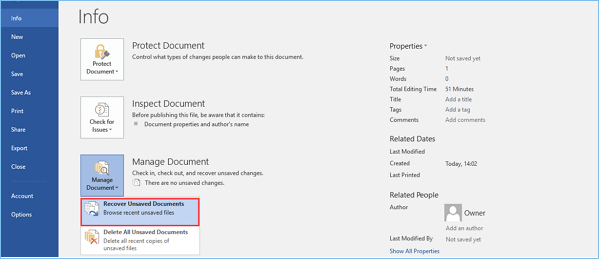
Step 2. Click Info > Manage Document > Recover Unsaved Document.
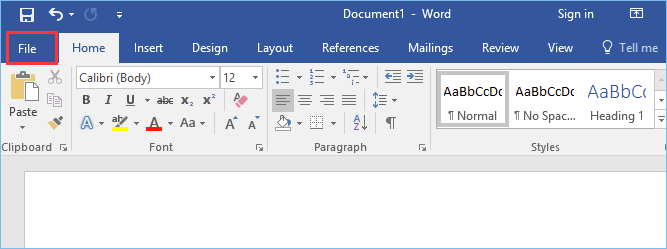
Step 3. To recover an unsaved Word document, go to the "File" menu, select "Recent," and then click on the "Recover Unsaved Files" option. From the dialog box, select the file you want to recover and click "Open.
2 - Apply AutoRecover (If Available)
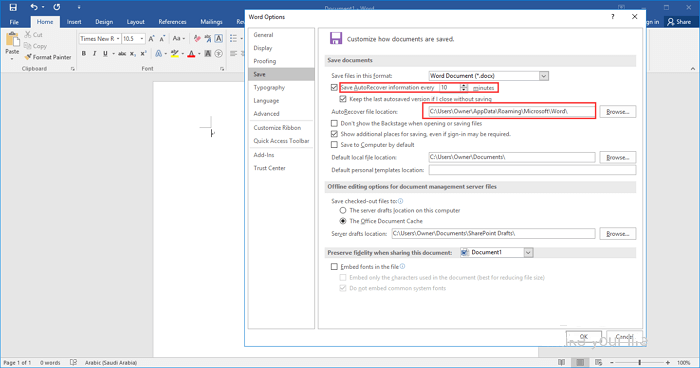
If you have previously set AutoRecover, you can use this function to restore your data.
Step 1. To find the AutoRecover file location in Microsoft Word, go to File > Options > Save, and copy the AutoRecover file location.
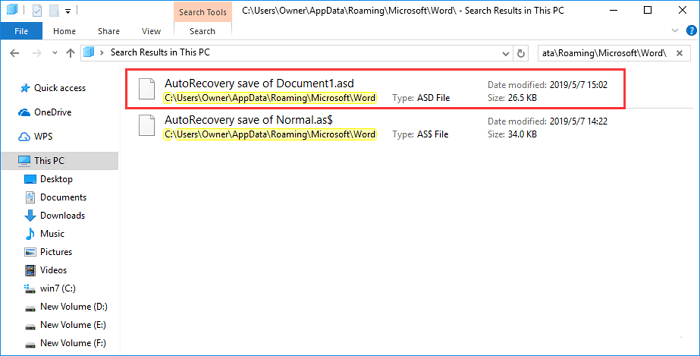
Step 2. To access the AutoRecover file, go to File Explorer, paste the path provided, and copy the .asd file.
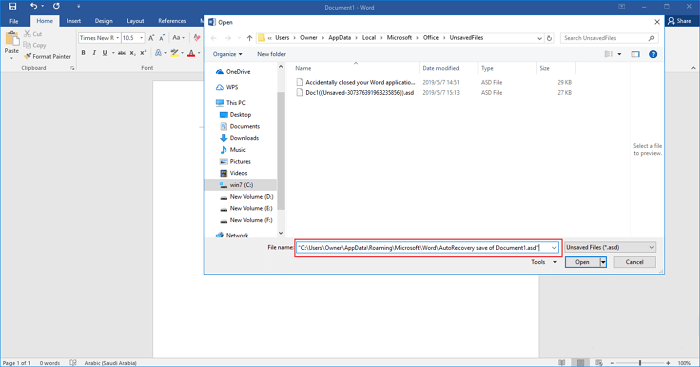
Step 3.To recover an unsaved Microsoft Word document, open Microsoft Word, click on the "File" tab, select "Open", then choose "Recover Unsaved Documents". In the search box, paste the copied .asd file name.
Read also:
Related Articles
- [Solved] Transcend USB Pen Drive Not Detected/Not Working
- Download Deep Data Recovery Professional 14.2 Full Version with Torrent
- How to Recover Data Lost By Ghost Recovery
- HDD Unallocated Space Data Recovery
- Excel Recovery Tool Full Version Free Download: Recover Corrupted Excel File
You can download the full version of Qiling Excel file recovery software for free and use it to recover corrupted Excel files easily. This software allows you to recover corrupted Excel files, including XLS and XLSX files, and restore them to their original format. - Corrupted HTML File Recovery Solutions (Online & Offline)
Here, you can recover corrupted HTML files through an online file repair website and offline file repair software, specifically Deep Data Recovery.
Products
Articles & Tutorials
- Data Recovery
- Data Backup
- File Recovery
- File Backup
- System Backup and Restore
- Disk and Partition Clone
- Technical articles
- Mobile articles
- Disk Master Help
- Windows Data Recovery Tutorials
- Windows Secure Delete Tutorials
- Windows Partition Management Tutorials
- Windows File Backup and Restore Tutorials
- Windows System Backup and Restore Tutorials
- Windows Disk Backup and Restore Tutorials
- Windows Clone Tutorials