HDD Unallocated Space Data Recovery
How to Perform HDD Unallocated Space Data Recovery
"About 2 hours ago, I connected my 2TB western digital external hard drive to my computer, but the drive wasn't showing up on my computer. I checked it in disk management, the disk became unallocated.
I unplugged and reconnected the drive, but the issue persisted. To recover unallocated space on your HDD and rescue your data, try using a data recovery software like Deep Data Recovery. Connect the HDD to your computer via a USB port, and then download and install the software. Launch the software, select the drive where your data was stored, and follow the on-screen instructions to scan for recoverable files. Be sure to save the recovered files to a different drive to avoid overwriting any existing data.
If you're experiencing issues with your HDD turning to unallocated, it's essential to first identify the root cause. Common reasons for this problem include file system corruption, partition table errors, or logical disk errors, which can occur due to various factors such as power outages, software bugs, or physical damage to the drive. By understanding the underlying reason, you can take the necessary steps to resolve the issue and restore your HDD to its original state.
- Partitions get deleted or removed by mistake
- File system damage, corruption or errors
- Hard drive failure with bad sectors or internal errors
- Virus attack
If your hard drive is infected by an unknown virus, use anti-virus software to clean it up first.
To resolve the unallocated issue, you have two options: either rescue valuable data immediately using Way 1, or recover all disappeared partitions to their original state using Way 2, depending on your priority between data and partition.
Way 1 - Recover Data and Recreate Partitions on Unallocated HDD
If you use a hard disk drive (HDD) as a data drive for saving multiple files and valuable data, recovering data from an unallocated HDD is a priority job. Fortunately, it is possible to recover data from an unallocated HDD with the help of a powerful data recovery tool.
For getting a time-For reliable and risk-free data recovery, we recommend trying Deep Data Recovery, a software that enables you to recover data from unallocated space on your HDD in just 3 easy steps.
# 1. Recover Data from Unallocated HDD
Follow the step-Here's a one-paragraph, step-by-step guide to recover your photos, videos, audio files, and documents from HDD unallocated space:
Step 1. Select file types and click "Fast Scan" to start
Launch Deep Data Recovery, select the desired file types, and click "Fast Scan" to initiate the recovery process.

Note: You can choose different search modes based on where and why the data was lost.
Step 2. Scan the hard drive partition
Select the drive on your hard disk where you lost or deleted files, click "Scan" and let the software scan for all lost data and files on the selected drive.

Step 3. Check the results
After the scan is finished, you can apply filters or search for lost files on the hard drive using the "Search files or folders" option.

Step 4. Restore lost hard drive data
Select the files you want to recover and click "Recover" to save them to a different location.
To make the HDD reusable again, save the recovered files to another storage device first.
# 2. Recreate Partitions on Unallocated Hard Disk Drive
To make the unallocated HDD reusable again, follow the last few steps to recreate partitions on the unallocated hard disk drive with Disk Management:
- Step 1: To access the unallocated space on a disk or external storage device, open Disk Management, right-click on the unallocated space, and select the desired action.
- Step 2: Select "New Simple Volume".
-
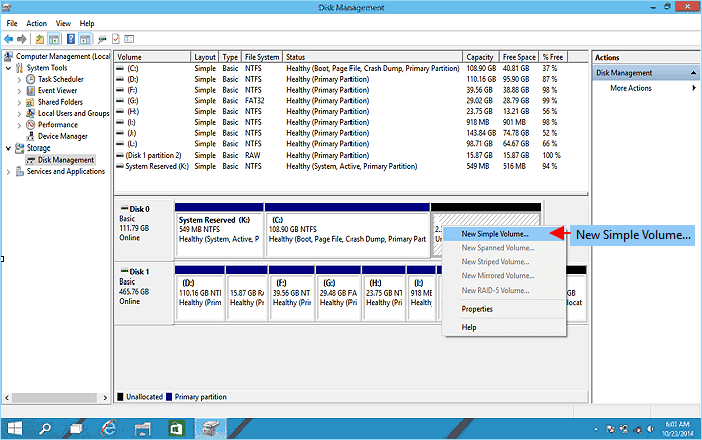
- Step 3:To create a new partition, set the partition size, select the new file system as NTFS, choose a drive letter, and click "Finish" to complete the process.
- Repeat the process several times if you need several partitions on the HDD.
-
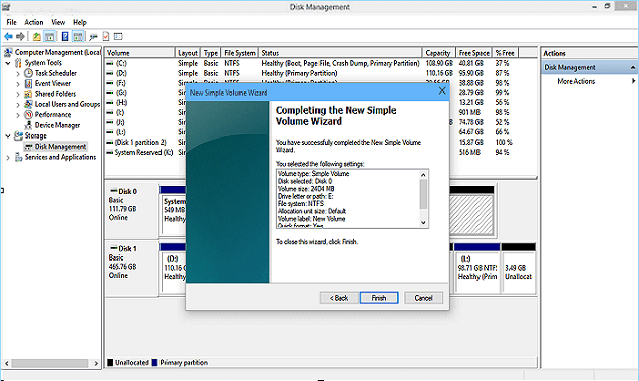
After the data is restored, you can save the restored data back to the created partitions and continue using your hard disk drive to save data again.
Way 2 - Recover Partitions with Lost Files from Unallocated HDD
If you're looking for a one-time solution to recover lost partitions with data, Qiling Partition Recovery is a viable option. It can fully scan the unallocated hard disk to detect lost partitions with data, and even allows you to preview the content before recovering.
To recover lost files from an unallocated HDD, download the software and follow these steps. Note that activation is required to execute the final recovery operation.
Step 1. Run Qiling Partition Recovery on your PC.
Select the disk or device where you lost partition(s), click "Proceed" to continue.
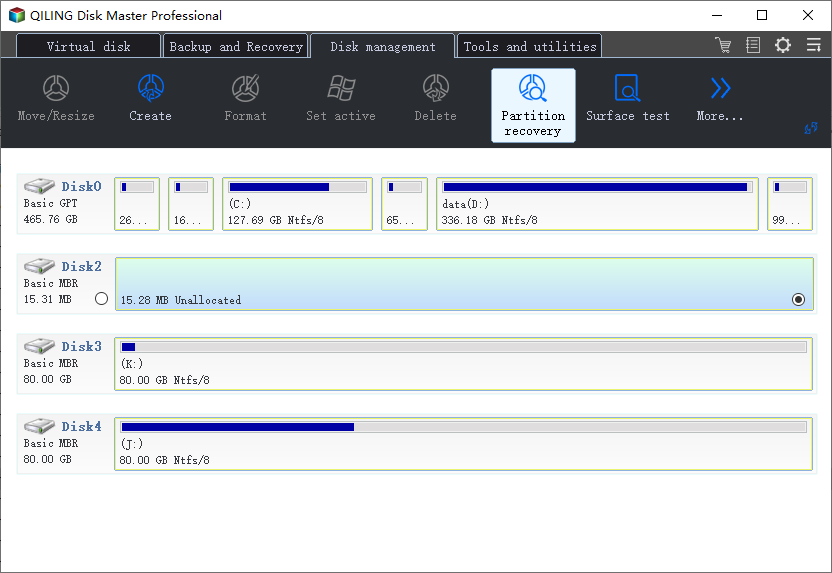
Step 2. Wait for the scanning process to complete.
Let the program scan the selected disk and find the lost partition(s) to recover the lost data.
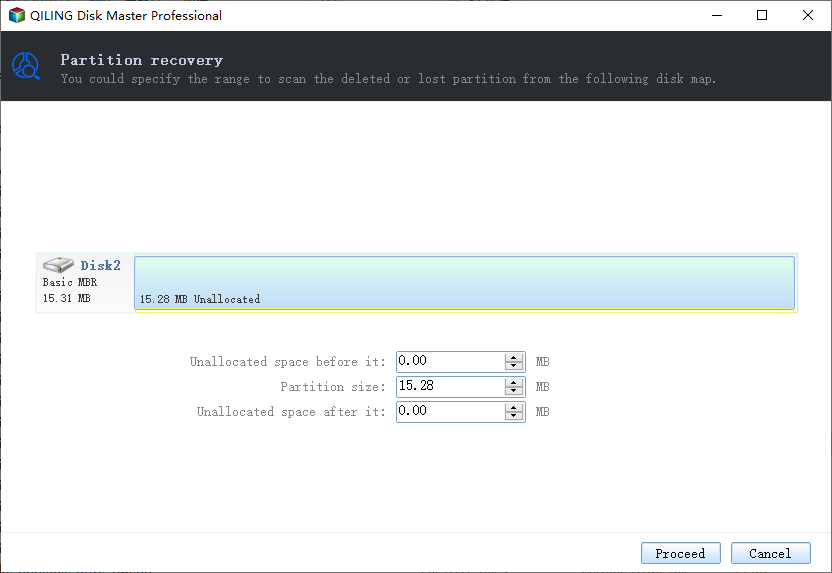
Step 3. Preview and restore the lost partition(s).
To recover a lost partition, click on the partition which is marked as "Lost" with "Good" recoverability. This indicates that the partition is still recoverable and can be restored to its original state.
To recover a lost partition, click on the "Preview" button to view the content of the lost partition. Then, click "OK" and proceed with the restoration process by clicking "Proceed".
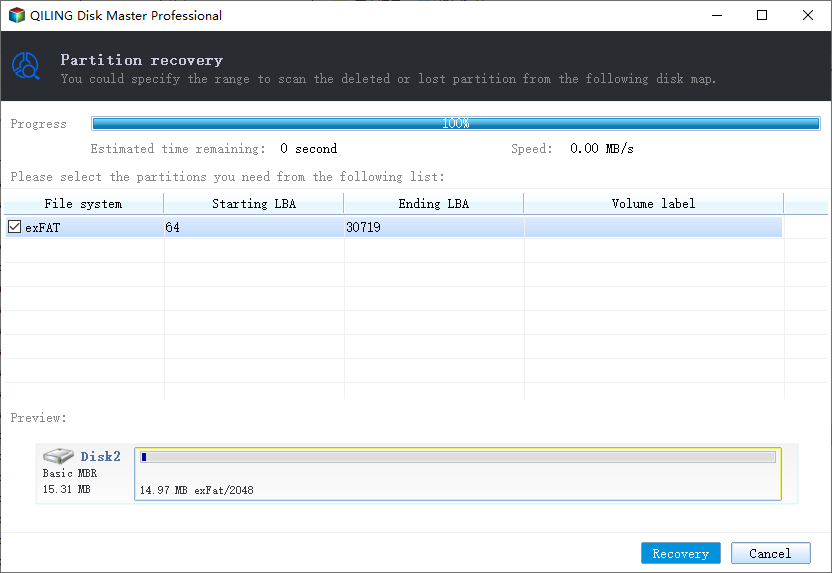
Step 4. Click "Recover Now" to finish the partition recovery process.
If the program warns you of a conflict, back up the listed partition with essential data to an external hard drive first, then proceed with the final operation to restore your lost partition.
If your hard drive or external storage device suddenly becomes unallocated, stop using it immediately and refer to the provided methods on this page for assistance.
- For urgent data recovery, Deep Data Recovery is the best choice.
- Qiling Partition Recovery is a top-notch tool that can bring back a lost partition to its original state, including its occupied and free space size, file system, and partition style.
Qiling Backup Free helps you back up valuable data on your hard drive, ensuring a safe and easy recovery process in case of disasters. It offers features like File Backup and Disk Partition Backup, allowing you to back up all files at once with just a few simple steps.
Related Articles
- Your File History Drive Was Disconnected for Too Long, How to Reconnect File History Drive
- How to Recover Data from Formatted Hard Disk in Windows 10/11
- How to Turn on AutoSave in Excel 2007-2019 (An Easy Guide)
- How to Find a File in Linux Using Terminal and Commands
- Recover Data from SATA Hard Drive in 3 Steps [2023 Guide]
Recover data from SATA hard drive can use backup and recovery software solutions. SATA is a previous-generation technology, and the PCs utilizing it are older. Therefore, there are a few limitations. This article provides the methods for SATA data recovery. - 3 Working Ways to Recover Deleted CCTV (DVR) Footage
even if you lost CCTV footage from your DVR camera. You can get three practical ways to restore lost CCTV camera videos, using data recovery software, asking data recovery experts for help, and checking the backups.
Products
Articles & Tutorials
- Data Recovery
- Data Backup
- File Recovery
- File Backup
- System Backup and Restore
- Disk and Partition Clone
- Technical articles
- Mobile articles
- Disk Master Help
- Windows Data Recovery Tutorials
- Windows Secure Delete Tutorials
- Windows Partition Management Tutorials
- Windows File Backup and Restore Tutorials
- Windows System Backup and Restore Tutorials
- Windows Disk Backup and Restore Tutorials
- Windows Clone Tutorials