[Solved] Transcend USB Pen Drive Not Detected/Not Working
You tried to transfer data from your Transcend 8GB pen drive to another drive using cut and paste, but after doing so, you got an error message and couldn't access your pen drive.
Then I re-The external hard drive was plugged in, but the computer didn't detect it, and a message appeared saying that the drive was not recognized.please insert a disk into a removable drive G'. How can I repair it?"
If your Transcend USB flash drive is not detected or recognized, or is not working properly in Windows 10, 8, 7, you can fix this issue without losing data using a Transcend USB repair tool, such as Jetflash Online Recovery, or Qiling data recovery software.
Follow and see how to make your USB work again and restore all valuable data in the following two parts.
Part 1. Make USB Reusable with Transcend USB Pen Drive Repair Tool
Users who are experiencing issues with their Transcend USB pen drive, such as it not being detected or not working, can use the Transcend USB repair tool called JetFlash Online Recovery to troubleshoot the problem.
Transcend JetFlash USB flash drive not working or not detected on Windows PC? The Transcend JetFlash Fix Tool is designed to resolve this issue by restoring the malfunctioning flash drive to its factory default settings, developed by Transcend.
As JetFlash Online Recovery is not an Qiling product, you need to download it from its official site: https://www.transcend-info.com/Support/Software-3/.
- Notice:
- 1. The JetFlash Online Recovery process will delete all data stored on the Transcend flash drive.
- Therefore, back up valuable data in advance.
- 2. If you're unable to access your Transcend USB, try repairing it first using the JetFlash Online Recovery tool to troubleshoot the issue.
- If you've lost important files, First, stop using the device and any connected storage media to prevent overwriting of the lost data. Then, go to Part 2 and apply Qiling file recovery software to restore your lost valuable files.
- 3. To avoid losing important files, make sure to create a backup of them on a separate storage device.
Guide: repair Transcend USB flash drive with JetFlash Online Recovery
Step 1: Connect your Transcend USB flash drive to your PC and launch the Transcend repair tool, OnLineRecovery.exe.
Step 2:Connect your computer to the internet, let the program check your USB, and click "OK" to confirm.
Step 3: You have two options for repairing the drive: you can either repair the drive and erase all data on it, or repair the drive and keep the existing data intact.
- If your Transcend USB flash drive is not working or detected, a simple solution is to erase all data on the drive. This can help resolve the issue.
- Choose "Repair drive & erase all data" and click "Start" to initiate the process.
- The files on the Transcend USB drive will be deleted permanently after 30 days if they are not accessed. This means that if you don't access the files on the drive within 30 days, they will be deleted.
-
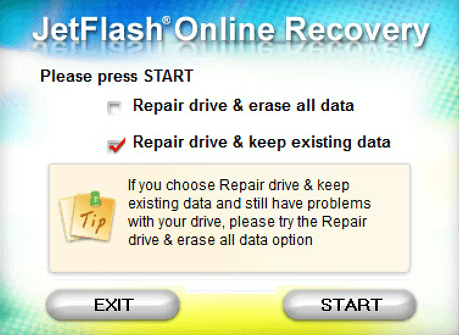
Step 4: Wait patiently until the repairing process completes. Click “Exit” to finish the process and unplug the device.
Now, re-Once you've plugged your Transcend USB flash drive back to the computer, Windows will immediately detect your drive once it's connected.
- Tip
- If Transcend USB repair tool - If JetFlash OnLine Recovery fails to repair the not working USB, you can refer to the troubleshooting guide on USB not showing up for more detailed assistance.
If your documents, music, pictures, or applications on the drive have been removed by JetFlash Online Recovery, the next part features reliable file recovery software from Qiling, which can fully restore lost files on a USB drive.
Part 2. Recover Transcend USB Lost Files with Qiling File Recovery Software
To avoid file loss, it's essential to back up your data before attempting to fix the issue with your Transcend USB flash drive or pen drive, which may not be detected or working properly, and using JetFlash Online Recovery to repair it.
If you can't access your undetectable USB to back up files. First, check Part 1 for a detailed guide to fix the USB. Then, use reliable data recovery software to help you recover your files.
Deep Data Recovery is a tool that can recover data from various storage devices, including Transcend memory cards, USB flash drives, and pen drives, that have been formatted, deleted, or infected with a virus, all within just 3 easy steps.
Guide: Recover Transcend flash drive data with Deep Data Recovery
Step 1. Choose file types and click "USB/SD Scan" to start
Connect a USB drive or pen drive to your computer and launch Qiling USB data recovery software on your PC. Then, choose the file types you want to recover and click "USB/SD Scan" to begin the recovery process.

Note: You can choose different search modes based on where and why the data was lost.
Step 2. Run USB Data Recovery Software
To recover lost files, select the drive labeled as an External drive, and click "Scan" to begin the search.

Step 3. Scan and Search Lost Files on a USB Drive
Deep Data Recovery thoroughly scans a USB flash drive/pen drive to find lost data, and then allows users to filter and find specific files using the Filter feature.

Step 4. Restore All Lost Files from USB
A double-click will allow you to preview the files. Select the target files to restore and click "Recover" to save them to a secure location on your PC or other external storage devices.
Check Video tutorial to fix USB not detected:
Here are some practical tips to protect files and data on your Transcend USB flash drive or pen drive:
1. Back up valuable files regularly
To ensure you can recover your data in case of issues, we recommend backing up your files to another external hard drive or USB using reliable file backup software. This way, you can survive data loss or if your Transcend USB pen drive becomes undetectable or stops working.
Qiling Backup's File Backup feature allows you to back up desired files in just three steps, saving time and storage space on the target device.
Step 1. Select the "Disk backup" button to initiate the backup process.

Step 2. Back up a whole disk or a certain partition. Choose the one you need.

Step 3. Select the destination where you want to save the backup.

Step 4. You can save the disk/partition backup to either a local drive or a Network-Attached Storage (NAS) device.

Step 5. After the backup process is completed, your task will be displayed at the left. You can further manage your backup by right-clicking on it, allowing you to recover it, create incremental backups, and more.

2. Check and repair existing error regularly
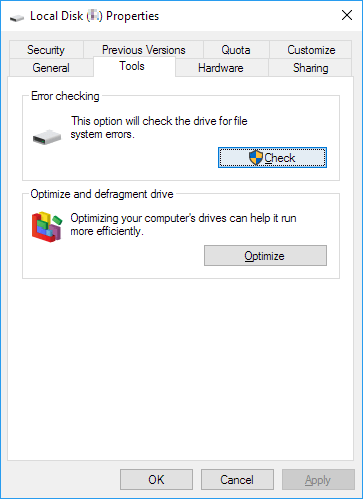
To ensure your USB pen drive remains functional, it's essential to regularly run the Disk Error Checking tool to detect and repair any internal file system errors or unknown issues that may be preventing you from using it. This simple step can help prevent data loss and ensure your pen drive continues to work properly.
Step 1:To connect a USB to a PC, one should first plug the USB into the computer. Then, they should open File Explorer on the PC.
Step 2: Click on "Properties", go to the Tools tab.
Step 3: Click on the Check button under the Error checking section.
- The software will scan the drive and repair any errors it finds, restoring it to a healthy state.
-
3. Clean up virus with antivirus software
Viruses can also cause storage devices to malfunction, so using antivirus software to remove malware is crucial.
Related Articles
- $RECYCLE.BIN Folder | All You Want to Know About $RECYCLE.BIN Folder Is Here
- How to Use Deep Data Recovery
- Fixed: Samsung SSD Not Showing Up in BIOS
- No Bootable Device Error - What Does It Mean, What Cause the Error, How to Fix
- Your Complete Guide: How to Recover Unsaved Keynote Files on Mac
If you've lost an unsaved Keynote file on your Mac. This guide offers a complete solution to recover your unsaved Keynote file using Qiling file recovery software for Mac, as well as three reliable manual methods. - Recover Old or Deleted WeChat History (4 Ways)
You can recover old or deleted WeChat history on both iPhone and Android devices, including chat conversations, voice messages, photos, pictures, and video clips, with or without a backup. Follow this guide for a successful WeChat data recovery.
Products
Articles & Tutorials
- Data Recovery
- Data Backup
- File Recovery
- File Backup
- System Backup and Restore
- Disk and Partition Clone
- Technical articles
- Mobile articles
- Disk Master Help
- Windows Data Recovery Tutorials
- Windows Secure Delete Tutorials
- Windows Partition Management Tutorials
- Windows File Backup and Restore Tutorials
- Windows System Backup and Restore Tutorials
- Windows Disk Backup and Restore Tutorials
- Windows Clone Tutorials