Recover Deleted WhatsApp Photos and Videos on iPhone/iPad/iPod
Summary
If you've accidentally deleted WhatsApp photos and videos on your iPhone, iPad, or iPod touch, don't panic. There are effective methods available to help you recover the deleted content from your iOS device with ease.
Question: How to recover deleted WhatsApp pictures or videos on iOS devices?
Unfortunately, WhatsApp doesn't store photos on your iPhone. However, you can try checking your iPhone's Photos app, which might have the deleted photos. If not, you can try using a third-party app like Disk Drill or PhoneRescue to scan your iPhone for deleted files, including WhatsApp photos. Be cautious when using third-party apps and always read reviews before downloading.
To restore deleted WhatsApp photos and videos on iOS devices, you can try using the 'Recently Deleted' album in the Photos app. Go to the Photos app, tap 'Albums', then 'Recently Deleted'. If the deleted photos and videos are there, you can recover them by tapping 'Edit', selecting the photos and videos you want to recover, and then tapping 'Recover'. If the photos and videos are not in the 'Recently Deleted' album, you can also try using third-party recovery software, such as Deep Data Recovery or PhoneRescue, to scan your device and recover the deleted data.
If you're experiencing issues with restoring accidentally deleted WhatsApp messages, photos, or videos on your iOS device, there are effective methods to recover them. You can find detailed solutions in this article to restore deleted or lost WhatsApp photos and videos on iPhone, iPad, or iPod touch with ease.
To restore deleted or lost WhatsApp photos and videos, you can use iTunes or iCloud backups. If you have previously backed up your iPhone data to iTunes or iCloud, you can restore the deleted WhatsApp content from these backups. This method is useful if you have a backup of your iPhone data that includes WhatsApp photos and videos.
To restore deleted/lost WhatsApp photos and videos from iOS devices, you can use the built-in "Recently Deleted" album in the Photos app. Go to the Photos app, tap on "Albums" and then select "Recently Deleted". From there, you can tap on the photo or video you want to recover and select "Restore" to retrieve it.
Note: If you have synced or backed up WhatsApp photos and videos into iTunes or iCloud backup, you can directly restore deleted or lost WhatsApp photos and videos from these backups.
If you don't have a backup for the lost WhatsApp data, you can recover lost WhatsApp photos and videos from iOS devices using the built-in feature called iCloud Backup. This method allows you to restore the lost data from an existing iCloud backup.
To restore lost WhatsApp data on an iOS device, follow these steps:
Method 1. Restore deleted or lost WhatsApp photos and videos from iTunes/iCloud backups
If you have created backups for WhatsApp photos and videos into iTunes backup, you may follow below guide to restore them:
1. Extract WhatsApp photos and videos from iTunes backups to iOS device
Open iTunes on your PC or Mac, the device you used to back up your iPhone, iPad, or iPod.
Connect iOS device to the computer with a USB cable.
To proceed, enter your device pass-code or trust "This Computer" on the screen.
Select your iOS device, such as an iPhone, iPad, or iPod touch, when it appears in iTunes.
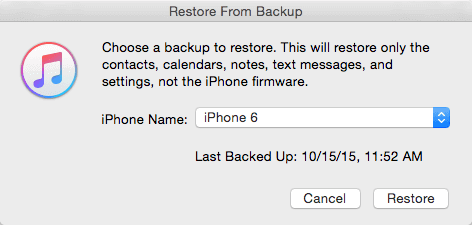
In iTunes, select "Restore Backup" and review the dates and sizes of each backup to choose the most relevant one.
Click Restore and wait for the restore to be finished.
2. Extract WhatsApp photos and videos from iCloud backups to iOS device
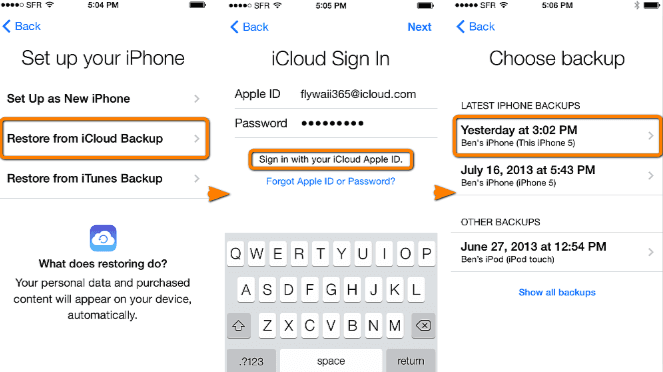
- Turn on your iOS device.
- In the Setup Assistant, go to "Set up your device", tap "Restore from a Backup", and sign in to iCloud.
- To recover lost WhatsApp photos and videos, go to "Settings" and then "General" and select "Reset" and then "Erase All Content and Settings". After that, proceed to "Settings" and then "iCloud" and sign in with your Apple ID.
3. Restore WhatsApp photos and videos backup from iTunes/iCloud to iOS device
If you're not familiar with iTunes or iCloud backup recovery on iOS devices, you can use professional iOS data recovery software like Qiling MobiSaver to recover lost data on iPhone, iPad, or iPod touch with just 3 simple clicks.
Step 1. Run Qiling MobiSaver
To recover data from an iPhone or iPad using Qiling MobiSaver, first download the software, then connect your device to your computer and start Qiling MobiSaver. Next, select "Recover from iTunes Backup" and choose an iTunes backup to recover data from.
Step 2. Unlock iTunes
If the iTunes backup is encrypted, you'll need to enter the password to unlock it. Once unlocked, click "Continue" and Qiling MobiSaver will automatically scan the backup file to find the lost data.
Step 3. Preview and Recover Data from iTunes
After scanning, preview the detailed contents of your lost photos/videos, contacts/messages, notes, and SNS data. Choose the file you want to recover and click the "Recover" button to save it on your computer.
Method 2. Restore deleted/lost WhatsApp photos and videos from iOS devices
If you've deleted or lost WhatsApp photos and videos, you may still be able to recover them. Professional iOS recovery software, such as Qiling MobiSaver, can help you retrieve deleted or lost contacts, WhatsApp messages, photos, and videos, or other important data on your iPhone, iPad, or iPod, all within just 3 simple clicks.
To restore deleted or lost WhatsApp photos and videos from an iOS device, follow these guidelines. First, check if the photos and videos are backed up to iCloud Photo Library.
Step 1. Connect iPhone to PC
Launch Qiling MobiSaver, choose the "WhatsApp" button, and select "Device Storage" to recover deleted WhatsApp messages from your device's storage.
Step 2. Make Sure Your Device Is Connected
If WhatsApp isn't installed on your iPhone, Qiling MobiSaver won't be able to find your data.
Step 3. Scan iPhone and Find Important Data
Qiling Mobisaver automatically scans your iPhone 13/12/11/X/XR/XS/8/7/6/5/4 to find lost WhatsApp chats, history, photos, videos, and other files, a process that may take a few minutes.
Step 4. Preview and Restore WhatsApp Data
To recover missing WhatsApp data, tap the "WhatsApp" button on the left and the missing data will be displayed. Preview and select the data you want to recover, then click "Recover to PC" or "Recover to Device" to get it back.
Related Articles
- Free iPod Music Recovery
- Factory Reset iPhone 7/7 Plus/8/8 Plus/X without Losing Data. No Password Is Needed!
- How to Delete Hidden Apps on iPhone in 4 Ways
- iPhone Photo Vault Recovery (99% Users Rated Useful)
- How to Recover Hidden Files and Folders by Virus
To recover files hidden by a virus, start by cleaning the drive using the Command Prompt (CMD) to remove any malicious programs and create a clean slate. Then, use a reliable data recovery tool to scan the drive and recover any previously hidden files. - How to Recover JPEG from SD Card
You can easily recover JPEG files from an SD card, regardless of the situation - whether they were deleted, the memory card was formatted, or it became corrupt. Follow the SD card JPEG recovery process to retrieve your lost files.
Products
Articles & Tutorials
- Data Recovery
- Data Backup
- File Recovery
- File Backup
- System Backup and Restore
- Disk and Partition Clone
- Technical articles
- Mobile articles
- Disk Master Help
- Windows Data Recovery Tutorials
- Windows Secure Delete Tutorials
- Windows Partition Management Tutorials
- Windows File Backup and Restore Tutorials
- Windows System Backup and Restore Tutorials
- Windows Disk Backup and Restore Tutorials
- Windows Clone Tutorials