How to Delete Hidden Apps on iPhone in 4 Ways
Summary
You can delete hidden apps on your iPhone by following different methods, including removing hidden purchased apps. This tutorial applies to various iPhone models, such as iPhone 13, iPhone SE, iPhone 12, and iPhone 11. Additionally, if you've accidentally deleted photos, messages, or videos, you can use Qiling iOS data recovery software to restore them.
| Workable Solutions | Step-by-step Troubleshooting |
|---|---|
| How to Delete Hidden Apps on iPhone in 4 Ways | Fix 1. Delete hidden apps from the Settings...Full steps Fix 2. Remove apps from the App Library...Full steps Fix 3. Delete hidden apps from Spotlight...Full steps Fix 4. Remove purchased apps from App Store...Full steps |
| To recover deleted data on an iPhone or iPad, start by checking the Recently Deleted album in the Photos app, where you can recover photos and videos for up to 30 days. If you're looking for app data, try reinstalling the app, and it will often restore your data. | You can recover app data or deleted files on your iPhone with Qiling iOS data recovery software in a few clicks. Connect iPhone to your PC and start Qiling MobiSaver. Choose to restore from iOS, scan the iPhone...Full steps |
What Are the Hidden Apps on iPhone
If you have a hidden app on your iPhone that you haven't used for a long time and can't find it anywhere, this article will guide you on how to find and delete it.
On April 29, 2009, Apple released iOS 14, introducing the app folder feature. This feature allows users to store and organize their apps in a safe and clean space, keeping their home screen tidy and easy to navigate. With small iPhone screens, having too many apps on one page can be visually overwhelming and make it difficult to find a specific app. The app folder feature provides a solution by enabling users to hide and store apps, keeping their home screen organized and clutter-free.
Why Delete Hidden Apps on iPhone
The first step to delete any hidden apps is to locate them within the App library, where they are temporarily stored.
Deleting unused apps on iOS devices can free up local space and avoid unnecessary updates, but finding and deleting hidden apps can be more challenging compared to Android, as they are not visible on the home screen and must be located in the app folder.
To delete hidden apps on your iPhone 13/SE/12/11, you can try one of four methods. First, go to Settings > General > iPhone Storage and look for the hidden app, then tap on it to delete.
Fix 1. Delete Hidden Apps from iPhone from the Settings
iOS settings can be a bit more complicated compared to Android, taking a few minutes to understand how things work.
To delete the hidden apps from there, follow the steps mentioned below.
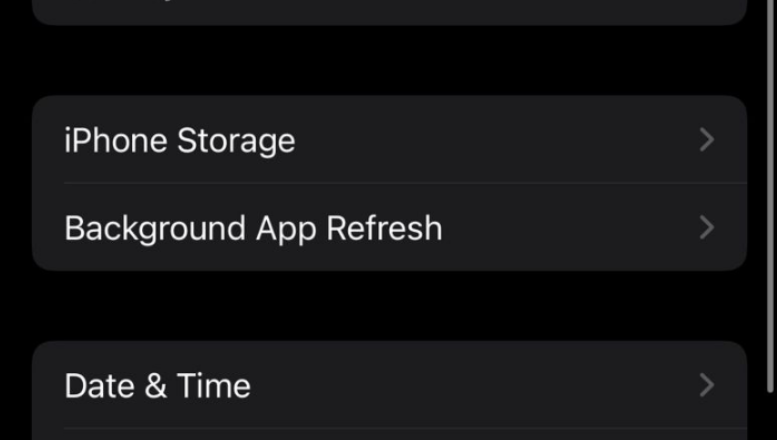
Step 1. To delete hidden apps on iPhone, go to "Settings" and click on "General", then search for "iPhone storage" and wait for the list of all hidden apps to display. Select the unwanted apps and tap on them to delete them.
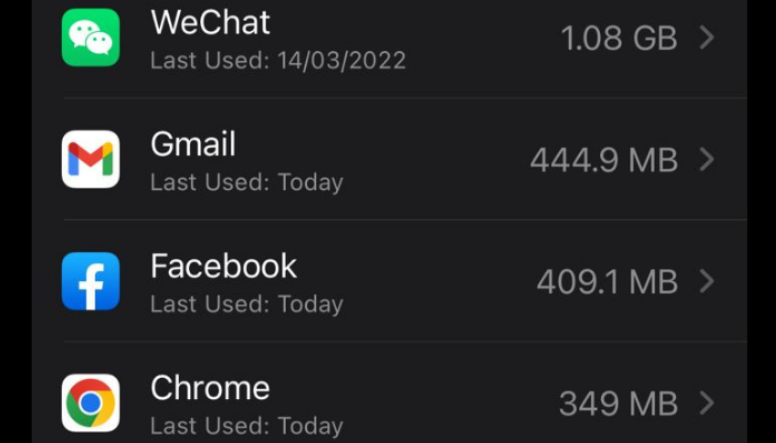
You will be taken to the next screen, which displays all the relevant details of the app from storage, data, app size, etc. from the device's storage.
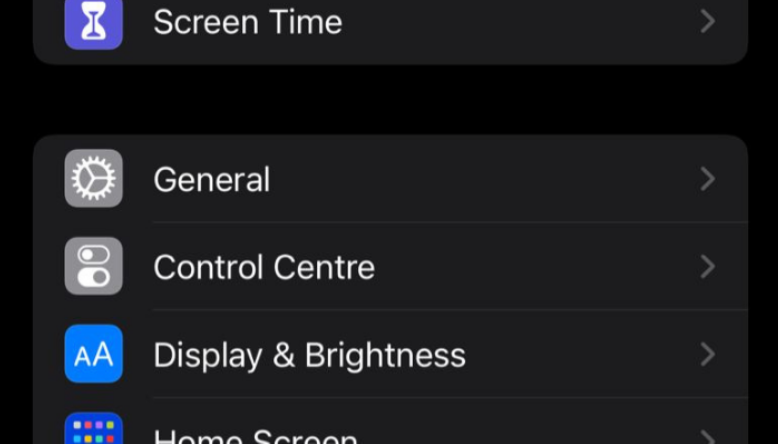
Step 2. To free up space on your iPhone, search for "iPhone storage" in the Settings app, and then wait a few minutes for the app to display all your hidden apps. Next, choose the apps you want to delete and tap on them.
The app details will be displayed on the next screen, including storage, data, and app size information.
Step 3. Find and click on the "delete app" option. This will erase all associated data and cannot be undone.
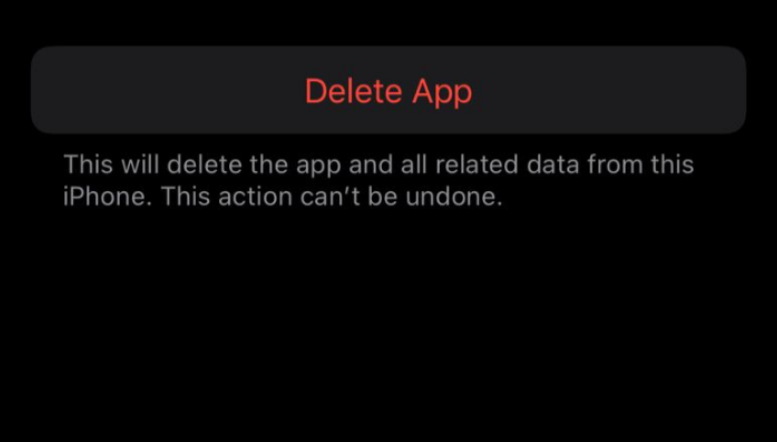
Upon deletion, the app will be automatically removed from your app library, folder, or home screen.
Fix 2. Delete Hidden Appson iPhone from the App Library
The app library is where all hidden iOS apps are stored, keeping them secure and out of sight on the home screen.
If you can't find an app on your home screen, it's likely hidden in the app library, where you'll need to browse through categories to find the app you're looking for.
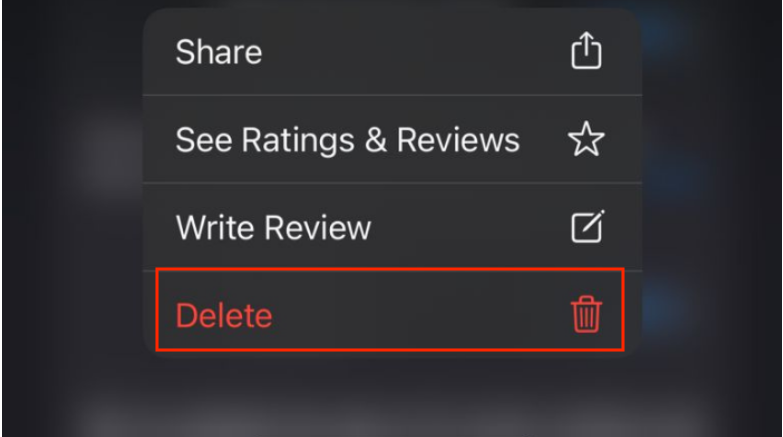
To delete hidden apps from your app library, follow these steps: go to your app library, tap and hold on the hidden app you want to delete, then tap the "Delete App" option that appears. Alternatively, you can also swipe left on the hidden app and tap the "Delete" button that appears.
Step 1. To access the App Library, swipe left on your home screen until you see a blank home screen with no apps, and there you'll find a bar labeled "App Library".
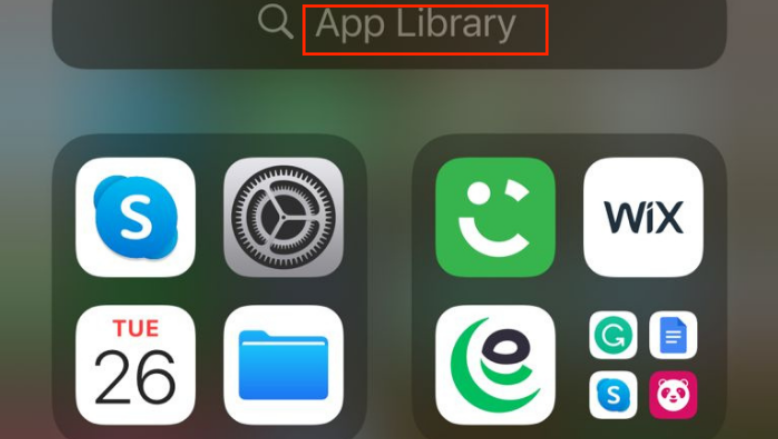
Step 2. To delete a hidden app, tap on the search bar at the top of the screen. This will open the app drawer, where you can search for the app you want to delete.
Step 3. To delete an app, find the app you want to delete, click on it, and you will see the delete option. Alternatively, you can long-press on the app and the delete option will be shown.
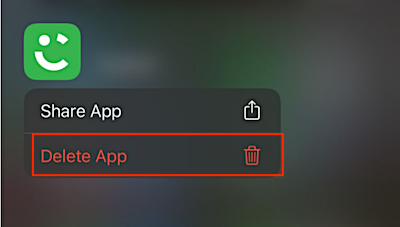
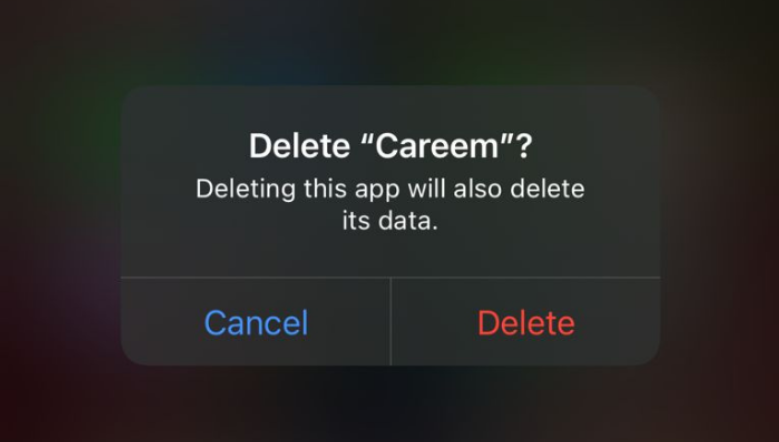
Step 4. Delete the app from your phone by clicking "Delete" and confirming the action, effectively removing it from your device.
Fix 3. Delete Invisible Apps Using Spotlight
As an iPhone user, you're likely familiar with the Spotlight feature, which not only helps you manage your apps, files, and emails but also keeps your phone clean and free from unwanted third-party apps.
However, deleting hidden apps using Spotlight is easier than other methods, which can be achieved by searching for the app in Spotlight, selecting it, and then clicking the "X" button to delete it. This method allows for a quick and efficient removal of unwanted apps without having to navigate through the App Library or other menus.
Step 1. To access the search bar, open your home screen and swipe down. This will bring up a search bar at the top of the screen.
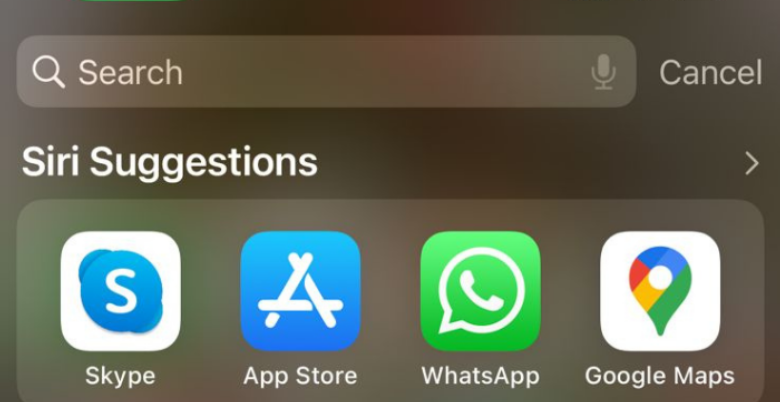
Step 2. To delete an app, enter the name of the app you want to delete and click on the icon for Spotlight. Tap on the delete option to remove the app.
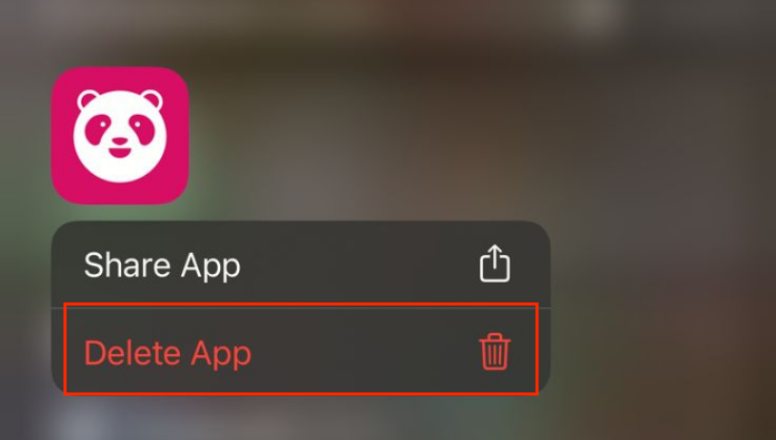
Once you click on the "delete" button, a new popup appears asking for confirmation to delete the app. If you confirm, the app will be deleted immediately.

Fix 4. Delete Purchased Apps on iPhone from App Store
To delete purchased apps on iPhone, go to the App Store, tap your profile icon at the top right, select "Purchased" from the menu, and then tap "Not on this iPhone/iPad" to view apps you've purchased but are not currently installed. From there, tap the "Delete" button next to the app you want to remove.
The method only works for apps with a pending update or recent update history, as the iPhone app store only saves apps with new updates available. This means the purchased apps you want to delete must have a pending update or recently updated pending history.
To delete hidden apps from the App Store, go to the "Updates" tab, then tap on "Purchased" and select the hidden app you want to delete. Tap on the app icon, then tap on "Delete" to remove it from your device.
Step 1. To update apps on your device, go to the settings app, then open the app store, and tap on your profile picture in the top right corner of the screen, which will take you to a list of all the apps that are ready to be updated.
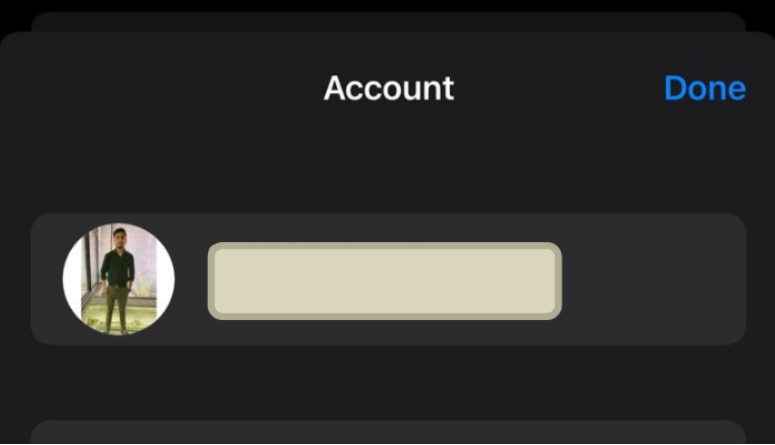
Step 2. You can update each app by clicking the "update" option, and delete an app by swiping left, long pressing, and then selecting "delete".
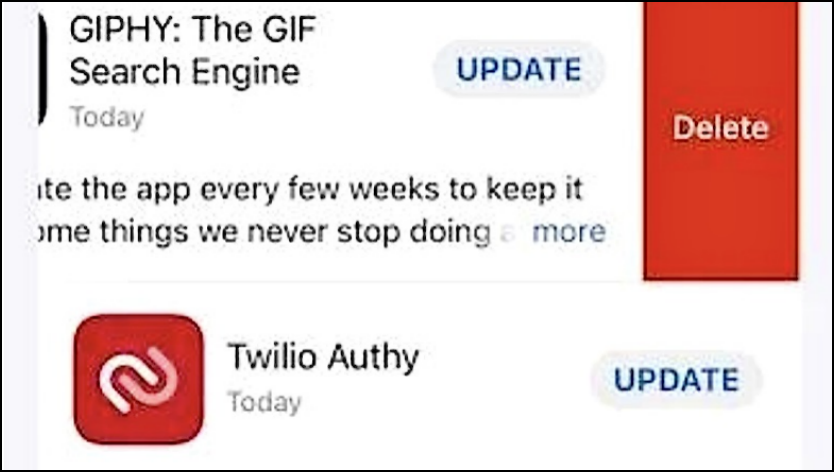
Step 3. The system will again ask you to confirm your action, as deleting the app will also delete all the related data present on the phone. Deleting the app will also delete all the related data present on the phone.
How to RecoverData on iPhone with iOS Data Recovery Software
If you're struggling to recover deleted data from your iPhone, Qiling MobiSaver can help. It's a tool designed to retrieve lost data from your iPhone, even if it's not backed up on the phone.
Qiling MobiSaver offers professional data recovery for iPhone directly from iOS devices, iTunes, and Cloud backups. It works seamlessly with the latest iOS devices to recover deleted photos, videos, contacts, chat histories, messages, and more from nearly every iOS device.
Qiling MobiSaver provides reliable assistance in recovering unlimited iOS data, making it a go-to solution for users who have lost access to their important files and information, regardless of whether it's been a few months or several years since the data was last accessed.
Step 1. Connect iPhone to Your PC
Launch Qiling MobiSaver, click "Recover from iOS device" on the left, and click "Start".
Step 2. Scan for Lost iPhone Data
Qiling MobiSaver automatically scans iPhone/iPad/iPod, finding both current and potentially recovered data, and completes the scan once finished.
Step 3. Click the "Recover" Button
You can select the lost data you want to recover, such as photos, videos, contacts, SMS, notes, voice mails, and other files, and save them to a different location.
Conclusion
Our guide shows you how to easily delete hidden apps in the app folder in 4 different ways, saving you hours of searching online. While the app folder feature is great for organizing apps, it can make deleting unnecessary ones complicated, but the solutions above provide a simple fix.
Qiling MobiSaver is an iPhone data recovery software that can help you recover deleted data in just 3 simple steps, making it a click away for you to find all accidentally deleted, lost, attacked, damaged, or other deleted data in a matter of minutes.
Related Articles
- [Real Fixes] Photos Disappeared from iPhone After Update
- VSCO Recovery | How to Retrieve VSCO Deleted Photos
- Recover Permanently Deleted Photos from iCloud
- How to Have Two Kik Accounts on One Phone
- Free Toshiba HDD Recovery: Perform Toshiba Hard Drive Recovery for Free
Download free Toshiba hard drive recovery software, scan the drive to recover deleted, formatted, inaccessible data, and retrieve with simple clicks. - Battle of Hard Drives: Fusion Drive vs. SSD vs. HDD. Which Is Better?
Fusion Drive, SSD, and HDD can be compared based on price, speed, performance, and potential risks. This comparison can help you choose the right hard drive for your Apple computer, Windows PC, or laptop.
Products
Articles & Tutorials
- Data Recovery
- Data Backup
- File Recovery
- File Backup
- System Backup and Restore
- Disk and Partition Clone
- Technical articles
- Mobile articles
- Disk Master Help
- Windows Data Recovery Tutorials
- Windows Secure Delete Tutorials
- Windows Partition Management Tutorials
- Windows File Backup and Restore Tutorials
- Windows System Backup and Restore Tutorials
- Windows Disk Backup and Restore Tutorials
- Windows Clone Tutorials