Recover Permanently Deleted Photos from iCloud
Summary
If you're looking to recover deleted photos from iCloud, there are four efficient ways to do so. Firstly, you can check your Recently Deleted album in iCloud.com or the Photos app on your device. If the photos are still there, you can recover them.
| Workable Solutions | Step-by-step Troubleshooting |
|---|---|
| Common Reasons for Photos Loss From iCloud | Deleting all of one's photographs or data, intentionally or by mistake. The phone suffers some damage or malfunction...Full steps |
| Fixes to Recover Permanently Deleted Photos | It is time to examine several of the most practical and effective methods for retrieving permanently lost images from iCloud...Full steps |
| Recover Photos Using Qiling MobiSaver | Using Qiling MobiSaver, you'll be able to retrieve all of your important data, including photographs, videos, contacts, messages, and notes...Full steps |
You can usually recover deleted photos from the Recently Erased folder on your iPhone, or restore them from a previous backup. If you don't have a backup, a third-party iPhone recovery app may be able to help you recover the deleted images.
You can recover deleted photos from your phone using four workable solutions, which involve recovering them from iCloud. To do this, you can read about it in complete detail to learn how to recover deleted photos from iCloud.
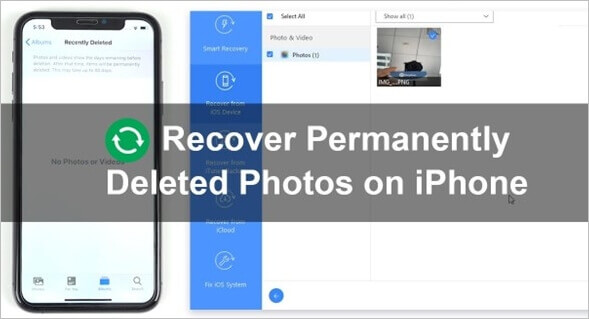
Common Reasons That Lead to Photos Loss from iCloud
Photo loss from iCloud backup or account can occur when deleting data from your phone to free up storage. This can happen due to various reasons, including accidental deletion, corrupted files, or changes made to your iCloud settings. Additionally, if you've enabled features like "Optimize Storage" or "High Efficiency" on your iPhone, it may compress your photos and videos, leading to potential losses.
Deleting all of one's photographs or data, intentionally or by mistake, and often resulting in a loss of memories or important information.
The phone suffers some damage or malfunction.
The data are rendered unreadable if the phone is used improperly.
After installation, some applications may clash with each other, leading to lost data.
As a result of formatting or when the device was being reset.
Malware attack with malicious intent.
Quick Fixes to Recover Permanently Deleted Photos From iCloud
Here are the most practical methods for retrieving permanently lost images from iCloud:
Method 1. Retrieve deleted photos from iCloud from the recently deleted folder
You may discover images that you thought were permanently deleted in your iCloud or iPhone's Recently Deleted folder by accident. If they are, you can easily retrieve them.
Step 1. Take a look at your iPhone's Photos app.
Step 2. It's on the bottom bar, under "Albums."
Step 3.The album you're looking for can be found in the Recently Deleted section under Other Albums.
Step 4. "Recover" the photographs you want to recover by selecting the ones you wish to save.
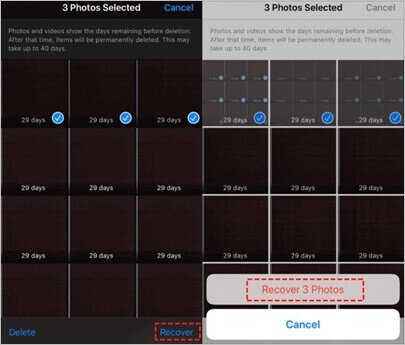
Important to note: You can remove images from the "Recently Deleted" album on your iPhone to free up space, and if you don't retrieve them within 30 days, they will be permanently deleted.
If you've backed up your photos and videos, you can recover the ones you accidentally deleted from iCloud or an iTunes backup. This way, you can restore the recently erased ones.
Method 2. Recover deleted iCloud photos from the iCloud backup
Even if a picture isn't shown in the "Recently Deleted" section of Photos, it may still be restored using iCloud, allowing images from an iPhone to be retrieved even if the device wasn't backed up to a computer first.
Take the following actions to do so:
Step 1. Visit the website at https://www.icloud.com to access Apple's cloud services, which are free of charge.
Step 2. Please enter your login name and password to log in.
Step 3. After signing in, go to the "Photos" section of the website.

Step 4. Go to the album labeled "Recently Deleted." We now have a list of the photographs prepared to be removed from our system within the next forty days.
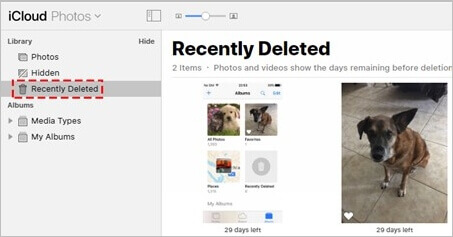
Step 5.When choosing the photograph you want to recover, click the "Recover" button. The selected photo will then be restored and included in one of your picture albums again.
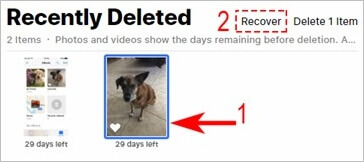
Note:When the iPhone syncs with iCloud, it will also be restored on the device itself.
Method 3. Restore permanently deleted photos from the iCloud backup
One of the most effective methods for restoring photographs from iCloud storage is also used for this purpose.
Important: If you've deleted photos and selected the option to save them in iCloud backups, you can find them in Settings > [Your Name] > iCloud > Photos.
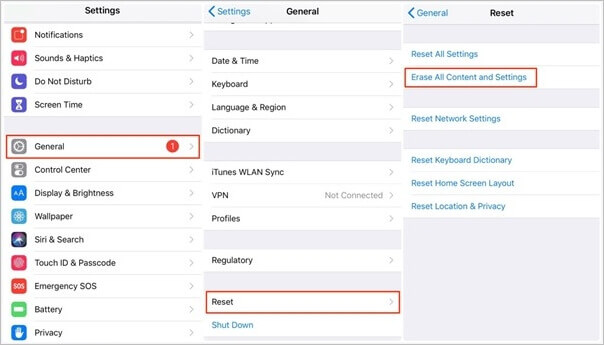
Step 1.To start the process, navigate to Settings, then select iCloud, followed by Reset, and finally Erase All Content and Settings.
Step 2.To set up your device, power it on and follow the on-screen prompts to reach the Apps & Data Screen.
Step 3.To restore an iCloud backup, tap the "iCloud Backup" option, then select the backup that corresponds to the desired restore time by tapping the "Restore" button.
Note:If you've previously used iCloud to back up your images, you can recover photos from your iCloud Photo Stream.
Recover Deleted Photos From iCloud Using Qiling MobiSaver
If you can't afford to lose your vital information permanently, it's crucial to have a recovery strategy in place to prevent permanently losing your data. This can be achieved by installing a good iOS data recovery solution on a computer, which can help retrieve your data in the event of a loss.
Qiling MobiSaver is a secure and effective iPhone data recovery software that can recover data from an iPhone/iPad even if it's not backed up, including images and videos. This professional data recovery program allows for selective restoration of photos to the iPhone, rather than a complete restore using iTunes or iCloud, and can recover lost data without a backup.
Main Features of Qiling MobiSaver:
- Professional Windows and Mac iPhone data recovery software.
- This software allows data recovery from iOS devices, iTunes, and iCloud backups.
- Popular messaging apps such as Kik allow users to take and share various types of media, including photographs, audio clips, and video clips. Additionally, some apps like WhatsApp enable users to recover previously sent data.
- A total of five iOS devices may be used.
- This allows for the most recent version of iOS 15 and the newest generation of iPhones 13 and 13 Pro.
Here, we will give the full steps to use Qiling MobiSaver to recover deleted photos from iCloud.
Step 1. Choose "Recover from iCloud"
Connect your iPhone to your PC, launch Qiling MobiSaver, choose "Recover from iCloud", and click "Start".
Step 2. Turn Off "Find My iPhone"
Turn off "Find My iPhone" on your iPhone/iPad/iPod to continue.
Step 3. Type Code in the Confirmation Box
To confirm, you need to type "123456" in the confirmation box and then click the "Continue" button.
Note: This step will completely erase all data and reset all settings, so ensure you have backed up any important information beforehand.
Step 4. Reset iPhone
To reset your iPhone, move through the setup process until you reach the reset screen, then choose "Restore from iCloud Backup". Enter the Apple ID and password for the account you want to restore the backup from, and click "Next" on your PC.
Step 5. Select the Files
To recover data, select the type of data you want to recover, and if all files need to be restored, click the "Select All" button below.
Step 6. Analyze the iPhone
The software will analyze your phone, which may take a few minutes. Please refrain from disconnecting or using your device during this time.
Step 7. Scan Lost Data and Recover
Qiling MobiSaver will automatically scan your iCloud backup file to find lost data, a process that may take a few minutes. Once complete, select the desired data and click "Recover" to restore it.
Summary
Regularly backing up your iPhone data is essential to prevent loss. If you haven't already, consider using Qiling MobiSaver, a user-friendly tool that doesn't require any special skills to operate, regardless of the phone used to take the images.
With Qiling MobiSaver, you can recover all your essential data, such as photos, videos, contacts, messages, and notes, in just a few steps.
Recover Permanently Deleted Photos From iCloud FAQs
Can you recover iPhone photos after 30 days?
If you're an iPhone user, you can recover photos even after 30 days by accessing your iCloud account at iCloud.com, signing in, tapping the Photos button, selecting Library, and navigating to the Recently Deleted Album to choose the pictures you'd like to restore.
Can I recover permanently deleted photos from my iPhone?
If you have your iPhone, open the Photos app, go to Albums, select Recently Deleted, choose Select, and then select all the photos. Tap Recover to restore them to their original location. Your pictures will be back. To recover a specific photo, select it and tap Recover. That's it!
Can I recover permanently deleted photos from my iPhone without backup?
If you've permanently deleted photos or other data from your iPhone without a backup, the best option to recover them is to use a third-party iOS data recovery software like Qiling MobiSaver, which can help you retrieve everything you've lost.
How to recover permanently deleted photos from iTunes?
Unfortunately, it's not possible to recover permanently deleted photos from iTunes. Once you delete a photo, it's gone forever. However, you can try recovering deleted photos from your iPhone or iPad by using the "Recently Deleted" album in the Photos app.
Step 1. Connect your iPhone to your computer.
Step 2. To access the gadget, click on its logo.
Step 3. Choose "Summary" from the menu on the left.
Step 4. Choose the "Recovery" option from the menu.
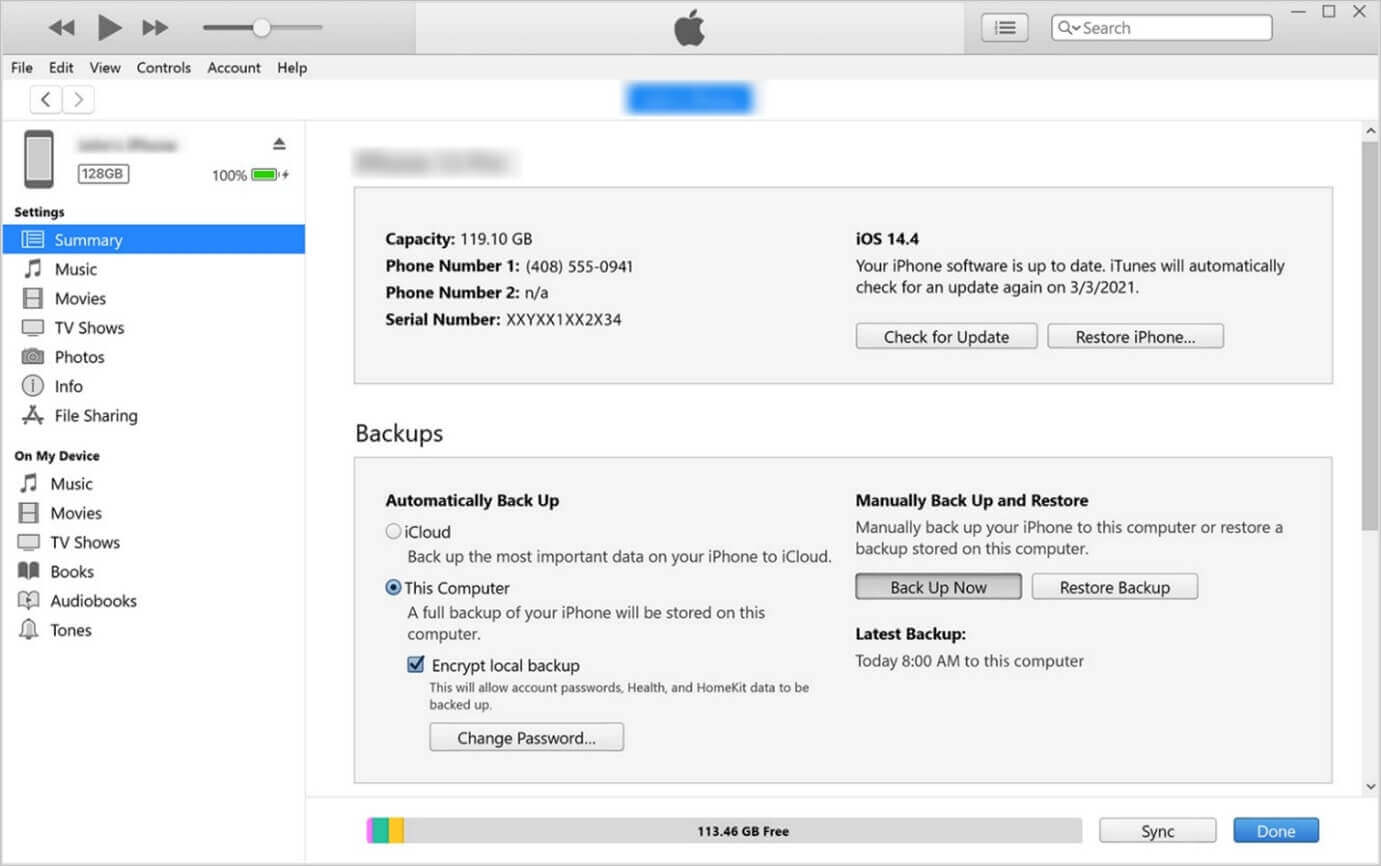
Step 5.At this point, iTunes will provide you with a pop-up window from which you may choose a backup version.
Note: The process of repairing will start right away.
Related Articles
- Clear Data on iPhone 13/12/11 Without Deleting App
- How to View and Retrieve Call History from iCloud [iOS 15 Available]
- How to Unlock A Disabled iPhone Without iTunes
- [Fixed] iCloud Backup Failed, There Was a Problem Enabling iCloud Backup
- How to Recover Lost Genshin Impact Data and Account in 2023
If you've lost Genshin Impact data and account, you can restore them using Qiling game data recovery software. This software allows you to recover lost game saves and account information with just a few clicks. - How to Recover Hogwarts Legacy Lost Progress on PC/Steam/Xbox
If you've lost progress in Hogwarts Legacy on your PC, Steam, or Xbox, there are practical solutions to recover it.
Products
Articles & Tutorials
- Data Recovery
- Data Backup
- File Recovery
- File Backup
- System Backup and Restore
- Disk and Partition Clone
- Technical articles
- Mobile articles
- Disk Master Help
- Windows Data Recovery Tutorials
- Windows Secure Delete Tutorials
- Windows Partition Management Tutorials
- Windows File Backup and Restore Tutorials
- Windows System Backup and Restore Tutorials
- Windows Disk Backup and Restore Tutorials
- Windows Clone Tutorials