Clear Data on iPhone 13/12/11 Without Deleting App
Summary
If you're running out of space on your iPhone, you can free up space by deleting unnecessary data. To do this, go to Settings > [your name] > Storage & iCloud Usage > Manage Storage. This will show you a breakdown of the data taking up space on your device, including photos, videos, messages, and apps.
Running out of storage space on your iPhone can be frustrating, especially when trying to expand your media library or download apps, making it difficult to free up space and keep your device running smoothly.
Lack of storage capacity can slow down your smartphone, including your iPhone, and affect your overall experience. To improve the speed of your iPhone, you need to free up space, which can be achieved by clearing data on your iOS device. Learning how to clear data on your iPhone can help you resolve this issue and enjoy a faster and more enjoyable experience with your gadget.
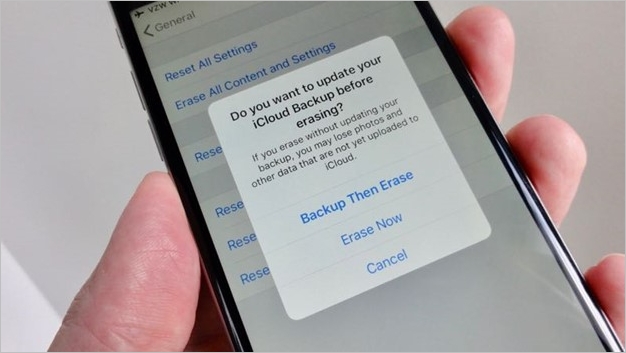
What Is System Data on iPhone
Apple states that the storage category includes items such as offline translation languages, fonts, dictionaries, Siri voices, logs, cache, local keychain data, CloudKit Database, and other non-removable items.
The collection of data on your iOS device is a wide-ranging compilation used for various purposes.
The term "System" refers to permanent and temporary files on an iPhone, including backups, cached information, and logs, which are essential for the device to function properly.
To see how much space is being used by the System App on your iPhone, navigate to Settings > General > iPhone Storage, then scroll down to the System option.
How to Clear Data on iPhone13/12/11
By deleting unused app data, you can free up storage space on your iPhone. This includes clearing caches from Safari, other apps, and extensive message histories, as well as message attachments and other data.
Method 1. Clear App Cache
The app preserves data you've previewed, allowing you to revisit the page in the future, a common feature of iPhone apps. To clear app cache on an iPhone, follow these instructions.
Step 1.Go to the Settings menu of your mobile device.
Step 2.On the Settings screen, look for General.
Step 3. The iPhone's internal storage location can be found by going to Settings > General > iPhone Storage, where a list of apps and their storage usage is displayed, with the largest apps at the top and the smallest at the bottom.
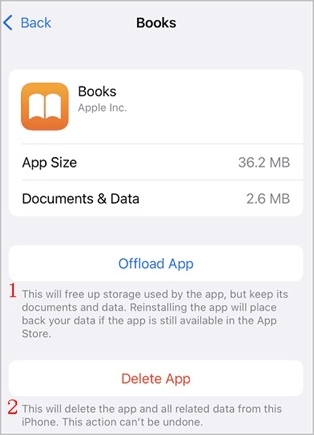
Step 4. When you click on an app to remove its cache, you'll see "Offload App" and "Delete App" options.
Delete App DataYou can delete an app from your iPhone by tapping and holding on the app icon until it starts to jiggle, then tapping the "x" in the corner of the app icon. This will remove the app from your iPhone and any associated data.
Offload App DataThe app will free up storage space, but your data will be saved and can be recovered by reinstalling the software.
Method 2. Clear Browsing History and Website Data
You can clear your browsing history and website data in two ways, aside from deleting data on Safari. First, you can clear your browsing history and website data by going through your browser's settings or options, where you can select the type of data you want to clear.
Sub-Method 1. Clear Data on Firefox
Step 1To access the menu in Firefox on your iPhone, tap the three horizontal lines icon located in the bottom right corner of the screen.
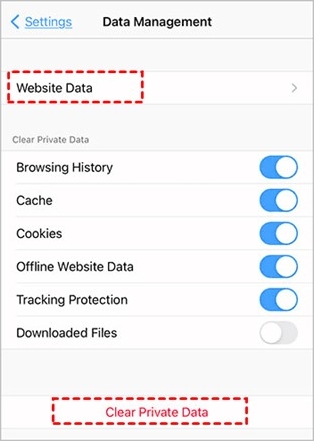
Step 2To access the settings, click on the settings icon at the bottom of the menu. The next option is Data Management.
Step 3Clearing data for specific websites can be done by selecting "Website Data", while clearing data for all specified fields can be done by selecting "Clear Private Data" at the bottom of the page.
Sub-Method 2. Clear Data on Chrome
Step 1. Launch Chrome on your iPhone and hit the menu button in the upper right corner.
Step 2. Scroll down the Settings page until you find Privacy, then press it.
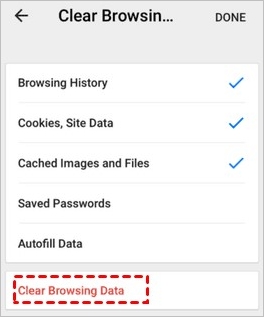
Step 3. After selecting the Clear Browsing Data option, choose the period you want to clear, such as the past hour, day, or week, depending on your preference.
Step 4. Select Cookies, Site Data, and Cached Images and Files.
Step 5At the bottom of the screen, select Clear Browsing Data. To clear browsing data on a Chromebook, go to Settings, then Advanced, then Clear Browsing Data. From there, you can select the types of data you want to clear, such as browsing history, cookies, and saved website data.
Method 3. Clear Safari Browsing History
To clean your browser's cache, follow these steps: Clear your browser's cache and cookies by going to the browser's settings, clicking on "More tools" or "Options," and selecting "Clear browsing data." Choose the type of data you want to delete, such as browsing history, cookies, and cached images and files. Select the time range for which you want to delete the data, and then click "Clear data.
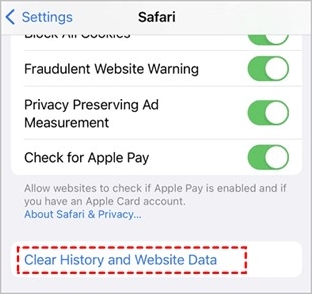
Step 1. Launch the app labeled "Settings" on your iPhone.
Step 2. To choose Safari from the list of applications, click on it.
Step 3. To clear your browsing history, first, open the Google Chrome browser on your device. Then, click on the three vertical dots located in the upper right corner of the browser window.
Step 4. Select the "Clear History and Website Data" option and confirm by selecting "Yes" on the confirmation box that appears.
Note: After the confirmation, Safari will start clearing its cache right away.
Method 4. Delete Large Message Attachments
Large message attachments on your iPhone can be unnecessary and slow down your phone's processing, as well as fill up storage space. Similar to caches and other irrelevant data, they can be deleted to improve performance. To delete them, follow these steps:
Step 1To navigate to the Settings app on your iPhone or iPad, follow these steps: Go to your home screen and locate the Settings icon, which resembles a gear. Tap on the Settings icon to open the app. Alternatively, you can swipe down from the top-right corner of the screen to access the Control Center, and then tap on the Settings icon to open the app.
Step 2. To access storage settings on your iPhone or iPad, go to Settings, then General, and finally select Storage.
Step 3. Now, choose the Messages option from the menu.
Note: Under the Documents area, you can find categories such as Top Conversations, Photos, and Videos, in addition to the main categories.
Step 4. To organize your files, go to the appropriate category and remove any unnecessary attachments.
Method 5. Reduce Message History
To reduce your message history on your iPhone, go to Settings > Messages > Keep Messages, then select the desired time period, such as 30 days, 1 year, or all time. This will automatically delete messages older than the selected time period. Alternatively, you can also delete individual messages by swiping left on them and tapping "Delete" or "More" to select multiple messages to delete. If you want to delete all messages at once, go to the Messages app, tap "Edit" in the top-right corner, select all messages, and then tap "Delete" to remove them all.
Step 1. To keep messages on your device, go to the Settings menu, select the Messages area, and choose the option to keep messages.
Step 2You may choose to stay in this place for either one month or one year, as alternatives to staying forever. Choose accordingly.
NoteWhat would you like to do? You can delete messages older than 1 year.
Recover Deleted Data on iPhone with Software
Qiling MobiSaver is an iOS data recovery program that is easy to use and very professional, allowing you to instantly recover deleted data on an iPhone, iPad, or iPod Touch. This means you can bring back valuable data that might have been lost when deleting apps, contacts, and other pieces of information.
Qiling MobiSaver allows you to quickly recover a variety of data types from your iPhone, including photos, videos, contacts, messages, Safari bookmarks, notes, voice memos, and WhatsApp conversation history, providing a useful addition to your existing iTunes backup.
Main Features of Qiling MobiSaver:
- There are professional data recovery software options available for iPhone, compatible with both Windows and Mac operating systems.
- Recover data directly from iOS devices, as well as from backups stored in iTunes and iCloud.
- Recover messages and attachments from various messaging apps, including WhatsApp, LINE, and Kik, allowing you to retrieve images, music, video files, and other media types.
- The app should be compatible with the most recent version of iOS 15 and support all iPhone models, including iPhone 13, 13 Pro, and 13 Pro Max. This ensures that users with the latest devices can take advantage of the app's features without any issues.
Here, we will give the full steps to recover deleted data on iPhone with Qiling MobiSaver.
Step 1. Connect iPhone to Your PC
Launch Qiling MobiSaver, click "Recover from iOS device" and then click "Start".
Step 2.Scan for Lost iPhone Data
Qiling MobiSaver will automatically scan your iPhone/iPad/iPod, finding both existing and potentially recoverable data, and then wait for the scan to finish.
Step 3.Click the "Recover" Button
You can select the lost data you want to recover, such as photos, videos, contacts, SMS, notes, voice mails, and other files, and save them to a new location.
Summary
If your iPhone is running slowly due to excessive cache, clearing its cache and cookies can help speed up its performance. To do this, follow these steps: By clearing the cache and cookies, you can prevent your iPhone from crashing or stopping, and improve its overall speed and responsiveness. This simple process can help get your iPhone back up to speed and running smoothly again.
To recover lost data, we recommend using Qiling MobiSaver, which is a quick and easy-to-use tool.
Clear System Data FAQs
Here are the answers to your questions in a paragraph:
Will Updating iPhone's Software Help Clear Data?
Yes, it will. Here's how:
Step 1. Take a look at General in the Settings app.
Step 2. Then, click on "Check for an Update."
Step 3. Install the most recent iOS/iPadOS by downloading it now.
Why Is It Important to Delete Data on iPhone?
Your iPhone's storage can quickly become cluttered with unused files as you use Safari and other apps, leading to a slowdown in performance. To prevent this, it's a good idea to regularly clean out your iPhone's cache, which can help keep your device running smoothly.
How Does iPhone's System Data Keep on Piling Up?
The iPhone's storage space can fill up quickly if you frequently watch streaming videos on the device, as system data takes up a significant amount of space.
Related Articles
- How to Recover Deleted Texts on iPhone
- How to Retrieve Photos from iPhone That Won't Turn on
- 5 Proven Ways to See Old Kik Messages on iPhone/Android
- How to Fix: WhatsApp Restore from iCloud Stuck
- SD Card Repair on Windows 10 and Android
How to repair corrupted SD card without losing data? If you are having trouble accessing data on an SD card due to corruption or damage. We've covered comprehensive guides on fixing a corrupted SD card with SD card repair tips or tools. - Fixed: Seagate external hard drive not showing up in Windows 10/11
To fix a Seagate external hard drive not showing up on the computer in Windows 10 without losing data, first check the USB port and cable for any issues. Next, try restarting your computer and the external hard drive.
Products
Articles & Tutorials
- Data Recovery
- Data Backup
- File Recovery
- File Backup
- System Backup and Restore
- Disk and Partition Clone
- Technical articles
- Mobile articles
- Disk Master Help
- Windows Data Recovery Tutorials
- Windows Secure Delete Tutorials
- Windows Partition Management Tutorials
- Windows File Backup and Restore Tutorials
- Windows System Backup and Restore Tutorials
- Windows Disk Backup and Restore Tutorials
- Windows Clone Tutorials