SD Card Repair on Windows 10 and Android
An SD card can become corrupted due to various causes, including physical damage, logical corruption, or file system errors, resulting from improper removal, physical drops, virus infections, or incorrect formatting.
If you have a corrupt SD card, don't worry, there are some things you can try to fix it. First, check if the card is physically damaged, if so, it's likely beyond repair and you'll need to replace it. However, if the card is not physically damaged or has a file system issue, there are some practical workarounds you can try.
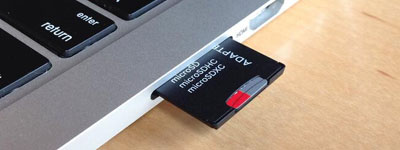
This article provides a comprehensive guide to repairing SD card damage on Windows 10 and Android. To efficiently repair a corrupt SD card, it's essential to work slowly and carefully, as rushing the process can make things worse and even permanently damage the card. If you're not confident in your ability to repair SD cards, it's best to seek professional help, such as Qiling data recovery services, which have the proper tools and expertise to fix your SD card safely.
SD Card Repair on Windows 10
You may have a problem with a functioning SD card malfunctioning without warning. But most SD cards show some symptoms of damage before they stop working. So let's find out together.
Sign 1. SD Card Not Showing Up
If your SD card isn't being detected, it could be due to a dirty SD card interface, a rusted or twisted card slot, a virus on the SD card, or a broken SD card. To resolve this, try wiping the metal part of the SD card with an eraser, ensure the device is turned off when inserting or removing the card, and regularly run a comprehensive scan and antivirus on the SD card.
If you've completed the initial troubleshooting steps but the SD card still isn't being detected, there are additional advanced solutions you can try.
Sign 2. SD Card Showing Wrong Size
To resolve the issue of your SD card not showing its full capacity, you can try formatting it. This process will erase all data on the card, so make sure to back up any important files first. To format your SD card, insert it into your computer or a card reader connected to your computer. Open the file explorer, right-click on the SD card, and select 'Format'.
SD cards may show the wrong size due to unsupported large-capacity SDHC or SDXC cards in readers or devices, causing partitioning to the supported capacity, such as 32GB, instead of the actual capacity, like 64GB.
If you suspect your SD card is damaged, look out for signs like read/write issues, connection problems, or formatting troubles. If you catch the issue early, you can back up your data and try repairing the SD card using methods available on Windows 10.
Fix 1. Fix Corrupted SD Card Without Formatting
If your SD card isn't being read or recognized on your Windows computer, you can fix the issue without formatting and losing your data. First, try connecting the SD card to another computer to see if it can be read. If not, try using a different SD card reader or a USB adapter, which may resolve the problem.
If the method fails, you can try repairing the corrupt SD card using the CHKDSK command or the disk error checking tool embedded in Windows 10, or use the Windows Troubleshooter, reinstall the SD card driver, update the outdated SD card driver, change the drive letter, or contact the manufacturer for SD card repair.
Full guide:
How to fix corrupted SD card without formatting [9 Ways].
Fix 2. Format SD Card Without Data Loss
If the basic solutions don't work, you can try using data recovery software to retrieve files from the SD card and then format the SD card using your computer's built-in utility or a third-party software program.
Deep Data Recovery is a tool that enables quick restoration of files from corrupted, damaged, inaccessible, or RAW SD cards, as well as other devices such as USB flash drives, external hard drives, and laptops.
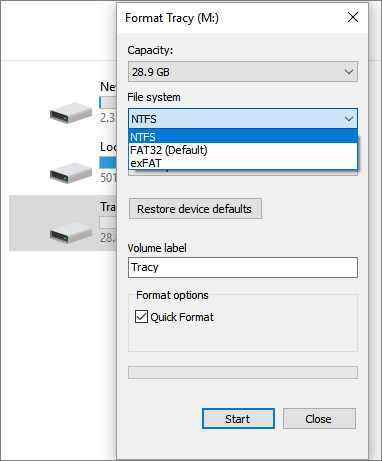
After data recovery, you can reformat the SD card to repair it without worrying about data loss. Here are the steps for formatting SD cards using File Explorer. For the complete SD card formatting tips, navigate to the topic page.
Step 1. Press Windows + E to open File Explorer.
Step 2. Right-click on the corrupted SD card and choose "Format".
Step 3. Select a file system as you need and click "Start" to begin the process.
Full guide:
To format a corrupted SD card without data loss, first, stop using the card immediately to prevent further corruption. Then, connect the card to a computer using an SD card reader. Use a file recovery software like Deep Data Recovery to scan the card for recoverable files.
Fix 3. Repair RAW SD Card
A removable storage device such as a USB drive or SD card suddenly cannot be detected or accessed. When trying to access it in File Explorer, it prompts to format it, and in Disk Management, the file system type is shown as RAW instead of NTFS or FAT32.
An SD card can become RAW due to various reasons, such as removing it without clicking "Safely Remove Hardware and Eject Media", pulling the disk out, shutting down or restarting the system while it's still reading and writing data, or experiencing unstable power supply from the computer's USB port, leading to disk I/O errors.
If your SD card is stuck in RAW format, you can fix it by recovering any important data first using data recovery software, then formatting the device. Alternatively, if there's no critical data on the card or it's been backed up, you can skip the data recovery step and perform the SD card RAW format fix directly.
Fix 4. SanDisk SD Card Repair Tool
SanDisk is a top choice for photography enthusiasts and professionals due to its high-quality digital cameras and memory card configuration requirements. Its SD cards are also widely used in mobile devices, home monitoring, and driving records.
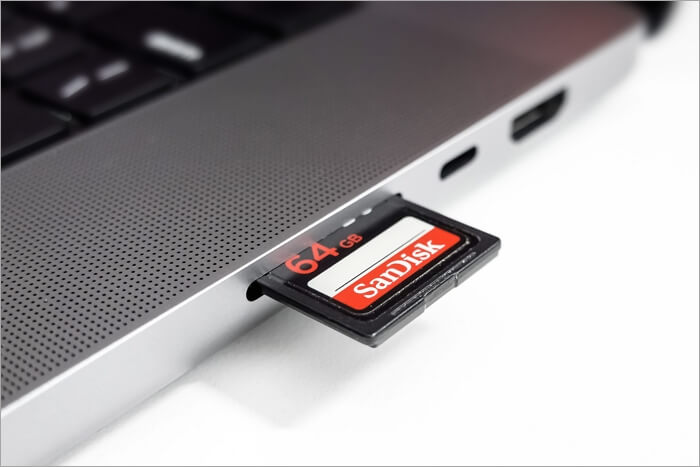
When a SanDisk SD card becomes corrupt, it can result in lost or inaccessible data, making it unusable. Having a reliable SanDisk SD card repair tool is essential to recover and restore your data, ensuring the card can be used again.
A SanDisk SD card repair tool can recover lost data from corrupted or formatted SD cards, making them accessible again and retrieving your data. This tool is a great way to get your data back and ensure your card works correctly.
Full guide:
To fix issues with your SanDisk SD card, you can download and use the SanDisk SD card repair tool. This tool is designed to help recover data from a corrupted or damaged SD card, and it's available for download on the SanDisk website.
SD Card Repair on Android
If your Android phone's SD card is formatted or corrupted, you may be wondering how to recover photos and repair it. Unfortunately, it's not uncommon for SD cards to become damaged, displaying issues such as being unreadable or displaying an error message. However, there are steps you can take to potentially recover your photos and repair the SD card.
Case 1. SD Card Photos Not Showing Up in file///SDcard/gallery
The Android operating system uses the file path "/SDcard/gallery" to store images taken with the camera and downloaded from the internet on an SD card, typically used in devices without internal storage like tablets and smartphones. This path is case-sensitive.
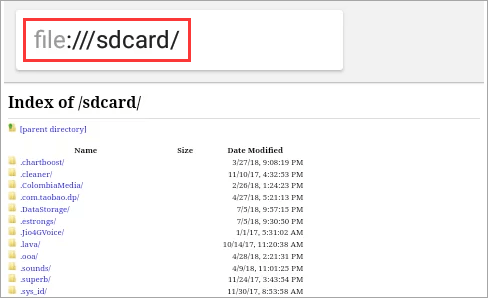
Many users have reported that their photos and videos on the SD card are not showing up in the file:///SDcard/gallery. The possible reasons for this issue include incompatible file formats, file corruption, or damage to the SD card.
Case 2. SD Card Not Detected Android
If an SD card is damaged, it may not be recognized by a PC or Android device, or even worse, it may be accidentally formatted. SD cards can become corrupt on Android due to various reasons, with logical errors being a common cause. This can happen when the card's file system becomes corrupted or there are bad blocks on the card, often as a result of not properly ejecting the card from the device before powering off.
Malicious attacks can also cause Android SD card corruption and data loss, so it's essential to be vigilant about keeping your device clean.
How to Fix Corrupted SD Card on Android
it can be difficult when trying to view specific photos or groups in the gallery, only to find them missing or the SD card undetectable on Android.
If you suspect your SD card has become corrupt, ensure it's properly inserted into your device, and try restarting it to refresh the file system and allow it to see the new content on the card.
If restarting your device doesn't work, you may need to format the SD card, which will erase all data on the card, so back up any important files before proceeding. To format an SD card, you can follow the device's instructions or use a computer to initialize the card, which will erase all data and restore it to its factory settings.
Step 1. Open the "Settings" app and go to the "Storage" section.
Step 2. Tap on the SD card, then tap the "Format" button.
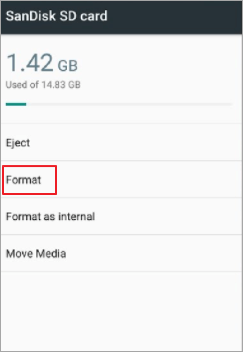
Step 3. Confirm that you want to format the card and wait for the process to complete.
Full guide:
Read the complete tutorials to repair corrupt SD cards on Android.
If you're experiencing issues with your gallery app, try fixing the problem first. Once that's done, add some new photos to the app and check if they appear in the file:///SDcard/gallery. If the SD card is still not detected, you may need to perform a factory reset, but make sure to back up your data before doing so.
SD Card Repair FAQs
Check the following questions and answers for more information on SD card repair.
1. How to fix corrupted SD card Windows 10?
To fix a corrupt SD card on Windows 10, try running the built-in Check Disk tool (chkdsk) on the SD card. You can do this by right-clicking on the SD card in File Explorer, selecting "Properties," and then clicking on the "Tools" tab. From there, click on "Check" and follow the prompts.
Step 1. Right-click the SD card in File Explorer and select "Properties".
Step 2. To check for bad sectors on your SD card, go to the Tools tab and click Check under "Error checking". Windows will then attempt to fix any bad sectors it finds on the card.
If you're unable to boot into Windows, you can try using the Command Prompt or Diskpart to fix corrupted storage devices. If the Command Prompt doesn't work, you can use Diskpart, a command-line tool, to repair the issue. To use Diskpart, you can follow these steps:
Step 1. Open the Command Prompt as an administrator and type diskpart.
Step 2. To delete the SD card, type list disk to find your SD card. Then, input select disk X (replacing X with the number for your SD card), and clean.
To securely erase all data on a card, ensure you have a backup of the data first, as the process will completely remove all information from the card.
2. How to fix a corrupted SD card on Android?
If your Android SD card is corrupted, you can try formatting it, but be aware that this will erase all data on the card, so make sure to backup any important files first.
To format the SD card, go to Settings, then Storage, then SD card, and finally select Format SD card.
3. How to fix a corrupted SD card on Android without a PC?
If you don't have a PC available, you can still repair a corrupted SD card on Android by formatting the SD card on your device. To do this, go to "Settings > Storage > SD card > Format SD card". Just remember to back up your important data beforehand.
4. How to fix a corrupted SD card using CMD?
Steps to repair corrupted SD card using CMD:
Step 1. To open the Command Prompt as an administrator, type cmd into the search bar, right-click on the Command Prompt icon, and select "Run as administrator".
Step 2. To run the check disk command, open the Command Prompt window and type in `chkdsk /f /r drive letter`, replacing "drive letter" with the actual letter of your SD card.
Step 3. Press Enter and then allow the process to complete.
5. How to fix a corrupted memory card without formatting?
You can recover data from your corrupted memory card first, then use File Explorer or Disk Management to format it and make it work properly without losing any data.
6. What's the best SanDisk SD card repair tool for Android?
The top five free SD card repair tools for Android include various software options that can help recover and repair damaged or corrupted SD cards, allowing users to access their stored data and files again.
- SanDisk Repair Tool
- File Explorer
- Qiling Partition Master
- Disk Management
- Windows Command Prompt
Conclusion
SD cards are widely used, but they are also prone to damage. Fortunately, various repair methods are available, including using data recovery and repair tools, running Windows' built-in disk error checking function, or formatting the card using a file manager. This article aims to provide helpful guidance for those dealing with damaged SD cards.
To avoid data loss, back up important files on your SD card regularly, making it easy to recover them if your device becomes corrupted.
Related Articles
- The Best Video Repair Tools You Must Know in 2022
- Data Recovery Software for Windows 10/Mac/iPhone/Android
- (July 2022) Ultimate Guide to Mac Time Machine Backup
- How to Recover Deleted Videos on Any Device
- Free Download Sony Memory Card File Rescue Software
Sony memory card file rescue is a program that helps users recover deleted, lost or formatted files from Sony branded memory cards on Windows or Mac. - Download the Best Alternative to Stellar Phoenix Photo Recovery for Windows/Mac
Stellar phoenix photo recovery software is professional and robust. Here are the best alternatives to Stellar photo recovery for Windows and Mac.
Products
Articles & Tutorials
- Data Recovery
- Data Backup
- File Recovery
- File Backup
- System Backup and Restore
- Disk and Partition Clone
- Technical articles
- Mobile articles
- Disk Master Help
- Windows Data Recovery Tutorials
- Windows Secure Delete Tutorials
- Windows Partition Management Tutorials
- Windows File Backup and Restore Tutorials
- Windows System Backup and Restore Tutorials
- Windows Disk Backup and Restore Tutorials
- Windows Clone Tutorials