What to Do When SD Card Photos Not Showing Up in Gallery
If a memory card is not showing files in a mobile phone or an SD card is not showing photos in the Gallery, it may be due to the card not being properly mounted or recognized by the device. To resolve this, try restarting the device or the camera app, and ensure that the memory card is securely inserted into the card slot.
Here are six fixes to help solve the SD card photos not showing up in Gallery error:
| Workable Solutions | Step-by-step Troubleshooting |
|---|---|
| Fix 1. Check the Connection | Check if the SD card not showing files issue is caused by a poor connection. Re-insert your SD card into the device and check if the issue persists. If it does, try cleaning the card reader slot or using a different SD card reader to rule out any issues with the device's card reader. If the issue still persists, it may be a problem with the SD card itself, such as a corrupted file system or a faulty card. In this case, you may need to format the SD card or replace it with a new one.Full steps |
| Fix 2. Show Hidden Files | If the photos are set to hidden files, you can't see them on the SD card. To view them, find the option to "Show Hidden Files" on the Android device's settings, or use a file explorer app that allows you to view hidden files. This will allow you to see and access the photos that were previously hidden.Full steps |
| Fix 3. Remove Virus and Recover Data | Virus infection can be a major issue when it comes to memory cards, as it may cause files to suddenly disappear. In such cases, it's essential to remove the virus and take immediate action to recover your data, as the longer you wait, the higher the chances of losing your files permanently.Full steps |
| Fix 4. Change File System | If the SD card files are not showing up in Gallery but appear on your computer, the file system of the SD card may be corrupted, causing the Gallery app to not recognize the files. This can be due to various reasons such as improper ejection of the SD card, file system errors, or corrupted metadata. To resolve this issue, try reinserting the SD card, checking for any file system errors, and re-scanning the SD card in the Gallery app. If the issue persists, consider formatting the SD card to restore its file system to a clean state.Full steps |
| More Fixes for SD card not showing | Sometimes, write protection may be the case why your SD card photos are not showing up. This occurs when the SD card's write protection feature is enabled, preventing new data from being written to the card. To resolve this issue, you can try disabling the write protection on your SD card. This can usually be done by sliding a small switch on the SD card itself, or by using a computer or camera to disable the write protection feature.Full steps |
Issue: SD Card Photos and Videos Not Showing Up in Gallery
"Hello there, do you know what to do when the SD card data fails to show up in Gallery on Android phone? I'm troubled by this problem that my Samsung Galaxy S7 failed to read my saved photos and videos on SD card in the Gallery. How can I fix this issue? Please help!"
SD card photos not showing up in Gallery occurs quite often on Android phones, and this issue is slightly different from the pen drive not showing data on PC. The memory card not displaying files may be due to various reasons, including issues with the SD card itself, corrupted file system, or problems with the Gallery app, among others.
- Connection issue
- Files are hidden or deleted
- Incompatible file system
- .NOMEDIA file on the SD card
- Virus infection
- Write protection
If your SD card photos aren't showing up in the Gallery, it's likely due to a simple fix. However, in rare cases, issues like electrically damaged or physically cracked memory cards can also cause this problem. To resolve the issue, try the following 6 troubleshooting tips, which may require operating on a computer: take these tips one-by-one until you find the one that works for you.
Method 1. Check SD Card Connection
To check whether the memory card not showing files in mobile results from connection issue, you can try checking the connection between the memory card and the mobile device, ensuring that the card is properly inserted and the mobile device is able to read it.
- Re-insert your SD card into the Android phone
- Insert your SD card into another phone or computer
- Clean your SD card and the slot with a soft cloth.
If your Android phone's SD card is not working after cleaning and reinserting, try the following: check the connection, restart your phone, inspect for physical damage, and try formatting the SD card. If none of these work, consider using a different SD card or seeking professional help.
Method 2. Show Hidden Files on the SD Card
To make hidden files show up in the Gallery, follow these steps: Go to Settings, then select the Gallery app. Look for the "Hidden files" or "Show hidden files" option and toggle it on. This will allow you to see all files, including those set as hidden. Alternatively, you can also enable the "Show hidden files" option in the File Manager app, if available, to view hidden files across the system.
Step 1. Open default File Manager on your Android.
Step 2. Find the Gallery Menu and choose "Settings".
Step 3. To check if your photos and videos are hidden on your Android device, go to Settings > Storage > Internal Storage, then tap the "Show Hidden Files" option and check if your photos and videos show up. If they do, you can unhide them by tapping the three dots at the top of the screen and selecting "Unhide".
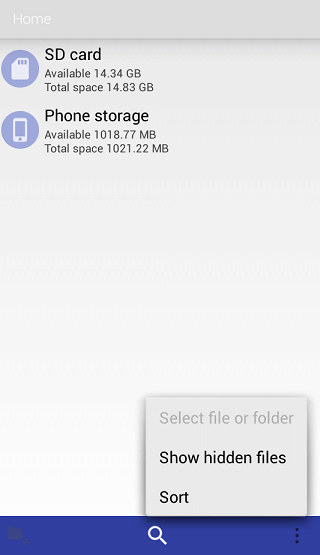
If your Android phone doesn't allow you to change the default email app, you can download the third-party app - ES File Explorer from Google Play to have a try.
Method 3. Remove Virus and Recover Data
A virus or malware infection can cause files on your memory card to disappear, either by hiding or deleting the data. To resolve this, run antivirus software on your Android phone or computer to scan your device and remove any viruses or malware. This should help recover your missing files.
If your antivirus software removes problematic files from your SD card, you may experience data loss. To recover your data, you can use Deep Data Recovery Free, which can help recover files deleted due to various reasons such as formatting, virus attacks, OS crashes, and more. Additionally, it supports hidden file recovery, which can be useful if the "show hidden files" option is not working in Windows 10.
Qiling Data Recovery Software
- Restore data from an SD card, hard drive, USB flash drive, memory card, digital camera, and more.
- Recover data from any brand of SD cards or memory cards, including Kingston, Sony, Samsung, and more.
- Data recovery solutions are designed to rescue lost data due to sudden deletion, formatting, hard drive corruption, virus attacks, or system crashes, providing a safety net for various situations.
To recover lost files from your memory card, download the Deep Data Recovery software first. This software is specifically designed to scan and retrieve deleted or lost files from various storage devices, including memory cards.
Step 1. Launch Deep Data Recovery, select the file types you want to recover, and click "USB/SD Scan" to begin the recovery process.

Note: You can choose different search modes based on where and why the data was lost.
Step 2. To recover lost data from an SD card, memory card, or CF Card, connect it to your computer and launch Qiling memory card recovery software. The SD card will be listed under the Devices section, allowing you to select it and click "Scan" to start searching for your lost data.

Step 3. The software automatically starts a scan, which is powerful enough to find all lost files, including those with lost file names. After scanning, you can find deleted items in the tree-view panel on the left. To narrow down the search, you can click "Filter" to look for specific file types, such as photos, documents, videos, or emails.

Step 4. After previewing the files, you can select the ones you want to recover and click "Recover" to restore them to a safe location.
Method 4. Change the File System of the Memory Card
If your SD card is not showing up in the Gallery on your Android phone, but appears on your computer, it may be due to the file system being incompatible with your mobile. Android supports FAT32, Ext3, and Ext4, but not NTFS. If your SD card is an NTFS file system, you can fix this by backing up your files on your computer and then formatting the device to a mobile-supported file system.
To back up files on your memory card, you can either manually copy and paste the files or use free backup software like Qiling Backup, which is faster.
After backing up your photos, videos, or other files on your storage device, you can now safely format your SD card without worrying about data loss.
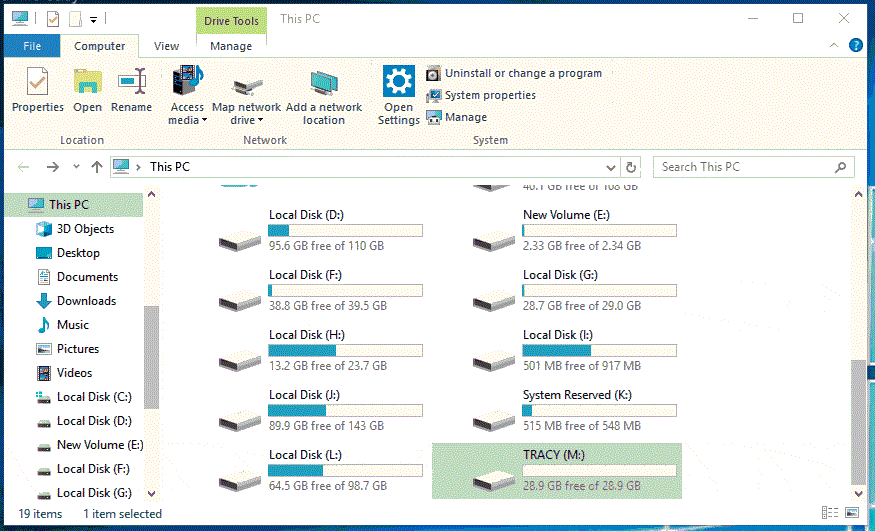
Step 1. Insert your SD card into your computer via a card reader and open "This PC" to access the card.
Step 2. Right-click your memory card and choose "Format".
Step 3. To format a storage medium, select "FAT32" as the new file system and click "Start".
Step 4. In the Warning window, click "OK" to confirm your operation.
Step 5. Copy the backed up files back to your SD card, then insert the SD card into your mobile and the files should appear on your Android phone.
Method 5. Delete .nomedia File in the SD Card
The .nomedia file on Android devices or connected devices tells other apps not to scan the media files in its folder, making the Gallery app unable to read data from it, effectively hiding photos, videos, and other files. Deleting the .nomedia file can resolve the issue of the SD card not showing up in the Gallery.
To delete the .nomedia file, you'll need to use a third-party tool, which can be found online. Once removed, your SD card photos will appear in the Gallery on your device.
Method 6. Remove Write Protection on the SD Card
When a memory card is write-protected, files on it may still appear on your mobile, but in some instances, write protection might be the reason why SD card photos aren't showing up in the Gallery. If your SD card is write-protected, you can remove the attribute directly to make the files visible again.
You can use Diskpart to remove the read-only attribute from a hard drive or external storage device, such as an SD card. Via Diskpart, you can clean the read-only attribute.
Step 1. Run "Command Prompt" as an administrator.
Step 2. Enter diskpart and click "Yes" in the prompt asking for notification.
Step 3. Enter the following command in order:
- list volume
- select volume X (Replace "X" with the number of your write-protected hard drive.)
- attributes disk clear readonly
If you're not comfortable with command lines, there are graphical-based solutions to help you remove write-protection from your hard drives, USB drives, and SD cards.
Qiling CleanGenius is a tool that helps fix issues on drives without requiring command-line knowledge.
Here's how to use it:
Step 1: DOWNLOAD and install Qiling CleanGenius (free) on your computer.
Step 2: Run Qiling CleanGenius on your PC, select Optimization and choose the Write Protection mode.
Step 3: Select the device that is write-protected and click Disable to remove the protection.
The Bottom Line
The issue of a memory card not showing files on a mobile or SD card photos not showing up in the Gallery can often be resolved by trying one of the methods mentioned. If these solutions do not work, it may indicate that the SD card is electrically or physically damaged, necessitating its replacement with a new one.
Related Articles
- 'Chkdsk cannot open volume for direct access in Windows 10/8/7/XP/Vista' Fixes
- Fix Page_Fault_In_Nonpaged_Area Error
- Fix 'Please Insert a Disk into Removable Disk' Without Losing Data
- RAW Partition Recovery: How to Recover RAW Partition Efficiently
- What Is optical Disc Drive (Definition & Function & Types)
Learn what an optical disc drive is, how it reads CDs, DVDs, and Blu-ray discs, and what types and uses ODD devices have. - PS5 VS PC, Which Is Better for Gaming 2023
The decision between buying a PS5 console and a gaming PC can be a tough one. This page compares the two options in terms of price, specifications, functions, and usage, providing a concise overview to help you make an informed choice.
Products
Articles & Tutorials
- Data Recovery
- Data Backup
- File Recovery
- File Backup
- System Backup and Restore
- Disk and Partition Clone
- Technical articles
- Mobile articles
- Disk Master Help
- Windows Data Recovery Tutorials
- Windows Secure Delete Tutorials
- Windows Partition Management Tutorials
- Windows File Backup and Restore Tutorials
- Windows System Backup and Restore Tutorials
- Windows Disk Backup and Restore Tutorials
- Windows Clone Tutorials