How to Recover Deleted Videos on Any Device
Videos have become a crucial part of our lives, but they can also be susceptible to data loss due to accidental deletion, formatting errors, or corrupt storage media, leading to a frustrating and upsetting experience.
Fortunately, there are ways to recover deleted videos on Windows, Mac, iPhone, and Android, which will be walked through in this article.
Is It Possible to Recover Deleted Videos?
Recovering deleted videos is possible, but the success rate depends on various factors, including how long ago the video was deleted and its file type.
When a video is deleted, the files aren't immediately removed from the device, but rather the space they occupy is marked as available for new data. This creates a window of opportunity for recovery using specialized software, but the chances of success decrease with time or if new data is written to the same location. To improve recovery chances, it's essential to act quickly.
- Stop using the device to avoid data overwrite.
- Start the data recovery process as soon as possible.
How to Recover Deleted Videos on Windows 10/11
Recovering deleted videos can seem like a daunting task, but with the right methods and know-how, it can be relatively simple. Depending on the type of device you are using, there are a few different methods you can try, such as using data recovery software like Deep Data Recovery or Wondershare, checking the device's recycle bin or trash folder, or using a cloud storage service to recover deleted videos.
Method 1. Retrieve Deleted Videos from Recycle Bin
If you've accidentally deleted a video on Windows 10/11, you can try restoring it from the Recycle Bin, where it may still be stored.
To find a deleted video in Recycle Bin:
Step 1. Double-click the Recycle Bin icon on the desktop.

Step 2. Locate the video files you want to restore.
Step 3. Right-click the file and select "Restore".
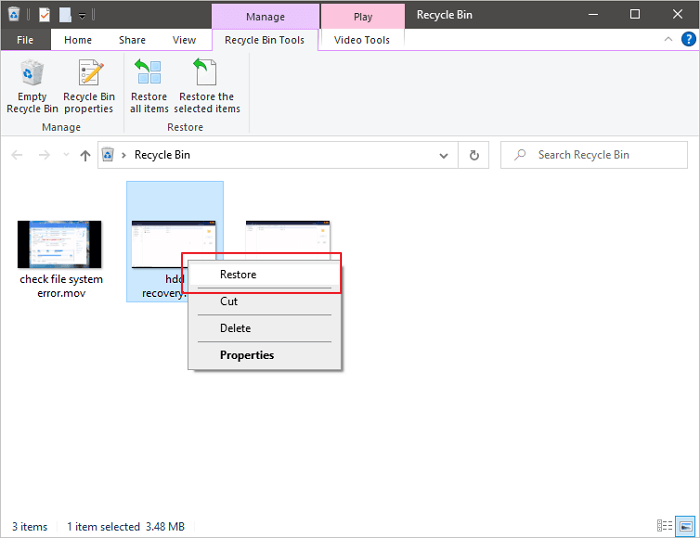
When you delete videos, they are initially moved to the Recycle Bin, but if you use the "Shift + Delete" keyboard shortcut, they are permanently deleted and can't be found in the Recycle Bin. In this case, video recovery solutions can be used to retrieve the deleted videos. Otherwise, the deleted videos will be moved back to their original location, allowing you to copy them to their desired places.
Method 2. How Do I Recover Permanently Deleted Videos with Software
To recover deleted videos, you can use a data recovery tool, such as video recovery software, which is compatible with Windows 11/10/8/7, allowing you to retrieve deleted videos.
The top-recommended data recovery software is Deep Data Recovery, which stands out for its reliability, performance, and simplicity. Qiling data recovery software is also a reliable and effective tool that can be used to restore deleted videos on Windows 11/10/8/7, featuring a simple and intuitive interface that makes it easy to select the desired file type and location.
- Flexible search options
- Preview function
- Easy-to-use interface
- Advanced settings for customizing the recovery process
Qiling data recovery software is an ideal tool for recovering deleted videos on Windows 10, thanks to its features. To recover video files with this software on Windows, follow these steps:
Step 1. Select a specific hard disk or location.
To recover deleted files, select the drive or partition where the files were deleted, and optionally choose a specific location to scan, such as the Recycle Bin or a folder. Then, click the Scan button to begin the search for the deleted files.
Step 2. Start a quick or advanced scan for lost data.
The time it takes to scan a file depends on its size and the condition of the disk, resulting in a detailed report that can be filtered by file type once complete.
Step 3. Preview and recover the files you need.
To confirm the scanned file is the one you want, and then click the "Recover" button to save the recovered files.

Method 3. Get Back Deleted Videos from File History Backup
To recover a deleted video file on Windows 10, enable File History, plug in an external drive, and follow the prompts to set up the backup. Then, go to the File History window, select the drive where the file was stored, and look for the deleted file in the "Previous versions" section. If you see it, you can restore it to its original location.
Step 1. Click the Search box and type file history.
Step 2. Click on "Restore your files from File history" from the search results.
Step 3. Then, you will go to the File History window.
Step 4. To restore video files, start by selecting the files you need to recover. Preview them to ensure they are the correct files and in the desired format.
Step 5. Click the green "Restore" button.
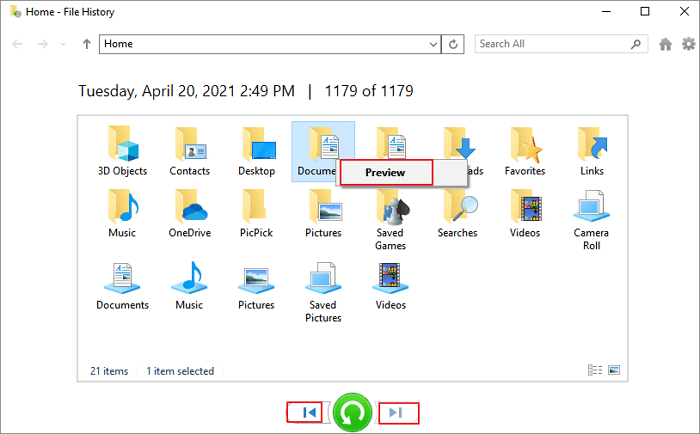
File History will restore the selected video file to its previous location, prompting you to choose the correct location if it was saved elsewhere. After restoration, you can work with the file as usual.
Full Guide
If your Windows 10 video recovery is not working as expected, you can try troubleshooting the issue by checking the video settings, updating the graphics drivers, and ensuring that the video playback software is up-to-date. If the problem persists, you can try using a video recovery software to recover deleted or corrupted video files. Additionally, you can also try using the built-in Windows 10 feature called "System File Checker" to scan and replace any corrupted system files that might be causing the issue.
How to Recover Deleted Videos on Mac
If you delete a video on your macOS, You can recover it using methods similar to those available to Windows users, but with different operation steps.
Method 1. Check Mac Trash
If the video is in the Mac Trash, you can right-click on the video file and select "Put Back" to restore it to its original location.

Method 2. Use Data Recovery Software for Mac
If the videos are not in the Trash, you can try using a data recovery software such as Qiling Mac data recovery software to recover lost or deleted files from various storage devices like hard drives, SSDs, USB flash drives, and memory cards.
- Download and launch the program, then select the drive where your deleted video was stored.
- The software will scan the selected drive and display all recoverable files.
- Select the video (or videos) you want to recover and save them to a new location.

Method 3. Recover from Time Machine
If Time Machine is enabled on your Mac, you can use it to restore a previous version of your hard drive and recover the deleted video.

You were able to recover your lost video files. If not, there are other methods for recovering deleted videos on a Mac that you can look into.
How to Recover Deleted Videos on iPhone
Losing important videos on your iPhone can be frustrating, whether you accidentally delete them or your phone crashes and wipes them. Fortunately, there are steps you can take to try and recover deleted videos.
Step 1. Check the Recently Deleted Folder
When you delete a video on your iPhone, it's moved to the Recently Deleted folder in the Photos app, where it stays for up to 40 days before being permanently deleted. You can access this folder, select the video you want to undelete, and it will be restored to your albums.
Step 2. Check Your iCloud or iTunes
If you've lost your videos, check if you have a backup of your phone to iCloud or iTunes, which might allow you to restore the lost videos.
Step 3. Use an iPhone Video Recovery App
If you don't have a backup, you can still recover lost videos from your iPhone using data recovery software like Qiling MobiSaver, which can scan your iPhone and attempt to recover deleted files, including videos, on a Windows or Mac computer.
Full Guide
To recover deleted videos from an iPhone, you can try using a data recovery software or a third-party app. These tools can scan your iPhone's storage and recover deleted videos, even if they've been overwritten.
How to Recover Deleted Videos on Android
Videos have become extremely popular, with a 50% increase in video content on social media platforms over the past two years. With the rise of mobile devices, watching videos on the go has become easier. If you accidentally delete a video or lose access to one, you can restore deleted videos on various Android devices, including Samsung, Xiaomi, OnePlus, and OPPO.
You can try to retrieve deleted videos on Android using a data recovery app, which scans your device for lost or deleted files and attempts to recover deleted videos, but you may need to root your phone first.
You can recover deleted videos on Android by using a data recovery app, connecting your device to a computer and using recovery software, or restoring from a backup if you have one.
Full Guide
If you've accidentally deleted a video from your Android device, You can try using a data recovery app to retrieve it.
Losing important videos on your iPhone can be frustrating, but there are steps you can take to try and recover them. First, check if the video is still in your camera roll or other apps where you may have saved it. If not, try using a data recovery app like PhoneRescue or Deep Data Recovery to scan your iPhone's storage for deleted files, including videos. You can also try using iCloud Photo Library or Google Photos to see if the video is backed up.
How to Protect Important Videos
Video recovery is a time-Losing videos can be a frustrating experience, but there are steps you can take to avoid it. By following these tips, you can minimize the risk of data loss and ensure your cherished memories are preserved. Firstly, make sure to save your videos to multiple locations, such as an external hard drive, cloud storage, or a secondary device.
Make Copies:
Make multiple copies of your videos and store them in different locations to ensure their safety and availability, even in case of loss or damage.
Upload to Cloud Drive:
Uploading your videos to a cloud drive like Google Drive or Dropbox ensures that they remain safe even if your computer is damaged, as they will still be accessible from the cloud.
Share Videos:
Share your videos with friends or family members so they can also keep copies.
Export to MP4:
By backing up your videos, you can ensure that you have a copy of your files in case the original is lost, corrupted, or deleted. This provides you peace of mind and allow you to access your videos even if something happens to the original file.
To preserve your videos, use a high-quality camera and recording equipment, transfer them to a digital format, and store them in a secure location, such as an external hard drive or cloud storage, to prevent physical damage and data loss. This will help to protect your videos and ensure they are preserved for years to come.
Recover Deleted Videos FAQs
If you're having trouble recovering a deleted video, below, we'll provide a full guide on how to retrieve a deleted video on different devices, addressing some of the most common issues related to video recovery. Whether you're looking for a solution on your phone, computer, or other device, we'll walk you through the steps to recover your deleted video. If you're still experiencing problems, this guide can help.
1. How do I recover permanently deleted videos?
To recover permanently deleted videos, you'll need to use data recovery software, after which you can follow these steps to restore deleted videos using Deep Data Recovery.
- Download and install Deep Data Recovery.
- Select the drive that contains the deleted video, then click "Scan" to begin the recovery process.
- Use the search bar to find wanted video files.
- Select the video file and click "Recover".
- Once recovery is finished, you can open and watch the video on your device.
2. Where can I find a video I deleted?
Unfortunately, when a video is deleted from a platform like YouTube, it's usually gone for good. However, there are some possible ways to recover or find a deleted video, such as checking the video's original upload date and searching for similar content on the same platform or other video-sharing sites.
- If you accidentally deleted a video, check your Recycle Bin or Trash folder first to see if it's still there, as it may have been mistakenly deleted.
- If you're unable to find the video on YouTube or other video sharing platforms, try searching for it on your computer's hard drive. The video may still be present if it wasn't permanently deleted.
- To recover deleted videos, first, check the device's storage for any remaining video files. If the video was deleted recently, it may still be stored in the device's cache or temporary storage. Next, check any cloud storage services you may be using, such as Google Drive or iCloud, to see if the video was synced to the cloud. If the video was deleted from a computer, check the computer's hard drive for any remaining video files.
3. How to recover deleted TikTok videos?
Here are the steps to recover deleted TikTok videos on your iPhone:
Step 1. Access iCloud.com, and sign in to your account.
Step 2. choose "Settings".
Step 3. In the "Advanced" section, click "Recover Files".
Step 4. Select files you want to recover.
Step 5. Tap "Restore".
4. How to recover deleted YouTube videos?
If you've accidentally deleted a YouTube video, there are a few ways to potentially recover it.
Step 1. Check your Trash folder.
YouTube saves deleted videos in the Trash folder for 30 days, after which they are permanently deleted. If you find your video in the Trash, you can restore it with a few clicks.
Step 2. Contact YouTube directly.
If you have proof that you are the owner of the video, YouTube may be able to help you recover it.
Step 3. Recover from backup.
If you have a backup of your video on another storage device, you may be able to restore the video from there. With a little effort, you should be able to get your video back.
5. How to recover lost videos from an SD card?
To recover deleted videos from an SD card, start by stopping using the card immediately to prevent overwriting of the deleted data. Next, insert the SD card into a card reader connected to your computer.
- Connect the SD Card with your PC.
- Install the SD card video recovery tool for free.
- Select the SD Card to scan for deleted videos.
- Recovering deleted video from the SD card.
6. Can I recover deleted/lost PS4 videos?
Most PS4 videos are recorded on memory cards or hard drives, so you can recover them using readily available video recovery software, like Deep Data Recovery.
7. Can I recover permanently deleted videos from Android?
You can recover permanently deleted videos from your phone if you act quickly, using Qiling MobiSaver for Android.
- Install Qiling MobiSaver for Android.
- Connect the phone to your PC and start the scan.
- Select the videos you want to recover, then tap "Recover".
- Choose where you want to store your video files.
8. How to recover deleted ring videos?
If you've accidentally deleted a Ring video, it's often possible to recover the video using Qiling data recovery software, which is specifically designed to help Ring users restore lost or deleted videos.
To recover deleted videos, install the video undelete tool, follow the on-screen instructions, and save the recovered videos in a safe location.
Conclusion
You can recover deleted videos using various methods depending on the device you're using. For Windows and Mac computers, data recovery programs can help you recover deleted files. On iPhones, the Photos app has a built-in feature to recover recently deleted photos and videos. For Android devices, third-party data recovery apps can assist in recovering lost or deleted files.
If you've accidentally deleted a video, there's no need to panic as it's often possible to recover deleted videos with a bit of effort.
Related Articles
- Hard Drive Recovery| Recover Files from a Hard Disk
- The Best Photo Recovery App/Software for Any Device
- SD Card Repair on Windows 10 and Android
- USB Fixes: Troubleshoot/Repair Corrupted USB Erros [Full Guide]
- Deep Data Recovery Software Solutions for Windows
Looking for a data recovery online software? You can free download the Deep Data Recovery software to help you recover deleted, formatted or inaccessible data from your hard drive or digital device. - How to Deleted All Data from Laptop Permanently
Deleting files from your laptop can be a straightforward process, but making sure they're gone for good can be a bit more complicated. Here's a step-by-step guide to help you permanently delete files from your laptop.
Products
Articles & Tutorials
- Data Recovery
- Data Backup
- File Recovery
- File Backup
- System Backup and Restore
- Disk and Partition Clone
- Technical articles
- Mobile articles
- Disk Master Help
- Windows Data Recovery Tutorials
- Windows Secure Delete Tutorials
- Windows Partition Management Tutorials
- Windows File Backup and Restore Tutorials
- Windows System Backup and Restore Tutorials
- Windows Disk Backup and Restore Tutorials
- Windows Clone Tutorials