SD Card Repair on Windows 10 and Android
An SD card can become corrupted due to physical damage, logical corruption, or file system errors, which can occur from improper removal, physical drops, or formatting issues.
If you have a corrupt SD card, there are some things you can try to fix it. First, check if the card is physically damaged, if so, it's likely beyond repair and you'll need to replace it. However, if the card is not physically damaged or has a file system issue, there are some workarounds you can try.
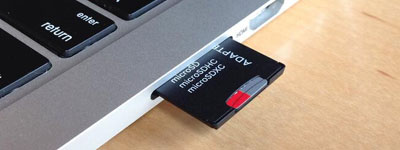
This article will guide you through the process of repairing SD card damage on Windows 10 and Android, ensuring a safe and efficient fix. It's essential to work slowly and carefully to avoid making things worse and potentially permanently damaging the card. If you're not confident in your ability to repair SD cards, it's recommended to seek professional help, such as Qiling data recovery services, which have the necessary tools and expertise to safely fix your SD card.
SD Card Repair on Windows 10
If you're experiencing issues with your SD card, you're not alone. While some SD cards can malfunction without warning, many others show signs of damage before they completely stop working. Let's explore these symptoms together to see if we can identify the problem.
Sign 1. SD Card Not Showing Up
If your SD card isn't being detected, it's likely due to a dirty SD card interface, a rusted or twisted card slot, a virus-infected SD card, or a broken SD card. To resolve the issue, try wiping the metal part of the SD card with an eraser, ensure the device is turned off when inserting or removing the card, and regularly run a comprehensive scan and antivirus on the SD card.
If you have done all these, but the SD card still has the problem of not being detected, you can continue to try our advanced solutions below.
Sign 2. SD Card Showing Wrong Size
To resolve the issue of your SD card not showing its full capacity, you can try formatting it. This process will erase all data on the card, so ensure you back up any important files before proceeding. You can format the SD card using your device's built-in formatting options, or if you're using a computer, you can use the disk management tool to format it. After formatting, the SD card should display its correct capacity.
SD cards may show the wrong size due to card readers or host devices not supporting large-capacity SDHC or SDXC cards, causing them to be partitioned to a lower capacity. For example, a 64GB SDXC card may be formatted to 32GB if the card reader only supports up to 32GB SDHC cards. This results in the card being displayed as having a lower capacity than its actual size.
The SD card may be damaged if it shows read/write problems, connection issues, or formatting troubles. If you identify the issue early, you can back up your data and use methods to repair the SD card on Windows 10.
Fix 1. Fix Corrupted SD Card Without Formatting
If your SD card is not reading or recognized on your Windows computer, you can fix the issue without formatting and losing your data. Try connecting the SD card to another computer to see if it's readable, and if not, try using a different SD card reader or a USB adapter. This can help you determine if the problem lies with the SD card itself or with the reader on your original computer.
If the method fails, you can fix the corrupt SD card using the CHKDSK command or the built-in Windows 10 disk error checking tool. Alternatively, you can use the Windows Troubleshooter, reinstall the SD card driver, update the outdated SD card driver, change the drive letter, or contact the manufacturer for SD card repair.
Full guide:
How to fix corrupted SD card without formatting [9 Ways].
Fix 2. Format SD Card Without Data Loss
If the basic solutions don't work, you can try using data recovery software to retrieve files from the SD card, and then format the SD card using your computer's built-in utility or a third-party software program.
Deep Data Recovery is a tool that helps restore files from corrupted, damaged, or inaccessible SD cards, as well as other devices, by recovering deleted and formatted files.
After data recovery, you can reformat the SD card to repair it without worrying about data loss. Here are the steps for formatting SD cards using File Explorer. For the complete SD card formatting tips, navigate to the topic page.
Step 1. Press Windows + E to open File Explorer.
Step 2. Right-click on the corrupted SD card and choose "Format".
Step 3. Select a file system as you need and click "Start" to begin the process.
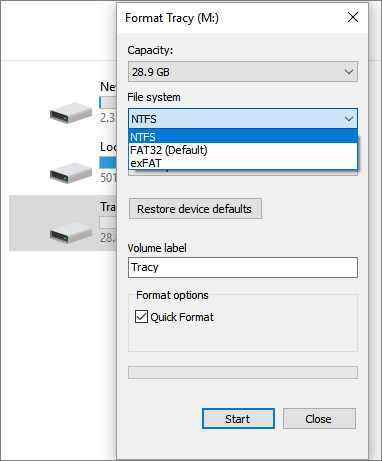
Full guide:
If your SD card is corrupted, you can try to format it without losing your data by using a card reader, a computer, and a reliable formatting software. First, connect the SD card to your computer via a card reader. Then, download and install a reliable formatting software such as Qiling Partition Master or DiskGenius.
Fix 3. Repair RAW SD Card
Removable storage devices like USB drives or SD cards may suddenly stop being detected or accessed. When trying to access them in File Explorer, a prompt may appear saying they're not formatted, and the system might ask to format them. In Disk Management, the file system type of these disks is shown as RAW instead of the usual NTFS or FAT32.
An SD card can become RAW (read-only access) due to various reasons, such as removing the card without safely ejecting it, pulling the disk out while it's still in use, shutting down or restarting the system while it's still writing or reading data, or experiencing unstable power supply in the USB port, leading to disk I/O errors.
To fix a RAW SD card, it's essential to first recover any important data using data recovery software, before formatting the device. If there's no critical data on the card or it's been backed up, you can proceed with the SD card RAW format fix directly.
Fix 4. SanDisk SD Card Repair Tool
For photography enthusiasts, digital cameras and memory card configuration requirements are high, but SanDisk stands out as the best in the industry for professional camera memory cards, also widely used in mobile devices, home monitoring, and dash cams.
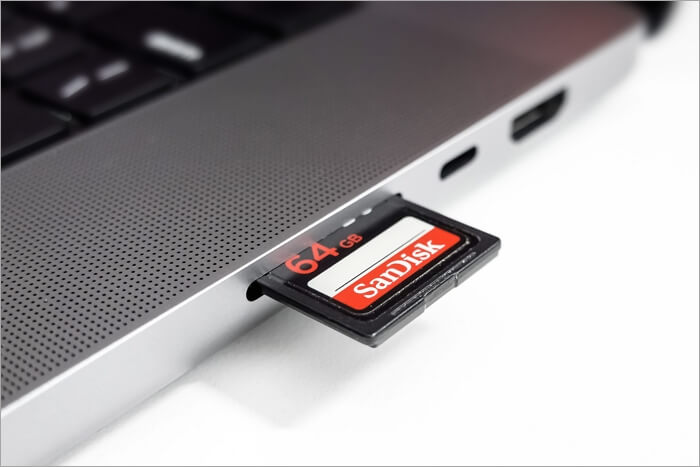
When your SanDisk SD card becomes corrupt, it can lead to a range of issues, including data loss or inaccessibility, and rendering the card unusable. Having a reliable SanDisk SD card repair tool at hand is therefore crucial to prevent or resolve these problems.
A SanDisk SD card repair tool can recover lost data from corrupted or formatted SD cards, making them accessible again and allowing users to retrieve their data.
Full guide:
To fix issues with your SanDisk SD card, you can download and use the SanDisk SD card repair tool. This tool can help recover data and repair corrupted SD cards, making it a useful utility for users who need to restore their files.
SD Card Repair on Android
If your Android phone's SD card is formatted or corrupted, there are ways to recover photos and repair the card. You may encounter issues with your SD card, such as being damaged, displaying errors, or showing a "formatted" message. In such cases, you can try using data recovery software to retrieve your photos and other files from the card. Additionally, you can try formatting the card in your computer to repair it, or using a card reader to scan the card and recover any recoverable data. However, be cautious when using data recovery software, as it may not be able to recover all your data, and formatting the card will erase all its contents.
Case 1. SD Card Photos Not Showing Up in file///SDcard/gallery
The file path "/SDcard/gallery" is used by Android devices to store images, such as those taken with the camera or downloaded from the internet, on an SD card. This path is commonly used by devices without internal storage, like tablets and smartphones, and is case-sensitive.
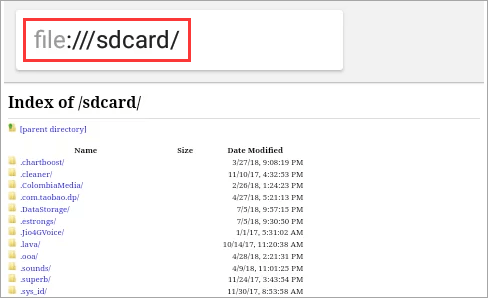
Many users have reported that photos and videos on their SD card are not showing up in the file system, with possible causes including incompatible file formats, file corruption, or SD card damage.
Case 2. SD Card Not Detected Android
An SD card can become corrupt on Android due to logical errors, which can be caused by file system corruption, bad blocks on the card, or failing to properly eject the card before power off, potentially leading to issues like unrecognized or accidentally formatted SD cards.
Malicious attacks can cause Android SD card corruption and data loss, making it essential to keep your device clean to prevent such issues.
How to Fix Corrupted SD Card on Android
If you're having trouble viewing specific photos or groups of pictures in the SD card's gallery on your Android device, it can be difficult, especially when the SD card itself becomes undetectable.
If you suspect your SD card has become corrupt, ensure it's properly inserted into your device, then try restarting your device, which may refresh the file system and allow your device to recognize the SD card's contents.
If restarting your device doesn't resolve the issue, you may need to format the SD card, which will erase all data on the card. Before doing so, back up any important files. To format an SD card, follow these steps.
Step 1. Open the "Settings" app and go to the "Storage" section.
Step 2. Tap on the SD card, then tap the "Format" button.
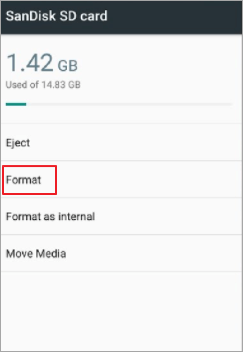
Step 3. I've confirmed the format and it's now processing. Please wait for the process to complete.
Full guide:
To repair corrupt SD cards on Android, follow the steps outlined in the tutorials, which include checking the card for physical damage, running a disk check, and using a third-party app to scan and repair the card. This process helps to identify and fix any issues with the card's file system, allowing it to be used again with your Android device.
Once you've fixed the problem, try adding new photos to the gallery and see if they appear in the file:///SDcard/gallery. If not, check if the SD card is being detected. If it's not, you may need to perform a factory reset after backing up your data.
SD Card Repair FAQs
Check the following questions and answers for more information on SD card repair.
1. How to fix corrupted SD card Windows 10?
To fix a corrupt SD card on Windows 10, try the following: First, safely eject the SD card from your computer. Next, insert the SD card into a card reader or another computer to see if the issue is with the card or the Windows 10 system. If it's still not working, try running a disk check on the SD card using the built-in Check Disk (chkdsk) tool in Windows 10.
Step 1. Right-click the SD card in File Explorer and select "Properties".
Step 2. To resolve the issue, go to the Tools tab and click Check under "Error checking". This will allow Windows to attempt to fix any bad sectors on the card.
If your computer is experiencing issues with its storage devices, such as a corrupted hard drive or SSD, you can try using the built-in Diskpart tool to fix the problem. To do this, you'll need to access the Command Prompt as an administrator, and then use the Diskpart commands to identify and repair the corrupted storage device. This can be a complex process, so it's recommended that you only attempt this if you're comfortable with using command-line tools and have a good understanding of how to use Diskpart. If you're not comfortable with this, you may want to consider seeking the help of a professional or using a third-party disk repair tool.
Step 1. Open the Command Prompt as an administrator and type diskpart.
Step 2. Then type list disk to find your SD card. Then, input select disk X (replacing X with the number for your SD card), and clean.
Make sure to back up your data before erasing it, as this process will permanently delete all data on the card.
2. How to fix a corrupted SD card on Android?
If your Android SD card is corrupted, you can try formatting it, but be aware that this will erase all data on the card, so ensure you have backups of important files before proceeding.
To format the SD card, go to Settings, then Storage, then SD card, and finally select Format SD card.
3. How to fix a corrupted SD card on Android without a PC?
If you don't have a PC, you can still repair a corrupted SD card on Android by formatting it on your device. To do this, go to "Settings > Storage > SD card > Format SD card", but make sure to back up your important data first.
4. How to fix a corrupted SD card using CMD?
Steps to repair corrupted SD card using CMD:
Step 1. To run the Command Prompt as an administrator, type "cmd" into the search bar, right-click on the Command Prompt icon that appears, and select "Run as administrator".
Step 2. Once the Command Prompt window opens, type in chkdsk /f /r drive letter:, replacing "drive letter" with the actual letter of your SD card.
Step 3. Press Enter and then allow the process to complete.
5. How to fix a corrupted memory card without formatting?
To fix a corrupted memory card, you can first recover data from it without formatting. Once you've salvaged your important files, you can then use File Explorer or Disk Management to format the memory card, which should restore its functionality.
6. What's the best SanDisk SD card repair tool for Android?
Here are the top five free SD card repair tools for Android in one paragraph:
- SanDisk Repair Tool
- File Explorer
- Qiling Partition Master
- Disk Management
- Windows Command Prompt
Conclusion
SD cards are widely used, but they are also prone to damage. Fortunately, various repair methods are available, including using data recovery and repair tools, running Windows' disk error checking function, and formatting using the file manager, which can help recover or repair damaged SD cards.
To avoid data loss, regularly back up important files on your SD card, allowing for quick recovery in case of device corruption.
If the card shows the wrong capacity, identify the reader, partition, and physical card first before attempting repair or formatting.
Related Articles
- [2025] Recover Deleted Files on Mac with Expert Approved Guide
- The Best Video Repair Tools You Must Know in 2025
- A Complete Guide to Recover Deleted Files
- The Best Photo Recovery App/Software for Any Device
- The Best 10 Data Recovery Services Near Me in San Jose, CA
There are several local qualified and experienced companies in Atlanta that can assist you in recovering lost data. The data recovery labs listed in the table below can recover data from your computer, smartphone, external hard drive, SSD, or SD card. - The Best 5 Data Recovery Services Near Me in Seattle, WA
IT professionals in Seattle, WA, who provide data recovery services can assist you in recovering important data, including documents, films, images, and other lost items. This article lists the top 5 data recovery services in Seattle, WA.
Products
Articles & Tutorials
- Data Recovery
- Data Backup
- File Recovery
- File Backup
- System Backup and Restore
- Disk and Partition Clone
- Technical articles
- Mobile articles
- Disk Master Help
- Windows Data Recovery Tutorials
- Windows Secure Delete Tutorials
- Windows Partition Management Tutorials
- Windows File Backup and Restore Tutorials
- Windows System Backup and Restore Tutorials
- Windows Disk Backup and Restore Tutorials
- Windows Clone Tutorials