Fix/Repair RAW SD Card in Proven Ways
To fully repair a RAW SD card without losing data, follow the three quick steps:
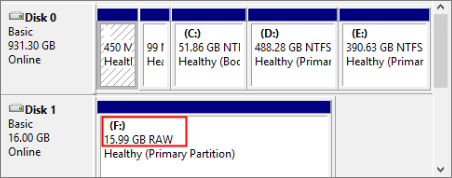
Step 1. To repair a RAW SD card without formatting, execute the command `chkdsk H: /f /r` in the Command Prompt. This will run a check on the SD card and attempt to repair any errors, potentially recovering it from the RAW state without the need for reformatting.
Step 2. Run a Qiling SD card recovery software to recover data from a RAW SD card.
Step 3. To format a RAW SD card to NTFS or FAT32, you can follow these steps. First, insert the SD card into your computer via a card reader.
Why SD Card Becomes RAW
When an SD card or another storage device becomes RAW, Windows will prevent you from opening the device and ask you to format the SD card, prompting you with an error message. This is because the RAW file system is not recognized by computers. The file system of your SD card turns to RAW due to reasons such as power failure during writing, improper ejection, or corruption. As a result, you won't be able to access your files, and you'll need to format the SD card to restore it to a usable state.
- If the file system of your SD card gets damaged or corrupted, you may encounter issues such as being unable to access files, receiving error messages, or the card becoming unreadable by your device. This can happen due to various reasons like improper ejection, physical damage, or software glitches.
- The file system of your memory card is missing
- The current file system of your SD card cannot be recognized by the computer because it is not formatted in a way that is compatible with the computer's operating system. This can be due to a variety of reasons such as the SD card being used in a camera or other device that uses a different file system, or the SD card being corrupted or damaged.
- Your SD card is not properly formatted with a file system, which means it's not ready to store files.
The issues listed could be caused by a virus attack, misoperations on the storage medium, format failure, or other factors. Despite the frustration of being unable to access a RAW SD card, resolving the issue is relatively straightforward.
2 Ways to Fix a RAW SD Card Without Losing Data
If you want to repair a RAW SD card without formatting, you can try running the CHKDSK command, which may be able to fix the issue. If this fails, there is a proven method available to fix the SD card in RAW format with ease.
Method 1. Repair RAW SD Card Without Losing Data by Formatting
Formatting a RAW SD card will erase all existing files, so it's recommended to recover the files first before formatting to avoid data loss.
You can't access files on a RAW device, but specialized software like Deep Data Recovery can help. This tool allows you to recover data from a RAW SD card, USB flash drive, external hard drive, or disk partition, and even format the RAW SD card to repair it without losing any data.
To recover data from RAW SD card:
Step 1. Launch Deep Data Recovery, select file types, and click "USB/SD Scan" to initiate the recovery process.

Note: You can choose different search modes based on where and why the data was lost.
Step 2. Connect the SD card, memory card, or CF Card to your computer and launch Qiling memory card recovery software. The SD card will be listed under the Devices section; choose it and click "Scan" to start looking for your lost data.

Step 3. The software automatically starts a powerful scan that can find all lost files, including those with lost file names. After scanning, you can view deleted items in the tree-view panel on the left. To find a specific file type, such as photos, documents, videos, or emails, click the "Filter" button.

Step 4. After previewing the files, you can select the ones you want to recover and click "Recover" to restore them to a secure location on your PC or other external storage devices.
If the data recovery software failed to restore RAW files, you can still recover the data by using Qiling RAW recovery services.
Consult with Qiling data recovery experts for a one-on-one manual recovery service. After a FREE diagnosis, we can offer various services, including manual recovery.
- Repair damaged RAW drive without formatting<
- Recover data from RAW drive, including BitLocker encrypted drives
- Recover RAW partition, USB, flash drive, external hard drive, etc. by using data recovery software that supports RAW partition recovery.
To format the SD card:
Step 1. To insert your SD card into your computer, you will need a card reader. This is a small device that connects to your computer via a USB port and has a slot on the front where you can insert your SD card.
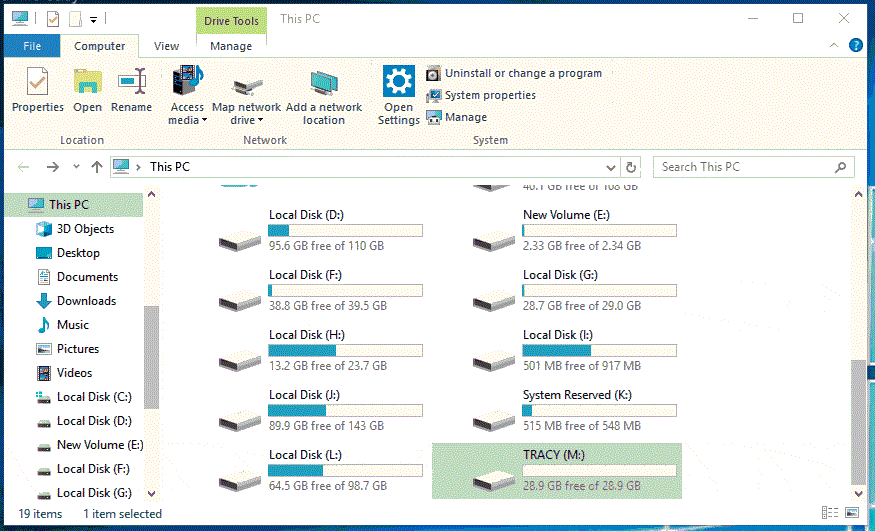
Step 2. Open "This PC". Right-click your SD card and choose "Format".
Step 3. In a new window, set a file system and click "Start".
Step 4. Click "OK" to start formatting your SD card in the Warning window.
Method 2. Fix SD Card Without Formatting
CHKDSK is helpful to repair a RAW drive only when the Master File Table (MFT) on the device is intact. If it's corrupted, you'll get an error message saying CHKDSK is not available for RAW drives.
Caution:Before running CHKDSK, ensure that you have recovered all data from the RAW SD card using a reliable file recovery software, as CHKDSK will permanently erase all data on the disk.
Step 1. Click "Start" and type cmd.
Step 2. Right-click "Command Prompt" and choose "Run as administrator".
Step 3. Enter the following command: chkdsk H: /f /r
Replace "H" with the drive letter of your RAW SD card.
If you're lucky, the CMD utility can help you successfully fix a RAW SD card while keeping all your data intact after completing all the necessary steps.
If you encounter the error message, you can fix the RAW SD card without losing files. Follow the method above, and once it's finished, you can copy the recovered files back to your SD card and use them as before.
The Bottom Line
Storage devices such as SD cards, USB drives, external hard drives, and local hard drives can become RAW, making them unusable. While running the CHKDSK command may not be effective in fixing a RAW device, the most straightforward solution is to perform RAW data recovery and then format the device directly. This approach can also be applied to other storage devices beyond just SD cards.
Related Articles
- How to Repair Memory Card Not Formatted
- How to Recover Deleted Photos & Videos from Android Without Root
- Fix and Restore External Hard Drive Shows Only 32GB to Full Capacity
- Fix Unreadable SD Card and Recover Data
- How to Recover LOST.DIR Files from Android SD Card/Memory Card
If you're looking to recover LOST.DIR files on your Android SD card or memory card, this guide can help. Recovering these files is a relatively simple process that can be completed in just a few steps. To get started, you can follow these three easy steps to retrieve your lost files. - 3 Ways for How to Recover Hidden Files from USB
If you're looking to recover hidden files from a USB storage device, this guide provides three methods to help you achieve this using either the Command Prompt or software.
Products
Articles & Tutorials
- Data Recovery
- Data Backup
- File Recovery
- File Backup
- System Backup and Restore
- Disk and Partition Clone
- Technical articles
- Mobile articles
- Disk Master Help
- Windows Data Recovery Tutorials
- Windows Secure Delete Tutorials
- Windows Partition Management Tutorials
- Windows File Backup and Restore Tutorials
- Windows System Backup and Restore Tutorials
- Windows Disk Backup and Restore Tutorials
- Windows Clone Tutorials