Fix Unreadable SD Card and Recover Data
- SD card shows up in Disk Management but inaccessible (RAW)
- SD card shows up in Disk Management as unallocated space (lost partition)
- Unreadable SD card shows as No Media in Disk Management
- SD card shows in Device Manager, not in Disk Management
- SD card can't be detected by Device Manager, Disk Management, nor File Explorer
Overview of Unreadable SD Card
Users often insert a Micro SD card into their phones or digital cameras to increase storage capacity, making it a convenient way to expand device memory.
When a Micro SD card becomes corrupted, it can become unreadable, preventing access to its contents on computers, smartphones, or digital cameras. A corrupted SD card may exhibit symptoms such as being unable to access its files on a PC, among other issues.
- SD card becomes RAW
- SD card lost partition
- SD card shows as No Media in Disk management
- A SD card that fails to show up or can't be detected by a PC is likely due to a faulty SD card reader, corrupted SD card data, or a compatibility issue between the SD card and the PC. To troubleshoot, try using a different SD card reader, checking the SD card for physical damage or signs of wear, and ensuring that the SD card is properly inserted into the reader.
Have you ever encountered an issue with your Micro SD card, making it unreadable? If you haven't found an efficient solution, you can try the methods and use professional SD card recovery software to fix the problem without losing any data.
How to fix and recover unreadable SD card
If you're experiencing issues with a Micro SD card being unreadable, the simplest solution is to recover your data from the card first and then format it for reuse. However, the causes of unreadable SD cards can vary, requiring different solutions depending on the specific case.
Here are the steps to fix an unreadable SD card with ease:
Case 1. Unreadable SD card shows up in Disk Management but inaccessible
The SD card becomes RAW, unsupported file system, access denied because the file system on the SD card has become corrupted or damaged, causing the device to no longer be able to read or access the files on the card. This can be caused by a variety of factors, such as a power outage, physical damage to the card, or a software issue.
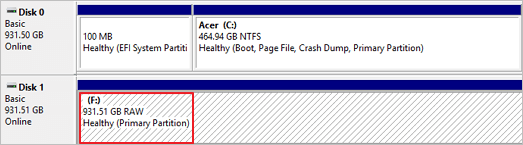
# 1. Recover data from unreadable Micro SD card
If you have saved data on your SD card, you can use reliable file recovery software, such as Deep Data Recovery, to scan and restore the data. This software can help you recover inaccessible data from an unreadable Micro SD card in just 3 steps.
This program has powerful data recovery capabilities and an intuitive user interface, enabling you to easily retrieve unreadable SD card data on your own at home.
Step 1. Select file types and click "USB/SD Scan" to start
- Download and install Deep Data Recovery on your Windows PC.
- 1) Make sure the SD card is properly ejected from any device it was previously connected to. 2) Insert the SD card into the computer's SD card reader or a USB adapter if the computer doesn't have a built-in reader. 3) Wait for the computer to recognize the SD card and assign a drive letter.
- Open Qiling SD card recovery software, select file types and click "USB/SD Scan" to begin the recovery process.

Note: You can choose different search modes based on where and why the data was lost.
Step 2. Select the SD card to scan
- All connected drives will be listed. Choose your SD card and click the "Scan" button.

Step 3. Check for scan results
- Wait for the scanning process to complete.
- To filter the file types shown, click on the "Filter" button and select the desired file types from the list, such as Pictures, Word, Excel, PDF, Videos, and others.
- Click "Preview" to check if they are the wanted files.

Step 4. Recover SD card data
- Choose desired files and click "Recover".
- If you're recovering files from a corrupted SD card, it's a good idea to save the recovered files to a different location, such as your computer's hard drive or an external hard drive, instead of the original SD card. This will prevent any potential data loss or corruption from affecting the recovered files.
# 2. Run CHKDSK command to fix the file system error on SD card
Caution: CHKDSK will cause a permanent data loss error while fixing this error. Before you start with this fix, make sure that you recover all data from the inaccessible device with Qiling file recovery software.
Step 1:Connect the SD card to your computer using an SD card reader. This will allow you to transfer files from the SD card to your computer.
Step 2:To access Command Prompt, right-click the Windows icon, type "cmd" in the search bar, and hit Enter to bring it up.
Step 3: Enter your administrator account and password if necessary.
Step 4: The command to run the check disk utility on a specific drive letter, such as an SD card, is `chkdsk sd card letter: /f` or `chkdsk sd card letter: /X /f`. For example, you can run `chkdsk /X /f G:` or `chkdsk h: /f` to check the disk for errors and attempt to repair them.
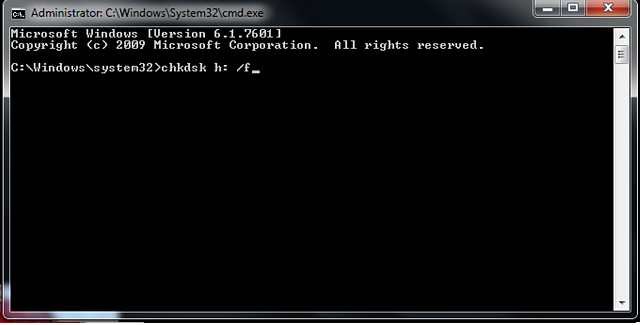
After this, you can check the File Explorer to see if the SD card is accessible. If not, proceed with the repairing process.
Qiling CleanGenius is a user-friendly computer fixing tool that's both safe and lightweight, making it the perfect alternative to the CHKDSK command.
Step 1. DOWNLOAD Qiling CleanGenius on your computer and complete the installation.
Step 2. Run the software. Click "Optimization", and then choose "File Showing".
Step 3. Select the drive with a corrupted file system. Tick the "Check and fix file system error" option and click "Execute".
Step 4. Wait the tool performs the repairing task. After that, click the "here" button to check the drive.
# 3. CHKDSK Alternative - Format SD card to FAT32
Step 1: Connect the SD card to your PC.
Right-click on This PC/My Computer, select "Manage".
Step 2:To format the SD card, go to Disk Management, find and right-click on the SD card, and select the "Format" option.
Step 3: The system will then format the SD card with the FAT32 file system, which is a widely used and compatible file system that is suitable for most devices. This process will erase all data on the SD card, so make sure to back up any important files before proceeding.
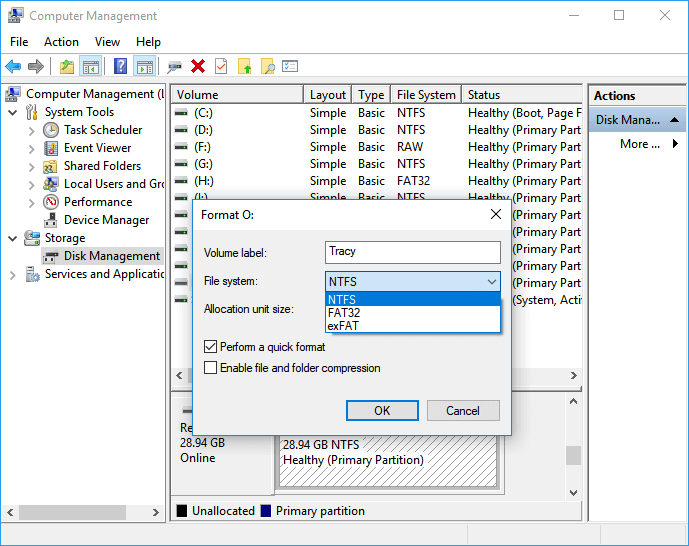
After saving the data, you can transfer it to your PC, mobile phone or camera, etc. devices again.
Case 2. Unreadable SD card shows up in Disk Management as unallocated space (lost partition)
Applies to: SD card lost partition, became unallocated
# 1. Recover data from unallocated SD card
When an SD card loses its partition, you can't access the data on it. Deep Data Recovery can help you recover data from the unallocated space on the SD card.
Save files to another secure location before making the SD card readable again.
# 2. Create a new partition on the unallocated SD card
Step 1: Connect the SD card to PC and open Disk Management.
Step 2: To create a new simple volume on your SD card, right-click on the unallocated space and select "New Simple Volume".
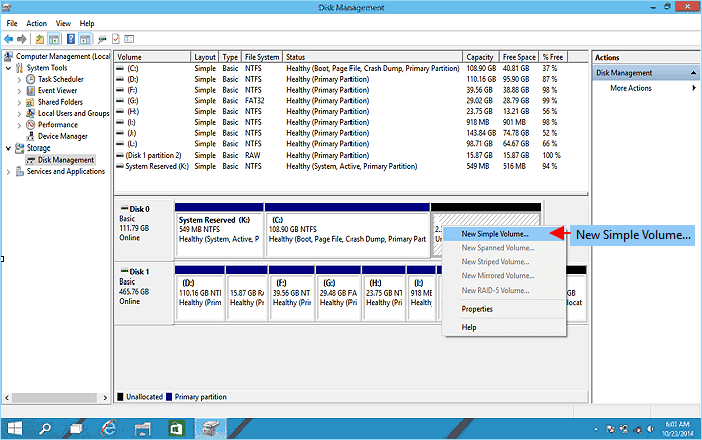
Step 3:To proceed, enter the New Simple Volume Wizard interface and click "Next" to continue.
To format an SD card for use with a Raspberry Pi, go to the Disk Management tool, select the SD card, and click on the "Format" button. In the new window that appears, select the file system as FAT32 and assign a drive letter or path. Click Finish to complete the process.
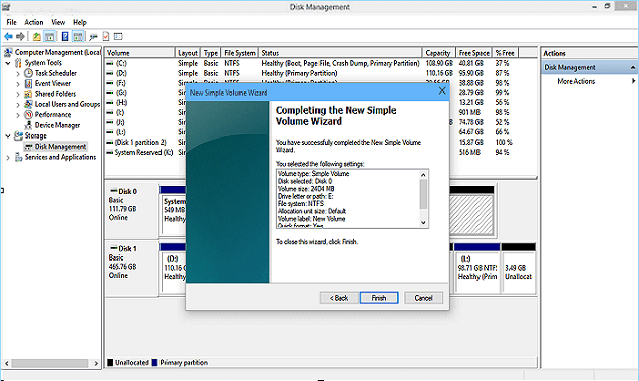
The SD card is now accessible and available for you to store and save files again.
Case 3. Unreadable SD card shows as No Media in Disk Management
The SD card is not recognized by the system and shows up as "No Media" in Disk Management, indicating that the system is unable to detect any partition on the card. This could be due to a corrupted partition table, a faulty SD card, or a driver issue.
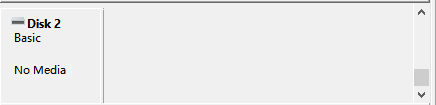
To fix this issue, you can try two methods for help.
# 1. Update SD card driver
Step 1:Connect the unreadable SD card to your PC. Right-click on the This PC/My Computer icon, select Manage, and then navigate to the Device Manager.
Step 2:To resolve the issue, expand the Disk drivers and find the 0 bytes hard drive that shows up as "no media". Right-click on it and choose "Update driver".
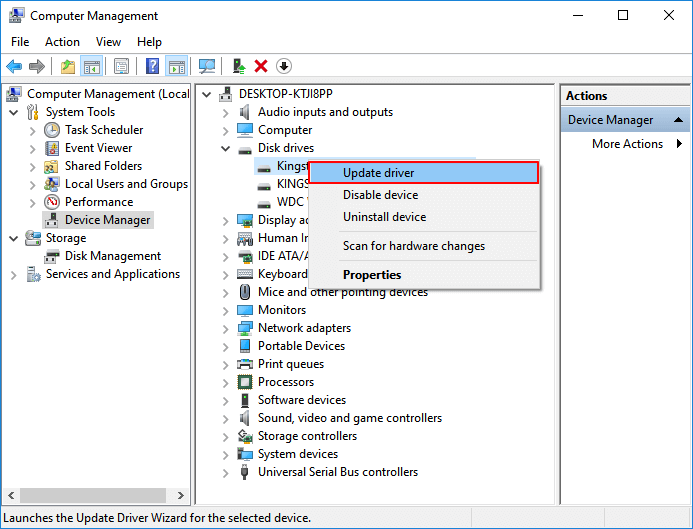
Step 3: Select "Search automatically for updated driver software" and wait patiently till the process completes.
- Restart the PC if necessary.
# 2. Take the SD card repaired at a local device repair center
If the SD card partition doesn't show in Disk Management, you'll need to take it to a local device repair center for help.
Case 4. Unreadable SD card shows in Device Manager, not in Disk Management
The SD card is only visible in the Device Manager, but not in Disk Management or File Explorer, indicating an issue with the SD card's detection or recognition by Windows. This could be due to a corrupted or outdated driver, or a problem with the SD card itself.
# 1. Update SD card driver
# 2. Change SD card reader, adapter or USB port
If you're having trouble reading an SD card, you might be able to fix the issue by replacing the SD card reader, adapter, or USB port. This could potentially make the card readable again.
# 3. Take SD card to a local device repair center
If the card still doesn't show up, take it to a local repair center. Professional manual repair service providers may have a solution to resolve your problem.
Case 5. Unreadable SD card can't be detected by Device Manager, Disk Management, nor File Explorer
If your SD card is not being detected by Device Manager, Disk Management, or File Explorer, try restarting your device in Safe Mode, checking for loose connections, and updating your device's drivers. You can also try using a different SD card reader or formatting the SD card in a different device.
# 1. Change SD card reader, adapter or USB port
# 2. Take SD card to a local device repair center
# 4. Change a new SD card, give up the old SD card
If all else fails and your SD card still isn't working, it's likely time to replace it with a new one.
Bottom Line
When an SD card becomes unreadable, troubleshooting steps to fix an unreadable Micro SD card can be taken, such as checking the card's compatibility with the device, ensuring it's properly inserted, and using a card reader to access the card's content. If none of these steps work, it may be necessary to use data recovery software or seek professional help to recover the data.
- 1. Check file system error
- 2. Format SD card to FAT32
- 3. Create a new partition on an unallocated SD card
- 4. Update SD card driver
- 5. Change a new SD card reader, adapter, USB port.
- 6. Take SD card repaired at a local repair center
To recover your lost data, the most important thing is to apply reliable data recovery software for help. Qiling Data Recovery Wizard is a software that supports rescuing your data with ease.
This recovery tool is effective not only in recovering data from hard drives but also in other storage media data recovery cases, such as recovering formatted USB drives, deleted files from pen drives, and more.
It's always important to back up valuable data from the SD card to an external hard drive or a secure location on PC.
Related Articles
- How to Fix Seagate External Hard Drive Not Working in Windows/Mac
- FIX: HDD/SSD Unknown Device in Device Manager Windows 10/8/7
- How to Recover Data from Corrupted or Scratched CD/DVD
- [2022 New] LaCie External Hard Drive Troubleshootings, No Data Loss
- Recover 0 Byte Files in Windows 10/8/7
If your saved files suddenly turn into 0 bytes, as there are 6 ways to remove the 0KB virus from your PC on Windows 11/10/8/7 easily. - How to Restore Previous Versions of File or Folder Windows 10/8/7
To recover an older version or restore a previous version of a file or folder in Windows 10/8/7, you can use the built-in feature called Previous Versions.
Products
Articles & Tutorials
- Data Recovery
- Data Backup
- File Recovery
- File Backup
- System Backup and Restore
- Disk and Partition Clone
- Technical articles
- Mobile articles
- Disk Master Help
- Windows Data Recovery Tutorials
- Windows Secure Delete Tutorials
- Windows Partition Management Tutorials
- Windows File Backup and Restore Tutorials
- Windows System Backup and Restore Tutorials
- Windows Disk Backup and Restore Tutorials
- Windows Clone Tutorials